Set your shop up once, then sell. Most shops are ready in under an hour.
Your first hour
Where: After your company is approved
The order that gets a new shop selling fastest.
How to use it
Settings & Account › Settings: check your currency and time zone, then open Business details and add your address, phone, tax number and bank account (the bank account prints on invoices).
Catalog › Tax Rates: add the rates you charge, e.g. Sales Tax 8%.
Catalog › Categories, then Products: add your products, or use Import CSV to load a spreadsheet.
Stock › Inventory: set opening stock for each branch.
Team › Users: invite your staff, give each a role, and set each cashier's PIN and discount limit.
Settings & Account › Branding: upload your logo so it prints on receipts and invoices.
Open POS (bottom of the menu) and ring up your first sale.
When you're ready, Settings & Account › Billing: choose a plan and pay by card (monthly or yearly), or ask for a local bank transfer.
Every password box has an eye button to show what you typed before you press Sign in.
The download icon at the top of every page holds large reports being prepared for you (see Reports).
Dashboard
Where: Dashboard
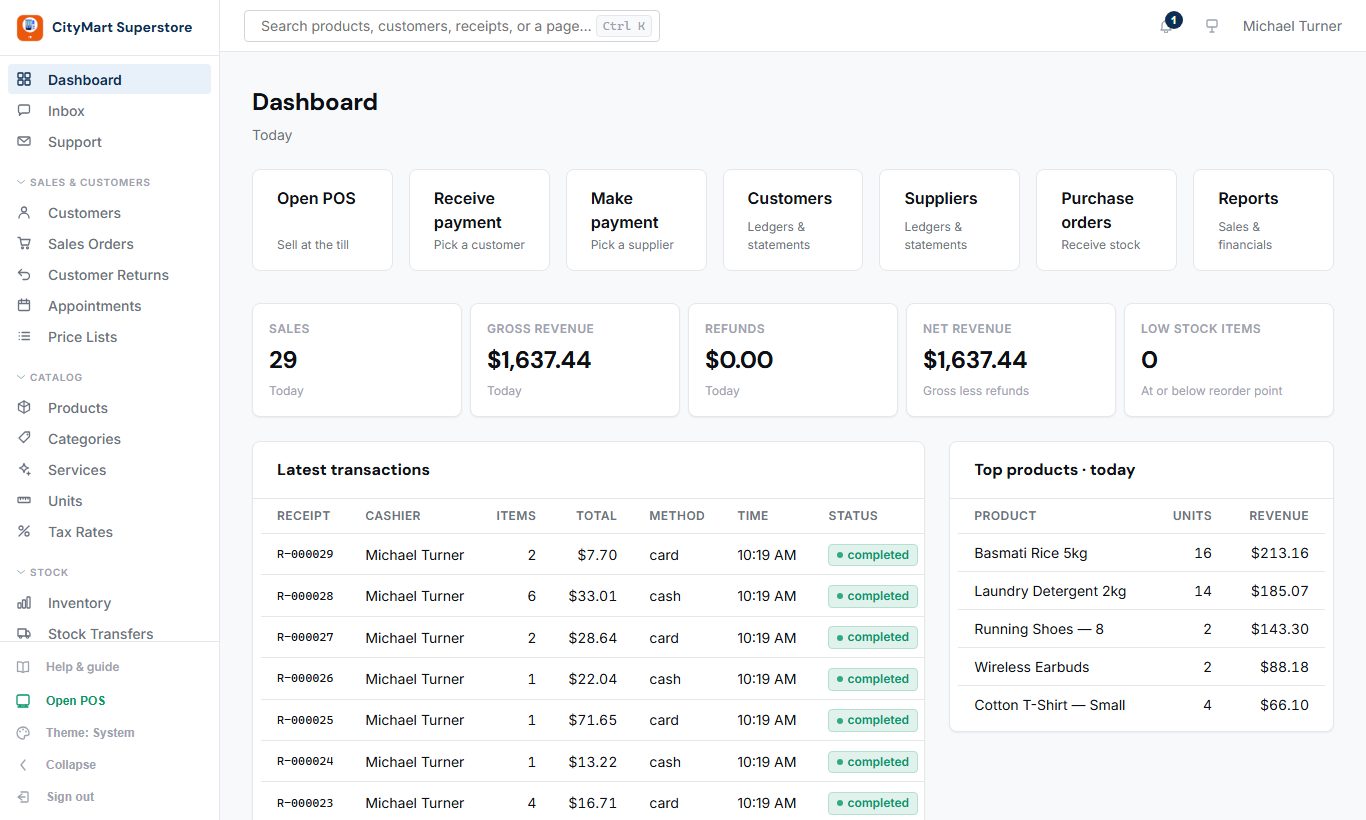
Today at a glance: sales, revenue, refunds, low stock, the latest transactions and your best sellers.
How to use it
Use the tiles at the top to jump to the jobs you do most: open the till, receive or make a payment, open customers, suppliers, purchase orders or reports.
Check Latest transactions and Top products to see how today is going.
Low stock items counts products at or below their reorder point. To switch it on: set a reorder point on each item (Stock › Inventory, the Reorder point button), then Settings & Account › Settings › General, tick "Show low-stock alerts on the dashboard" and press Save.
Dashboard - click to enlarge
Selling (POS)
The till your cashiers use. Open it from Open POS at the bottom of the menu.
Checkout
Where: Open POS › Checkout
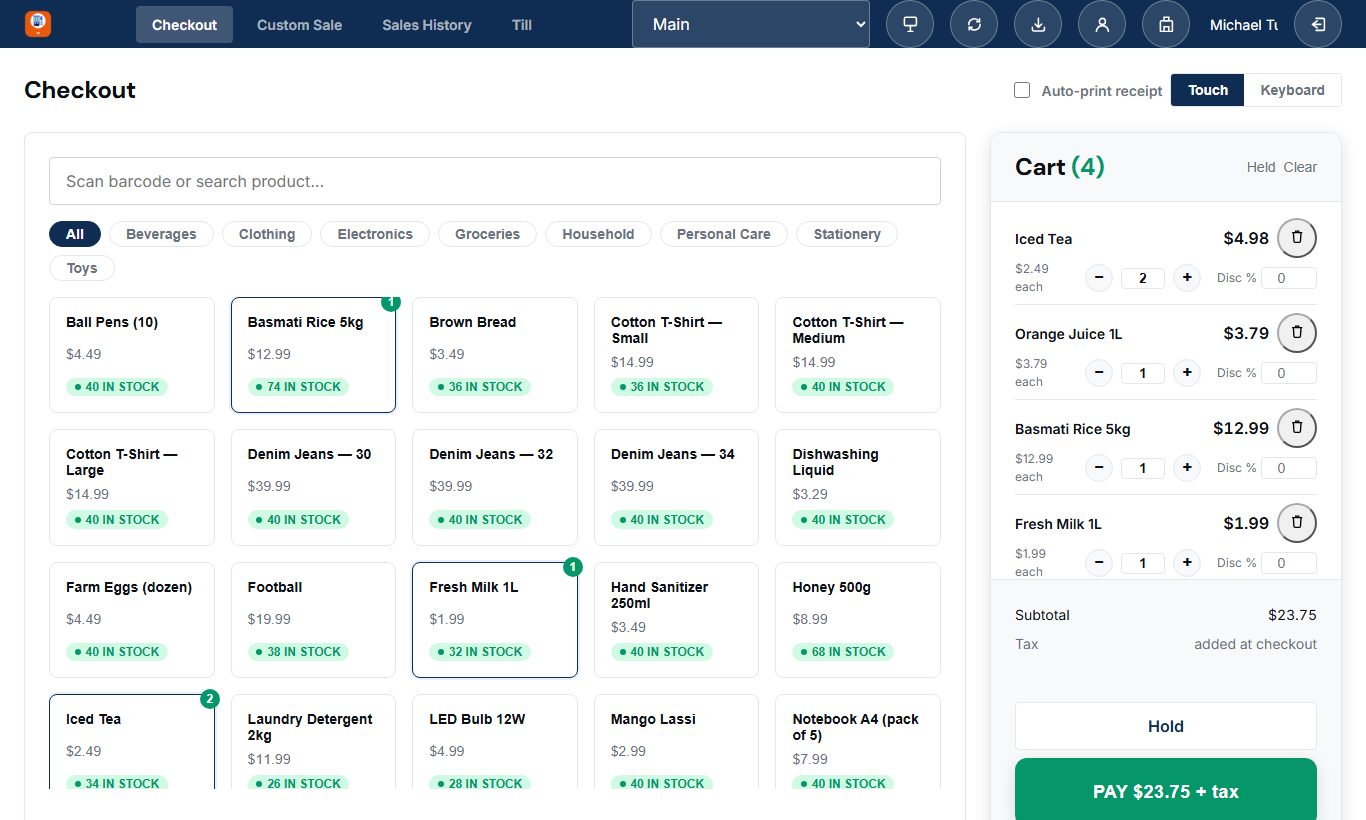
Ring up sales by barcode, search or tapping products, take payment, and print a receipt.
How to use it
Scan a barcode, or type a product name and press Enter to add it to the cart.
Change quantity or give a line discount from the cart (discounts above your role's limit are refused).
Press Pay, choose cash, card, bank transfer, cheque, mobile wallet or other, and press Confirm sale. Add another payment to split the bill; for cash, type the amount handed over to see the change due.
Print the receipt, or reprint it later from Sales History.
Held carts: park a sale for a customer who stepped away and resume it later.
Three ways to work (top right): Keyboard for a scanner and keys (the products and categories show until you start typing), Touch for large product tiles on a tablet, and Touch pad for a touch screen with an on-screen keyboard and number pad. Each product tile shows its stock.
Product discounts (Catalog › Discounts) are taken off by the till by itself and named on the cart line. A cashier's own discount, on a line or the whole bill, is capped by the limit set for them; the server refuses anything above it.
Subtotal, discount, tax and total are shown before you press Pay, in every mode. The server prices every sale, and a sale sent twice after a dropped connection is charged once.
Auto-print receipt (tick box above the till) prints straight away and goes back to a new sale.
Shared till: Switch user (the person icon at the top) lets another cashier take over with their PIN; the bar shows "Selling as" with their name until the till is handed back. A wrong PIN is refused. Switching needs a connection.
Till sales are not linked to a customer. To bill a named customer or sell on account, use Custom Sale.
Offline: an enrolled till keeps selling cash sales without internet (see Selling offline below).
Open POS › Checkout - click to enlarge
Custom Sale (invoices)
Where: Open POS › Custom Sale
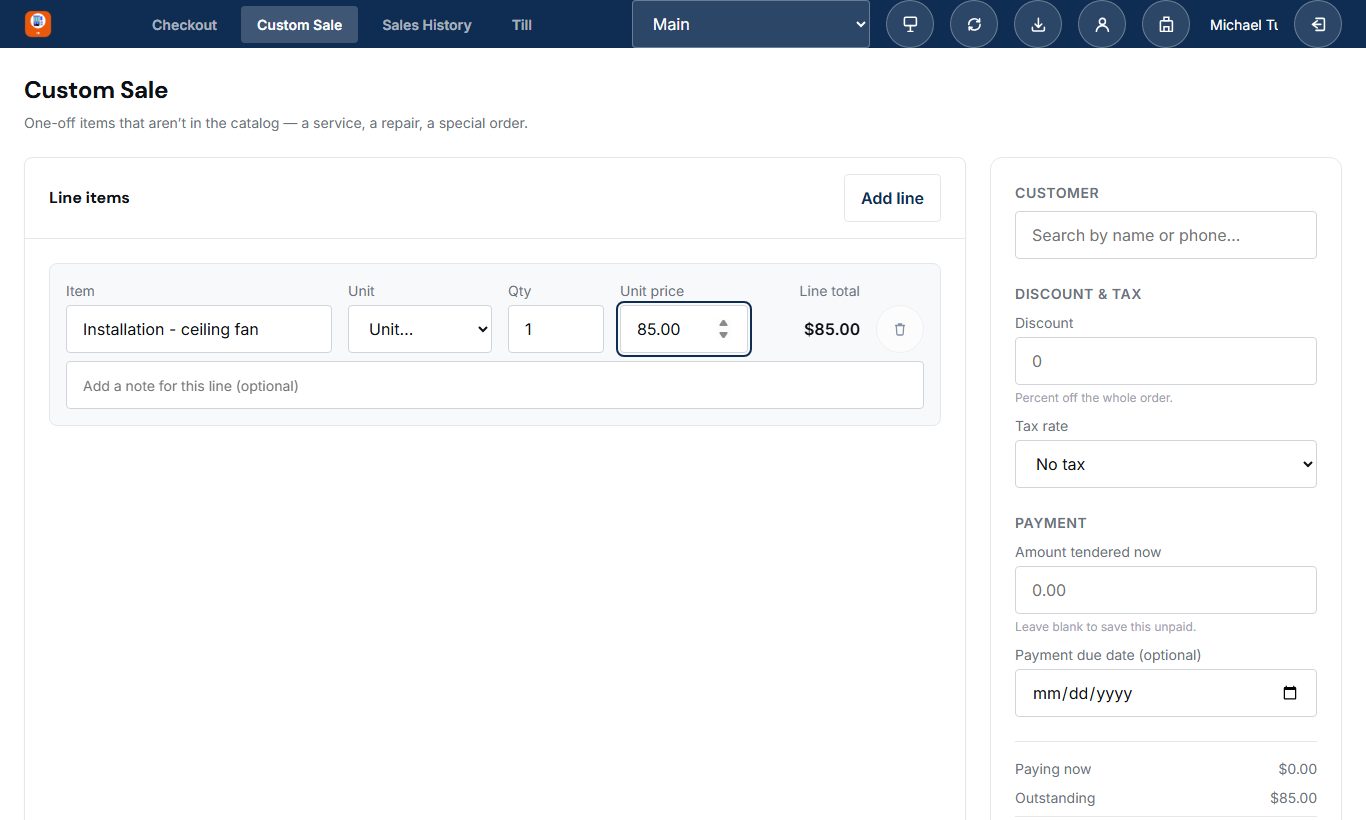
Bill anything that isn't a catalogue product - services, labour, one-off items - on a proper A4 invoice.
How to use it
Pick the customer (required).
Add lines: item name, unit (hour, kg, piece...), quantity and price.
Add an order discount or tax rate if needed.
Take full, part or no payment. Anything unpaid stays on the customer's account.
Print the A4 invoice.
With Customer credit limits on, a sale that would take the customer past their limit is refused unless you're allowed to approve it.
Open POS › Custom Sale - click to enlarge
Sales History
Where: Open POS › Sales History
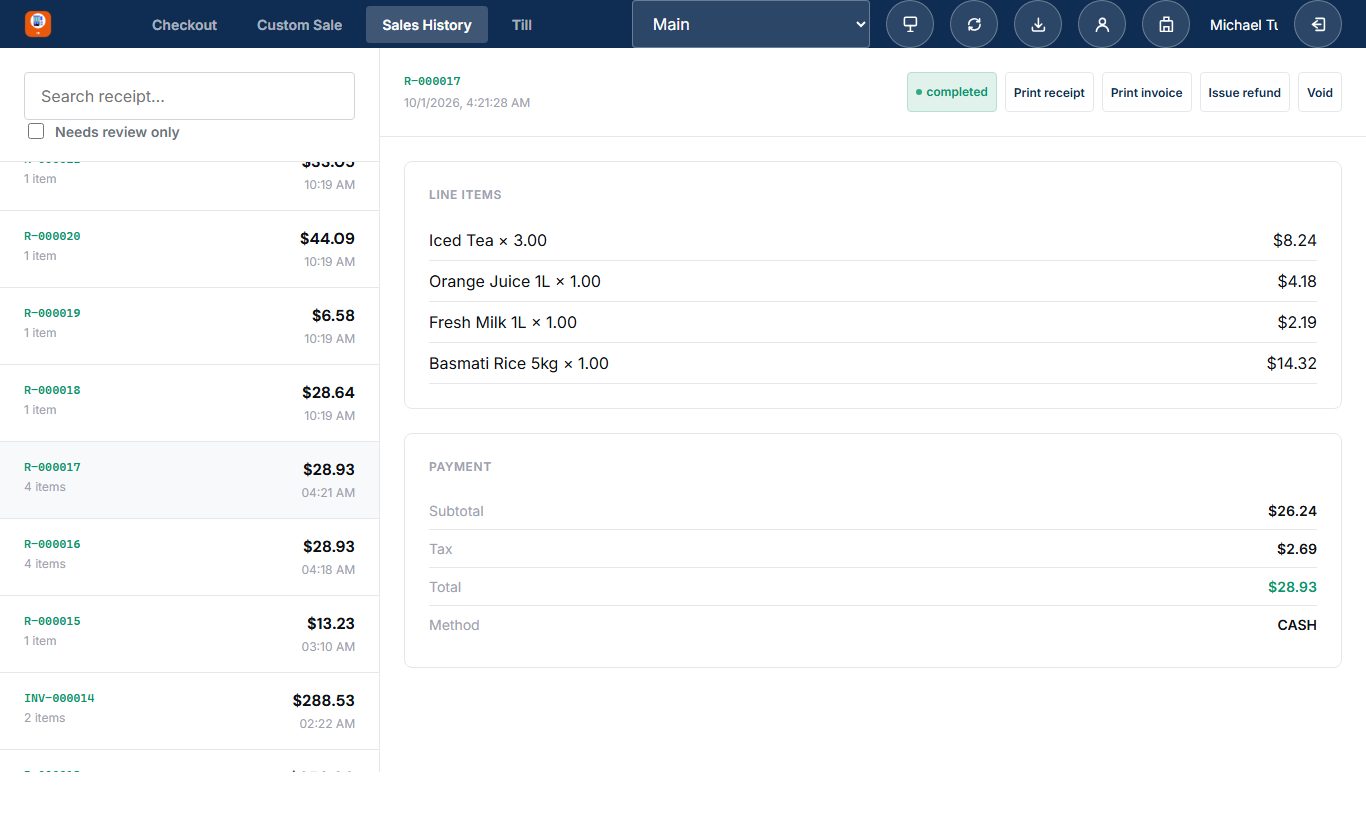
Find any sale at this branch by its receipt number, reprint it, refund it, or void it.
How to use it
Type part of the receipt number to search every sale at this branch, however old. A receipt printed while the till was offline is found by the number on that slip too.
Load more at the bottom of the list brings older sales.
Open a sale to reprint the receipt or print an A4 invoice.
Refund: choose the lines and quantities coming back; stock returns to the shelf.
Void: cancels a sale completely (needs the void permission).
Refunding an invoice that is not fully paid takes the value off what the customer owes first. Money is paid back only for the part they had actually paid; the screen tells you the split before you confirm.
Needs review only lists sales an offline till uploaded that someone should check.
Open POS › Sales History - click to enlarge
Till (shifts & cash-up)
Where: Open POS › Till
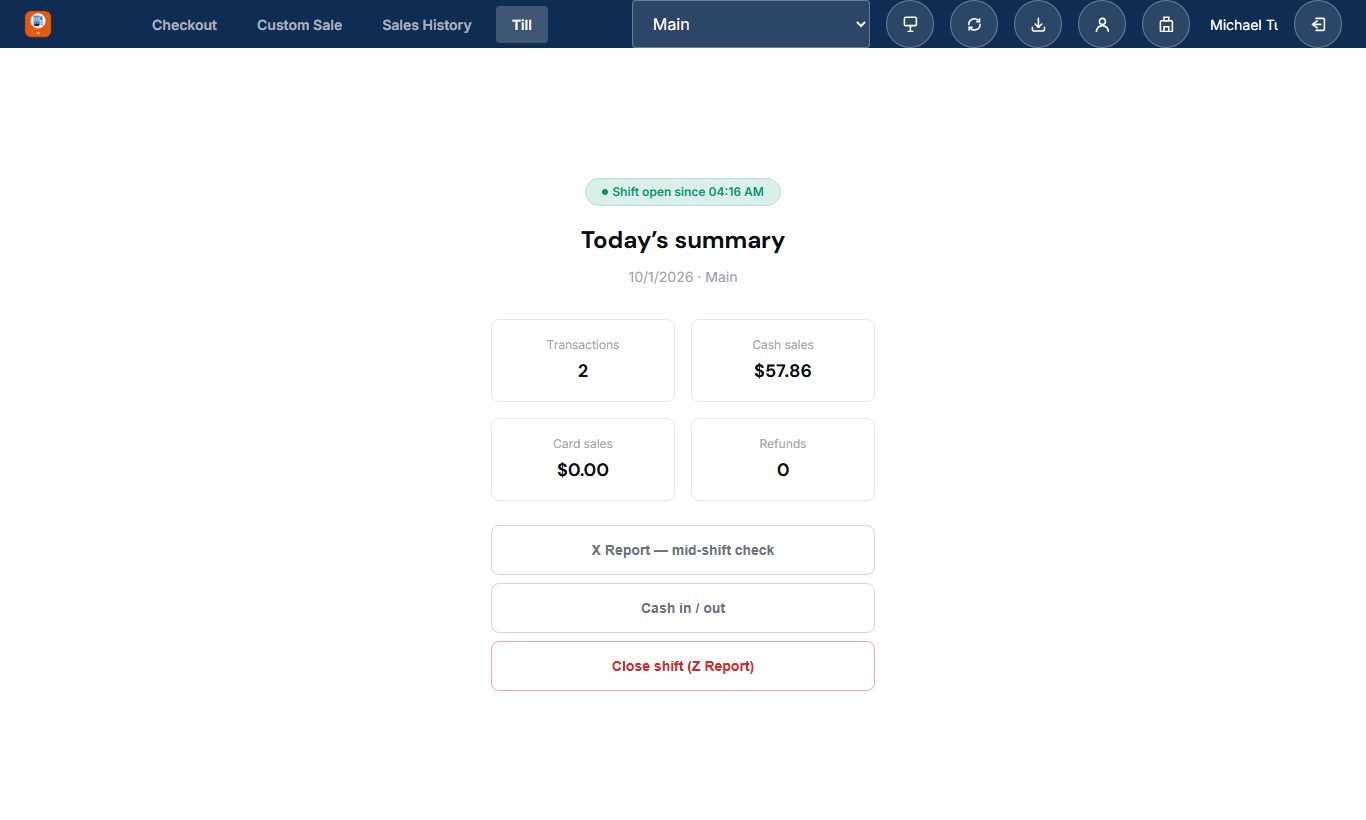
Open a shift with a float, record cash in and out, and close with a count.
How to use it
Open the shift and enter the opening float.
Record any cash taken out or put in during the day, with a reason.
At closing, count the drawer and enter the amount. The difference against expected cash is shown and kept.
X report: a mid-shift summary (float, cash and card sales, cash in and out, cash expected) without closing. Z report: the same at closing, with the count and the difference.
Open on other tills (managers): shifts left open on another till can be seen and closed from here, for example when that device is lost.
A till name is used once. It is printed on that till's offline receipts, so a replaced device gets a new name.
Open POS › Till - click to enlarge
Selling offline
Where: Open POS, on an enrolled till
A till that has been enrolled keeps taking cash sales when the internet drops, and uploads them when it comes back.
How to use it
Enrol the till once, while online: Team › Devices › Generate enrolment code, then enter the code on that till.
Optionally install it as an app: the Install till button on the POS bar (or the browser's Install option) puts it on the desktop or home screen.
Give each person an offline PIN (Team › Users › the person). The till keeps its own copy of the products, prices, discounts and the staff PIN list, and refreshes it by itself; the sync button on the POS bar refreshes it now.
If the till is opened with no internet, sign in on the Unlock offline screen: choose your name and enter your offline PIN. Too many wrong PINs lock it for a while.
Sell as usual. The bar says you are offline; sales, held carts and refunds wait on the till.
When the connection returns, everything uploads by itself, each sale exactly once. Sales History › Needs review only lists any an admin should check.
Offline the till takes cash only, cannot search customers (the sale is walk-in), shows an empty Sales History, and cannot switch cashier.
A till that stops uploading is reported on Team › Devices; a lost till can be revoked there.
Only an enrolled till receives the staff PIN list - an ordinary browser never does.
Sales & Customers
Everything about the people who buy from you.
Customers
Where: Sales & Customers › Customers
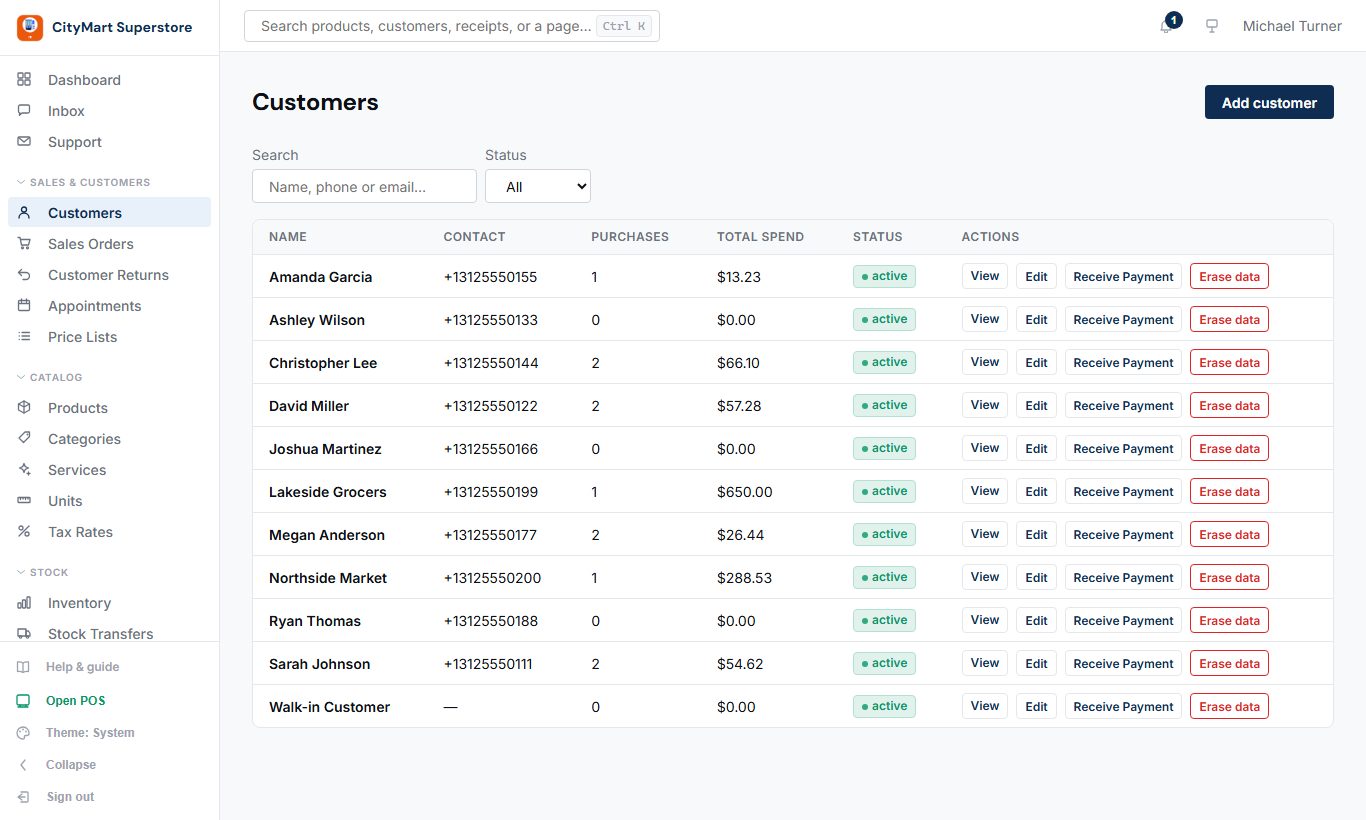
Your customer list, each with purchase history, what they owe, payments and a printable statement.
How to use it
Add a customer with a name and, ideally, a phone number.
Open a customer to see open invoices and their balance.
Receive payment: enter the amount; it pays the oldest invoices first, or choose invoices yourself. Overpayments become a credit used on their next invoice.
Print or download a statement for any period.
Credit limits (optional): Settings & Account › Settings › General, tick "Customer credit limits", press Save; then open a customer and set the limit on the Credit limit card. A Custom Sale that would take them past it is refused unless the person selling may approve it; offline sales are flagged for review instead.
Price lists (optional): tick "Price lists" in the same place and press Save; the Price list card then appears on the customer page (see Price Lists).
A customer asks for their data, or to be forgotten: Download customer data on their page, or Erase data in the customers list - their sales stay in your books without the name and contact.
Customer balance reports (outstanding, aging, payments) need a reports permission as well as customer access, so cashiers can look customers up at the till without seeing everyone's balance.
Sales & Customers › Customers - click to enlarge
Sales Orders (wholesale)
Where: Sales & Customers › Sales Orders
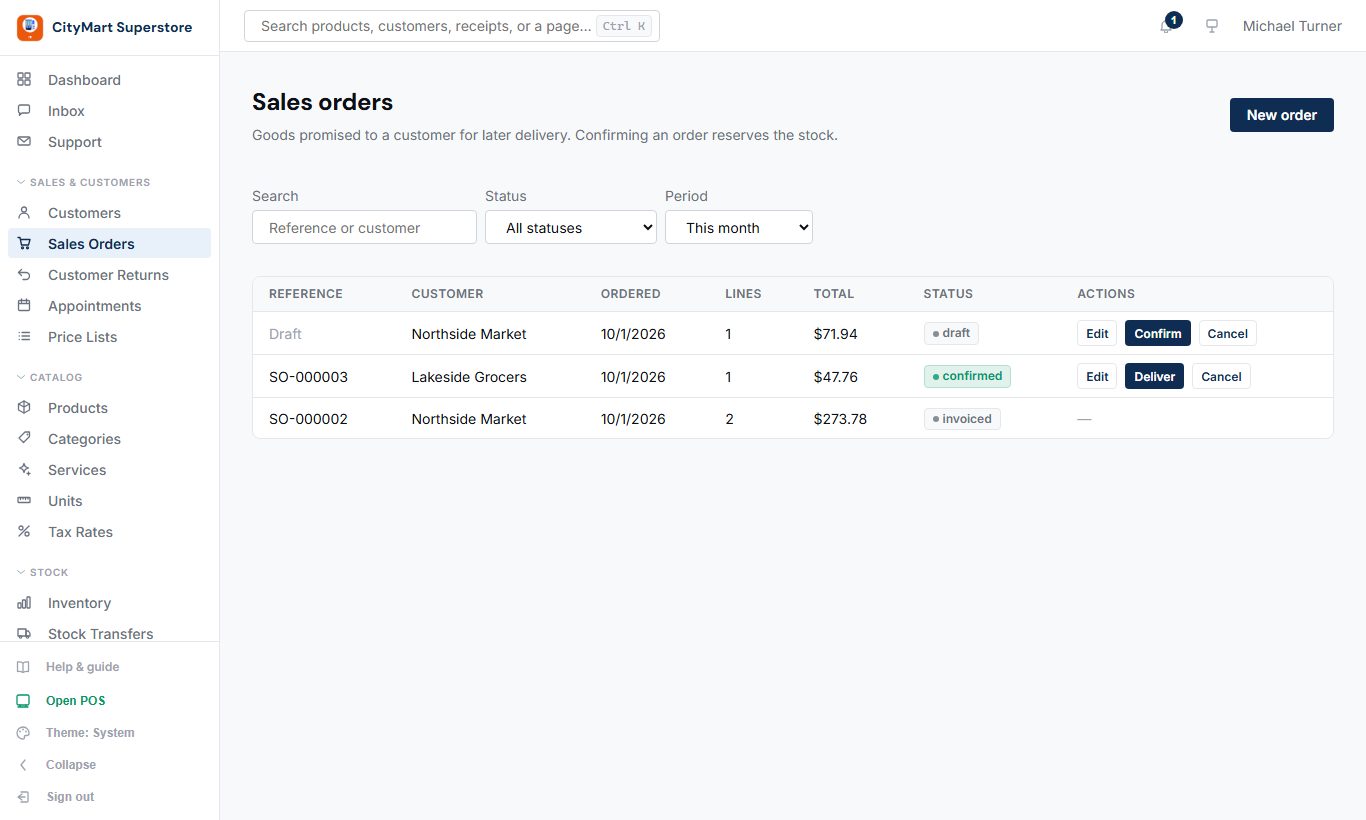
Take an order now and deliver later: stock is reserved, delivered in parts, and invoiced on delivery.
How to switch it on
Open Settings & Account › Settings and choose the General tab.
Scroll to the switches and tick "Take orders for later delivery".
Press Save at the bottom of the page. The menu item appears straight away (reload the page if it does not).
To hide it again, untick the same box and press Save - nothing already recorded is deleted.
How to use it
New order: pick the customer, add items and quantities.
Confirm it to reserve the stock.
Create a delivery when goods go out; you can deliver part of the order. The delivery screen shows how much is in stock and warns before a delivery takes the count below zero.
Print the delivery note, then invoice what was delivered.
Edit an order (and add products) until its first delivery.
A product's discount is suggested on the order line, never forced. Keep it and the invoice and the Discounts report name it; type your own price instead and that wins.
A delivery is always recorded, because the goods have left - correct the count afterwards if needed.
Sales & Customers › Sales Orders - click to enlarge
Customer Returns
Where: Sales & Customers › Customer Returns
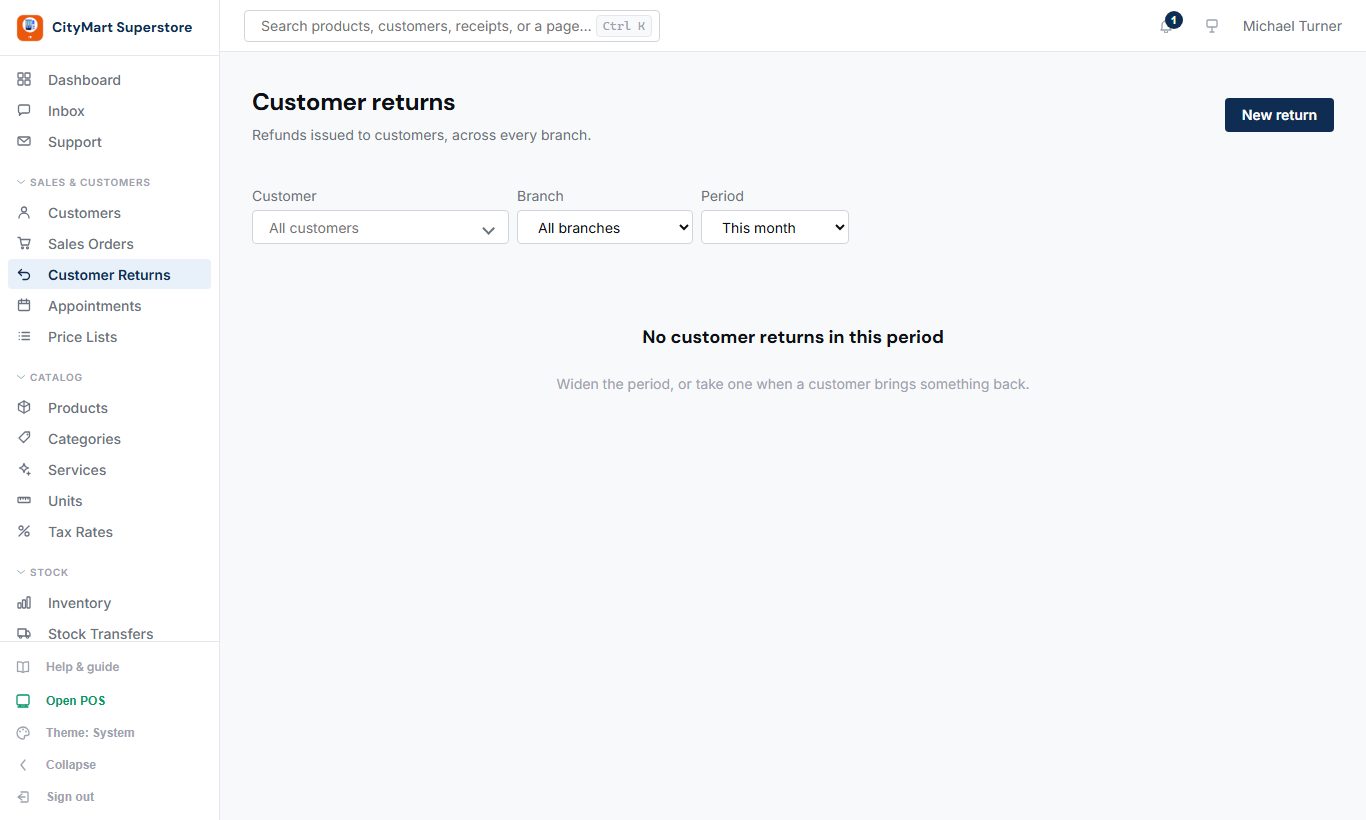
Every refund in one list, with the original receipt, reason and amount.
How to use it
Filter by customer, branch and period to see what came back and why, or type a return number to go straight to it whatever its date.
New return records goods a customer brings back.
If the invoice is not fully paid, the return reduces what the customer owes before any money is paid back, and it shows on their statement as Goods returned.
Sales & Customers › Customer Returns - click to enlarge
Appointments
Where: Sales & Customers › Appointments
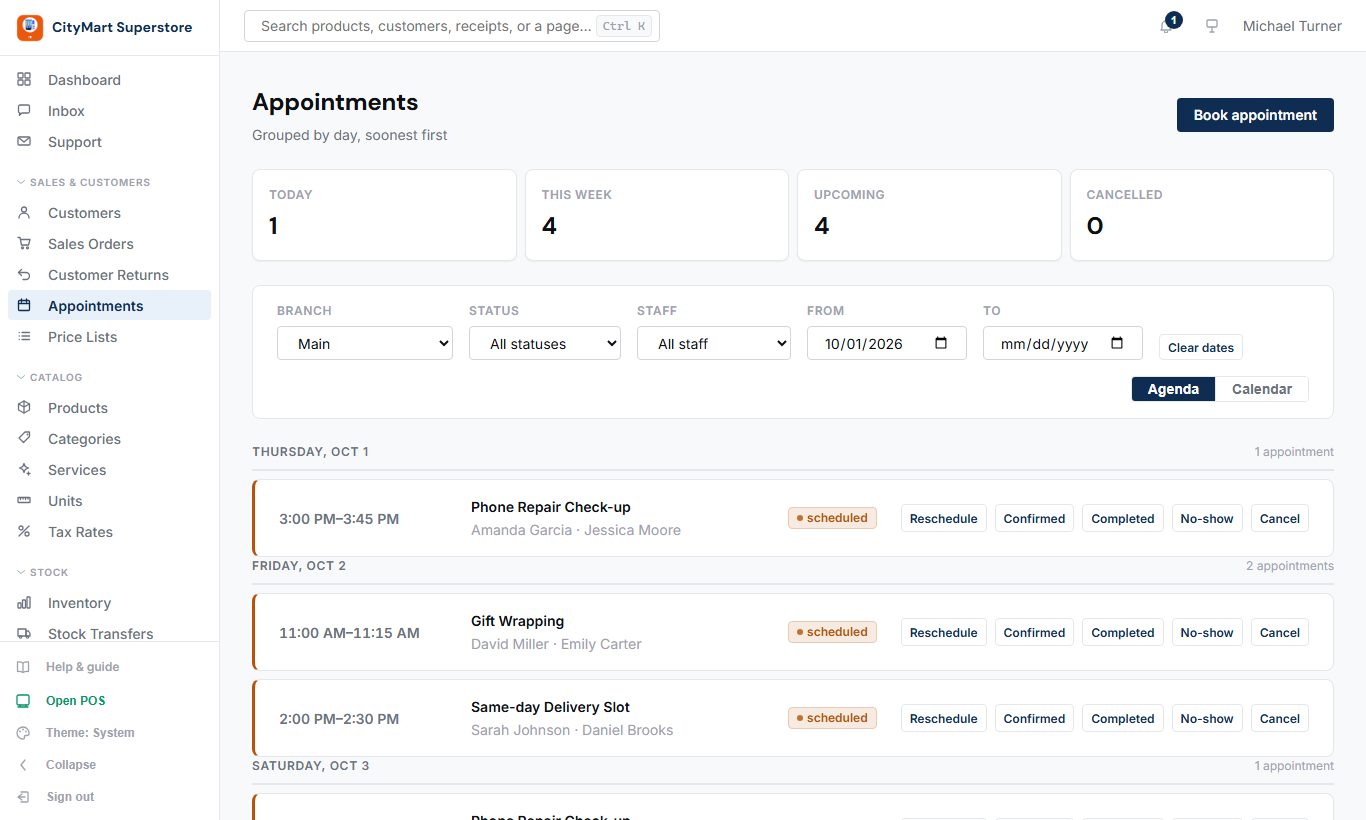
Bookings for services, as a list or a weekly calendar, with staff and times.
How to switch it on
Appointments must be part of your plan. If its menu item shows a lock, or the page says it is not part of your plan, open Settings & Account › Plan to see what your plan includes, then change plan on the Billing page or ask Support.
Add your services in Catalog › Services (each with its length and price).
Set when each person works: Team › Users, open the person, then Availability.
Reminder emails: Settings & Account › Settings › General, tick "Email customers a 24-hour and 1-hour reminder before their appointment" and press Save.
Online booking by customers: switch the website on as in Website › How to switch it on (the public storefront box in Settings, then Published on the Website page).
Optional: connect Google Calendar from Sessions (the icon at the bottom of the menu).
How to use it
Add services first (Catalog › Services) and set staff availability (Team › Users › the person › Availability).
Book an appointment: customer, service, staff member and time.
Confirm, reschedule, reassign or complete it. Customers get reminders and can confirm or reschedule from a link.
Customers can book themselves from your website when online booking is on.
Sales & Customers › Appointments - click to enlarge
Price Lists
Where: Sales & Customers › Price Lists
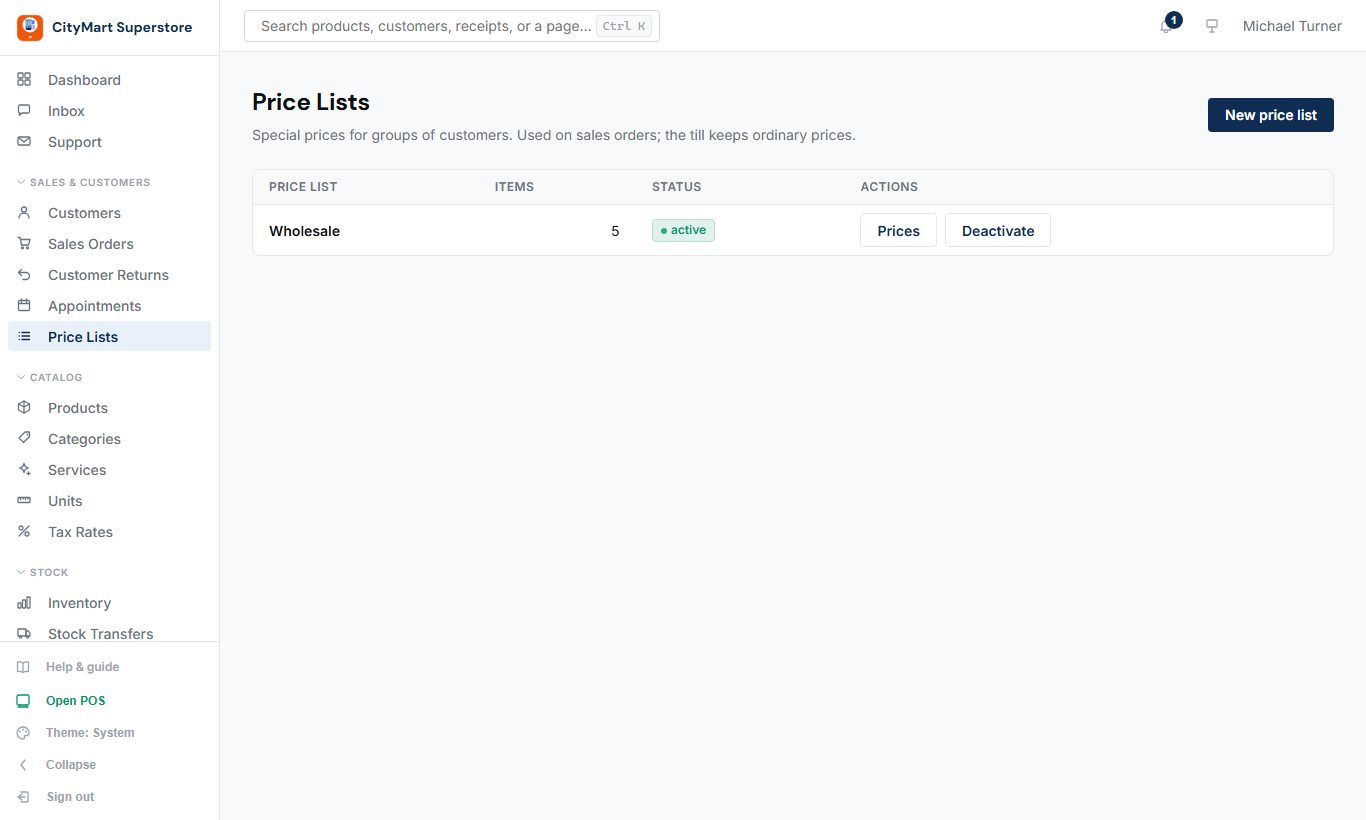
Special prices for groups of customers, such as Wholesale or Trade.
How to switch it on
Open Settings & Account › Settings and choose the General tab.
Scroll to the switches and tick "Price lists".
Press Save at the bottom of the page. The menu item appears straight away (reload the page if it does not).
Create a list under Sales & Customers › Price Lists, then open each customer and choose their list on the Price list card.
To hide it again, untick the same box and press Save - nothing already recorded is deleted.
How to use it
New price list, give it a name.
Open Prices and add items with their list price; the screen shows the difference from the normal price.
Put a customer on the list from their customer page.
Sales orders for that customer then use the list price automatically (a price typed by hand still wins).
The POS till keeps normal prices.
Sales & Customers › Price Lists - click to enlarge
Catalog
What you sell.
Products
Where: Catalog › Products
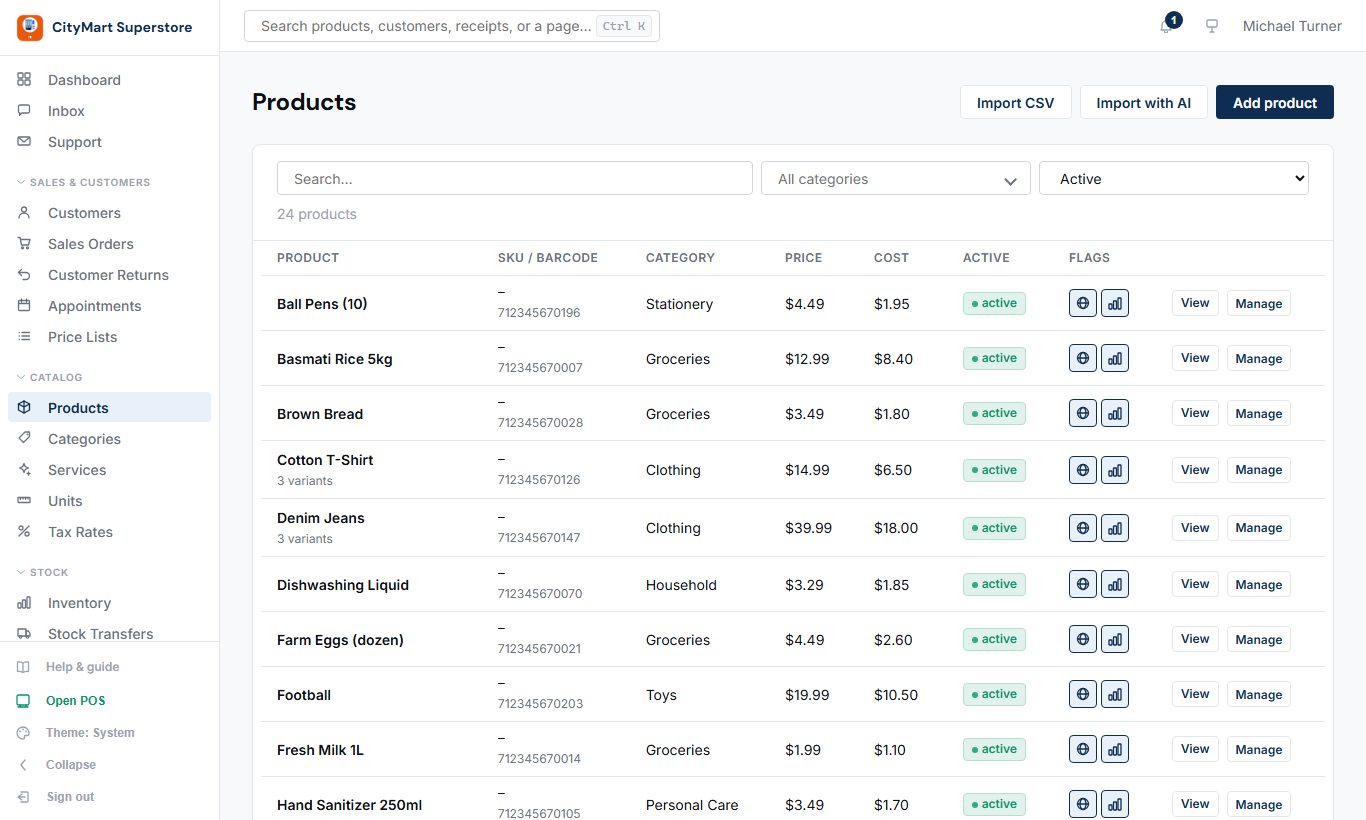
Your products with variants (size, colour...), barcodes, prices, cost, tax and photos.
How to use it
Add product: name, category, and at least one variant with a price.
Add a barcode so it scans at the till, and a cost price so profit reports are accurate.
Choose which tax rates apply.
Import CSV loads many products at once; Import with AI can read a messy spreadsheet.
Tick Website in the Flags column for products you want in your online catalogue; Manage › Website adds a description just for the website.
Pack sizes (optional): Settings & Account › Settings › General, tick "Pack sizes", press Save. Each product page then has a Pack sizes card (e.g. Carton of 12) and purchase orders can be entered in packs; stock is still counted in single units.
Product images: up to 1 MB each.
Catalog › Products - click to enlarge
Categories
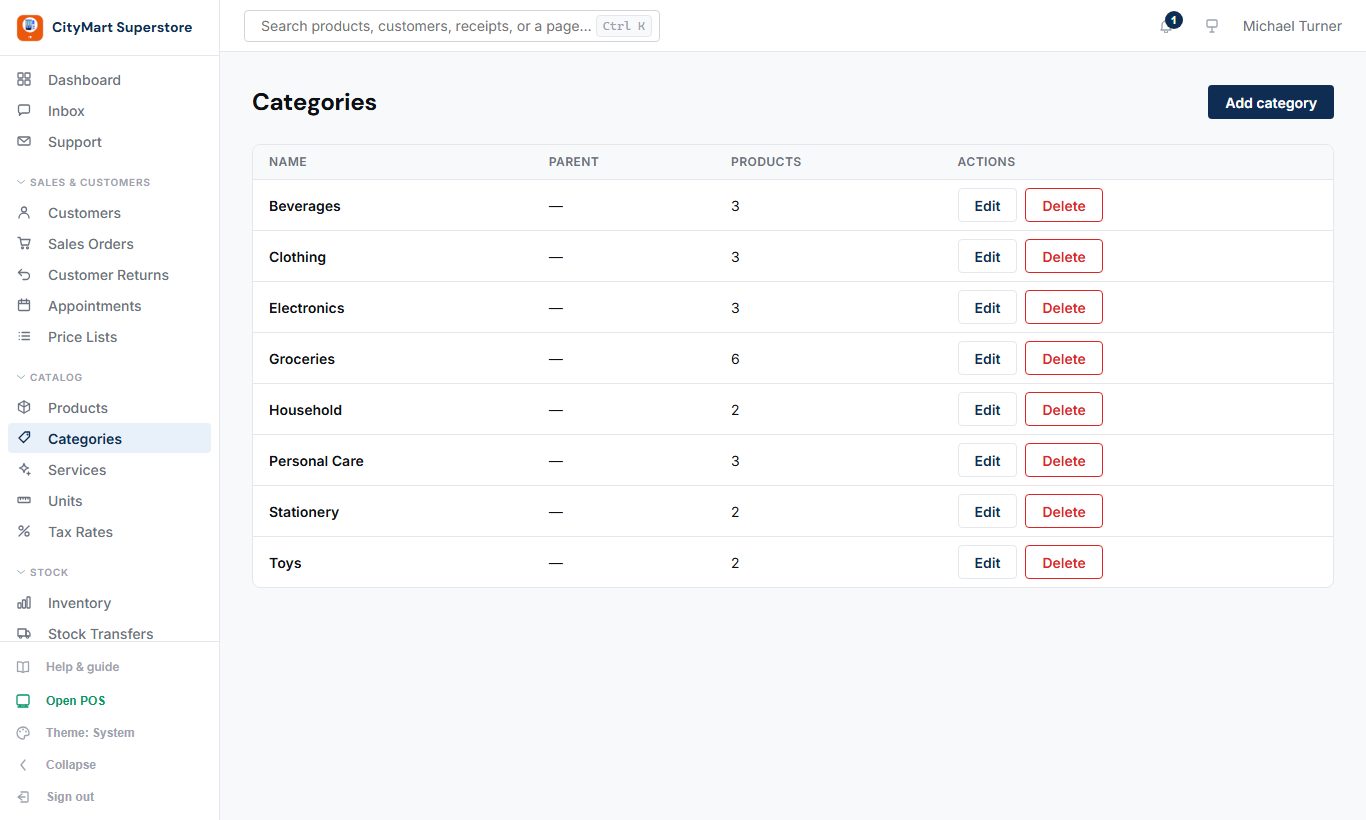
Where: Catalog › Categories
Groups for your products, used for filtering, reports and profit by category.
How to use it
Add a category, optionally inside a parent category.
Assign products to it from the product form.
Catalog › Categories - click to enlarge
Services
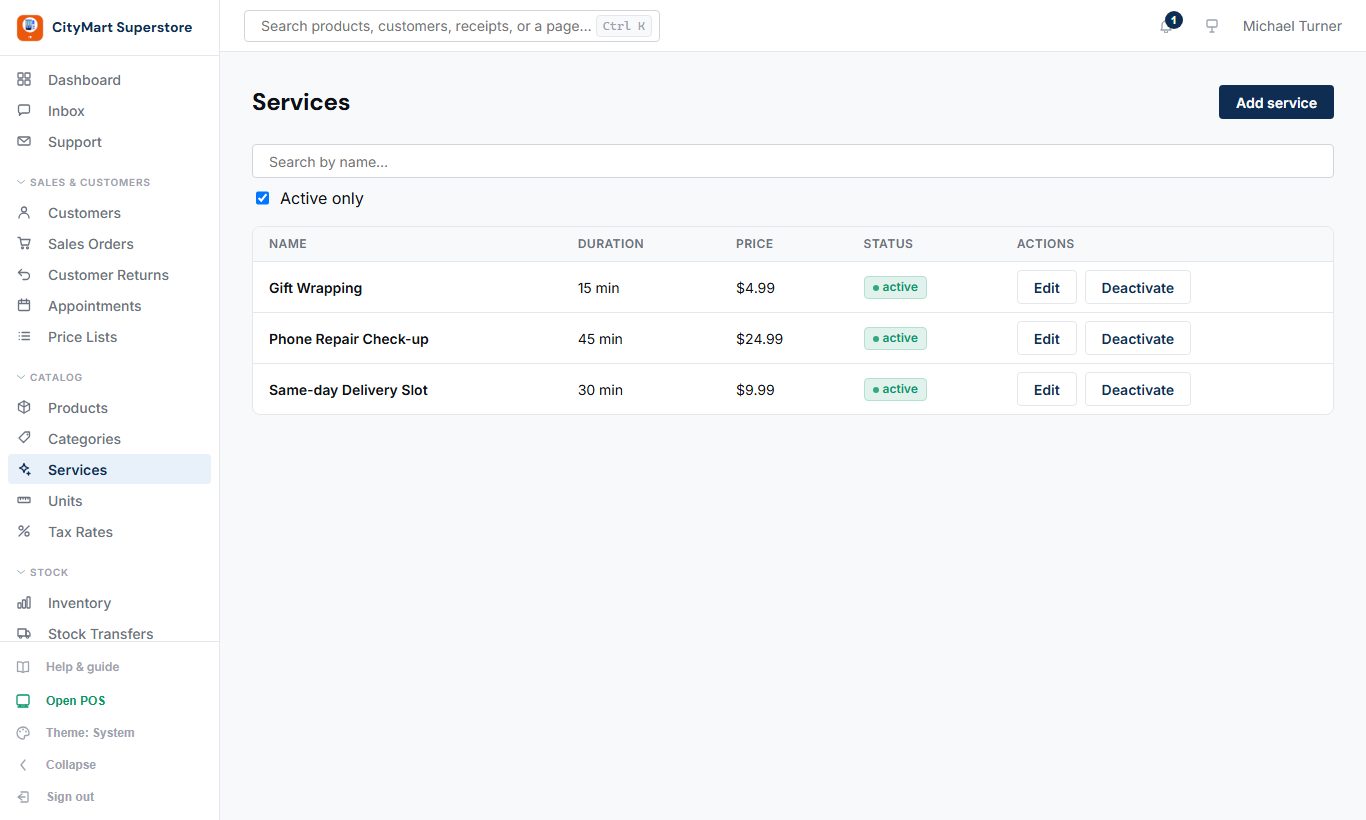
Where: Catalog › Services
Bookable services with a duration and price, for appointments and online booking.
How to switch it on
Appointments (which includes Services) must be part of your plan. If its menu item shows a lock, or the page says it is not part of your plan, open Settings & Account › Plan to see what your plan includes, then change plan on the Billing page or ask Support.
How to use it
Add a service with its duration and price.
Set when each person works: Team › Users, open the person, then Availability. Until you do, online booking offers 9:00 to 18:00 in your shop's time zone.
Customers always see appointment times in your shop's time, even when they are booking from another time zone.
Catalog › Services - click to enlarge
Units
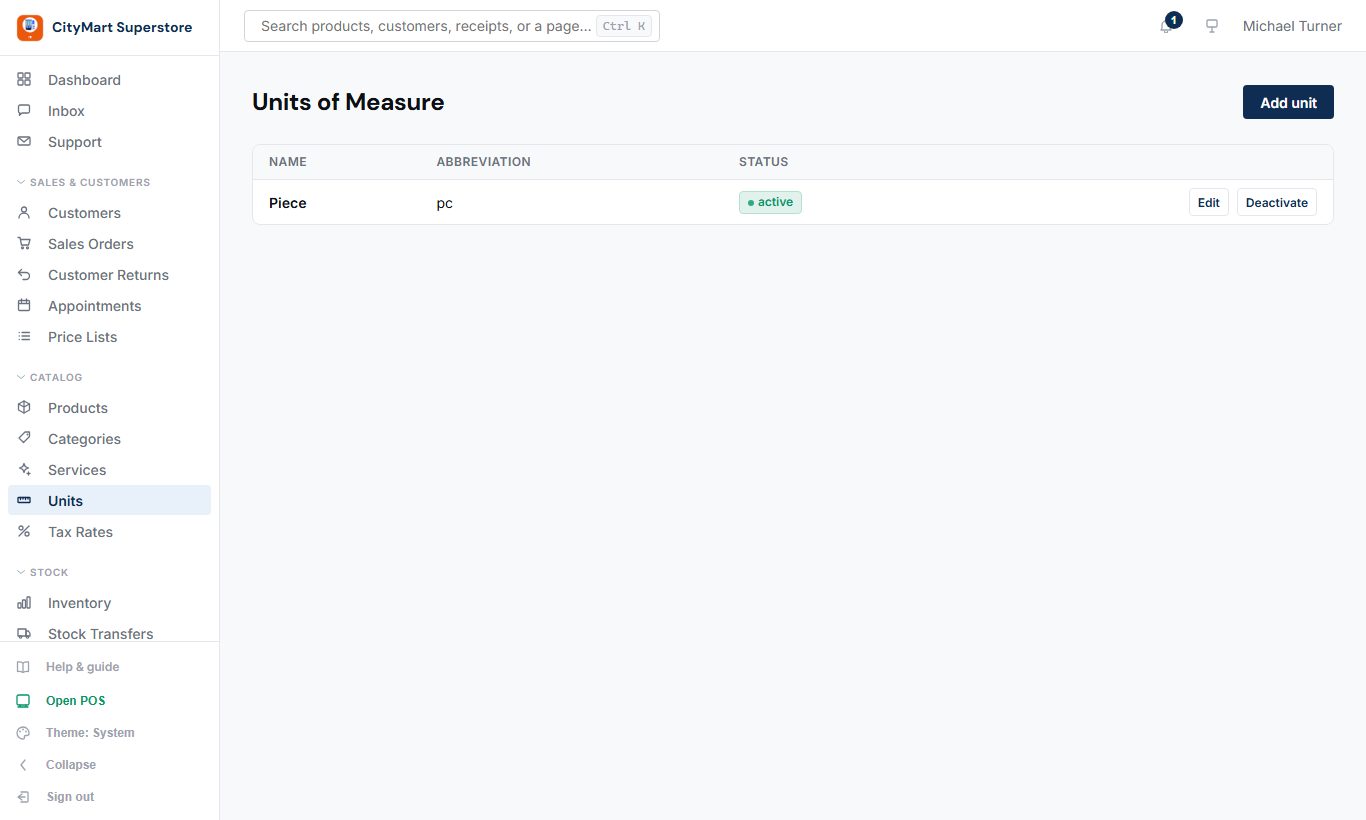
Where: Catalog › Units
Units of measure (hour, kg, piece, carton) used on custom invoices and pack sizes.
How to use it
A new company starts with Piece, Kilogram and Box. Add any others your business uses.
Deactivate one you no longer use; old invoices still show it.
Catalog › Units - click to enlarge
Tax Rates
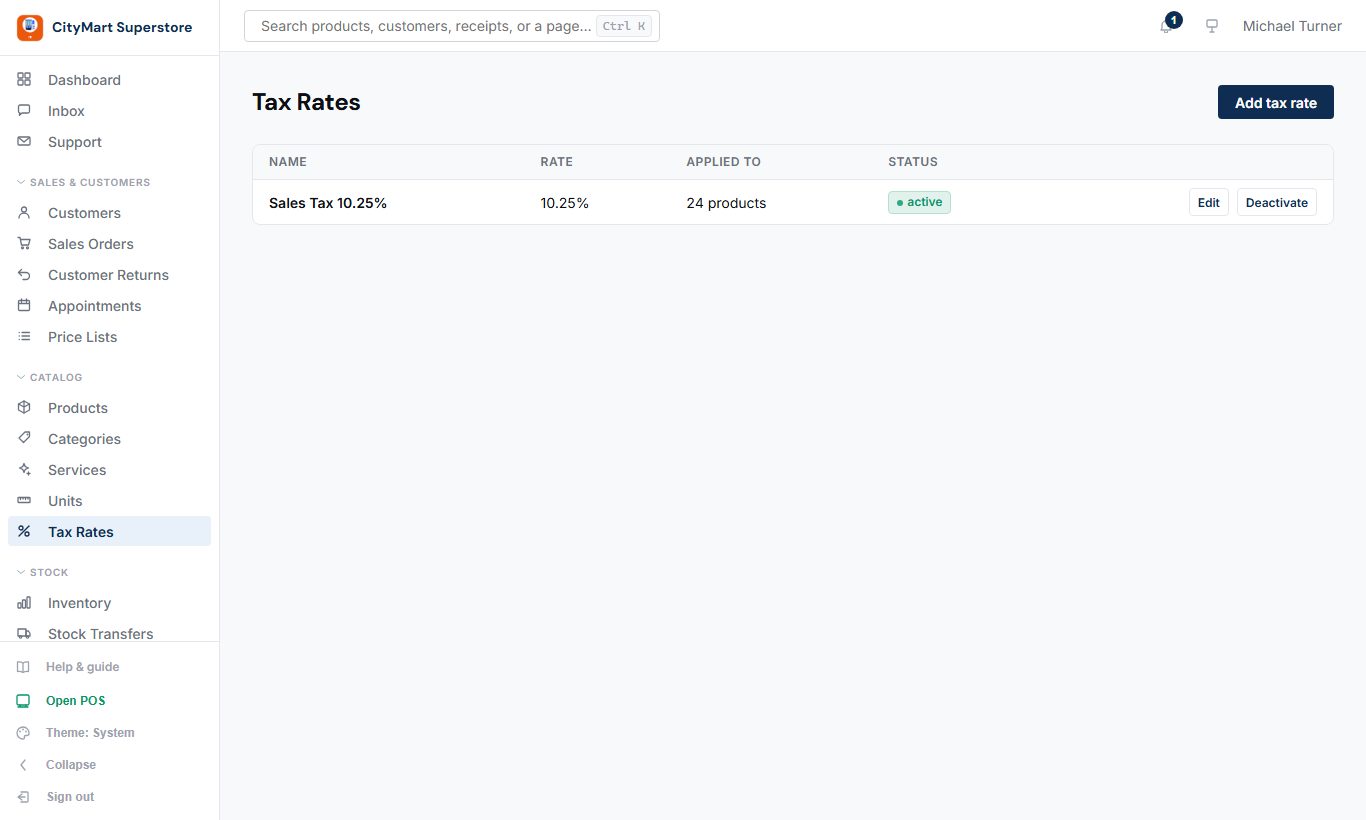
Where: Catalog › Tax Rates
The tax rates you charge and pay.
How to use it
Add each rate with its percentage.
Link rates to products (on the product), or choose one on a custom invoice or purchase line.
Reports › Sales › Tax shows tax collected; the input tax report shows tax paid on purchases.
Catalog › Tax Rates - click to enlarge
Discounts
Where: Catalog › Discounts
Sale prices you set once: a percentage or a fixed amount off each unit, for chosen products, with optional first and last days.
How to use it
Add discount: a name customers will see (e.g. Summer sale), a percentage or an amount off each unit, and optionally a first and a last day.
Attach it to products from the product page (or the discount's own product list).
The till applies it by itself and names it on the cart line and the receipt; it also works on an offline till.
Deactivate a discount to stop it without losing its history.
If two discounts apply to a product, the larger one wins - never both together.
On your website the regular price is shown crossed out beside the sale price, with the discount's name (switch: Website › Layout › Sale prices).
Reports › Sales › Discounts shows product discounts apart from discounts staff gave, each discount by name, and per person.
Stock
How much you have, and where.
Inventory
Where: Stock › Inventory
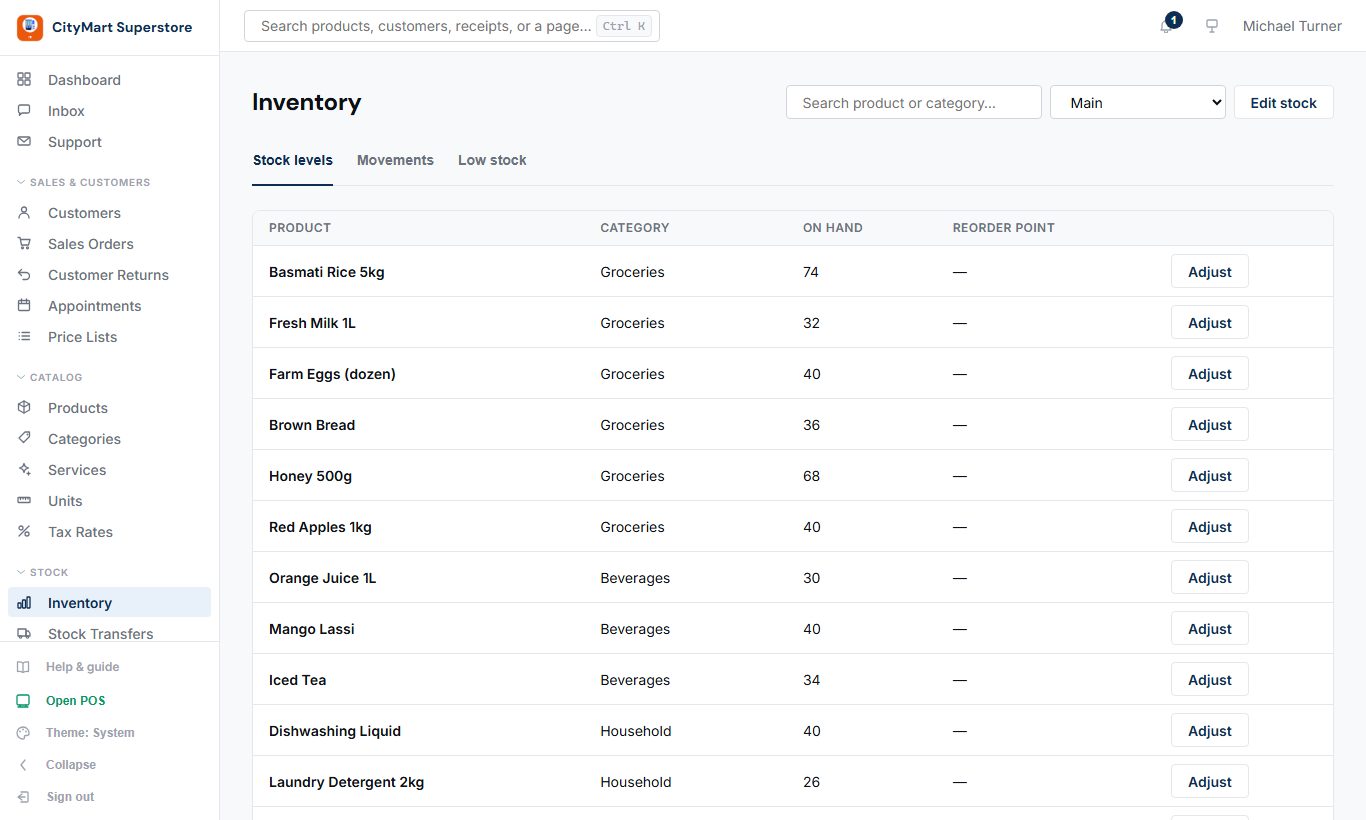
Stock on hand per branch, with reorder points and every movement explained.
How to use it
Pick a branch to see its stock.
Adjust stock with a reason (count correction, damage...).
Set a reorder point (the Reorder point button on each row) to get low-stock alerts; the Low stock tab lists what has reached it.
Movements lists every change, newest first; Load more brings older ones.
Reports › Operations › Stock Movements shows every in and out for an item, with a running balance.
Batch & expiry (optional): Settings & Account › Settings › General, tick "Batch and expiry tracking", press Save. Then record batch numbers and expiry dates when receiving purchase orders, and watch Reports › Operations › Expiry. A batch recorded by hand can only cover stock that is on the shelf and not already in a batch.
Low-stock alerts: set a Reorder point on an item, then tick "Show low-stock alerts on the dashboard" in Settings › General and press Save.
Stock can show below zero after a delivery or an offline sale. Receiving, a customer return or an upward adjustment is always accepted and brings it back up.
Stock › Inventory - click to enlarge
Stock Transfers
Where: Stock › Stock Transfers
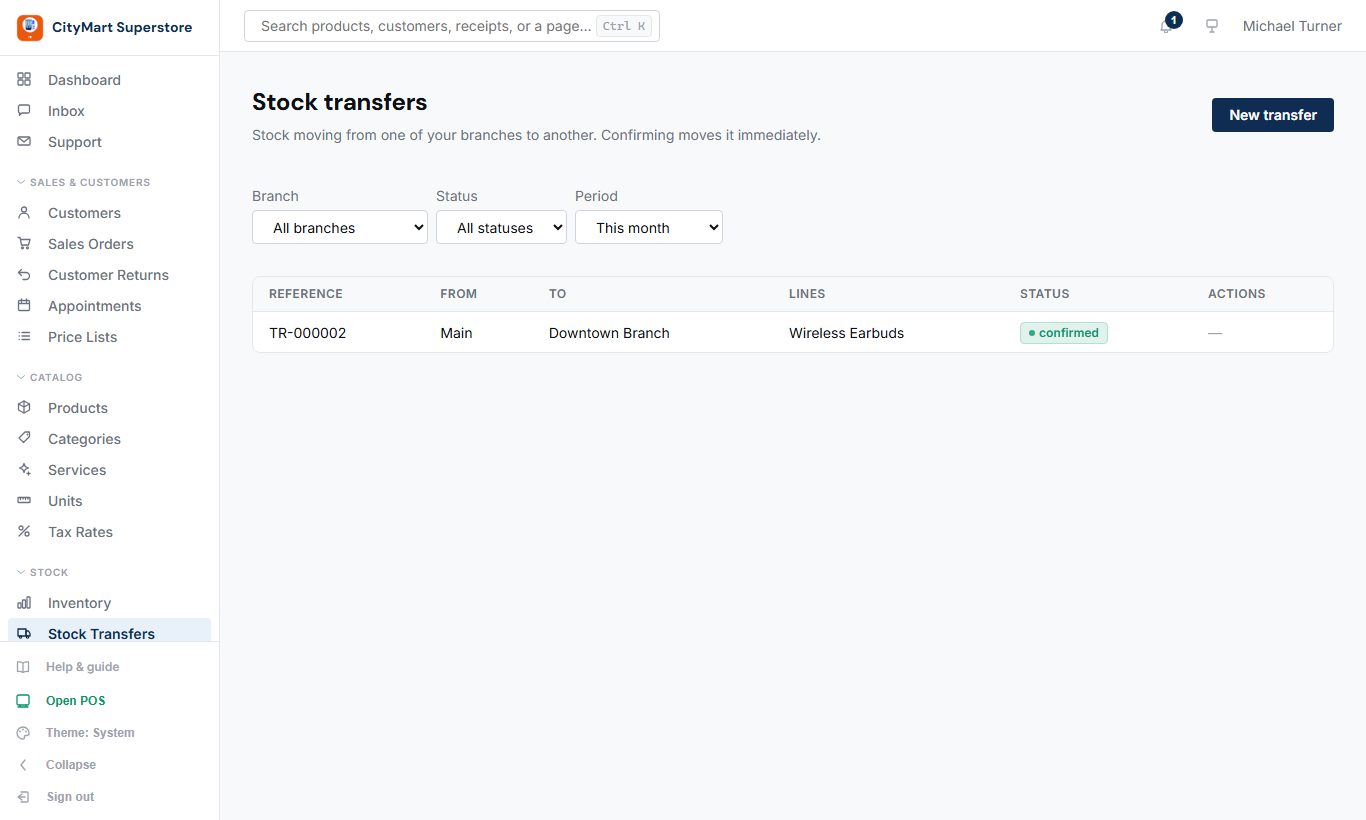
Move stock from one branch to another.
How to use it
New transfer: choose the from and to branches and the items.
Confirm it: stock leaves one branch and arrives at the other.
Type a transfer number in the search box to find one whatever its date.
Stock › Stock Transfers - click to enlarge
Purchasing
Buying from suppliers and paying them.
Suppliers
Where: Purchasing › Suppliers
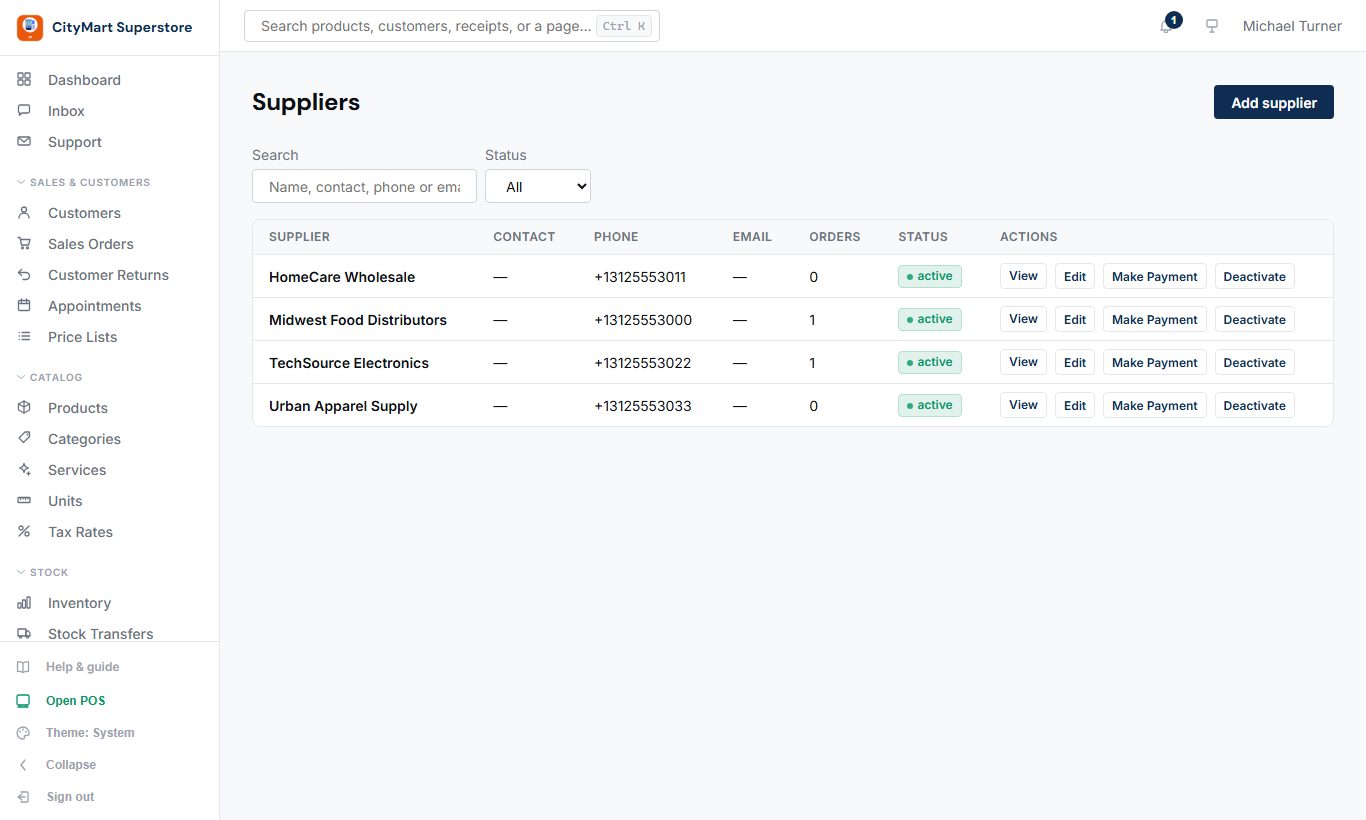
Your suppliers, what you owe each one, payments and statements.
How to use it
Add a supplier.
Open a supplier to see open orders or bills and the balance, and print a statement.
Make payment: it settles the oldest first, or choose which ones.
Purchasing › Suppliers - click to enlarge
Purchase Orders
Where: Purchasing › Purchase Orders
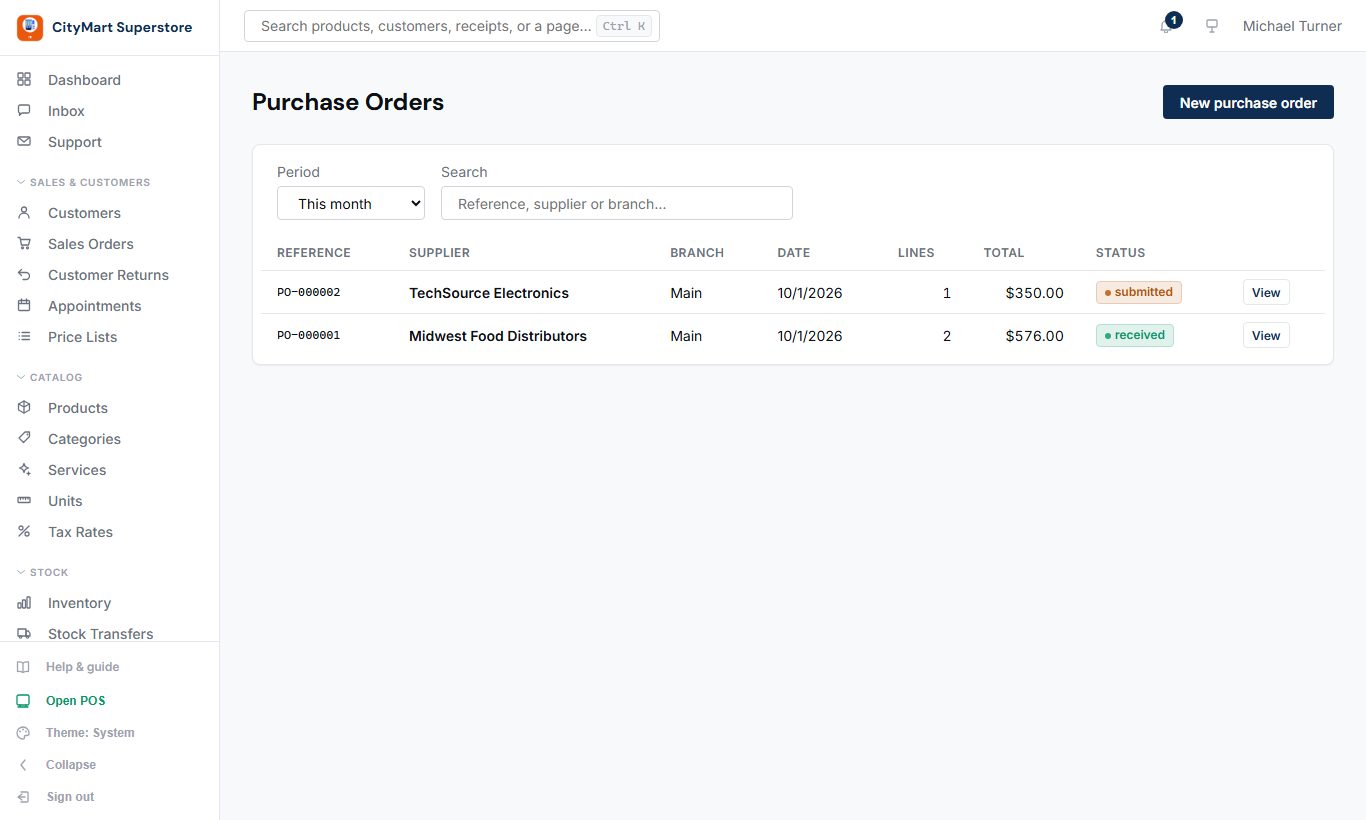
Order stock from a supplier and receive it, all at once or in parts.
How to use it
New purchase order: supplier, branch, and lines with quantity, cost, discount and tax.
Submit it when it's sent to the supplier.
Receive: enter what arrived. Stock goes up and the cost is recorded.
Print the purchase order to send it.
Pack sizes: order in cartons when that module is on - the order is stored in single units.
Batch & expiry: enter batch numbers and expiry dates while receiving when that module is on.
Purchasing › Purchase Orders - click to enlarge
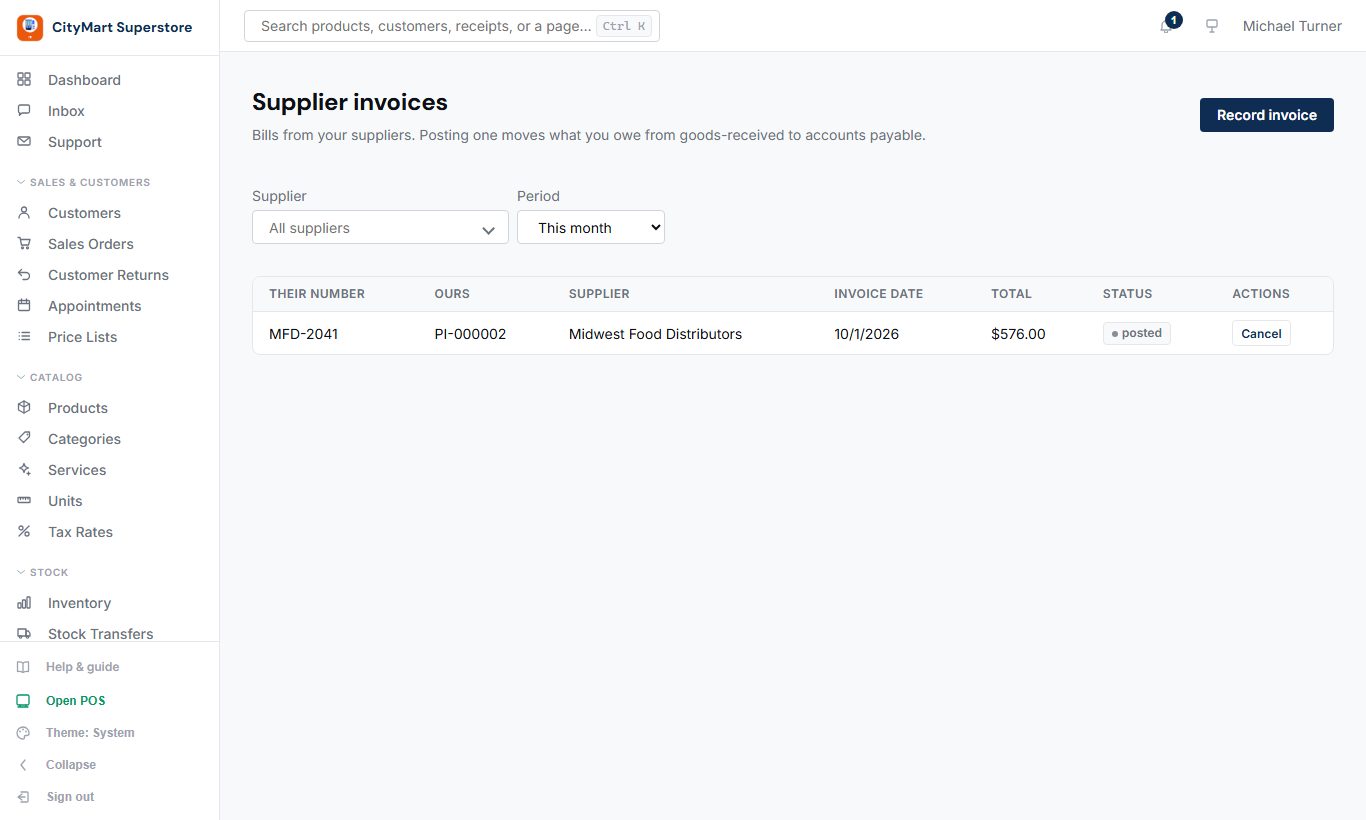
Supplier Invoices
Where: Purchasing › Supplier Invoices
Record the supplier's bill against what you received, and pay against bills rather than orders.
How to switch it on
Open Settings & Account › Settings and choose the General tab.
Scroll to the switches and tick "Record supplier invoices separately from orders".
Press Save at the bottom of the page. The menu item appears straight away (reload the page if it does not).
To hide it again, untick the same box and press Save - nothing already recorded is deleted.
How to use it
Create an invoice from received goods.
Pay it from the supplier's page.
Search by your own invoice number or the supplier's, across all dates.
Purchasing › Supplier Invoices - click to enlarge
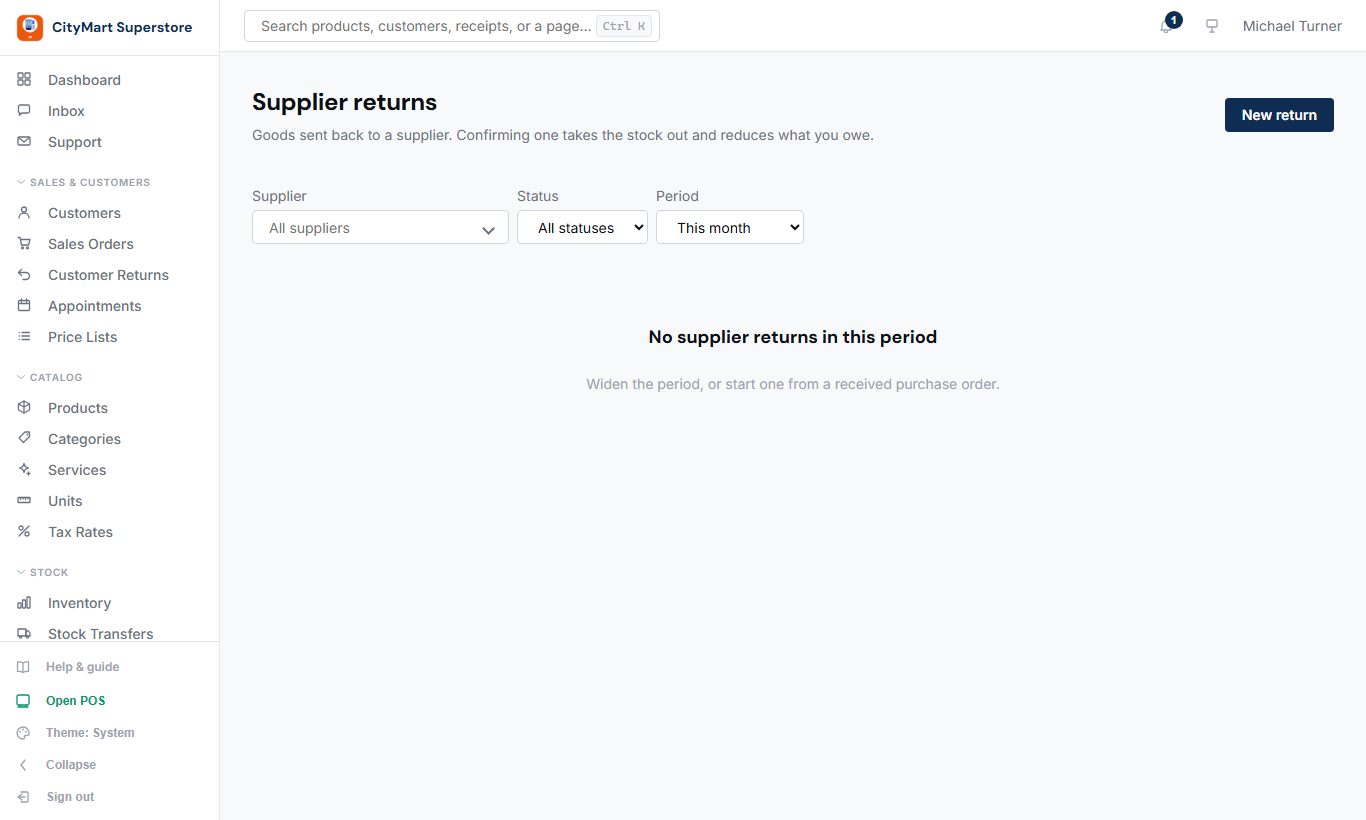
Supplier Returns
Where: Purchasing › Supplier Returns
Send goods back to a supplier; stock goes down and you get credit.
How to use it
New return: supplier, items, quantities and a reason.
Confirm it when the goods leave.
Search by return number, across all dates.
Purchasing › Supplier Returns - click to enlarge
Finance
Your books, bills and the optional money modules.
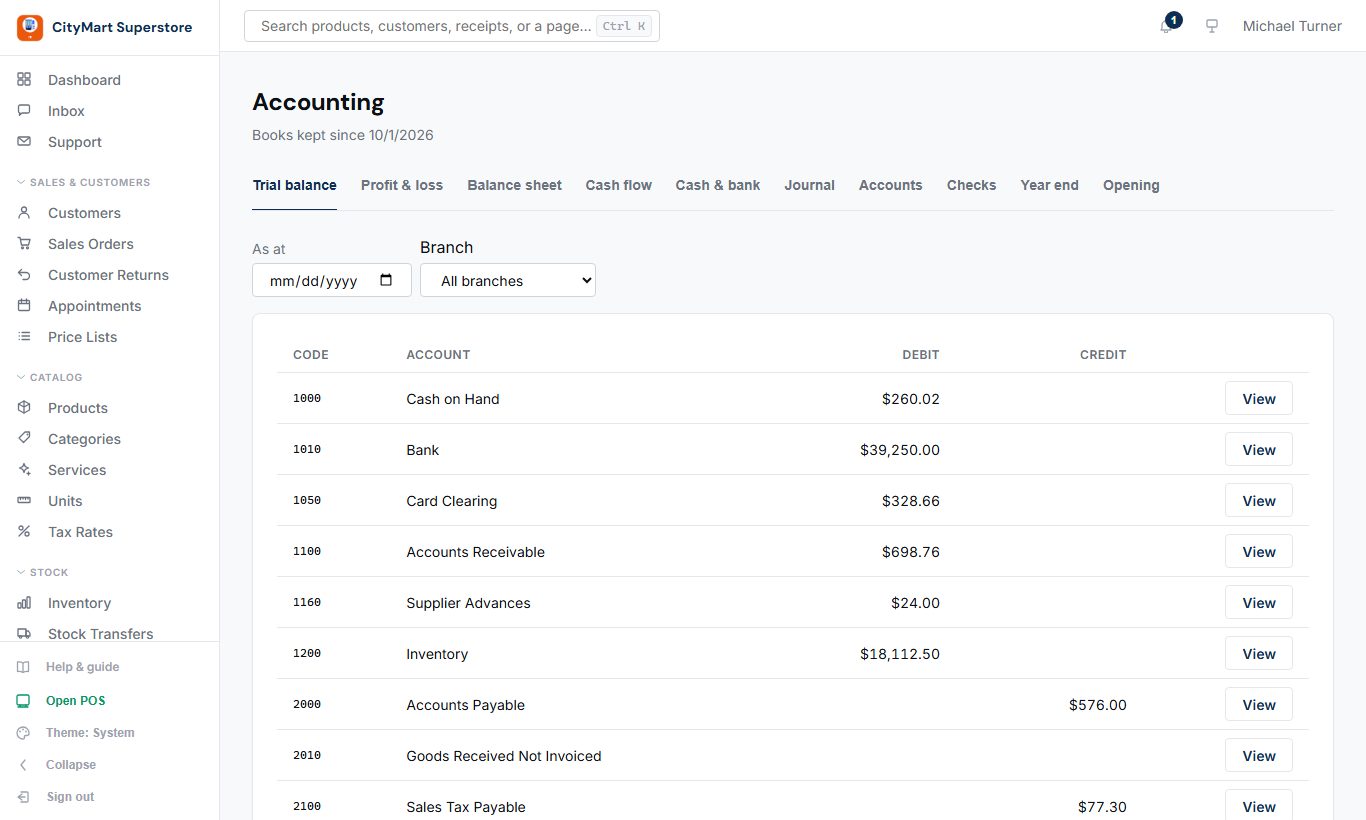
Accounting
Where: Finance › Accounting
A full double-entry ledger kept for you: chart of accounts, trial balance, profit & loss, balance sheet, cash & bank, and vouchers.
How to switch it on
Accounting must be part of your plan. If its menu item shows a lock, or the page says it is not part of your plan, open Settings & Account › Plan to see what your plan includes, then change plan on the Billing page or ask Support.
Open Settings & Account › Settings and choose the General tab.
Scroll to the switches and tick "Keep double-entry accounts".
Press Save at the bottom of the page. The menu item appears straight away (reload the page if it does not).
Open Finance › Accounting › Opening and enter what you own and owe on the start day (cash, bank, stock, customers, suppliers). Your books start from the day the switch was first turned on.
To hide it again, untick the same box and press Save - nothing already recorded is deleted.
How to use it
Switch accounting on, then enter your opening balances on the Opening tab.
Sales, purchases, payments and expenses post themselves - you don't enter them twice.
Use vouchers for anything else, like an owner's drawing or a loan.
Reconcile your bank accounts against the statement.
Read the Trial balance, Profit & loss, Balance sheet and Cash flow; export the journal as CSV for your accountant.
Close the year (Year end tab) when your accountant is ready; closed periods are locked so nothing can be posted into them.
The books start on the day accounting is first switched on. Switching it off and on again does not post the time in between.
Posting runs in the background, so a new sale can take a minute to appear; the page says when the books are catching up. A record that cannot be posted is listed with the reason and can be retried.
The Checks tab compares the ledger with your sales, purchases, payments and stock, and says if anything disagrees.
Finance › Accounting - click to enlarge
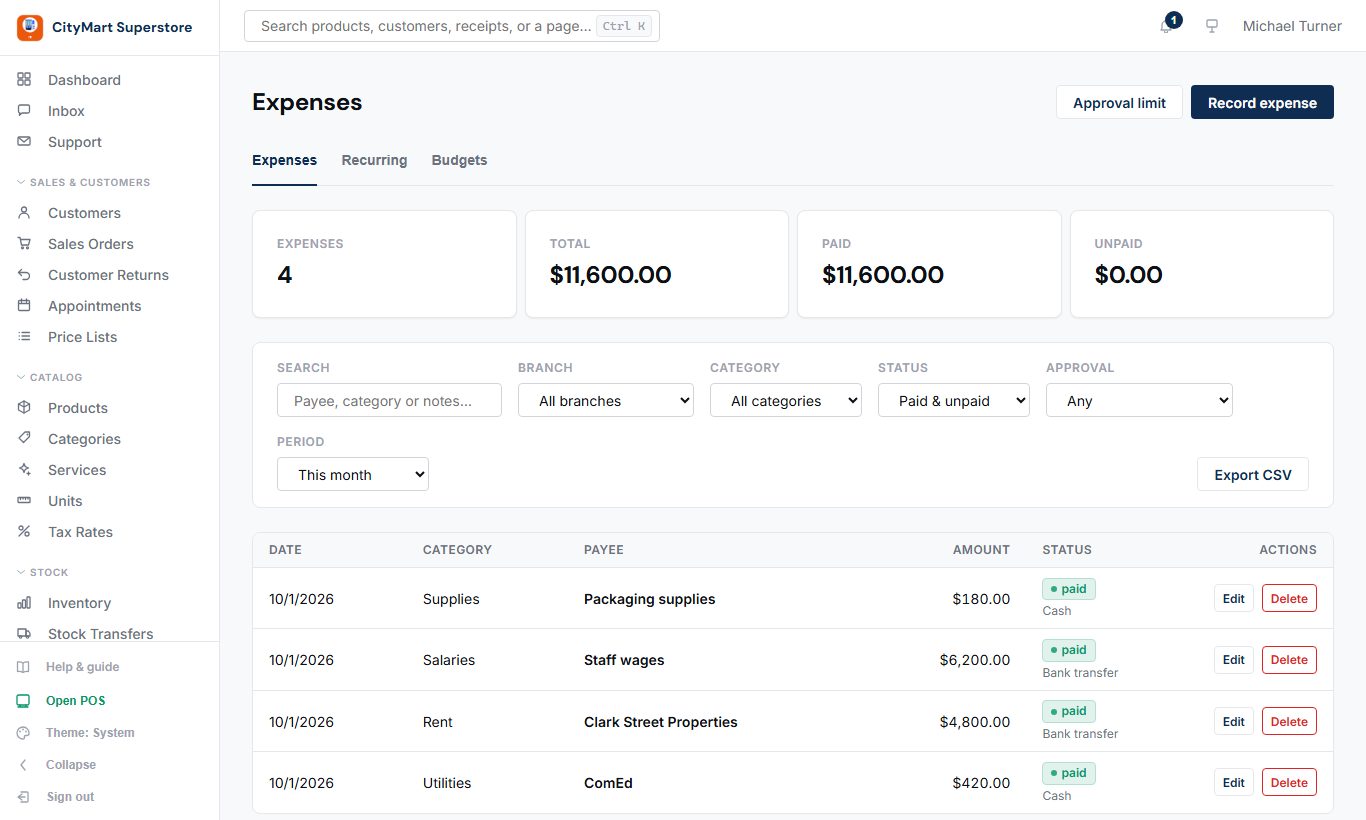
Expenses
Where: Finance › Expenses
Bills, rent, utilities and salaries - one-off or repeating - with budgets and approvals.
How to switch it on
Expenses must be part of your plan. If its menu item shows a lock, or the page says it is not part of your plan, open Settings & Account › Plan to see what your plan includes, then change plan on the Billing page or ask Support.
Approvals (optional): on the Expenses page, set the amount above which an expense waits for a manager, or turn approvals off.
Expenses paid from cash or a bank account reach your books only with Accounting switched on (see Accounting).
How to use it
Add an expense: category, amount, date, and whether it's paid.
Make it repeat monthly for rent and salaries.
Set a monthly budget per category and branch to see spending against it.
With approvals on, an expense above the limit waits for a manager. The limit (Rs 50,000 to start with) is changed, or approvals turned off, on the Expenses page.
Export the list as CSV for your accountant.
Categories are a fixed list: rent, utilities, salaries, supplies, maintenance and other.
Only approved expenses count in the reports; one waiting or turned down does not.
Finance › Expenses - click to enlarge
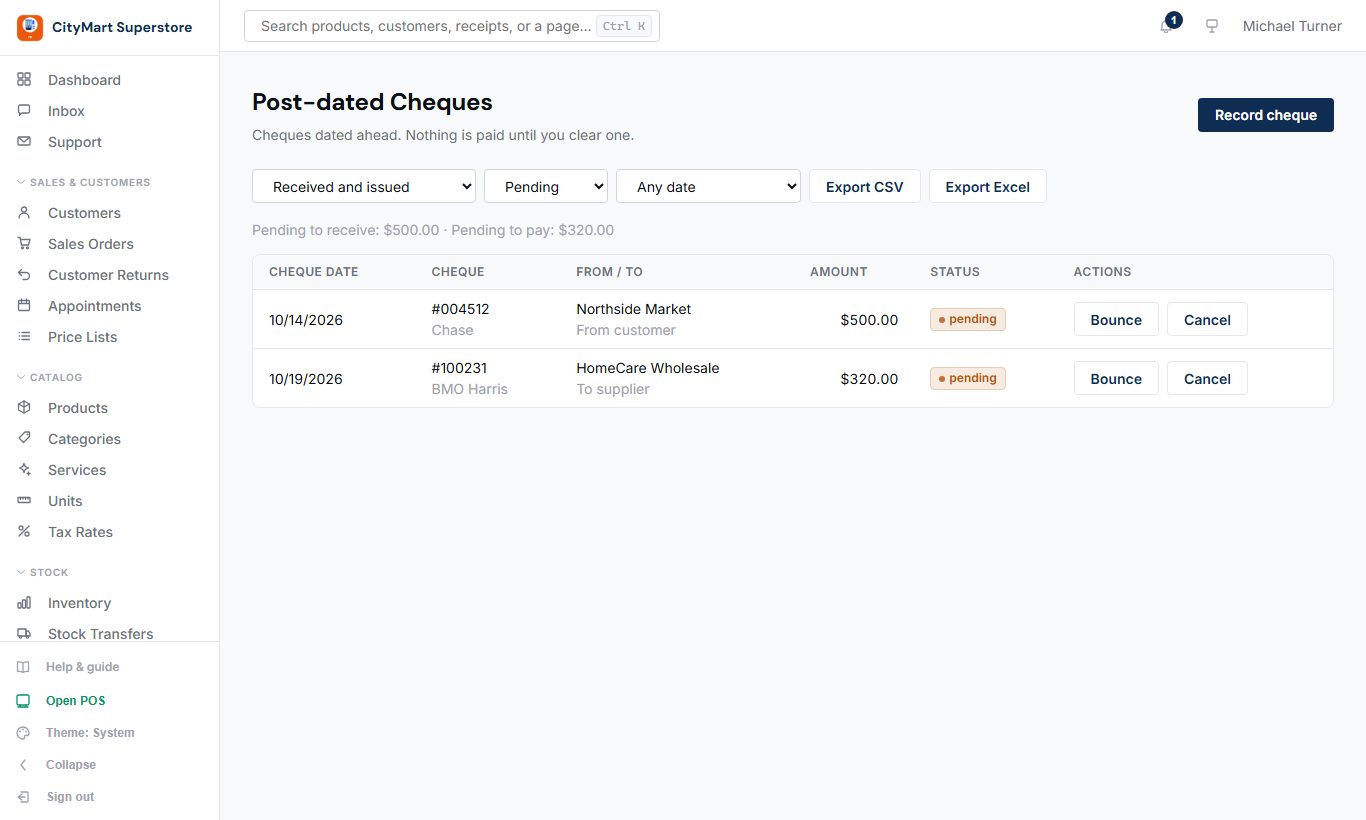
Post-dated Cheques
Where: Finance › Post-dated Cheques
Keep track of cheques dated ahead - from customers or to suppliers - until they clear.
How to switch it on
Open Settings & Account › Settings and choose the General tab.
Scroll to the switches and tick "Post-dated cheques".
Press Save at the bottom of the page. The menu item appears straight away (reload the page if it does not).
To hide it again, untick the same box and press Save - nothing already recorded is deleted.
How to use it
Record cheque: received from a customer or issued to a supplier, with number, bank, amount and the date on the cheque.
Nothing is paid while it's pending. Filter by 'Due within 7 days' to see what's coming.
On or after its date, press Clear: it's recorded as a cheque payment against the oldest invoices.
Or mark it Bounced (with a reason) or Cancelled.
Finance › Post-dated Cheques - click to enlarge
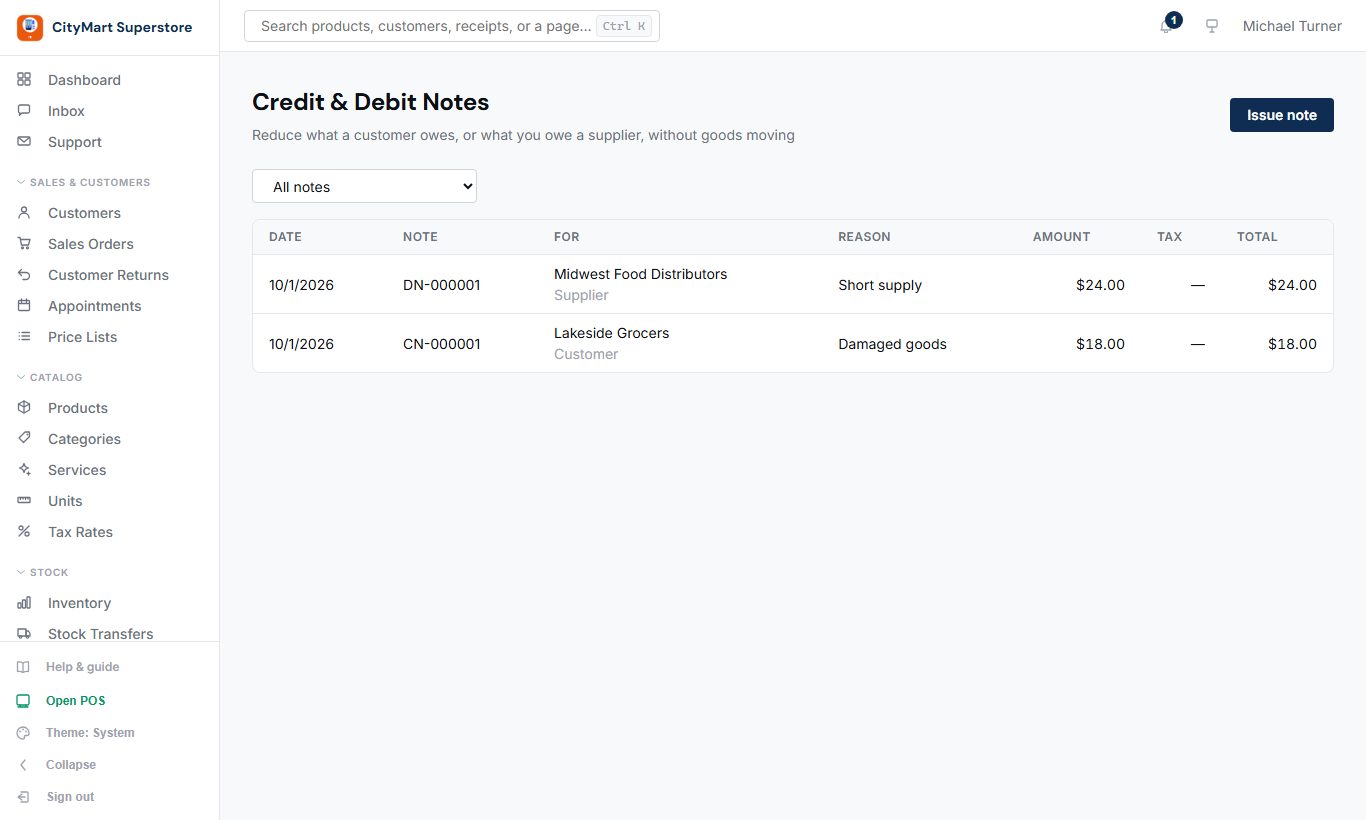
Credit & Debit Notes
Where: Finance › Credit & Debit Notes
Reduce what a customer owes you, or what you owe a supplier, without goods moving - a price allowance or a damage claim.
How to switch it on
Open Settings & Account › Settings and choose the General tab.
Scroll to the switches and tick "Credit and debit notes".
Press Save at the bottom of the page. The menu item appears straight away (reload the page if it does not).
To hide it again, untick the same box and press Save - nothing already recorded is deleted.
How to use it
Issue note: credit note to a customer, or debit note on a supplier.
Choose the reason, the amount before tax and a tax rate if tax is involved.
The total is credited to their balance and shows on their statement and in the tax reports.
Search the list by note number or name; Load more shows the next fifty.
Finance › Credit & Debit Notes - click to enlarge
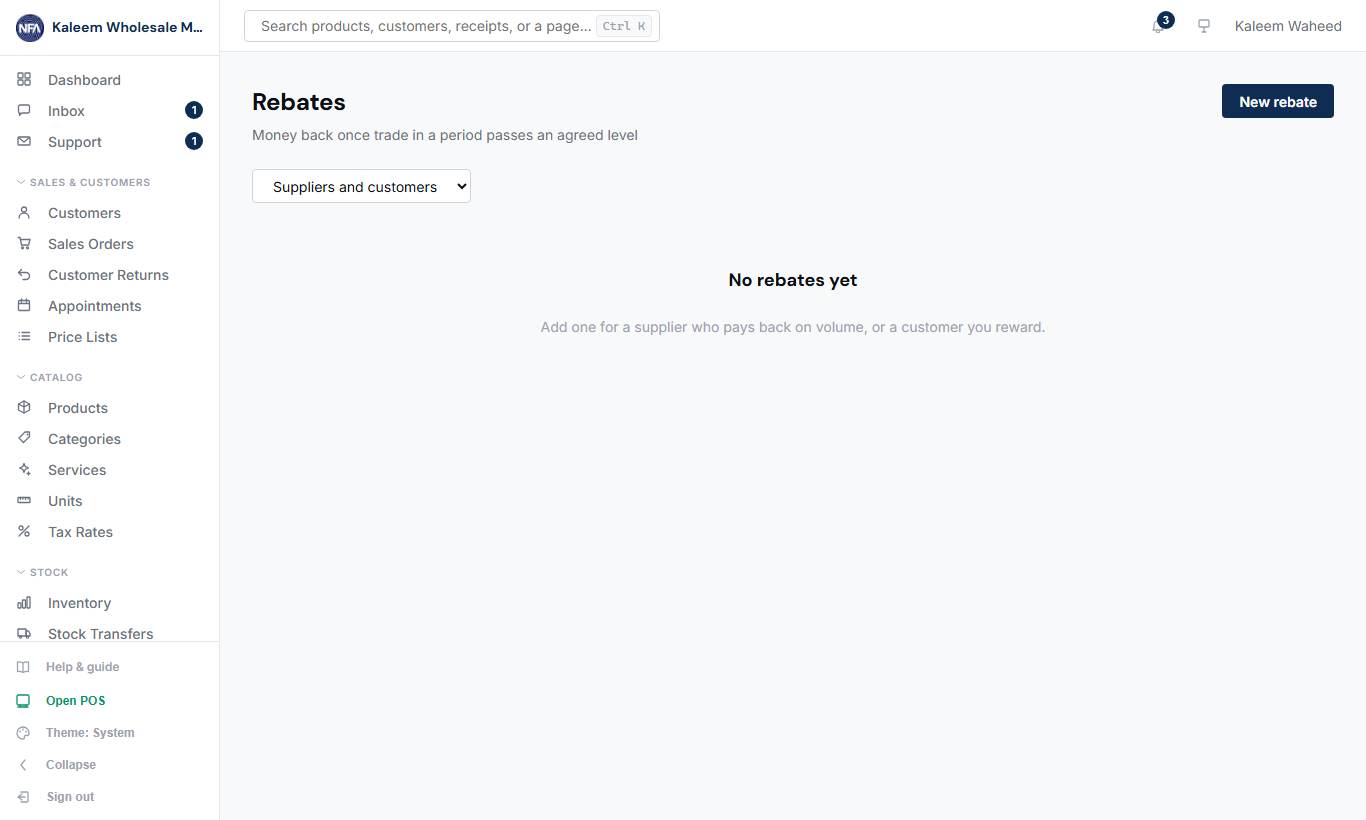
Rebates
Where: Finance › Rebates
Money back once trade in a period passes an agreed level - from suppliers, or given to customers.
How to switch it on
Open Settings & Account › Settings and choose the General tab.
Scroll to the switches and tick "Track rebates".
Press Save at the bottom of the page. The menu item appears straight away (reload the page if it does not).
To hide it again, untick the same box and press Save - nothing already recorded is deleted.
How to use it
New rebate: supplier or customer, period, rate and optional threshold.
Watch what's been earned so far as trade comes in.
After the period ends, press Settle: the amount is credited to their balance.
Finance › Rebates - click to enlarge
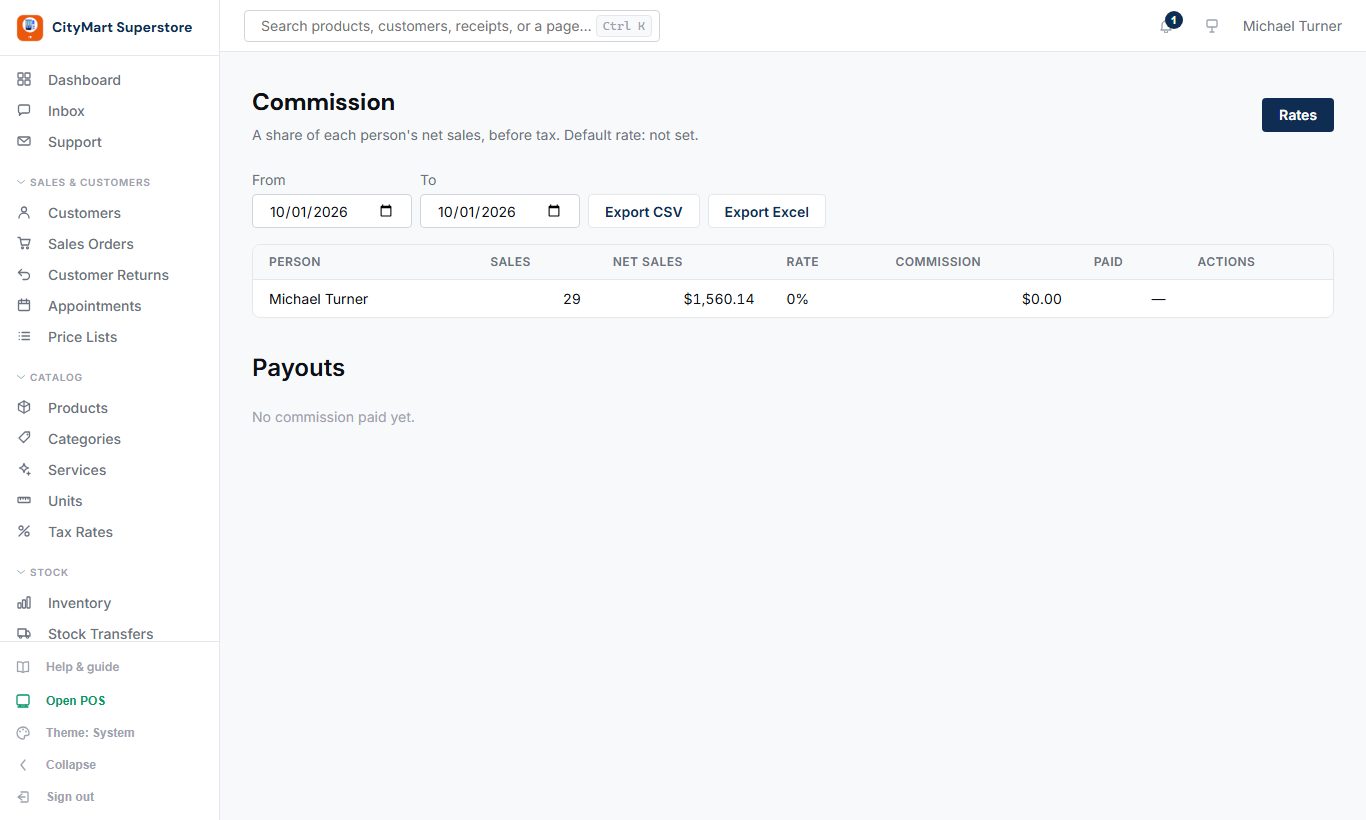
Commission
Where: Finance › Commission
Pay staff a share of the sales they ring up, before tax and after discounts, less refunds.
How to switch it on
Open Settings & Account › Settings and choose the General tab.
Scroll to the switches and tick "Staff commission".
Press Save at the bottom of the page. The menu item appears straight away (reload the page if it does not).
To hide it again, untick the same box and press Save - nothing already recorded is deleted.
How to use it
Rates: set a default rate, and a different rate for anyone who needs one.
Choose the period to see each person's net sales and commission.
Pay: records a salaries expense to that person. The same days can't be paid twice.
Finance › Commission - click to enlarge
Reports
What happened, in numbers you can hand to an accountant.
Reports
Where: Insights › Reports
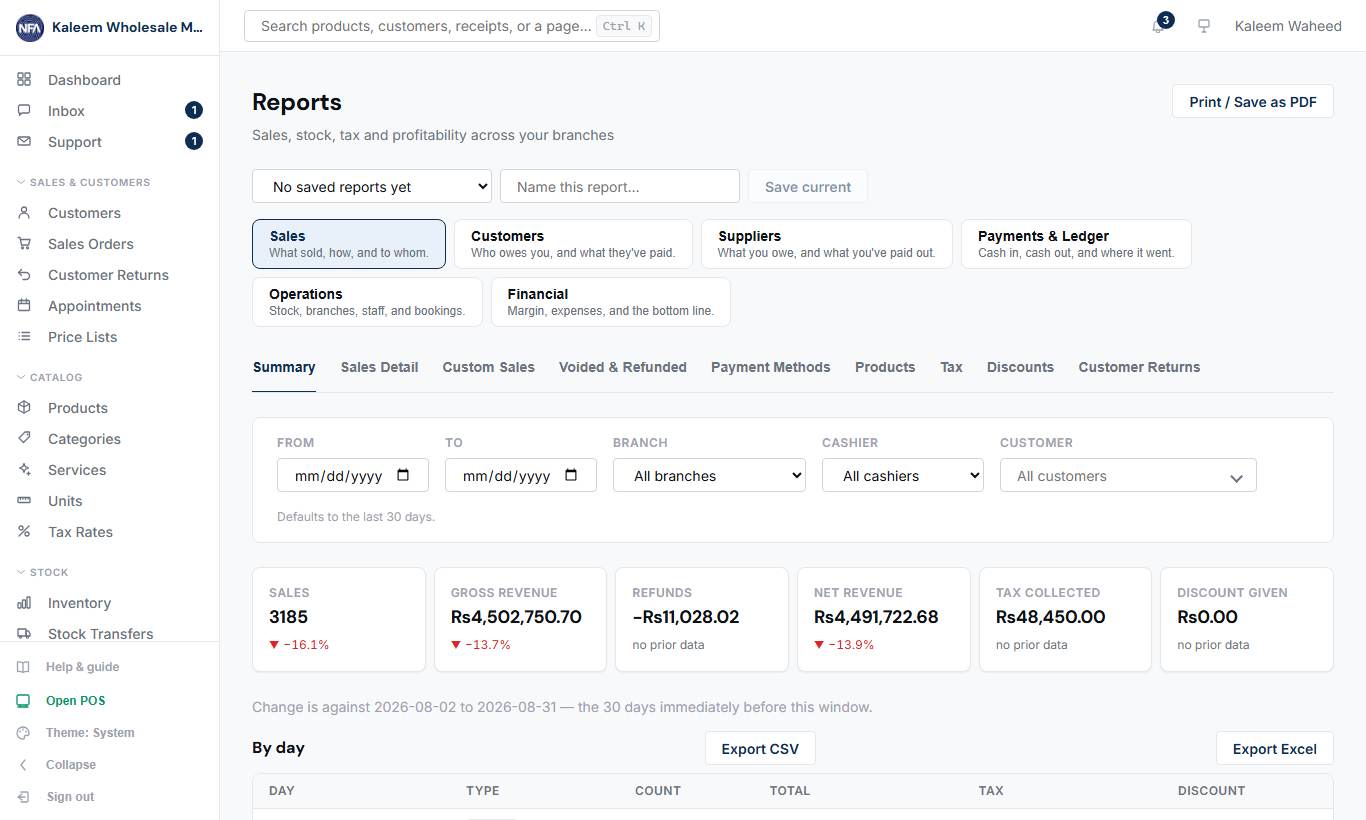
30+ reports in six groups: Sales, Customers, Suppliers, Payments & Ledger, Operations and Financial.
How to switch it on
Reports must be part of your plan. If its menu item shows a lock, or the page says it is not part of your plan, open Settings & Account › Plan to see what your plan includes, then change plan on the Billing page or ask Support.
Who sees which report follows their role (Team › Roles): Financial reports, which show cost prices and margins, need the Financial reports permission.
Reports for an optional module appear once that module is on: Expiry needs Batch and expiry tracking; Credit & debit notes and Rebates need those switches (Settings › General, tick, Save).
How to use it
Choose a group, then a report tab.
Set the dates and branch (and other filters where offered).
Export CSV or Excel, or Print / Save as PDF. A large report is prepared in the background: it appears under the download icon at the top of the page (Waiting, Preparing, Ready) and you can carry on working.
Save current: keep a set of filters to reopen later.
Sales includes Summary, Detail, Custom sales, Voided & refunded, Payment methods, Busiest times (sales only, refunds not counted), Products, Tax, Discounts and Customer returns. Refunds show as minus figures.
Operations includes Stock Movements, Adjustments, Transfers, Slow-moving and Expiry.
Financial includes Business summary, Margin, Profit & Loss, Profit by Category / Customer, Sales vs purchases, All outstanding, Credit & debit notes and Rebates.
Revenue in Margin, Profit & Loss and Profit by is without sales tax - the tax is owed, not earned - so it matches the accounting ledger. Profit & Loss also takes off stock written off in count corrections (Stock written off).
Reports for a module that is switched off (e.g. Expiry without batch tracking) are hidden. Who sees which report follows their role.
Insights › Reports - click to enlarge
Audit Log
Where: Insights › Audit Log
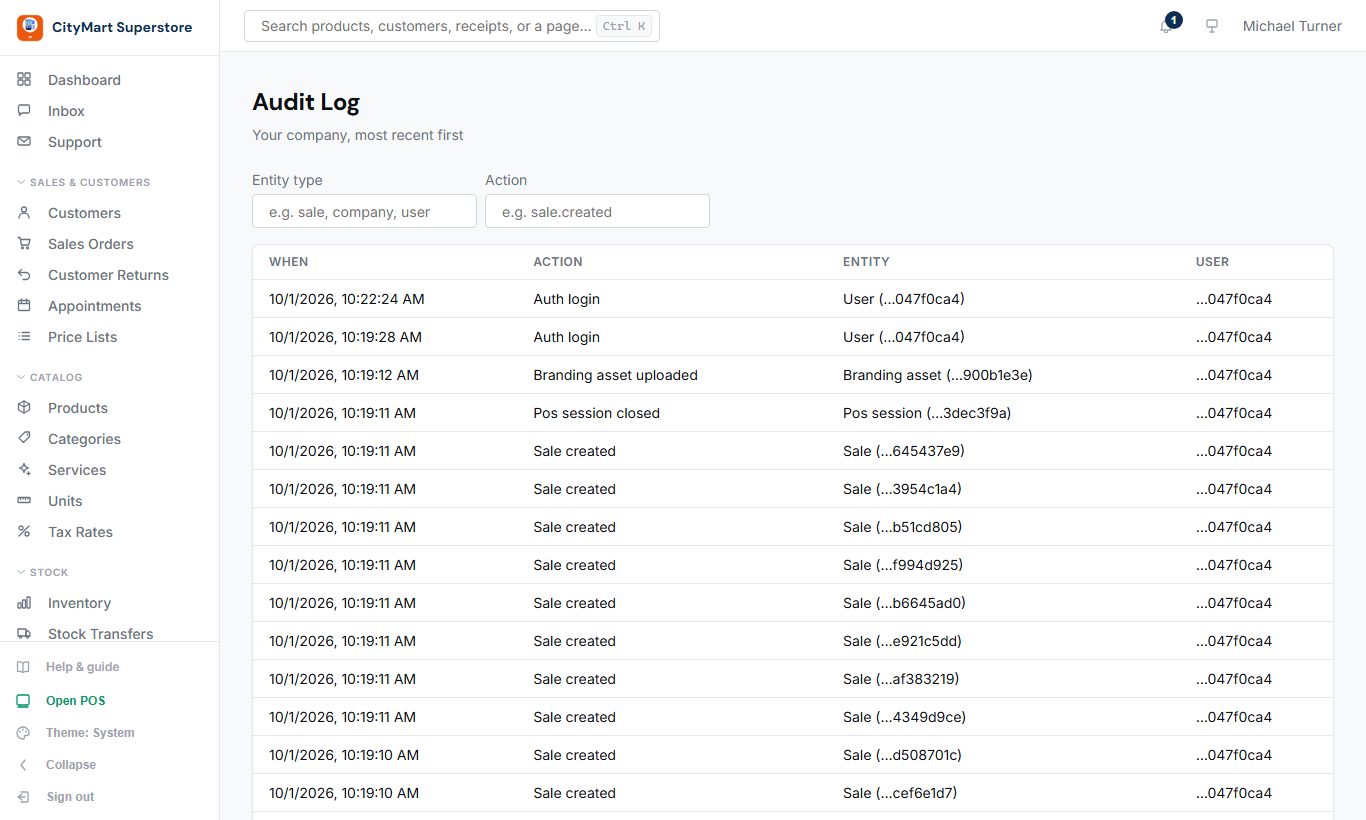
Who did what and when - every change that matters, which can't be edited or deleted.
How to switch it on
Audit Log must be part of your plan. If its menu item shows a lock, or the page says it is not part of your plan, open Settings & Account › Plan to see what your plan includes, then change plan on the Billing page or ask Support.
Only people whose role has the audit permission see it (Team › Roles).
How to use it
Filter by entity type (sale, company, user...) or action (e.g. sale created).
Each entry shows when it happened, the action, the record it affected and who did it.
Insights › Audit Log - click to enlarge
Team
Your people and what they can do.
Users
Where: Team › Users
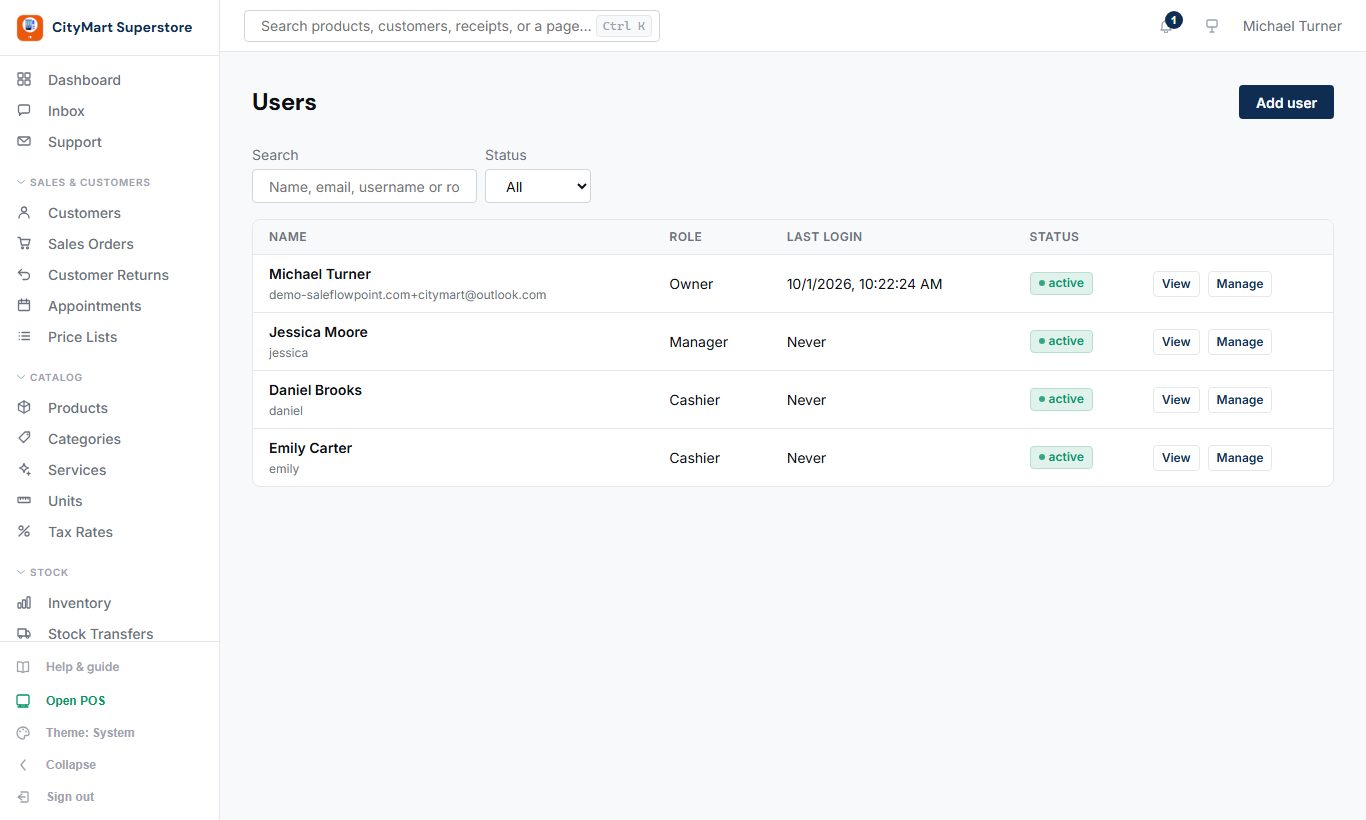
Your staff accounts.
How to use it
Add user: send an invitation by email, or create the account directly with a username and password (for staff without email). Choose their role.
Limit them to certain branches if needed.
Open a cashier and set their maximum discount. Leave it empty and they can give any discount - set it for every cashier.
From the users list, set each person's till PIN (for Switch user on a shared till) and offline PIN (for unlocking a till with no internet).
Open a person to set their Availability for appointments.
Deactivate someone who leaves - their past sales stay on record.
Team › Users - click to enlarge
Roles
Where: Team › Roles
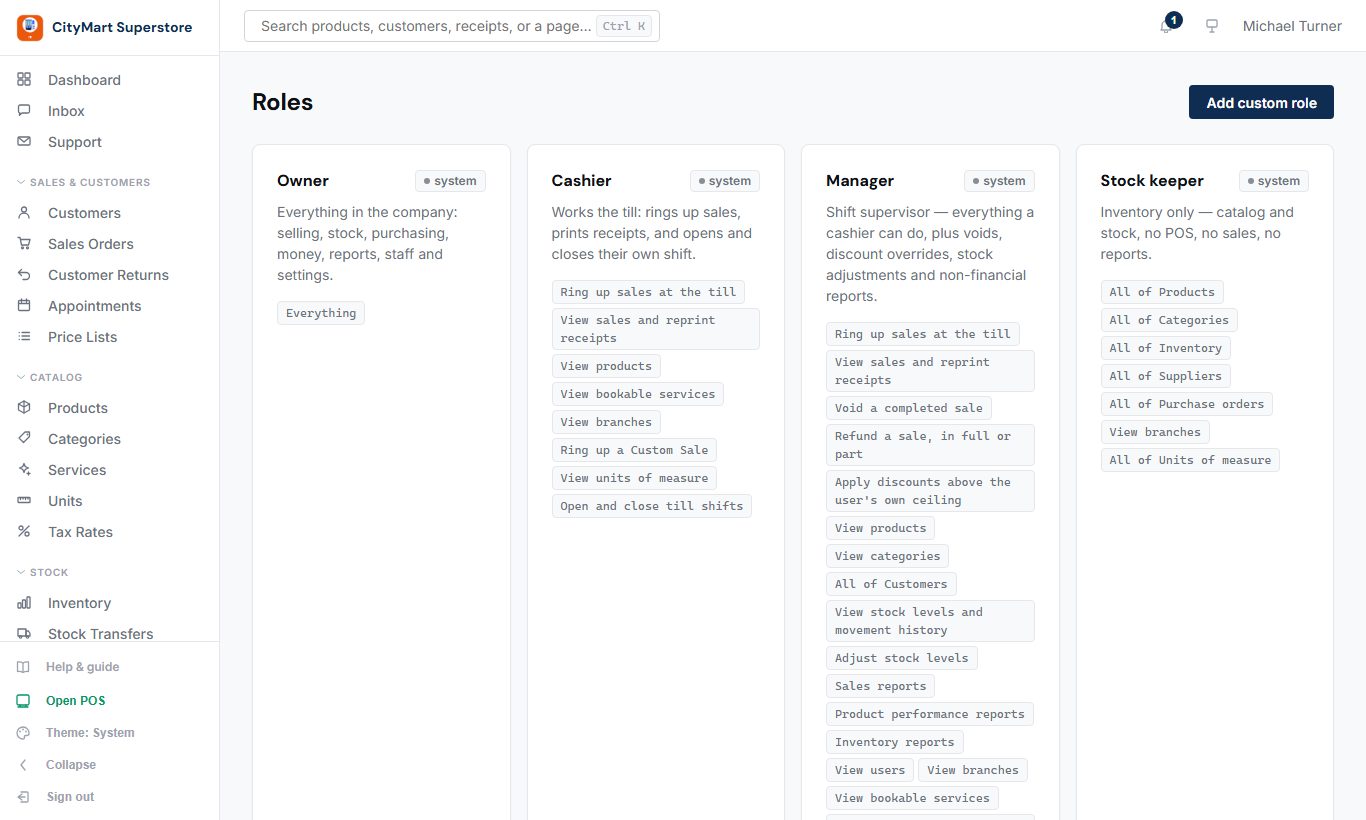
What each kind of user may do. Five built-in roles - Owner, Manager, Cashier, Stock keeper and Accountant - plus your own.
How to use it
Add custom role and tick its permissions (grouped by area).
Sensitive permissions are separate, so you choose who gets them: voiding sales, going over credit limits, and Financial reports - the one that shows cost prices and margins. Cashiers and managers do not see cost prices.
Team › Roles - click to enlarge
Branches
Where: Team › Branches
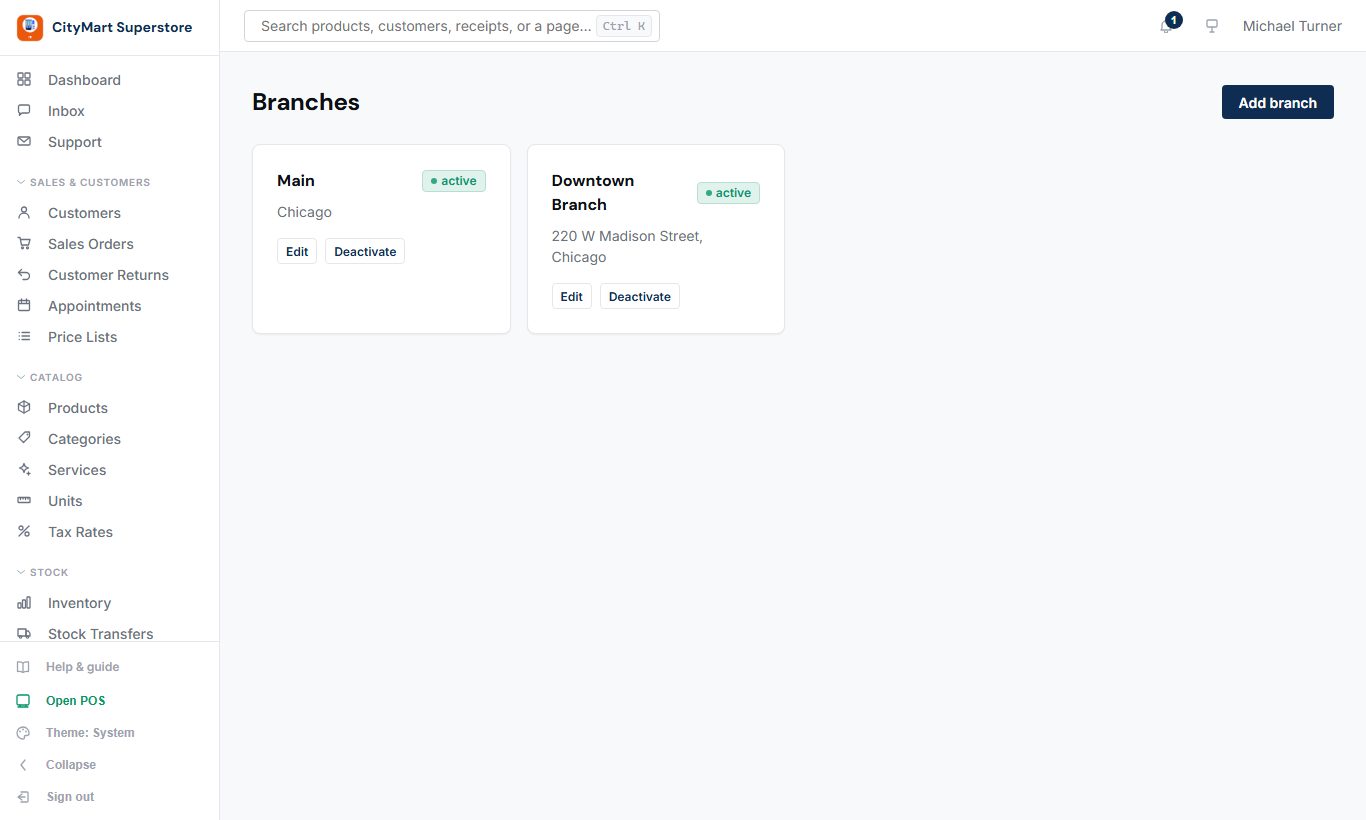
Your shops or warehouses. Stock, tills and reports are kept per branch.
How to use it
Add a branch with its address and phone.
Assign staff and devices to it.
Team › Branches - click to enlarge
Devices
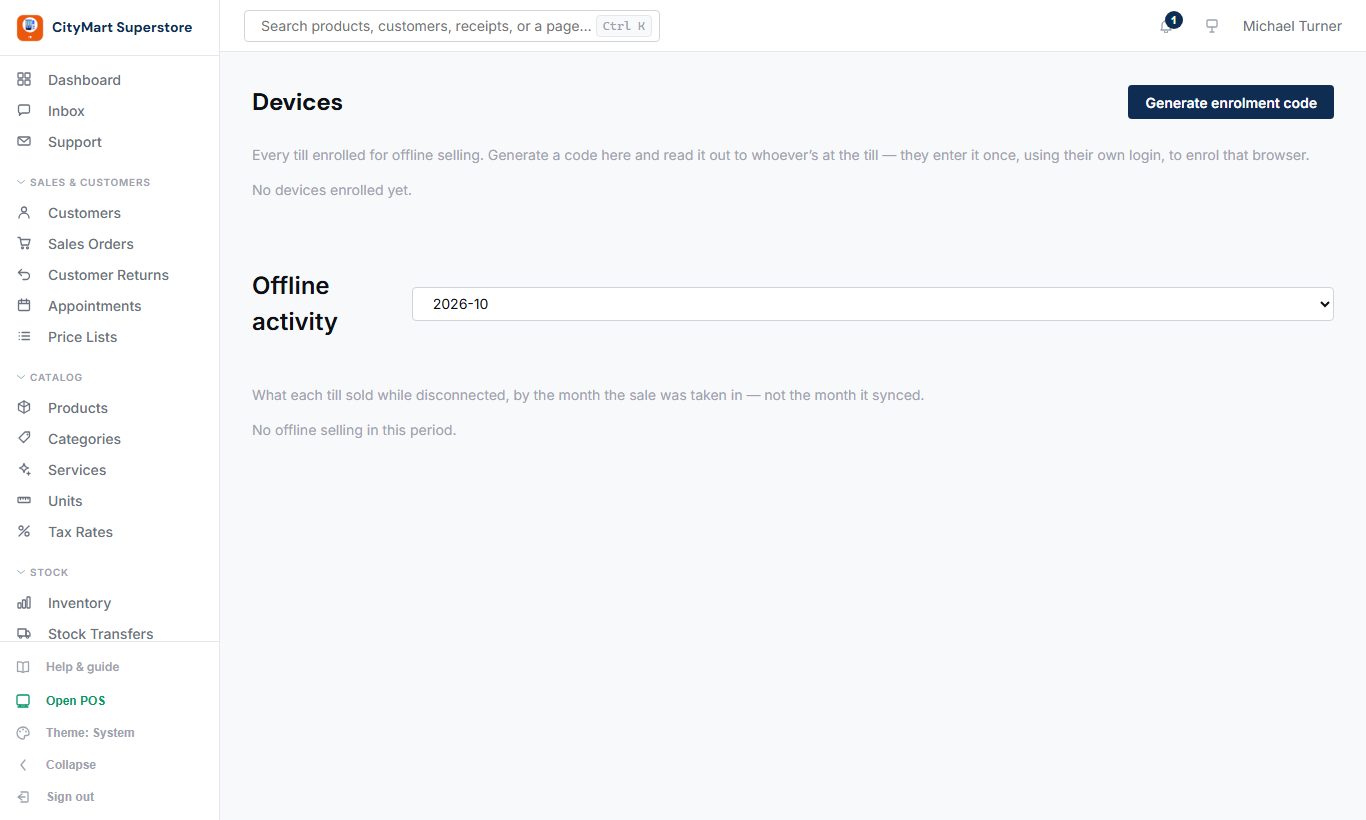
Where: Team › Devices
The tills allowed to sell offline.
How to use it
Generate enrolment code and read it out to whoever is at the till; they enter it once, with their own login, to enrol that browser.
Revoke a lost or stolen device; it can no longer upload sales.
A till holding sales it has not uploaded for a while is flagged here and alerted, so a till that lost its connection is noticed.
A copied till (the same enrolment used on two machines) is detected and its sales marked for review.
Team › Devices - click to enlarge
Sessions and your password
Where: Sessions (the icon at the bottom of the menu)
Where you are signed in, and how to sign out of the others.
How to use it
Sessions lists every browser or device signed in to your account, with its IP address and when it signed in.
Revoke one you don't recognise, or press Sign out all other sessions (left a tablet at the shop?) - only this browser stays signed in.
Connect Google Calendar here to see your appointments in your own calendar.
Forgot your password? Use Forgot password on the sign-in page; a link to set a new one is emailed to you. A temporary password given by your admin must be changed at your first sign-in.
Signing in again on the same browser ends that browser's previous session, so the list only shows sessions that can still be used.
Settings & Account
How your company is set up, what it looks like, and your subscription.
Settings
Where: Settings & Account › Settings
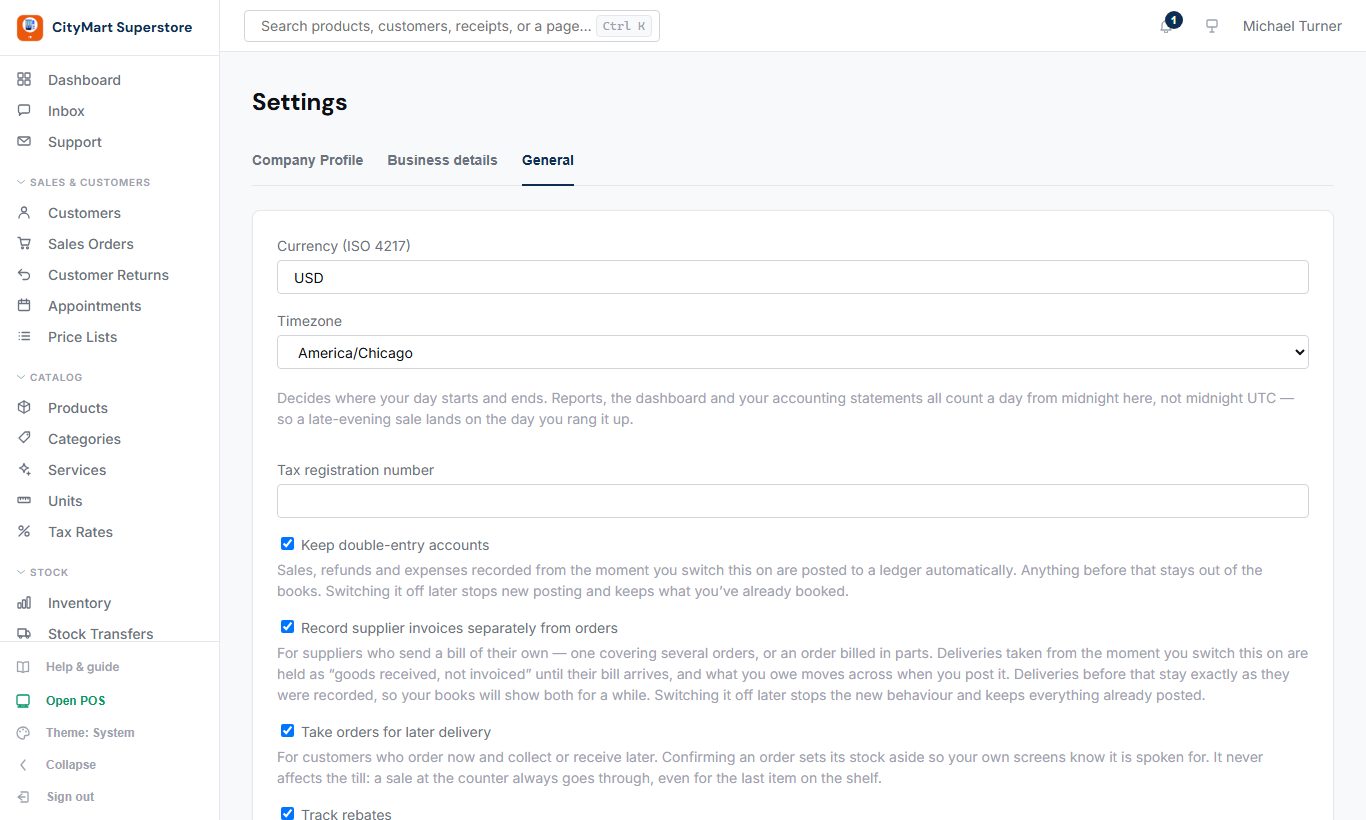
Company profile, business details (address, tax numbers, bank account), currency, time zone and the switches for optional modules.
How to use it
Company Profile: name and contact details.
Business details: address, tax and registration numbers, and the bank account printed on invoices.
General: currency, time zone, tax registration number (NTN), financial year, alerts, expense approvals, and the optional modules below.
Optional modules (off until you tick them): Keep double-entry accounts, Record supplier invoices separately from orders, Take orders for later delivery, Track rebates, Credit and debit notes, Post-dated cheques, Staff commission, Customer credit limits, Price lists, Pack sizes, Batch and expiry tracking.
Website switches: Publish a public storefront (catalogue browsing and appointment booking), Show a stock badge on public product pages, and appointment reminder emails.
Settings & Account › Settings - click to enlarge
Branding
Where: Settings & Account › Branding
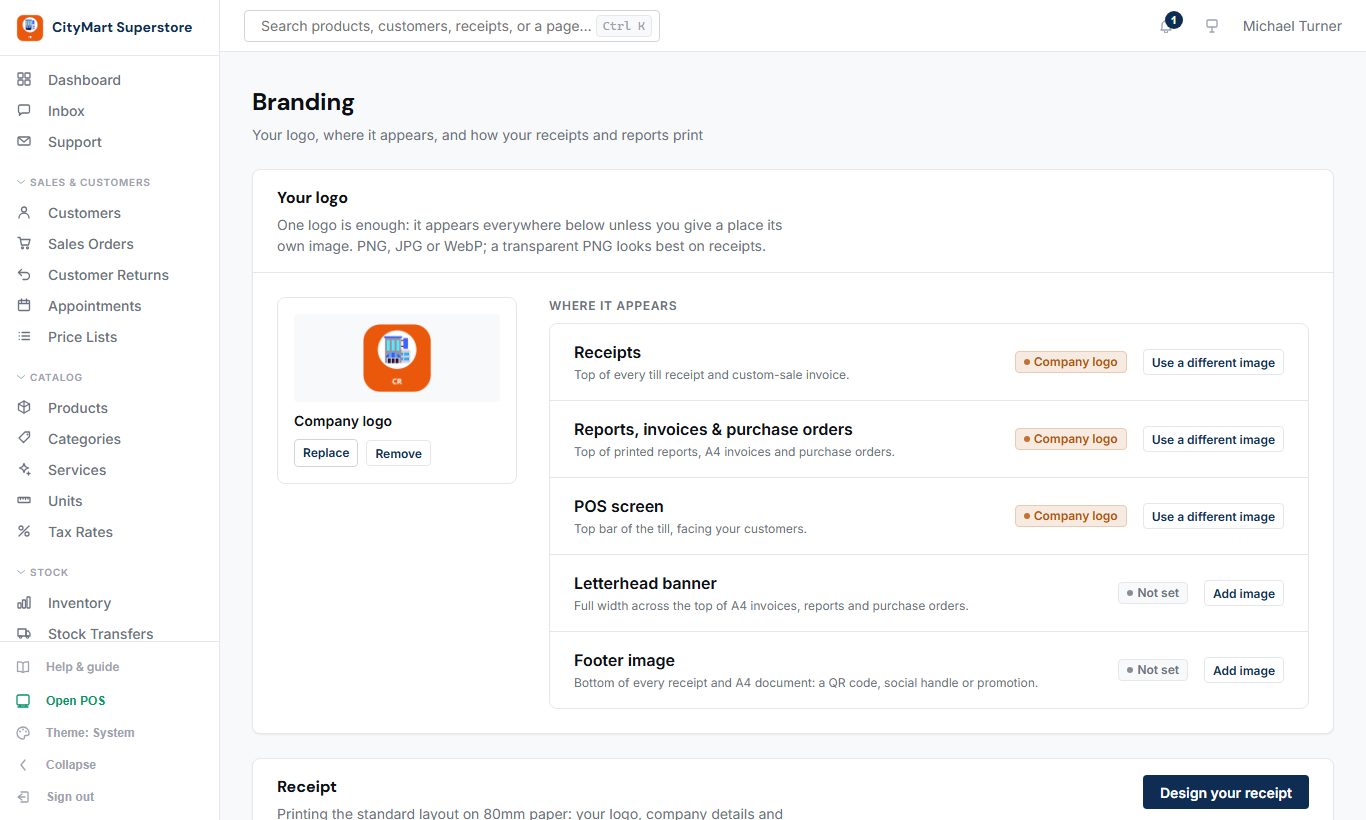
Your logo, where it appears, and how receipts and A4 documents print.
How to use it
Upload your company logo - it's used everywhere unless a place has its own image.
Where it appears: give receipts, reports, the POS screen, a letterhead banner or the footer their own image.
Receipt: see how your receipt prints and press Design your receipt to change paper width, header and footer text, company details and columns.
Saved layouts › report layout: choose the banner, logo, company name, top line and colour, footer and whether bank details print on invoices. The preview shows a true A4 page.
Settings & Account › Branding - click to enlarge
Website
Where: Settings & Account › Website
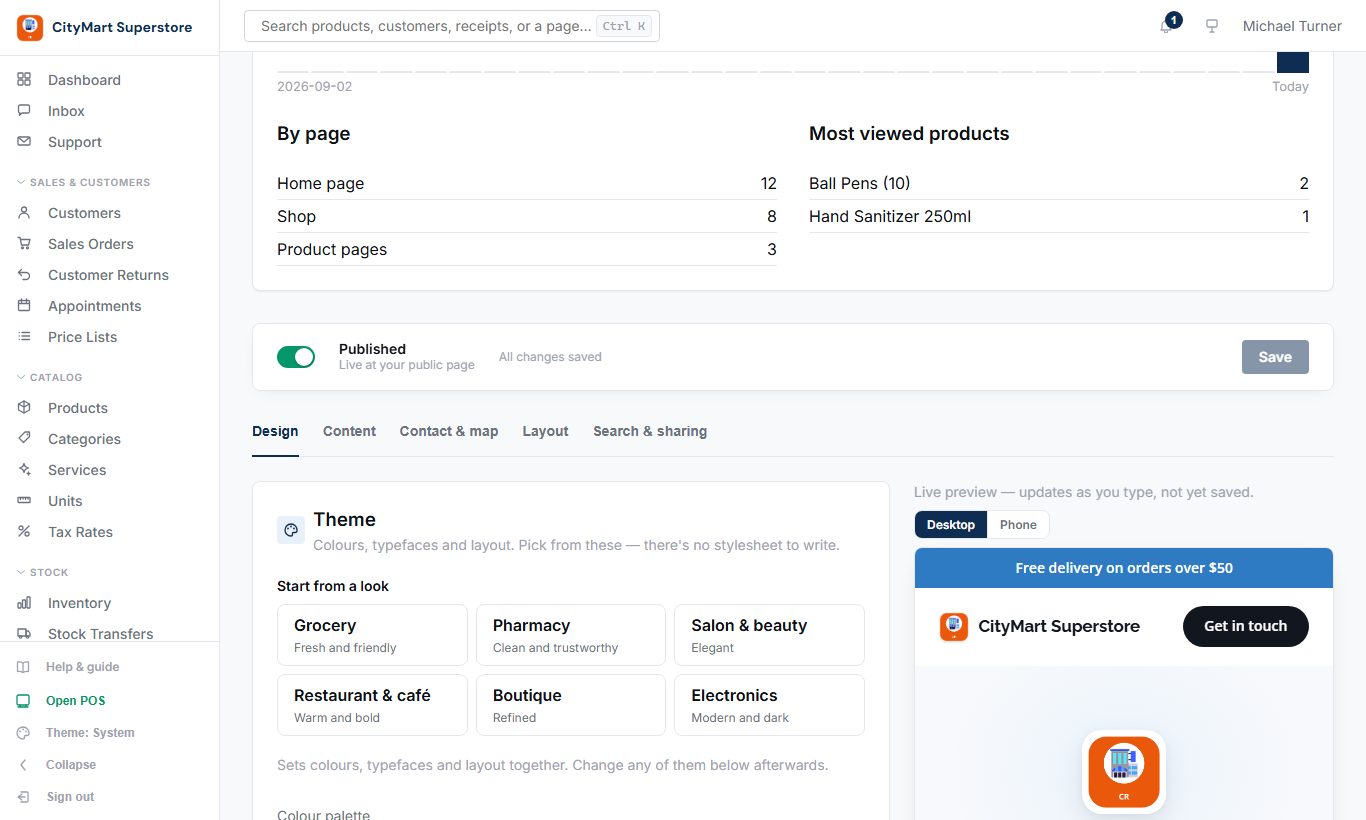
Your public website - no code. Choose a look, add your content, and publish.
How to switch it on
Website must be part of your plan. If its menu item shows a lock, or the page says it is not part of your plan, open Settings & Account › Plan to see what your plan includes, then change plan on the Billing page or ask Support.
Open Settings & Account › Settings, choose the General tab, tick "Publish a public storefront (catalog browsing + appointment booking, no online checkout)" and press Save. Without it your shop and booking pages are not shown to the public.
Optional, same place: tick "Show a stock badge on public product pages" (In stock / Low stock / Out of stock, never the count) and press Save.
Open Settings & Account › Website, set it up (the steps below), switch Published on and press Save.
Choose what to show: on Catalog › Products tick Website for each product you want listed; services added in Catalog › Services show by themselves.
Open your address, saleflowpoint.com/c/your-shop, to check it as a visitor sees it.
How to use it
Design: start from a ready-made look (Grocery, Pharmacy, Salon...) and adjust colours, fonts and layout.
Content: about text, 'why us' points and gallery photos.
Contact & map: email, phone, WhatsApp, hours, social links and your location.
Layout: announcement bar, main button text, the order of sections, and which sections show (About us, Why us, Products, Services, Gallery, Contact, Map).
Search & sharing: the title and description Google shows.
Check the Desktop and Phone previews, switch Published on, and press Save.
Your site is at saleflowpoint.com/c/your-shop, and the online shop at /store/your-shop: categories, search, price filter, sort and a page per product.
Prices off (Layout): "call for pricing" - products and services still show, without a price.
Sale prices (Layout, on to start with): a discounted product shows its regular price crossed out beside the sale price, with the discount's name. Prices are shown with tax, as the till charges them.
The home page shows your first 12 services; Show all services opens a services page with search, length, price and sort.
Customers book from /store/your-shop/book, and confirm, reschedule or cancel from the link in their email.
Customers browse and book; there is no online checkout.
The Website page also shows your visitors: visits by day, by page, and your most viewed products.
Settings & Account › Website - click to enlarge
Billing & Plan
Where: Settings & Account › Billing, Plan
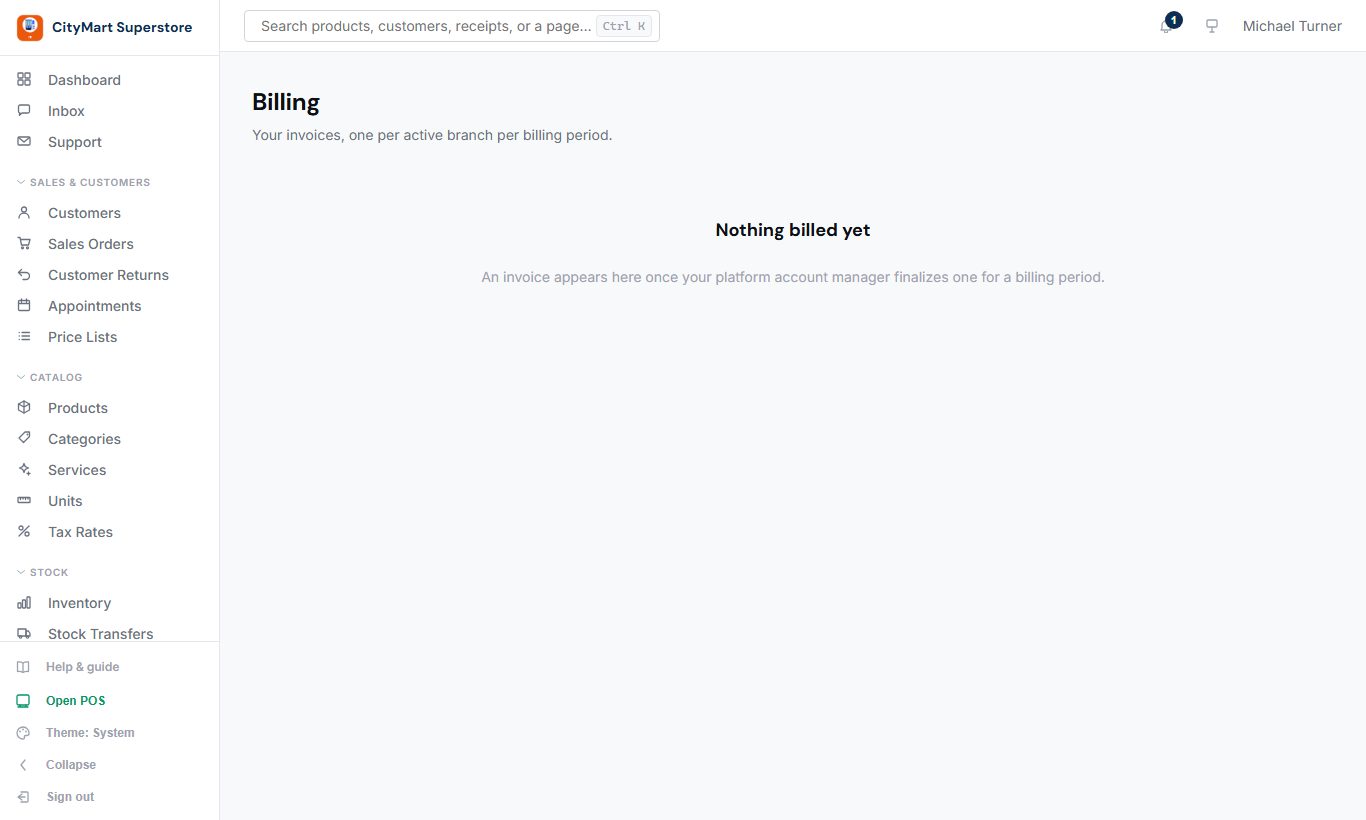
Your plan, how you pay for it, and every payment. Prices are in US dollars, tax included, charged per branch.
How to use it
Choose a plan: pick Monthly or Yearly (yearly shows what you save), then Subscribe and pay by card in the secure payment window.
Change plan: an upgrade, or monthly to yearly, happens at once - the window shows what you pay today for the time left. A downgrade, or yearly to monthly, starts at your next renewal; nothing is charged today.
Update card replaces your card without charging it. Change sets the email that receives your receipts.
Cancel plan: you keep the plan until the end of the period you paid for; Resume before then carries on as if nothing happened.
Payments lists every payment with a PDF invoice to download.
Prefer a local bank transfer? Request local bank transfer: we send you a bill with our bank details; upload the payment receipt on the bill and the plan applies once we've checked it.
Plan shows what your plan includes and how much of it you use (branches, devices).
Paying by card, you change plan on the Billing page yourself - the Plan page sends you there. Paying by bank or on agreed terms, ask for a change from the Plan page and we send you a bill for it; the plan changes when it is paid.
If a renewal payment fails, a banner on every page asks you to update your card; the payment is retried for a few days. A plan that ends drops to Free: the first branch keeps selling and the others are locked until it is paid again.
A bill we send can be paid by card too (Pay by card on the bill, or the link in its email).
Settings & Account › Billing, Plan - click to enlarge
Inbox & Support
Where: Inbox, Support (top of the menu)
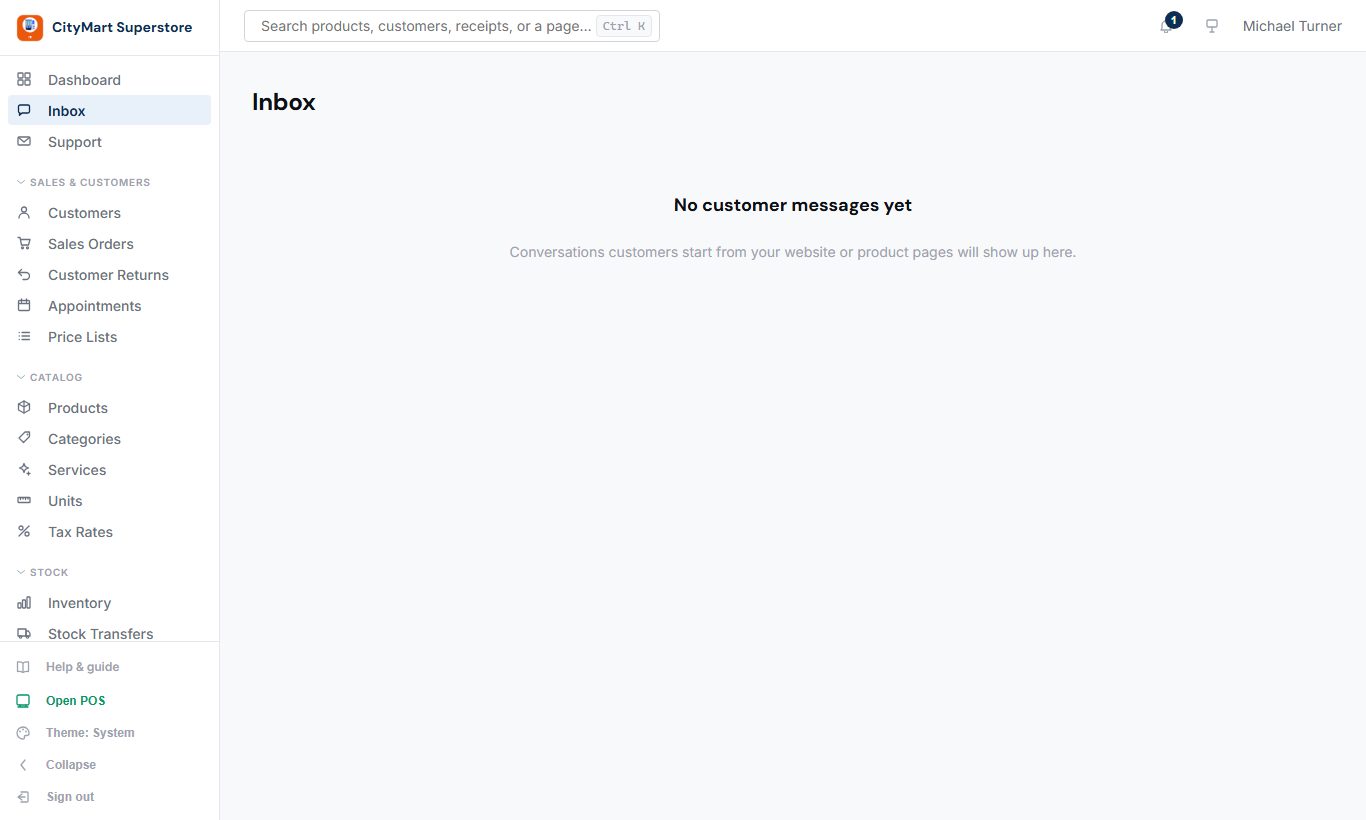
Inbox holds messages from customers who chat with you from your website. Support is where you ask us for help.
How to switch it on
Support is always on.
Chat (the Inbox) must be part of your plan. If its menu item shows a lock, or the page says it is not part of your plan, open Settings & Account › Plan to see what your plan includes, then change plan on the Billing page or ask Support.
Customers start a chat from your website, so switch the website on too (see Website › How to switch it on).
How to use it
Inbox: open a conversation and reply; the bell shows new messages.
Support: open a ticket, attach a screenshot, and follow the replies.
The bell (top right) lists notifications; Mark all read clears them.
Inbox, Support (top of the menu) - click to enlarge