Free POS for a Clothing Store: Sizes, Stock and a Simple Till
One product, many sizes, and stock counted for each of them
Clothes are one product in many sizes
A free POS for a clothing store has to understand that a T-shirt is not one item. It is small, medium and large, and you can be sold out of one while the others sit on the rail.
Sizes as variants
In SaleFlowPoint each size is a variant of the product. Open the product, go to Variants, and add Small, Medium and Large. Each has its own price if you need it, its own barcode and its own stock.
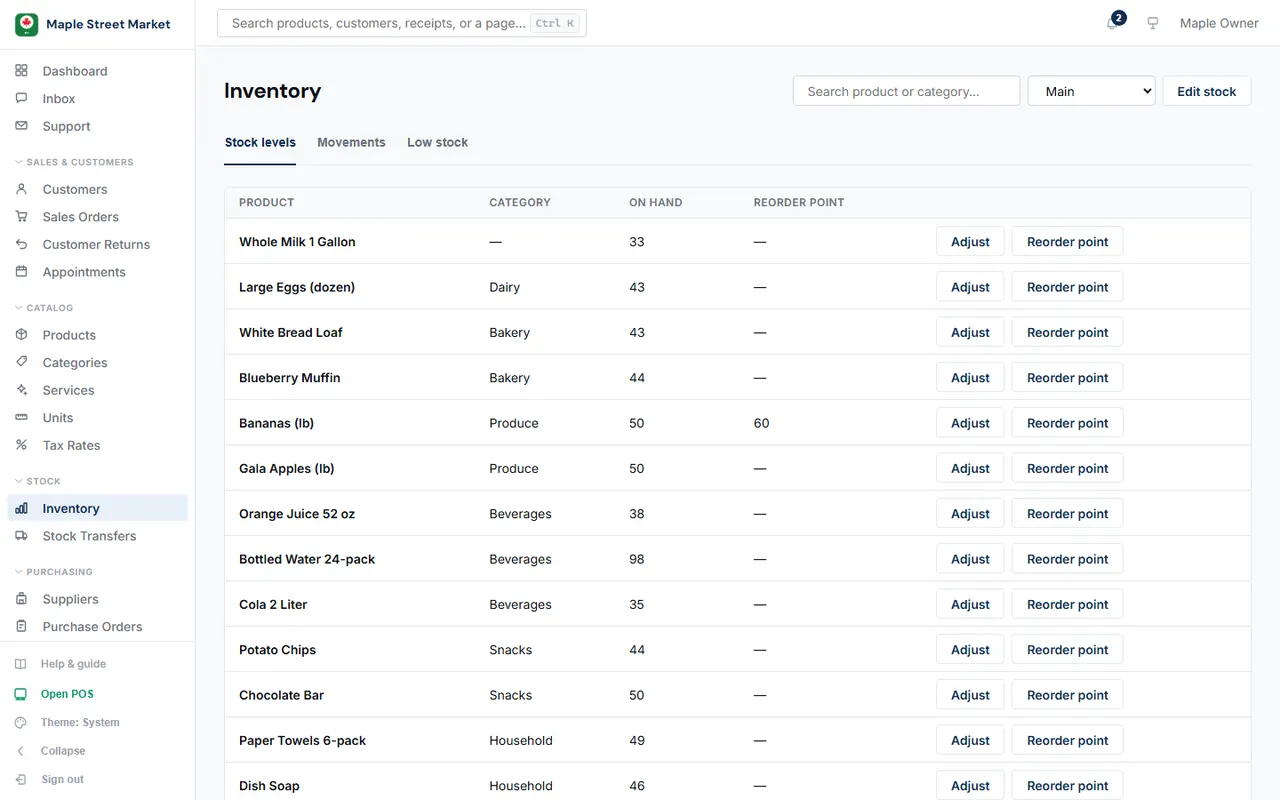
Stock per size
Because each size is counted separately, Inventory tells you that Medium is nearly gone while Large is untouched. That is what you need to know before you reorder.
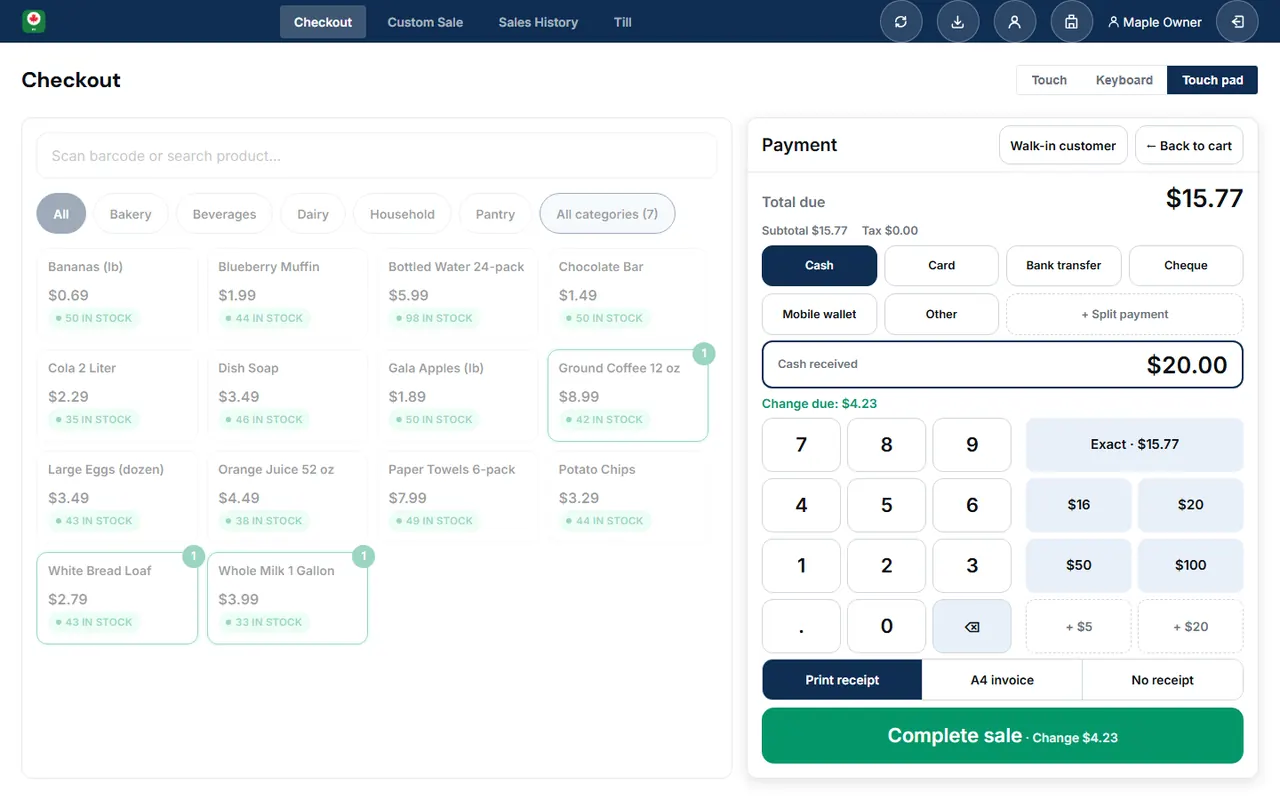
At the till
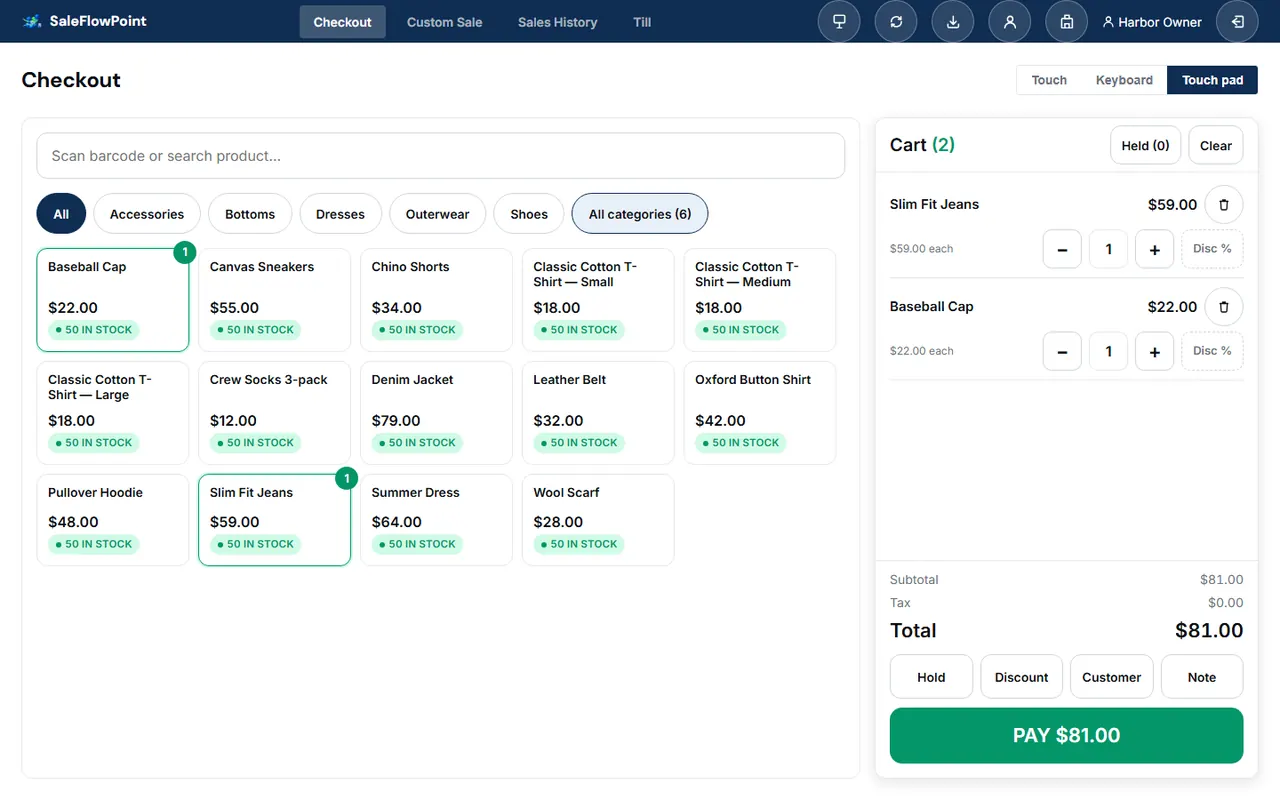
Each size has its own tile, or its own barcode on the tag. The cashier taps or scans the right one, so the stock for that size goes down and no other.
Setting up a product with sizes
In a free POS for a clothing store the order of work matters. Create the product once, with its name and price. Then open it, go to Variants, name the first variant with a size, and add the others below it.
If the sizes cost the same, type the same price. If the larger sizes cost more, give each its own. Each variant can also have its own barcode, which is what you print on the tag.
Colors as well as sizes
A variant is simply a version of the product, so it can be a color, a size, or both. A shirt in two colors and three sizes can be six variants: White Small, White Medium, and so on. Name them the way you would say them to a customer, because that name is what appears on the till and the receipt.
Reading your stock by size
After a few weeks, Inventory tells you things a clothing shop needs to know. Which sizes sell out first. Which sizes you always have left at the end of a season. Order to that pattern and you tie up less money in the sizes that do not move.
Sales, discounts and end of season
A percentage off one item or off the whole bill is two taps at the till, and it shows on the receipt. For a clearance, you can also change the price of the product itself in the admin area, which then applies at every till.
Returns and exchanges
Clothes come back more than most products. Open the original sale in Sales History and refund the item; it returns to the stock of that exact size. For an exchange, refund the first item and ring up the new one as a normal sale.
Your first week
Clothing has fewer products than a grocery but more versions of each, so spend the time on getting sizes right.
- Import the products with one row each
- Open each one and add its sizes as variants
- Count every size and enter it as opening stock
- Print or write the barcode for each size on its tag
- Set a reorder point on the sizes that always sell first
From then on, every sale tells you something about which sizes your customers actually buy.
Common questions
How many sizes can a product have? As many variants as you need. Each has its own price, barcode and stock.
Can each size have its own barcode? Yes. Each variant holds its own barcode, which is the one you put on the tag.
Can I see which sizes are running out? Inventory shows the stock left for each size, and a reorder point puts a size on the Low stock list when it gets low.
How do I handle a sale season? Give a percentage off at the till, or change the product's price in the admin area for the length of the sale.
Can a customer exchange an item? Refund the returned item from the original sale, then sell the new one. Stock for both sizes is updated.
Can I add a new season's stock quickly? Yes. Import the new products from a spreadsheet, and add their sizes as variants.
Does each shop assistant need their own login? It is worth doing. Every sale then shows who made it.
Discounts and returns
Give a discount on one item or the whole bill for a sale or a regular customer. For a return, open the sale in Sales History and refund the item; it goes back into stock.