Free POS for a Grocery Store: Scanning, Stock and a Fast Checkout
What a neighbourhood grocery needs at the counter, and how to set it up for free
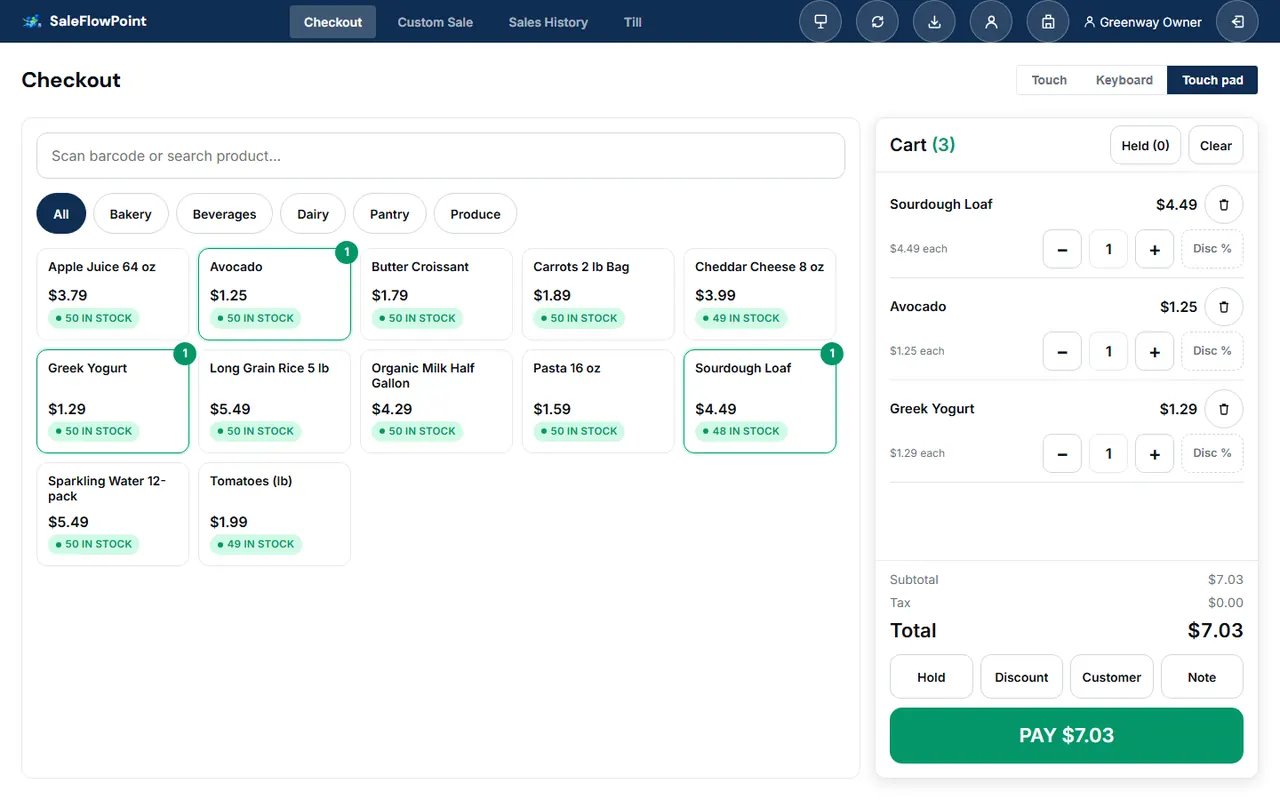
A grocery sells fast, in small amounts
A free POS for a grocery store has to be quick above everything. A basket of twelve items should take seconds, and the queue should never wait for the till.
Scan to sell
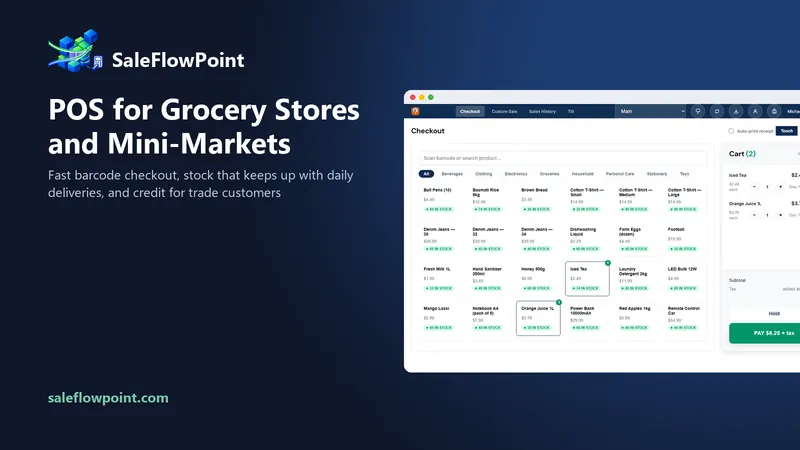
Put a barcode on each product and plug in any USB barcode scanner. It types the code for you, so there is nothing to install. Scan an item and it goes straight into the cart; scan it again and the quantity goes up. For loose items with no barcode, tap the tile.
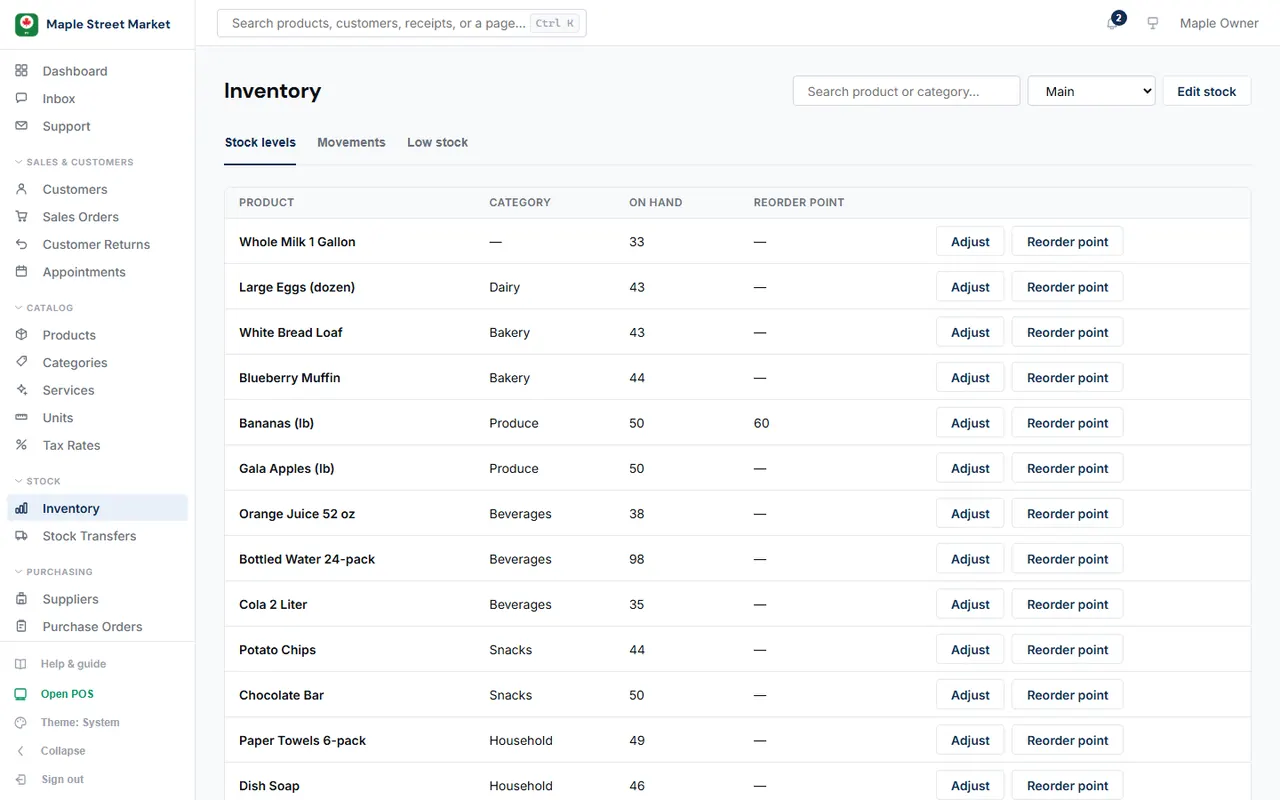
Stock that keeps up
A grocery has many products and they move every day. Stock goes down with each sale. Add a delivery with one button, and take off anything expired or damaged with a note.
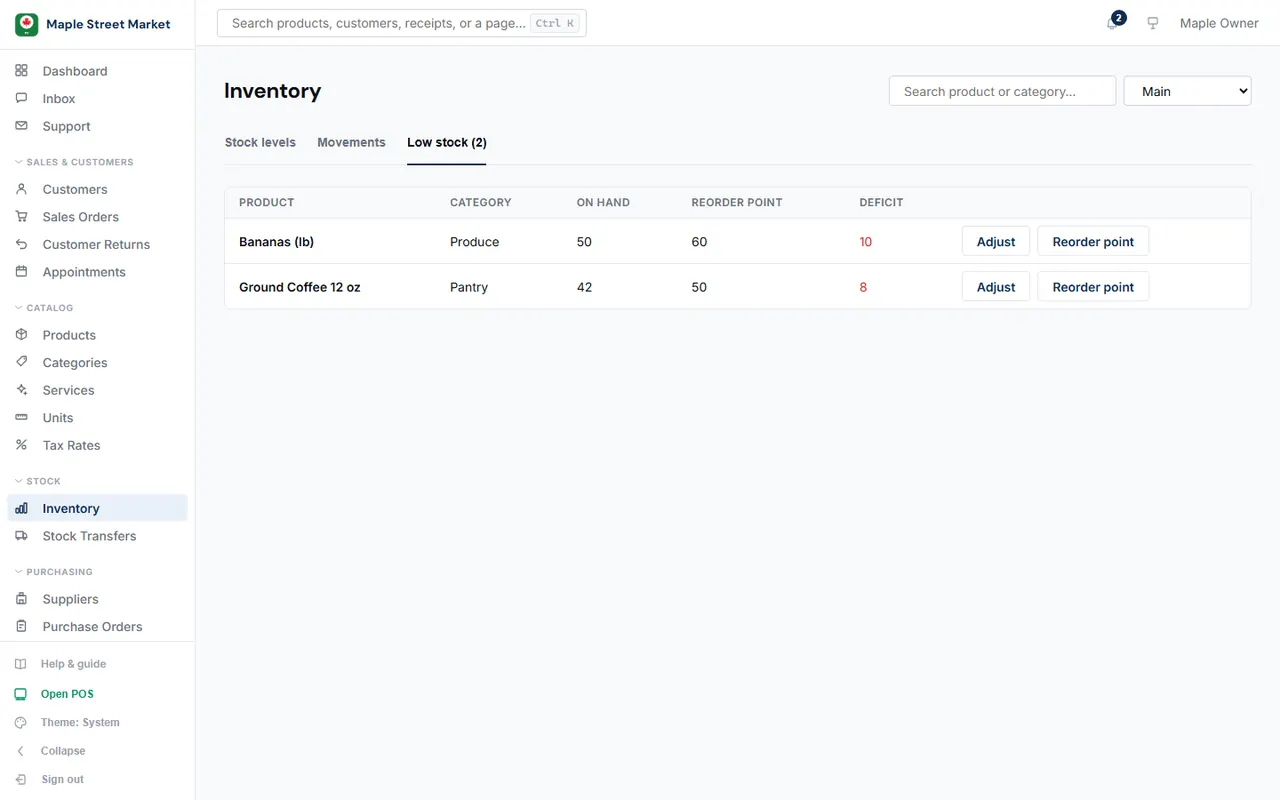
Know what to reorder
Give your fast sellers a reorder point. The Low stock tab then lists what has reached its level and how many you are short, ready for your next order.
Setting up a grocery's catalog
A grocery has more products than most small shops, so the set-up is where a free POS for a grocery store earns its keep. Do not type them. Put them in a spreadsheet with a name, a category, a price, a cost and the barcode printed on the pack, and import the file.
Choose categories the way your aisles run: dairy, bakery, produce, beverages, pantry, household. They become the buttons at the top of the till.
Items with no barcode
Loose fruit and vegetables, bread from the oven and anything sold from behind the counter have no barcode. Give them a tile instead. The cashier taps the tile and, for more than one, taps the quantity and types it on the keypad.
Keeping the queue moving
- Scan with one hand and bag with the other - the cart builds itself
- Use the quick cash buttons instead of typing the amount handed over
- Hold a sale when a customer runs back for something, and serve the next person
- Split a bill when a customer pays part by card and part in cash
Short dates and damaged stock
Groceries lose stock in ways other shops do not: things go out of date, get dented or spoil. Take them off with Adjust and a note saying why. It keeps your stock right, and over a few weeks the notes show you where the losses are.
What to add later
Once the till is running, a website for the shop is in the same free account, using the products you already entered. If you open a second shop or need a second till, that is where a paid plan comes in.
Your first week
A grocery does not have to switch everything on the first day. A simple order of work keeps it calm.
- Day one: import the products and do the opening stock count after closing
- Day two: sell on the new till, with the old method beside it as a safety net
- Day three: set reorder points on the things you sell every day
- End of the week: read the Low stock list before you phone the supplier, and enrol the till for offline selling
By the second week the notebook is no longer needed, and the stock numbers are ones you can trust.
Common questions
Does it need a special scanner? No. Any USB barcode scanner that types like a keyboard works with no set-up.
What if a barcode will not scan? Type a few letters of the product's name in the search box, or tap its tile.
Can the till keep selling if the internet drops? Yes, once it is enrolled. It takes cash sales offline and sends them up when the connection returns.
How many products can I have? The free plan's limits are one shop and one till, not the size of your catalog.
Can I change a price quickly? Change it in Products and it applies at the till straight away, and on your website if you have published one.
Can I give a regular customer a discount? Yes, on one item or on the whole bill, as a percentage.
Does it connect to a weighing scale? No. Items sold by weight are entered as a tile with a quantity; the till does not read a scale.
The cash drawer
Open a shift with a float, record cash you take to the bank, and close with a count. The till shows what it expects, so a difference is found the same day.