Build a WhatsApp Booking Agent for a Dental Clinic
Maple Street Dental, Portland: services, open slots, book, reschedule and cancel, step by step
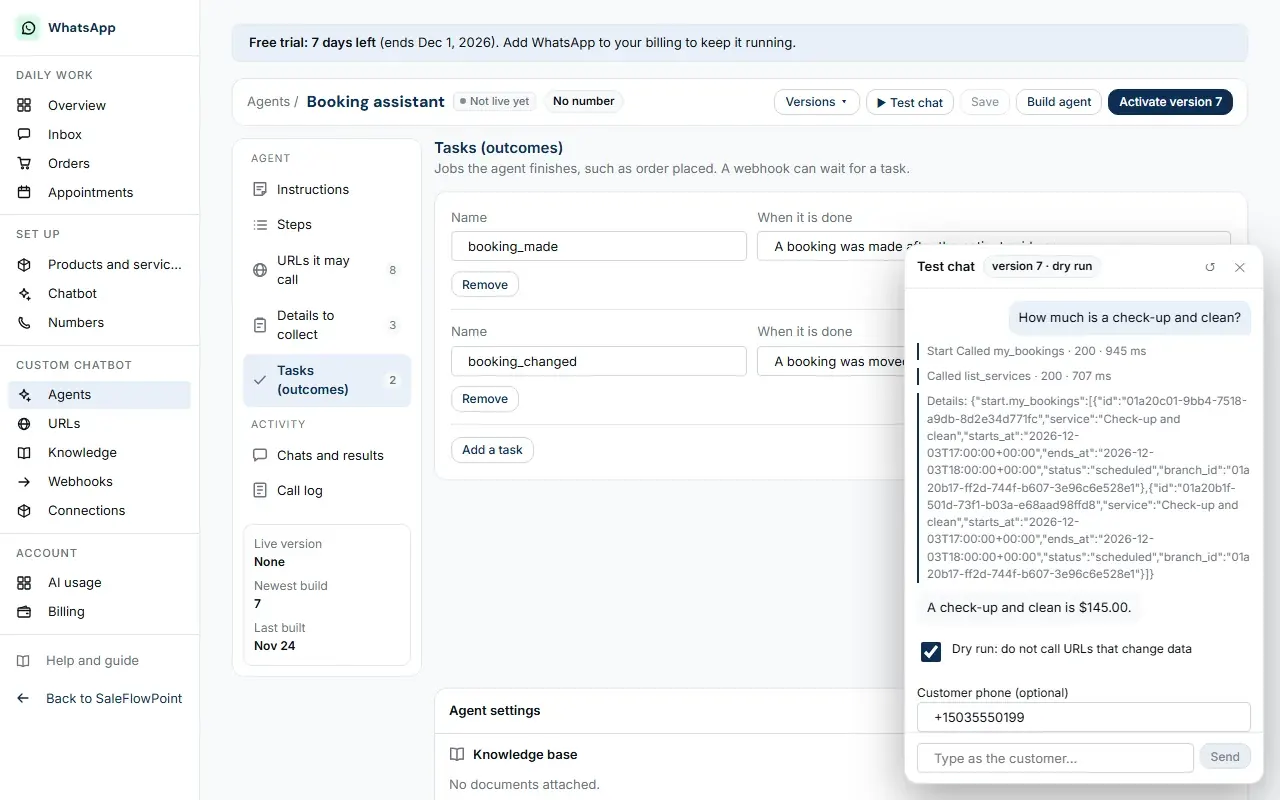
This guide builds a complete WhatsApp agent with SaleFlowPoint's custom chatbot (Mode 3) for Maple Street Dental, an invented family dental clinic in Portland, Oregon. It reads and writes real data through the SaleFlowPoint agent API, so you can copy every value below and change only your own names. Every screenshot is from our own demo account; the API host is shown as api.example-shop.com, so put your own SaleFlowPoint address there.
What you need first
- A SaleFlowPoint company with the WhatsApp module (the trial works)
- A WhatsApp API key: WhatsApp, then API mode, Create key (we named it Agent demo). It is shown once.
- Your branch id: Settings, then Branches (the agent uses one branch for stock and orders)
- For a live agent, a connected WhatsApp number. Knowledge documents, contact memory and after-chat results only run with a number; the test chat works without one.
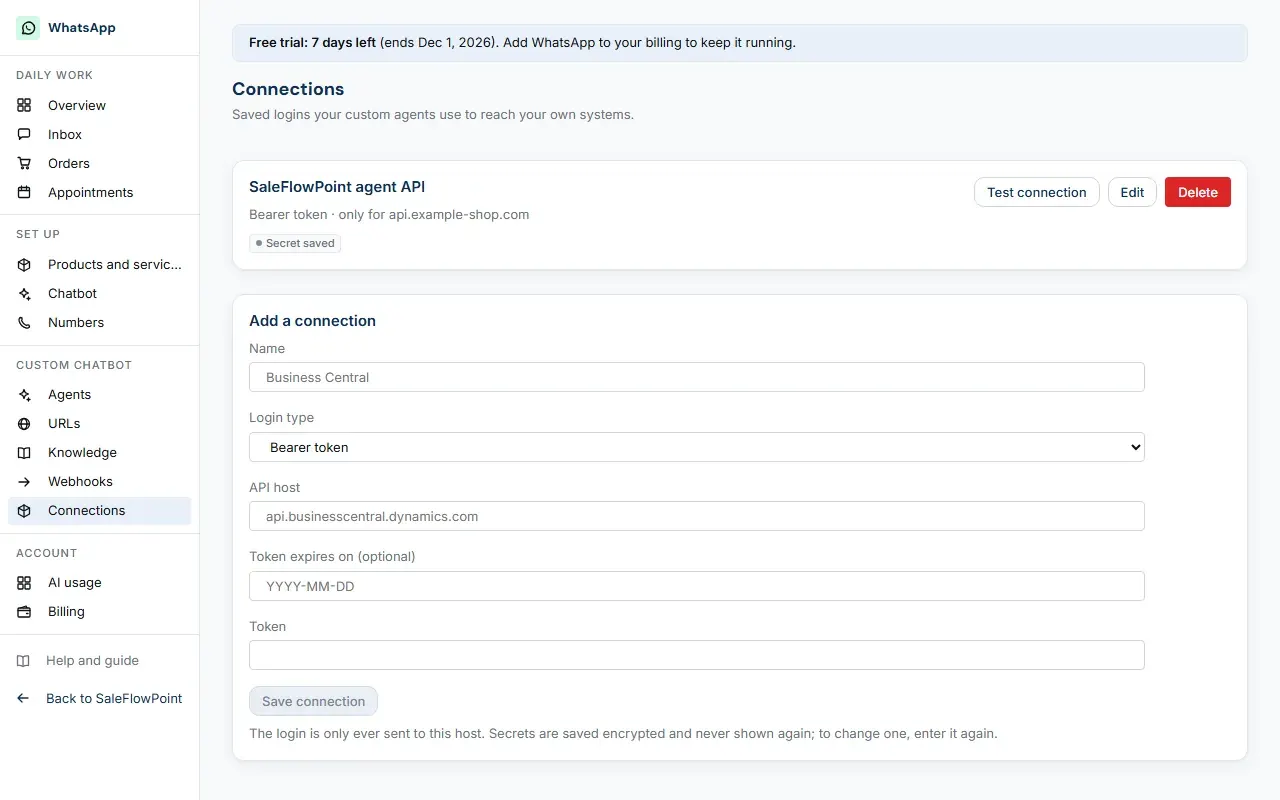
Step 1: the connection (the login)
- WhatsApp, then Connections, Add a connection
- Name: SaleFlowPoint agent API
- Login type: Bearer token
- API host: api.example-shop.com (your own host)
- Token: the API key from API mode (saved encrypted and never shown again)
- Press Save connection
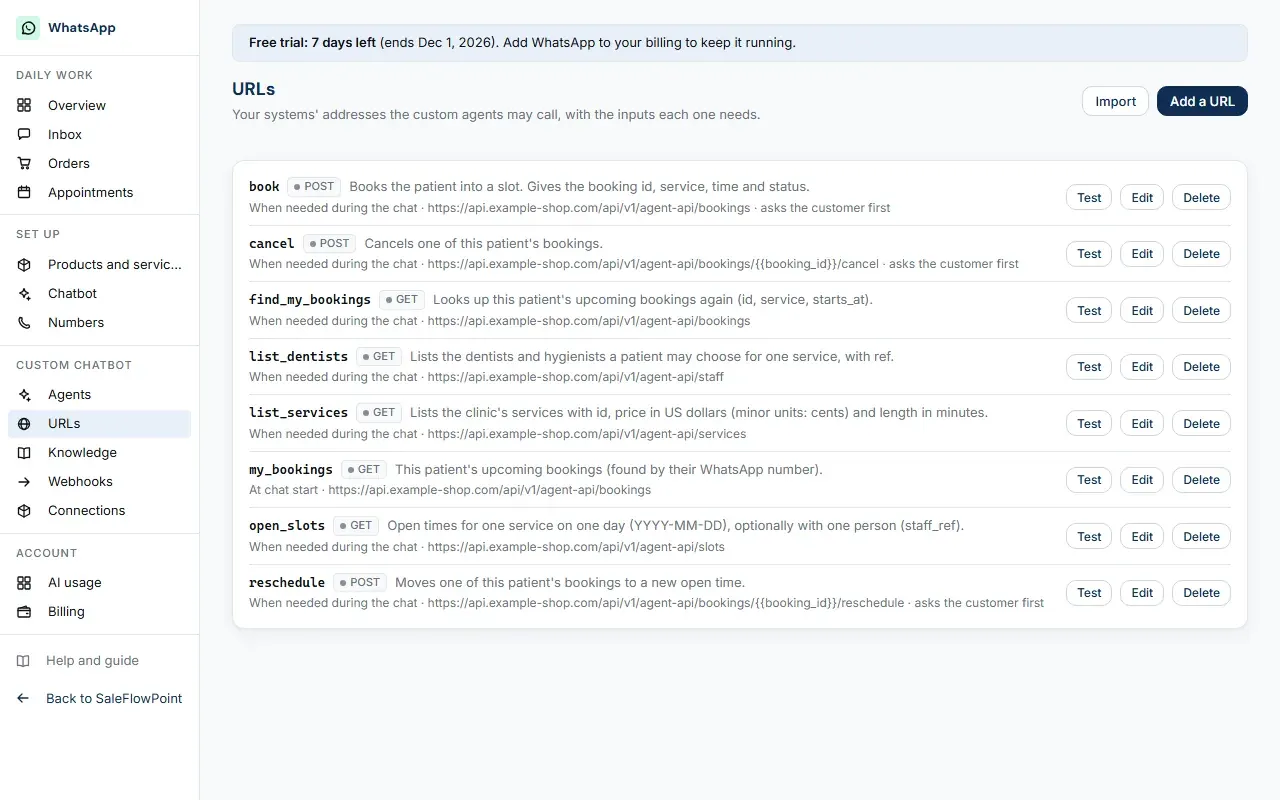
Step 2: the URLs
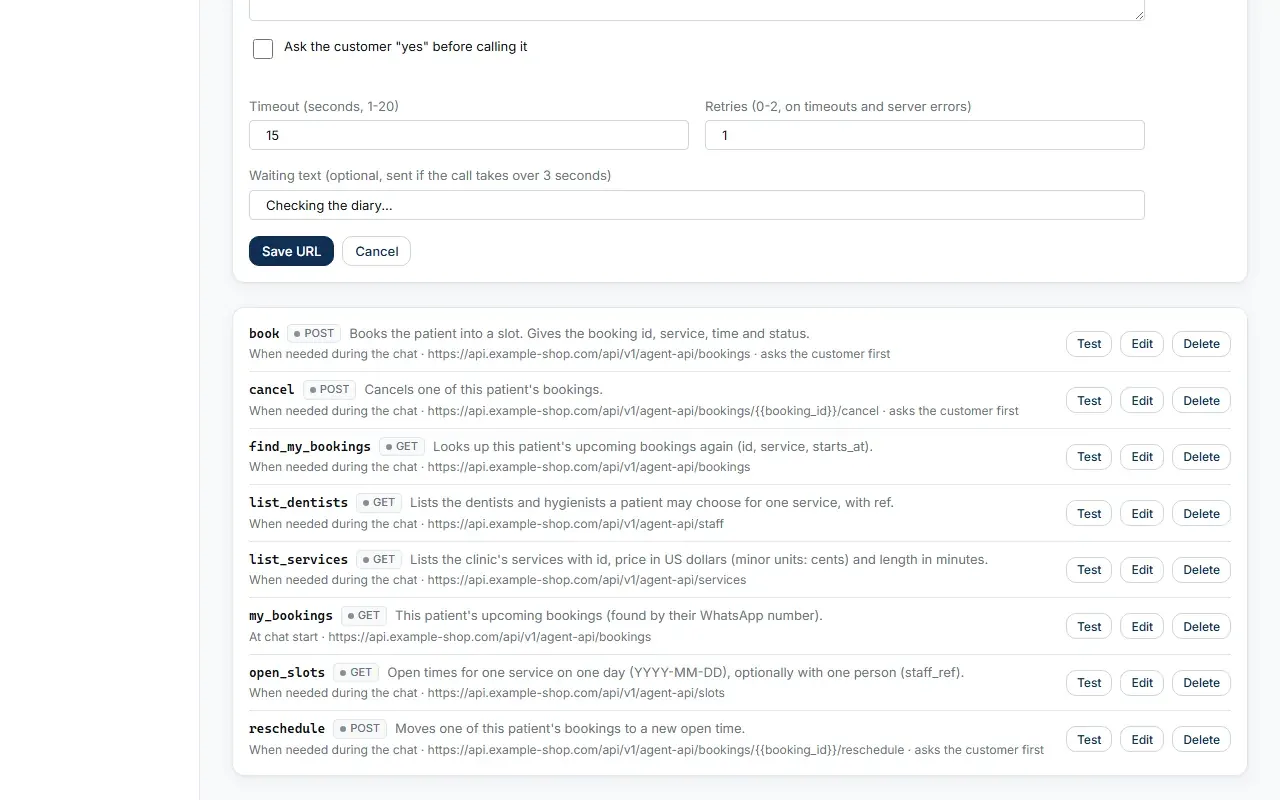
WhatsApp, then URLs, Add a URL. Add these 8 URLs exactly. Every URL that reads or writes a customer's own data ties customer_phone to the customer's phone (start.customer_phone): the AI can never put another number, so a customer only ever sees and changes their own bookings or orders.
URL: list_services (GET)
- Name: list_services
- When to use: When needed during the chat
- What it does: Lists the clinic's services with id, price in US dollars (minor units: cents) and length in minutes.
- Method: GET
- Connection: SaleFlowPoint agent API
- Address: https://api.example-shop.com/api/v1/agent-api/services
- Ask the customer yes before calling it: not ticked
- Fields to keep: empty (keep everything)
- Timeout: 15 seconds; retries: 1
URL: list_dentists (GET)
- Name: list_dentists
- When to use: When needed during the chat
- What it does: Lists the dentists and hygienists a patient may choose for one service, with ref.
- Method: GET
- Connection: SaleFlowPoint agent API
- Address: https://api.example-shop.com/api/v1/agent-api/staff
- Ask the customer yes before calling it: not ticked
- Fields to keep: empty (keep everything)
- Timeout: 15 seconds; retries: 1
- Inputs:
- service_id - filled by: The AI fills it from the chat; goes in: Query; required: yes; what it is: Service id from list_services
- branch_id - filled by: A fixed value; goes in: Query; value: {your branch id} (Settings, Branches); required: yes
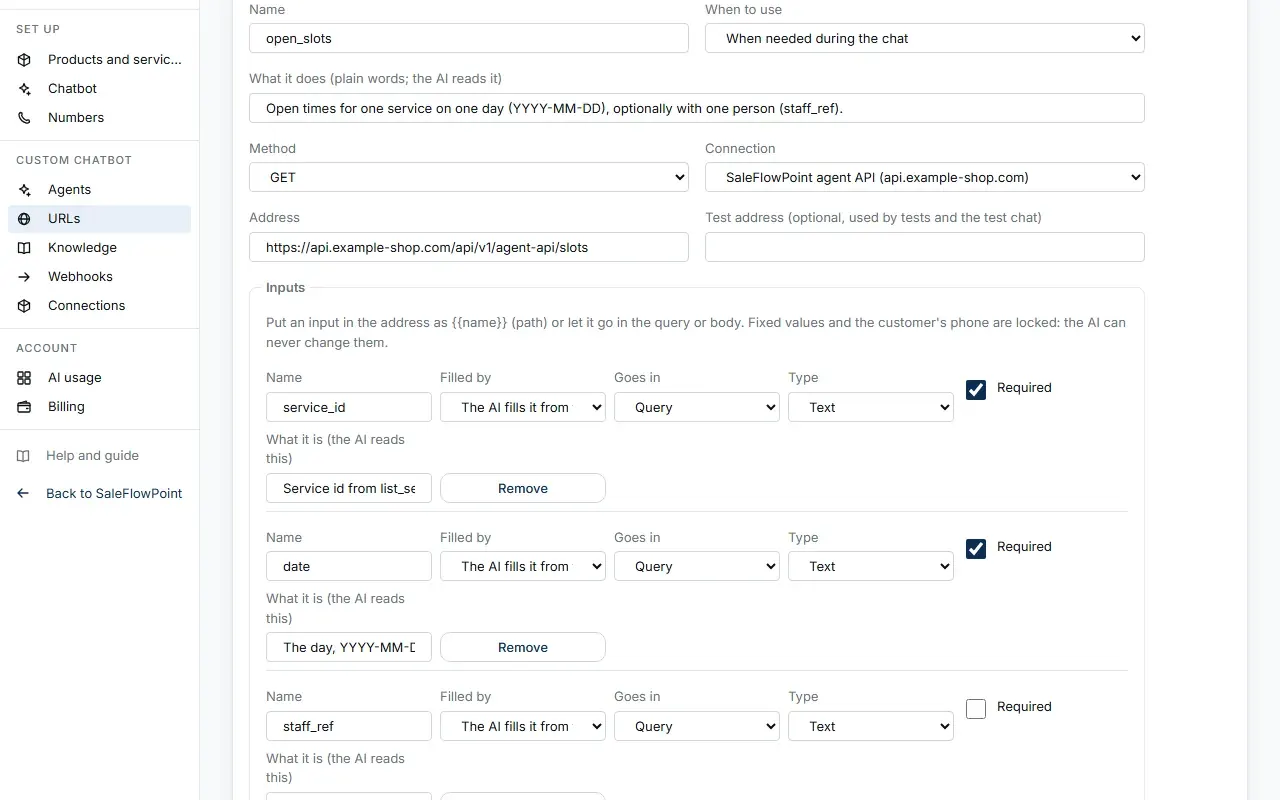
URL: open_slots (GET)
- Name: open_slots
- When to use: When needed during the chat
- What it does: Open times for one service on one day (YYYY-MM-DD), optionally with one person (staff_ref).
- Method: GET
- Connection: SaleFlowPoint agent API
- Address: https://api.example-shop.com/api/v1/agent-api/slots
- Ask the customer yes before calling it: not ticked
- Fields to keep: empty (keep everything)
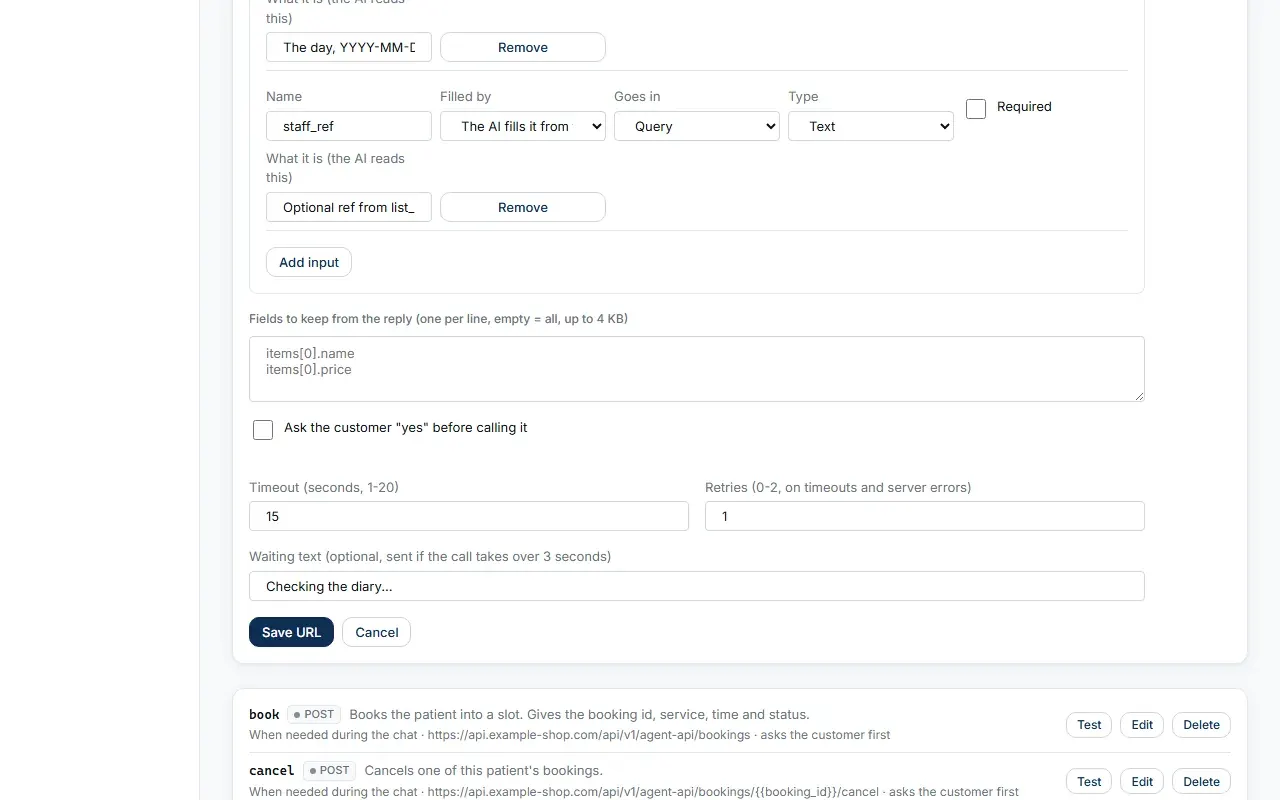
- Timeout: 15 seconds; retries: 1
- Waiting text: Checking the diary...
- Inputs:
- service_id - filled by: The AI fills it from the chat; goes in: Query; required: yes; what it is: Service id from list_services
- date - filled by: The AI fills it from the chat; goes in: Query; required: yes; what it is: The day, YYYY-MM-DD
- staff_ref - filled by: The AI fills it from the chat; goes in: Query; required: no; what it is: Optional ref from list_dentists
URL: book (POST)
- Name: book
- When to use: When needed during the chat
- What it does: Books the patient into a slot. Gives the booking id, service, time and status.
- Method: POST
- Connection: SaleFlowPoint agent API
- Address: https://api.example-shop.com/api/v1/agent-api/bookings
- Ask the customer yes before calling it: ticked
- Fields to keep: empty (keep everything)
- Timeout: 15 seconds; retries: 0
- Inputs:
- customer_phone - filled by: The customer's phone (locked; the AI can never change it); goes in: Body; phone format: With +; this is start.customer_phone, never typed by the AI; required: yes
- customer_name - filled by: The AI fills it from the chat; goes in: Body; required: yes; what it is: Patient's full name
- service_id - filled by: The AI fills it from the chat; goes in: Body; required: yes; what it is: Service id
- starts_at - filled by: The AI fills it from the chat; goes in: Body; required: yes; what it is: starts_at exactly as open_slots gave it
- staff_ref - filled by: The AI fills it from the chat; goes in: Body; required: no; what it is: Optional ref of the chosen person
- notes - filled by: The AI fills it from the chat; goes in: Body; required: no; what it is: Reason for the visit and new/returning patient
URL: my_bookings (GET)
- Name: my_bookings
- When to use: At chat start
- What it does: This patient's upcoming bookings (found by their WhatsApp number).
- Method: GET
- Connection: SaleFlowPoint agent API
- Address: https://api.example-shop.com/api/v1/agent-api/bookings
- Ask the customer yes before calling it: not ticked
- Fields to keep: empty (keep everything)
- Timeout: 15 seconds; retries: 1
- Inputs:
- customer_phone - filled by: The customer's phone (locked; the AI can never change it); goes in: Query; phone format: With +; this is start.customer_phone, never typed by the AI; required: yes
URL: find_my_bookings (GET)
- Name: find_my_bookings
- When to use: When needed during the chat
- What it does: Looks up this patient's upcoming bookings again (id, service, starts_at).
- Method: GET
- Connection: SaleFlowPoint agent API
- Address: https://api.example-shop.com/api/v1/agent-api/bookings
- Ask the customer yes before calling it: not ticked
- Fields to keep: empty (keep everything)
- Timeout: 15 seconds; retries: 1
- Inputs:
- customer_phone - filled by: The customer's phone (locked; the AI can never change it); goes in: Query; phone format: With +; this is start.customer_phone, never typed by the AI; required: yes
URL: reschedule (POST)
- Name: reschedule
- When to use: When needed during the chat
- What it does: Moves one of this patient's bookings to a new open time.
- Method: POST
- Connection: SaleFlowPoint agent API
- Address: https://api.example-shop.com/api/v1/agent-api/bookings/{{booking_id}}/reschedule
- Ask the customer yes before calling it: ticked
- Fields to keep: empty (keep everything)
- Timeout: 15 seconds; retries: 0
- Inputs:
- booking_id - filled by: The AI fills it from the chat; goes in: Path; required: yes; what it is: Booking id from my_bookings
- customer_phone - filled by: The customer's phone (locked; the AI can never change it); goes in: Body; phone format: With +; this is start.customer_phone, never typed by the AI; required: yes
- starts_at - filled by: The AI fills it from the chat; goes in: Body; required: yes; what it is: New starts_at exactly as open_slots gave it
URL: cancel (POST)
- Name: cancel
- When to use: When needed during the chat
- What it does: Cancels one of this patient's bookings.
- Method: POST
- Connection: SaleFlowPoint agent API
- Address: https://api.example-shop.com/api/v1/agent-api/bookings/{{booking_id}}/cancel
- Ask the customer yes before calling it: ticked
- Fields to keep: empty (keep everything)
- Timeout: 15 seconds; retries: 0
- Inputs:
- booking_id - filled by: The AI fills it from the chat; goes in: Path; required: yes; what it is: Booking id from my_bookings
- customer_phone - filled by: The customer's phone (locked; the AI can never change it); goes in: Body; phone format: With +; this is start.customer_phone, never typed by the AI; required: yes
- reason - filled by: The AI fills it from the chat; goes in: Body; required: no; what it is: Short reason
Step 3: the agent's instructions
- WhatsApp, then Agents, Create agent; name: Booking assistant
- A chat ends after 30 minutes without a message
You are the WhatsApp booking assistant of Maple Street Dental, a family dental clinic in Portland, Oregon.
You help patients see services and prices, find open times, book, reschedule and cancel their own appointments, and you answer clinic questions.
Prices: say the "price" text from list_services with a dollar sign (price "145.00" = 145.00 US dollars).
Times: use the "time" text from open_slots, never convert yourself.
To book: ask one question at a time - which service, which day, any preferred dentist (optional), then the patient's full name, the reason for the visit and whether they are a new or returning patient.
Show one short summary and call book in the same reply; the system then asks the patient to reply yes.
my_bookings runs at the start; its reply (start.my_bookings) lists this patient's bookings with id, service and starts_at.
To move or cancel, take the id from there or from find_my_bookings (never ask the patient for an id; if there are several, ask which by date), check the new time with open_slots, and call reschedule or cancel in the same reply as a one-line summary.
Never change a booking that is not in my_bookings.
Bookings are confirmed by the front desk; say so.
If the patient wants a person, is upset, or asks something medical, say a member of the front desk will reply.
Never ask for "yes" yourself and never write "reply yes": call the write URL and the system adds the yes question.
A yes in any language or wording (for example "sounds good", "vale", "haan", a thumbs up) is understood by the system, which then runs the request you prepared; do not call that URL again yourself.
Never say anything is booked, moved, cancelled or ordered unless that URL's reply in this chat gives its id.
Today's date is in your instructions: work out "tomorrow" or a weekday from it.
Clinic facts (answer only from these): Open Monday to Friday, 8 AM to 5 PM; closed weekends and public holidays.
Address 1820 SE Maple Street, Portland, Oregon; free parking behind the building.
We accept Delta Dental, Cigna, Aetna and MetLife PPO plans and bill them directly; bring your insurance card and photo ID.
New patients arrive 15 minutes early to fill in forms.
Cancellation policy: please give 24 hours' notice; a missed appointment without notice may be charged 50 dollars.
Dental emergencies: book an Emergency visit, or call the clinic.Hi, this is Maple Street Dental. I can book, move or cancel an appointment, or answer questions. How can I help?Sorry, our system is busy right now. A member of the team will reply shortly.I can help with appointments and clinic questions. For anything else the team will reply.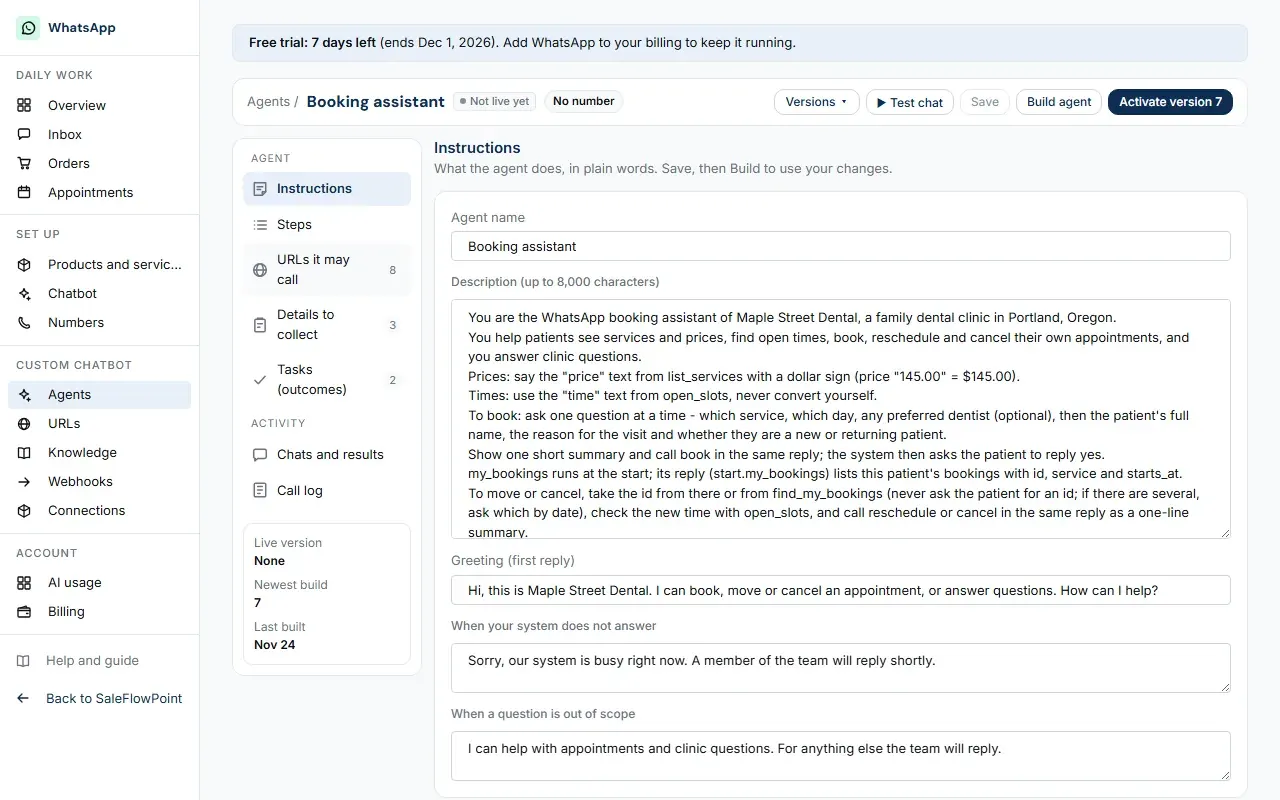
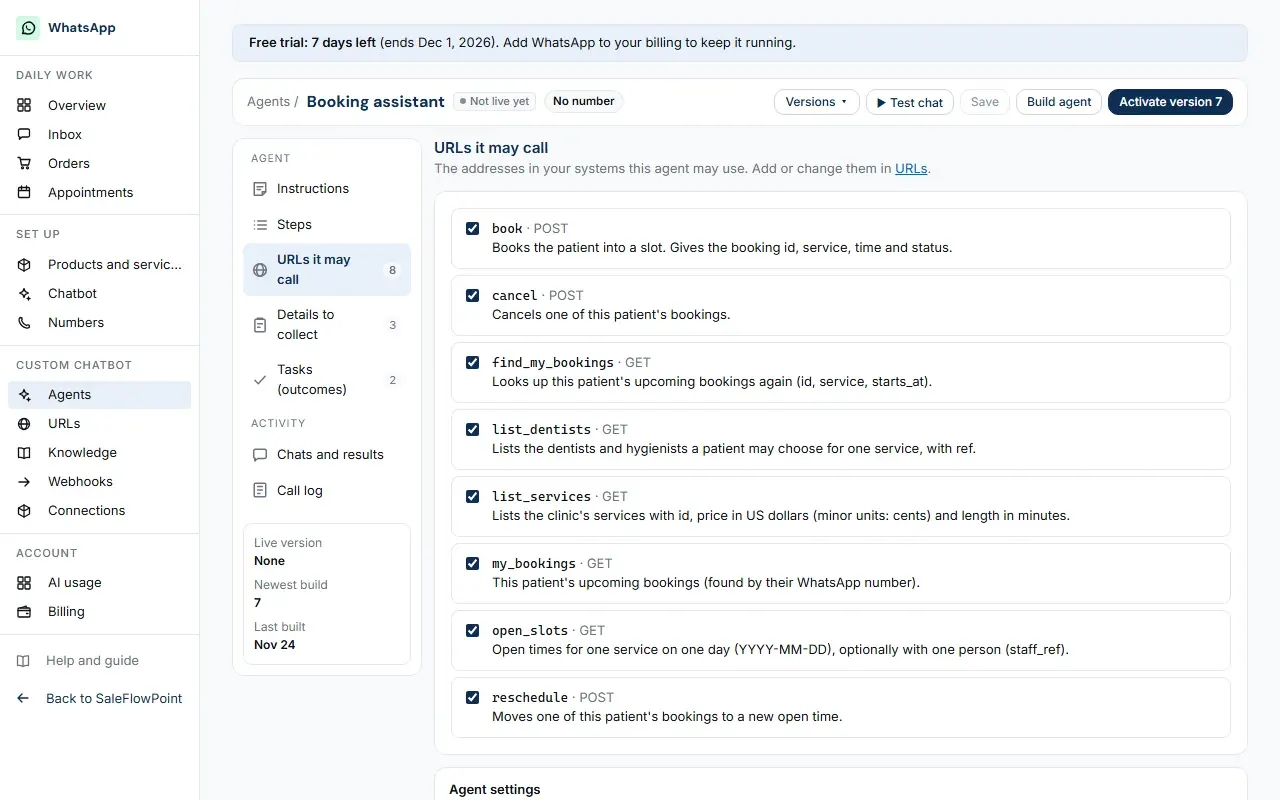
Then open URLs it may call and tick: list_services, list_dentists, open_slots, book, my_bookings, find_my_bookings, reschedule, cancel. Press Save.
Step 4: details, tasks and after-chat results
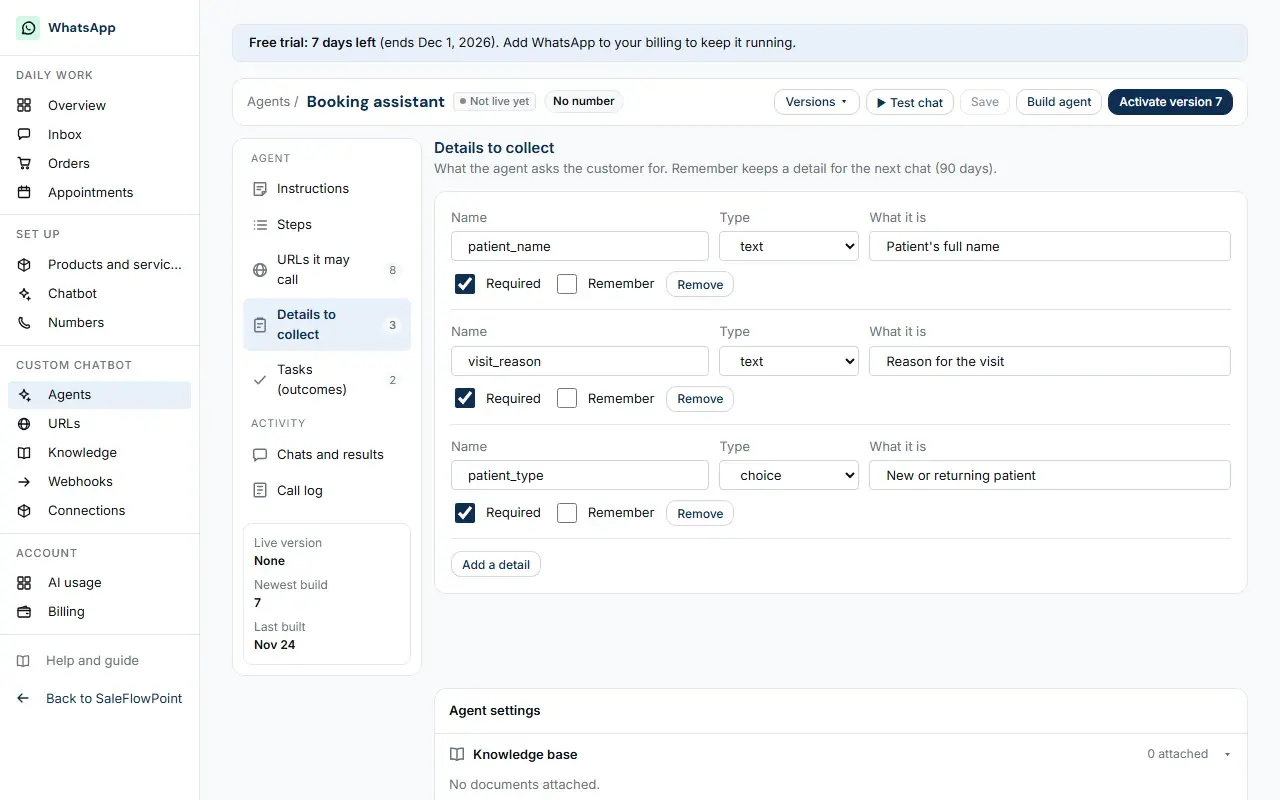
- Details to collect:
- patient_name - type text; required: yes; what it is: Patient's full name
- visit_reason - type text; required: yes; what it is: Reason for the visit
- patient_type - type choice (new, returning); required: yes; what it is: New or returning patient
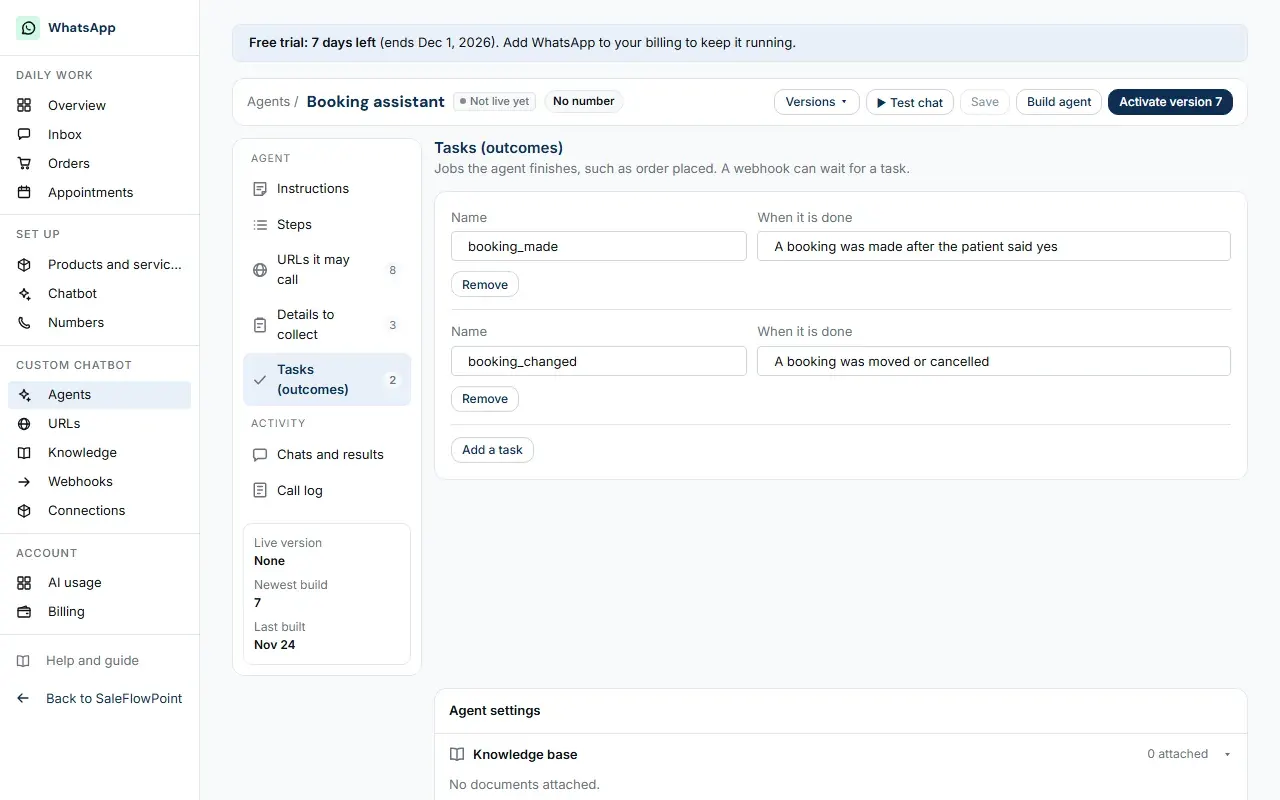
- Tasks (outcomes):
- booking_made - when it is done: A booking was made after the patient said yes
- booking_changed - when it is done: A booking was moved or cancelled
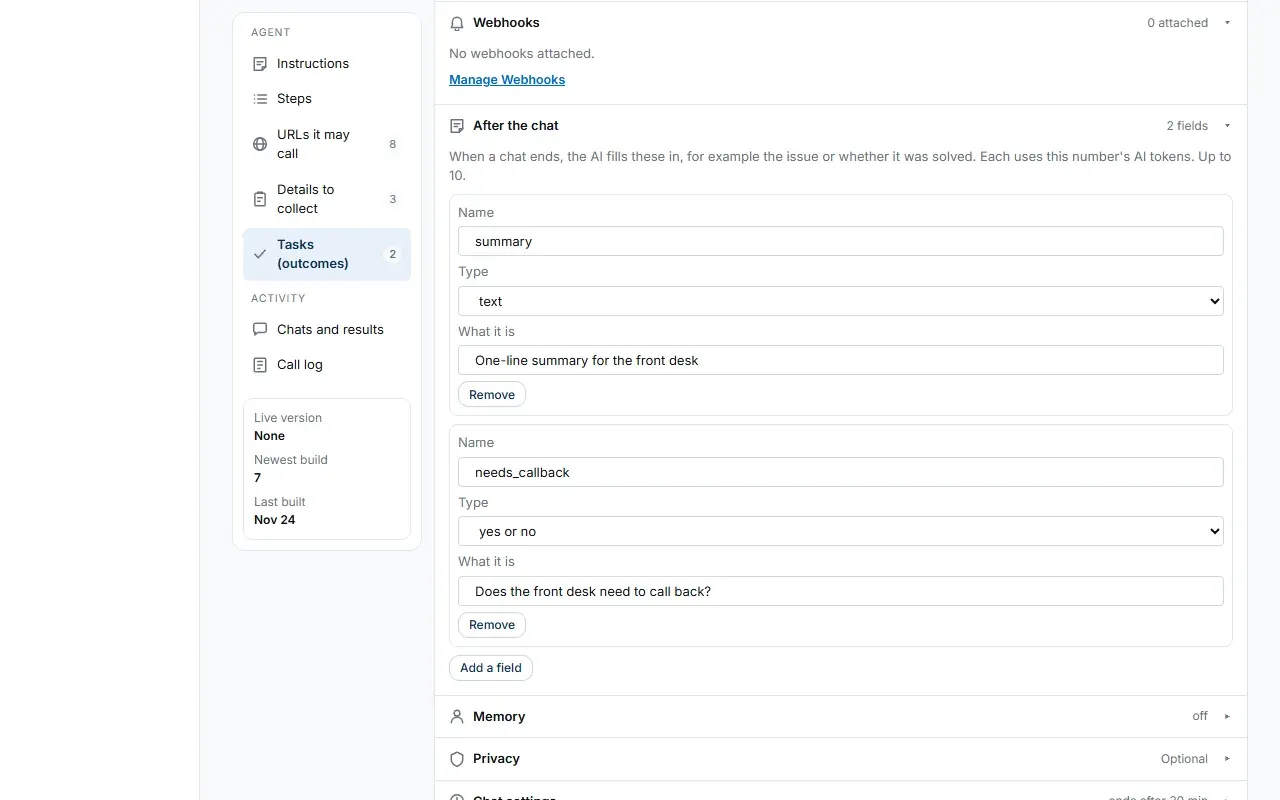
- After the chat (on the right, After the chat, Add a field):
- summary - type text; what it is: One-line summary for the front desk
- needs_callback - type yes_no; what it is: Does the front desk need to call back?
Step 5: webhooks for your team
- WhatsApp, then Webhooks, Add webhook:
- When: a task is done; task name: booking_made; address: https://webhook.site/{your-id}; send: always
- Copy the signing secret while it is shown (once), then attach the webhook in the agent under Webhooks.
- In the test chat a webhook is only listed as would be sent; live chats really post it.
Step 6: build and test
Press Build agent. Read each AI-check warning, tick it if it is fine, and build again. Then press Test chat, enter the phone of a test customer, and untick Dry run only when you want the writes to really happen.
Customer: Hi, how much is a cleaning?
Agent: A Check-up and clean is 145.00 US dollars, and a Hygiene visit (cleaning only) is 110.00 US dollars. Would you like to book one?
Customer: I'd like a check-up and cleaning next Wednesday morning
Agent: We have morning times available on Wednesday, December 2, such as 8:00 AM, 9:00 AM, 10:00 AM, and 11:00 AM (America/Los Angeles time). Would you like one of these? Also, do you have a preferred dentist?
Customer: The first morning time is fine, any dentist
Agent: Could you please let me know your full name?
Customer: Emily Carter, routine check-up, returning patient
Agent: Checking Check-up and clean for Wed 2 Dec 2026, 8:00 AM (America/Los Angeles time) for Emily Carter.   [the system asks the patient to reply yes]
Customer: yes
[book 201 - task booking_made]
Agent: Your check-up and clean is booked for Wed 2 Dec 2026, 8:00 AM (America/Los Angeles time). Note that bookings are confirmed by the front desk.Customer: Please move the Wednesday 2 December one to Thursday 3 December at 9 AM
Agent: Please confirm you would like to move your appointment to Thu 3 Dec 2026, 9:00 AM (America/Los Angeles time).
Customer: yes
[reschedule 200 - task booking_changed]
Agent: Your appointment has been successfully rescheduled to Thu 3 Dec 2026, 9:00 AM (America/Los Angeles time).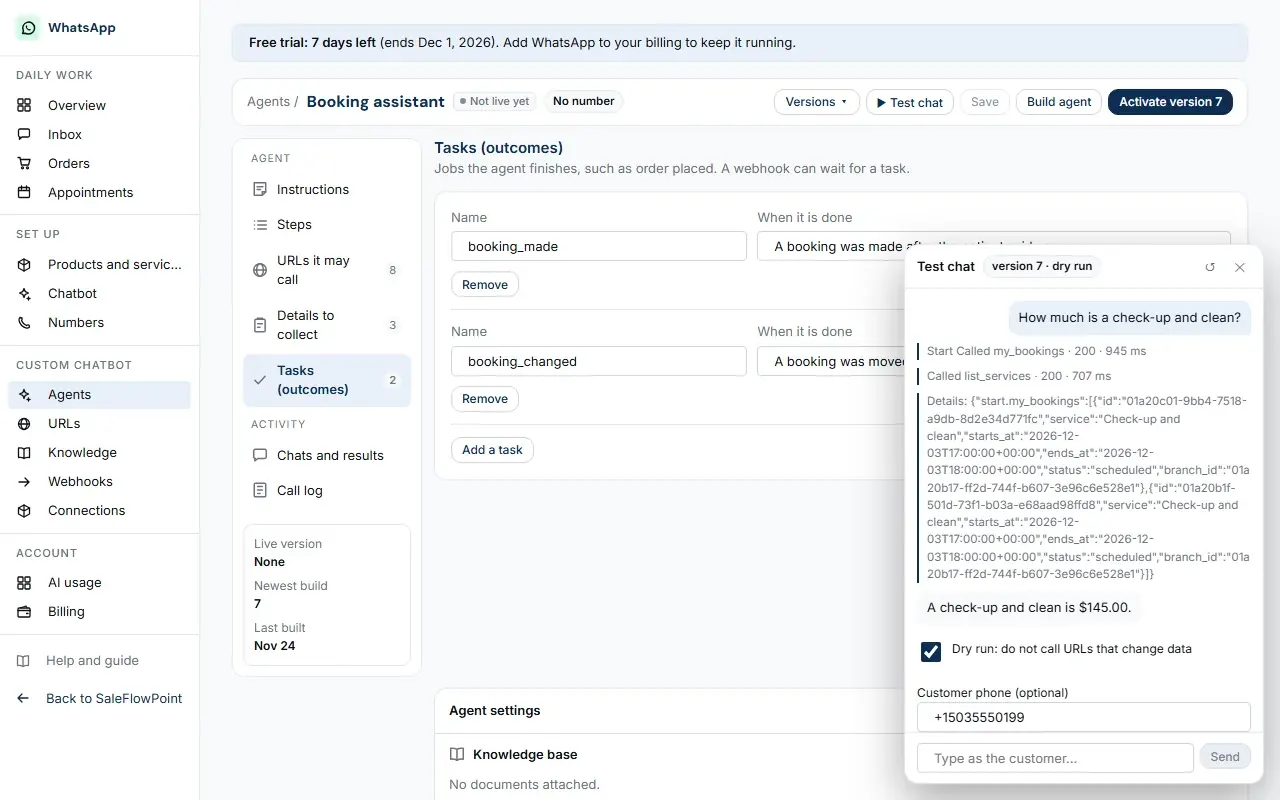
What we saw in testing
- The agent is given today's date in the clinic's time zone, so "next Wednesday" became 2 December with one slot lookup.
- A patient's bookings come with the clinic's local time (time and starts_at_local), so the agent reads them out in Portland time, not UTC.
- One yes is enough: the system keeps exactly the values it asked about, so a book, move or cancel runs on the first yes, and a second yes does nothing.
Step 7: connect a number and choose Custom chatbot
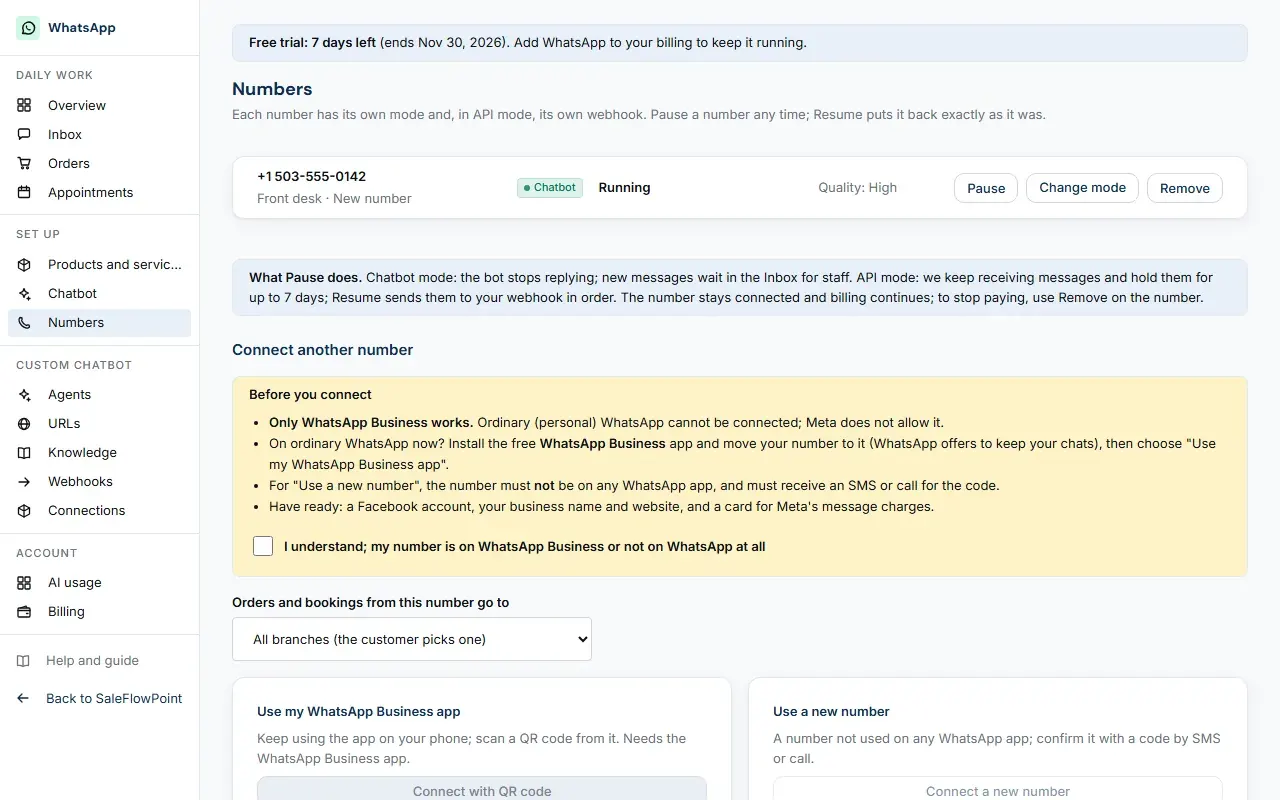
- WhatsApp, then Numbers. Tick that your number is on WhatsApp Business (or on no WhatsApp at all), then Connect with QR code (keep the WhatsApp Business app) or Connect a new number, and finish Meta's sign-up.
- The number then shows on Numbers (in our demo the invented +1 503-555-0142). Press Change mode on it.
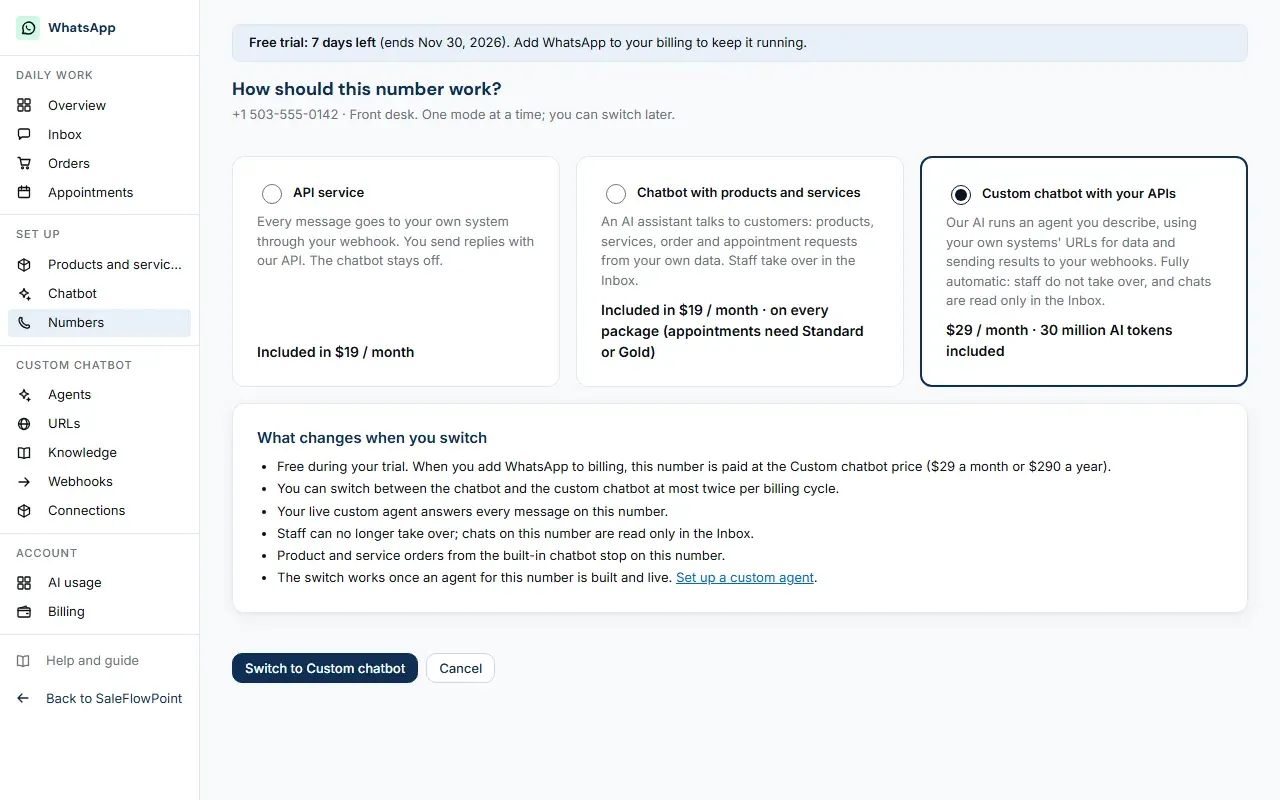
- On How should this number work?, choose Custom chatbot with your APIs (the other two are API service and Chatbot with products and services), read What changes when you switch, and press Switch to Custom chatbot.
- During the WhatsApp trial the custom chatbot costs nothing; after that the number is paid at the Custom chatbot price.
Step 8: go live
In the agent, choose that number under WhatsApp number and press Activate version. New chats use that version at once, and Pause stops every chat.