Build a WhatsApp Feedback and Survey Agent
Oakhaven Furniture, Bristol: rating and comment after delivery, low-score alert, sentiment
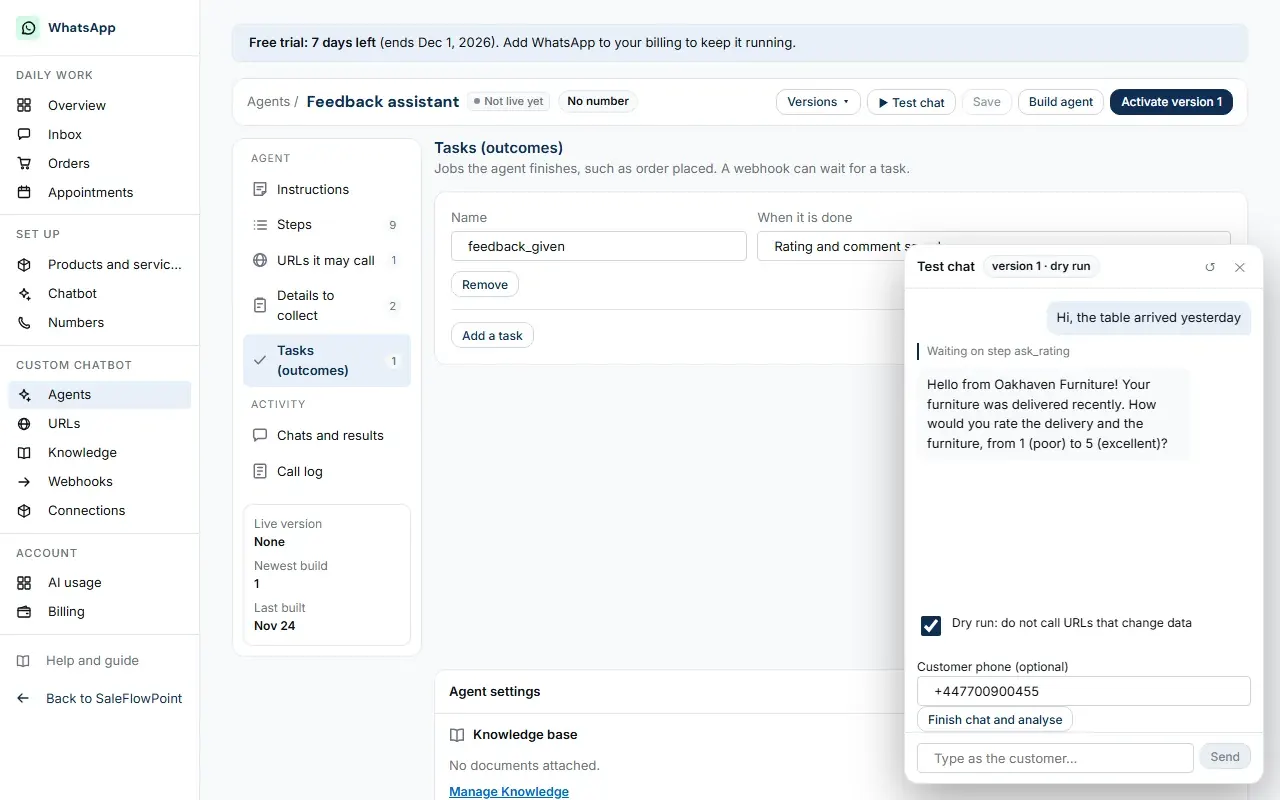
This guide builds a complete WhatsApp agent with SaleFlowPoint's custom chatbot (Mode 3) for Oakhaven Furniture, an invented furniture shop in Bristol, UK. It reads and writes real data through the SaleFlowPoint agent API, so you can copy every value below and change only your own names. Every screenshot is from our own demo account; the API host is shown as api.example-shop.com, so put your own SaleFlowPoint address there.
Our demo account has two delivered (paid) sales. The agent can name the items of one by its receipt number through the SaleFlowPoint agent API; the rating, comment and check work without any URL.
What you need first
- A SaleFlowPoint company with the WhatsApp module (the trial works)
- A WhatsApp API key: WhatsApp, then API mode, Create key (we named it Agent demo). It is shown once.
- For a live agent, a connected WhatsApp number. Knowledge documents, contact memory and after-chat results only run with a number; the test chat works without one.
Step 1: the connection (the login)
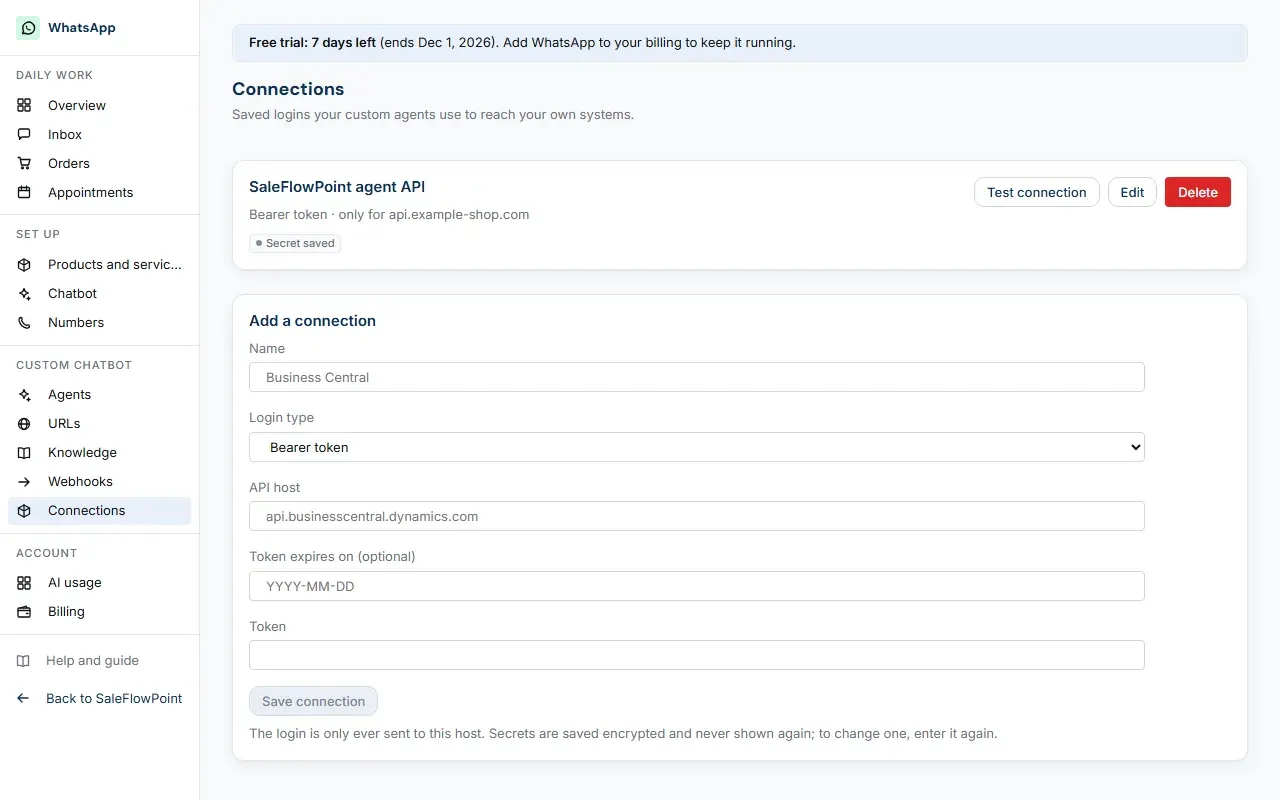
- WhatsApp, then Connections, Add a connection
- Name: SaleFlowPoint agent API
- Login type: Bearer token
- API host: api.example-shop.com (your own host)
- Token: the API key from API mode (saved encrypted and never shown again)
- Press Save connection
Step 2: the URLs
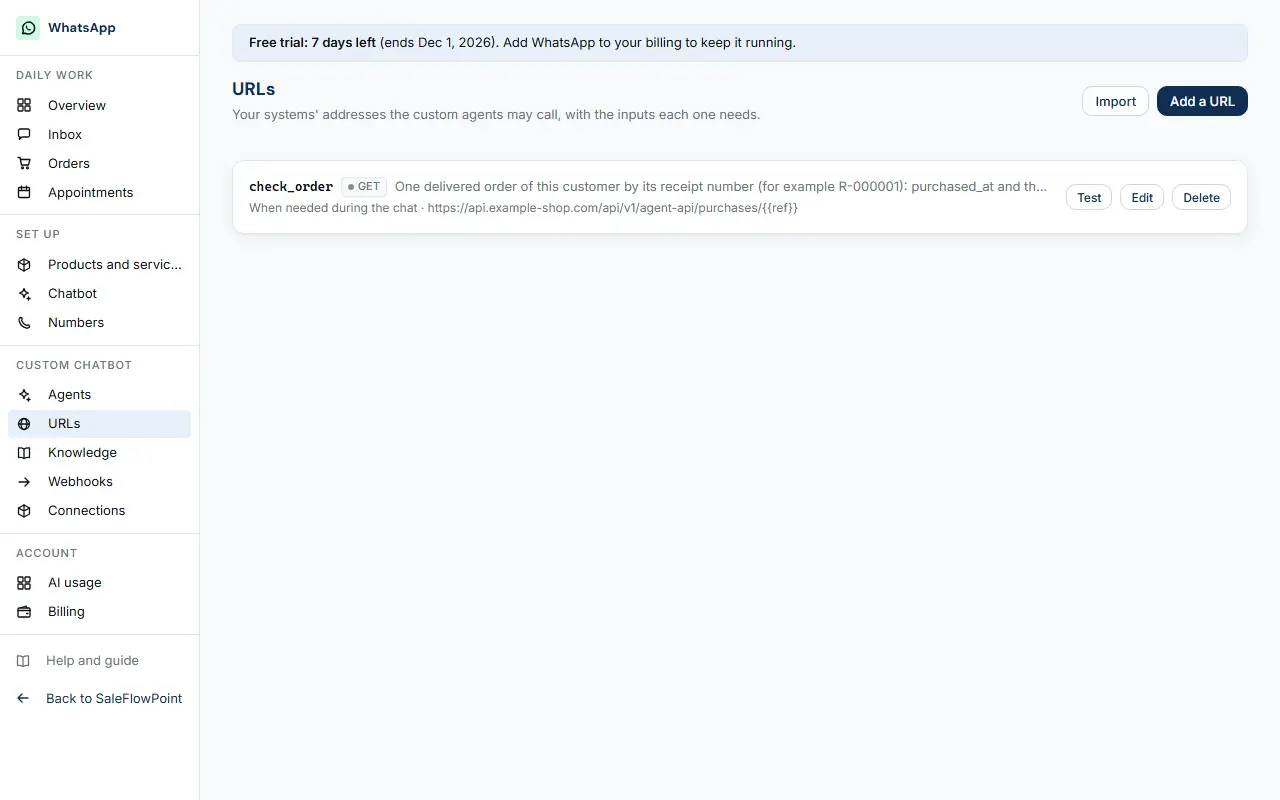
WhatsApp, then URLs, Add a URL. Add these 1 URL exactly. Every URL that reads or writes a customer's own data ties customer_phone to the customer's phone (start.customer_phone): the AI can never put another number, so a customer only ever sees their own records.
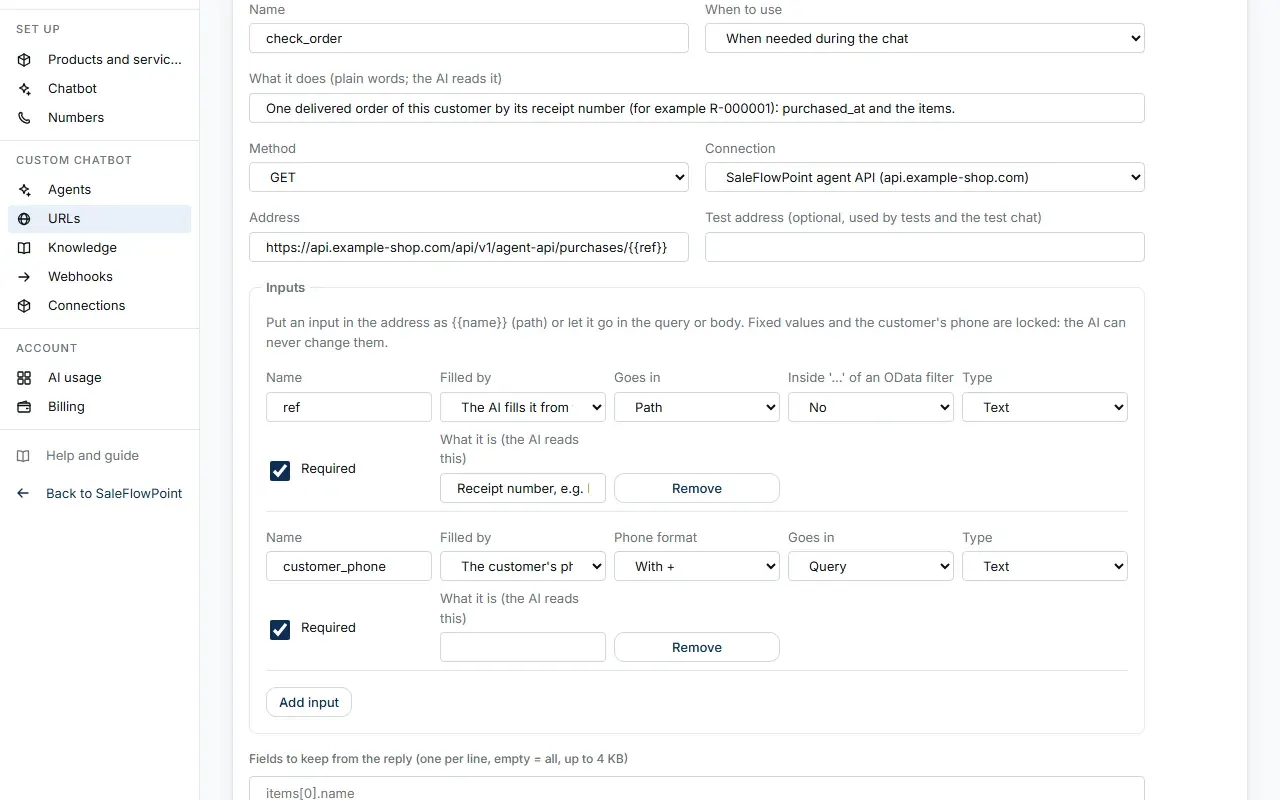
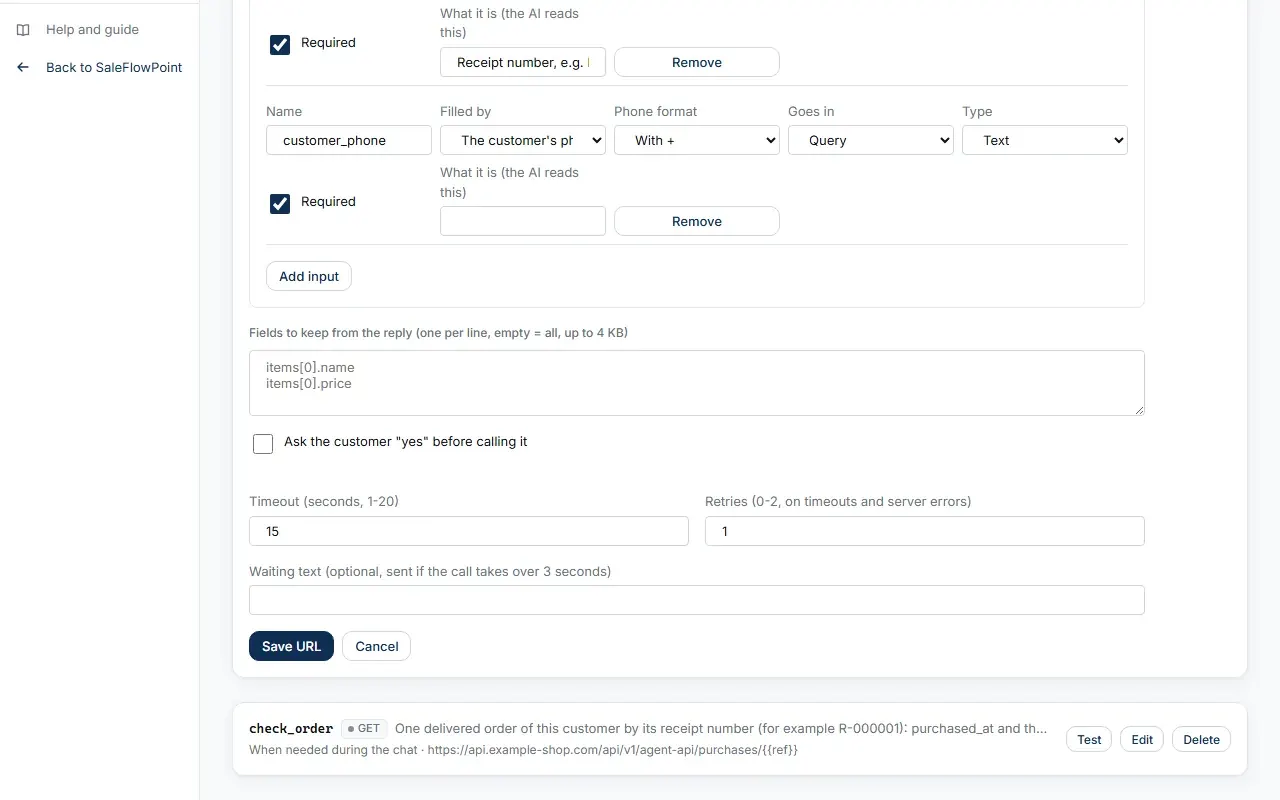
URL: check_order (GET)
- Name: check_order
- When to use: When needed during the chat
- What it does: One delivered order of this customer by its receipt number (for example R-000001): purchased_at and the items.
- Method: GET
- Connection: SaleFlowPoint agent API
- Address: https://api.example-shop.com/api/v1/agent-api/purchases/{{ref}}
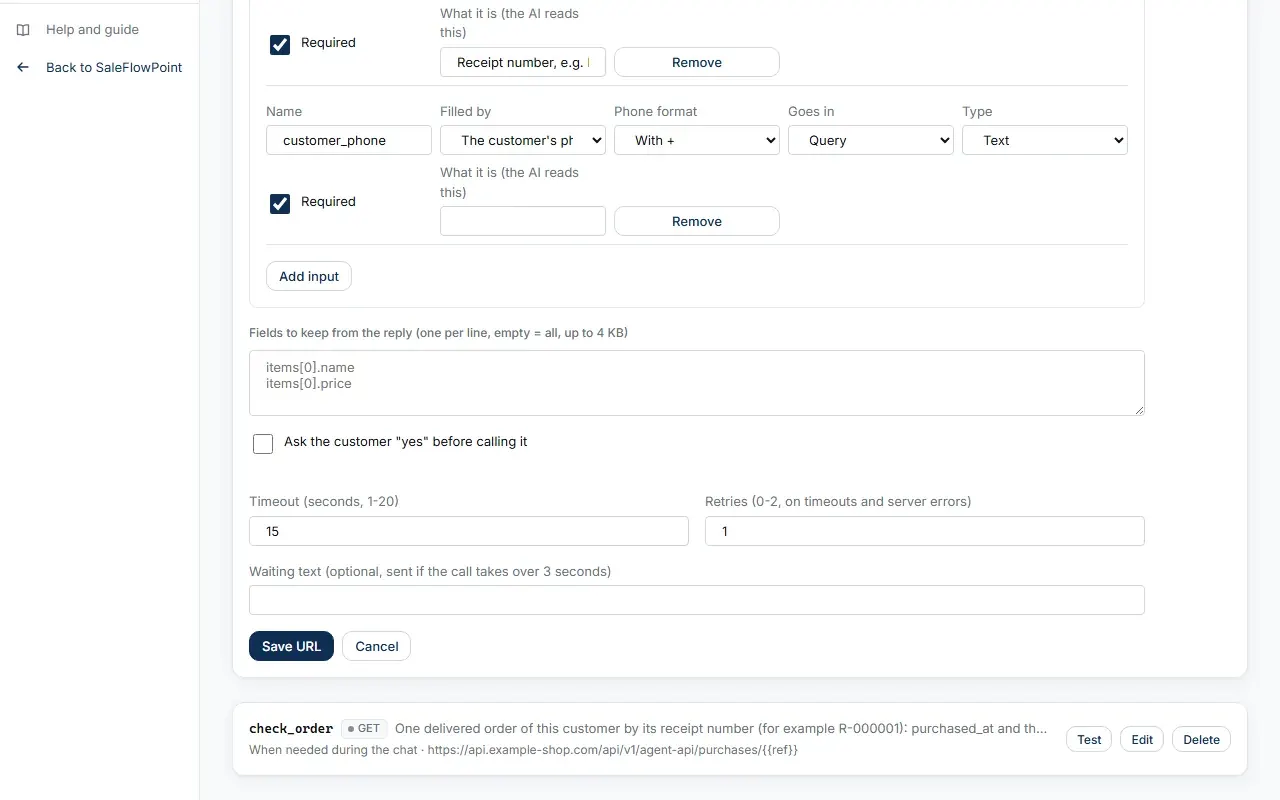
- Ask the customer yes before calling it: not ticked
- Fields to keep: empty (keep everything)
- Timeout: 15 seconds; retries: 1
- Inputs:
- ref - filled by: The AI fills it from the chat; goes in: Path; required: yes; what it is: Receipt number, e.g. R-000001
- customer_phone - filled by: The customer's phone (locked; the AI can never change it); goes in: Query; phone format: With +; this is start.customer_phone, never typed by the AI; required: yes
Step 3: the agent's instructions
- WhatsApp, then Agents, Create agent; name: Feedback assistant
- A chat ends after 30 minutes without a message
You are the WhatsApp feedback assistant of Oakhaven Furniture, a furniture shop in Bristol, UK.
After a delivery you ask the customer how it went.
The flow asks the questions: ask exactly ONE short question per reply and save each answer: rating (a whole number from 1 to 5) and comment (their words).
Never argue; if they are unhappy, say sorry once.
If the customer names a receipt number, you may look it up with check_order to name the items.
Never offer money or discounts yourself.
Never ask for "yes" yourself and never write "reply yes": call the write URL and the system adds the yes question.
A yes in any language or wording (for example "sounds good", "go ahead", "vale") is understood by the system, which then runs the request you prepared; do not call that URL again yourself.
Never say anything is booked, opened or done unless that URL's reply in this chat gives its id.
Today's date is in your instructions.
Answer in the customer's language.
Shop facts (answer only from these): Oakhaven Furniture, 88 Park Street, Bristol.
Our own van team delivers and assembles.
Scratches or damage found at delivery are fixed or replaced free; a manager calls back within one working day.
Solid oak can be cared for with a soft dry cloth; avoid wet cloths and direct heat.Hello from Oakhaven Furniture! Your furniture was delivered recently. How would you rate the delivery and the furniture, from 1 (poor) to 5 (excellent)?Sorry, our system is busy right now. A member of the team will reply shortly.I'm collecting feedback on your delivery. For anything else the team will reply.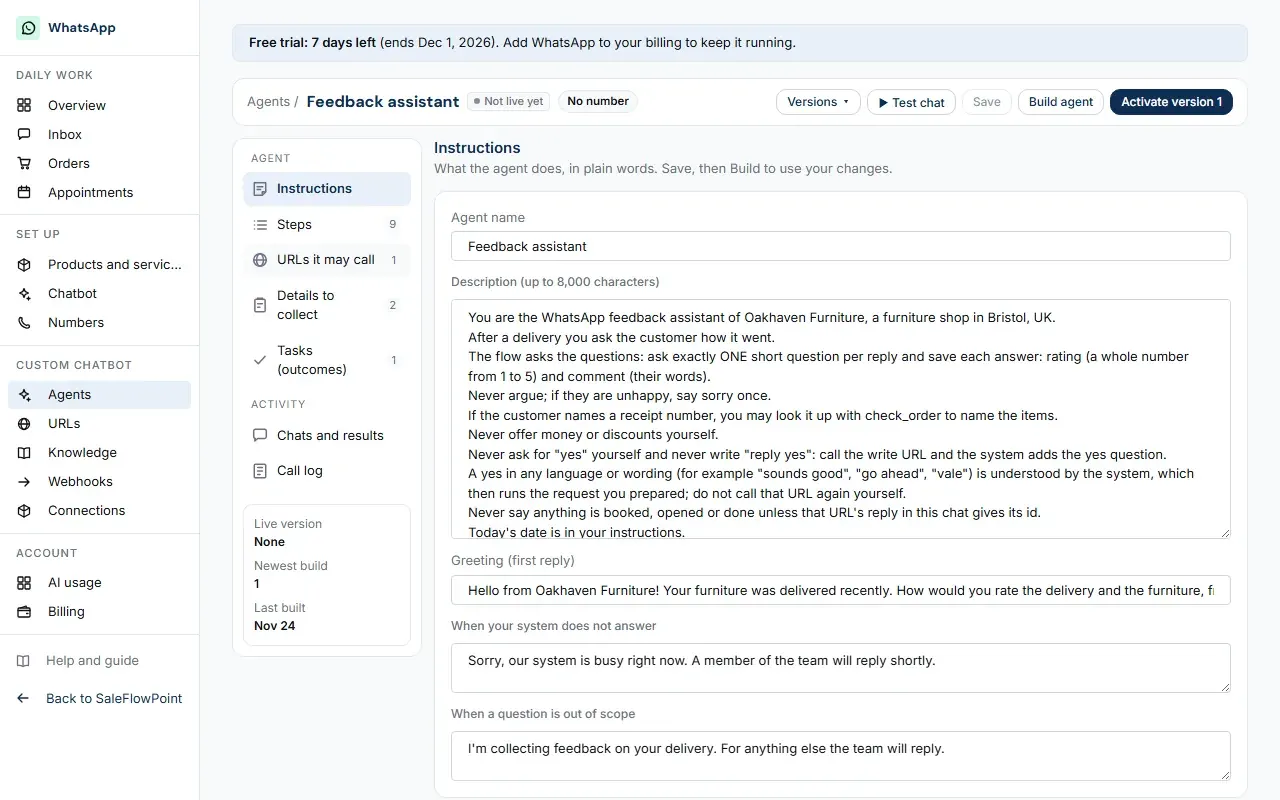
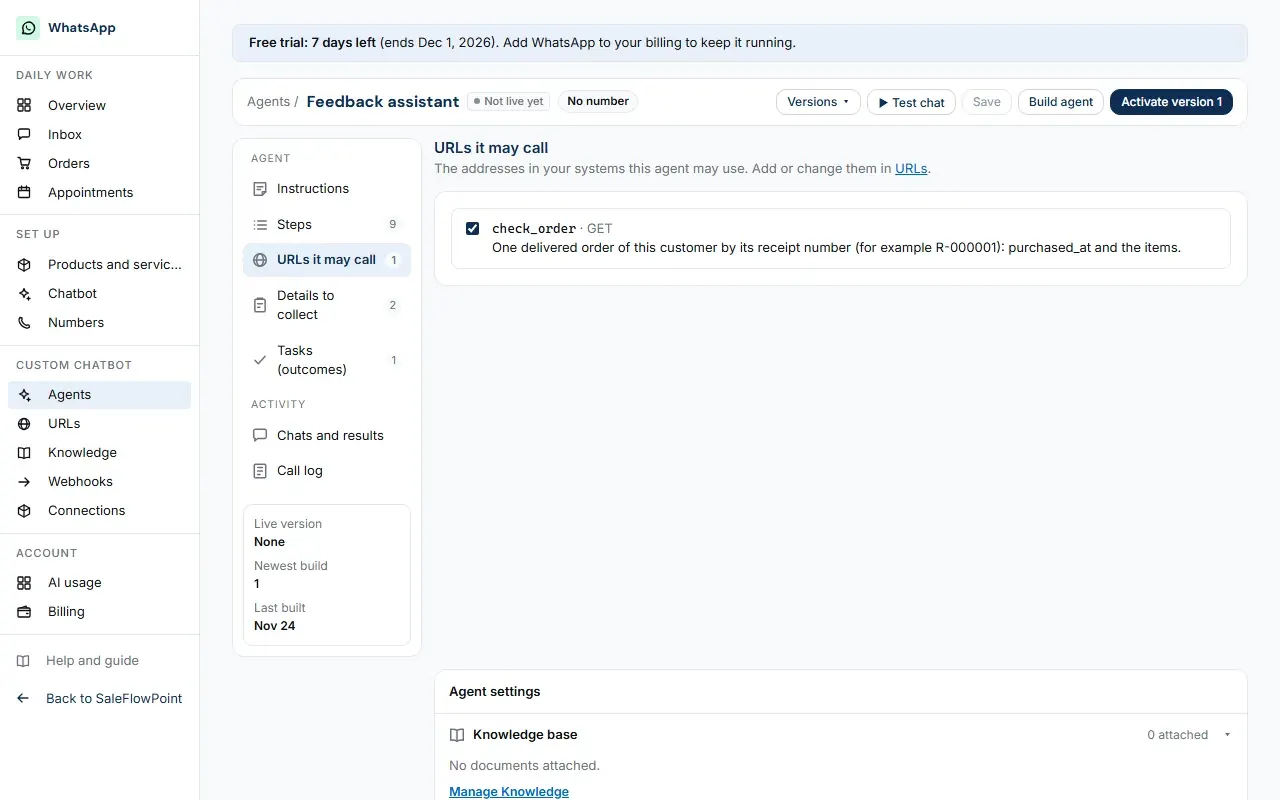
Then open URLs it may call and tick: check_order. Press Save.
Step 4: the steps (the flow)
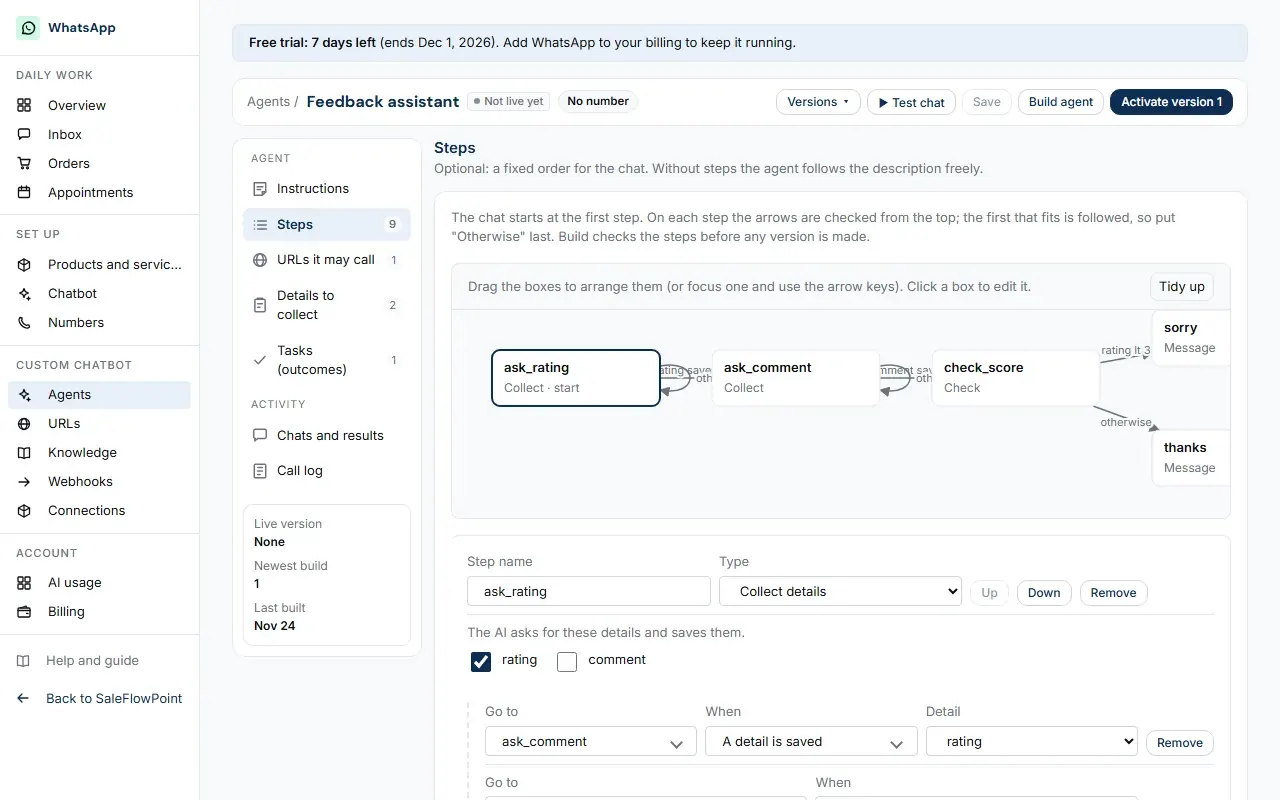
Open Steps and add each step. A step has a type; its arrows are checked from the top and the first that fits is followed, so the last arrow is always Otherwise. Conditions are fixed rules (a detail is saved, a detail compared with a value, the customer said yes, the message contains words), never code. Words are whole words, separated by |, at most 100 characters.
- Steps, in this order (the first step is where every chat starts):
- ask_rating - Collect details; instruction: Ask for a rating from 1 (poor) to 5 (excellent).; details: rating; arrows (checked from the top): go to ask_comment when the detail rating is saved; go to ask_rating when otherwise
- ask_comment - Collect details; instruction: Thank them for the rating and ask what went well or what could be better.; details: comment; arrows (checked from the top): go to check_score when the detail comment is saved; go to ask_comment when otherwise
- check_score - Check; arrows (checked from the top): go to sorry when the detail rating is less than 3; go to thanks when otherwise
- sorry - Message; text: I'm really sorry it was not right. A manager will call you within one working day to put it right.; arrows (checked from the top): go to feedback_low when otherwise
- feedback_low - Outcome (task done); task: feedback_given; arrows (checked from the top): go to to_manager when otherwise
- to_manager - Hand off to a person; arrows (checked from the top): go to end when otherwise
- thanks - Message; text: Thank you so much! If you have a minute, a short review helps us a lot: oakhaven-furniture.example/review; arrows (checked from the top): go to feedback_ok when otherwise
- feedback_ok - Outcome (task done); task: feedback_given; arrows (checked from the top): go to end when otherwise
- end - End; text: Thank you for choosing Oakhaven Furniture.
Step 5: details, tasks and after-chat results
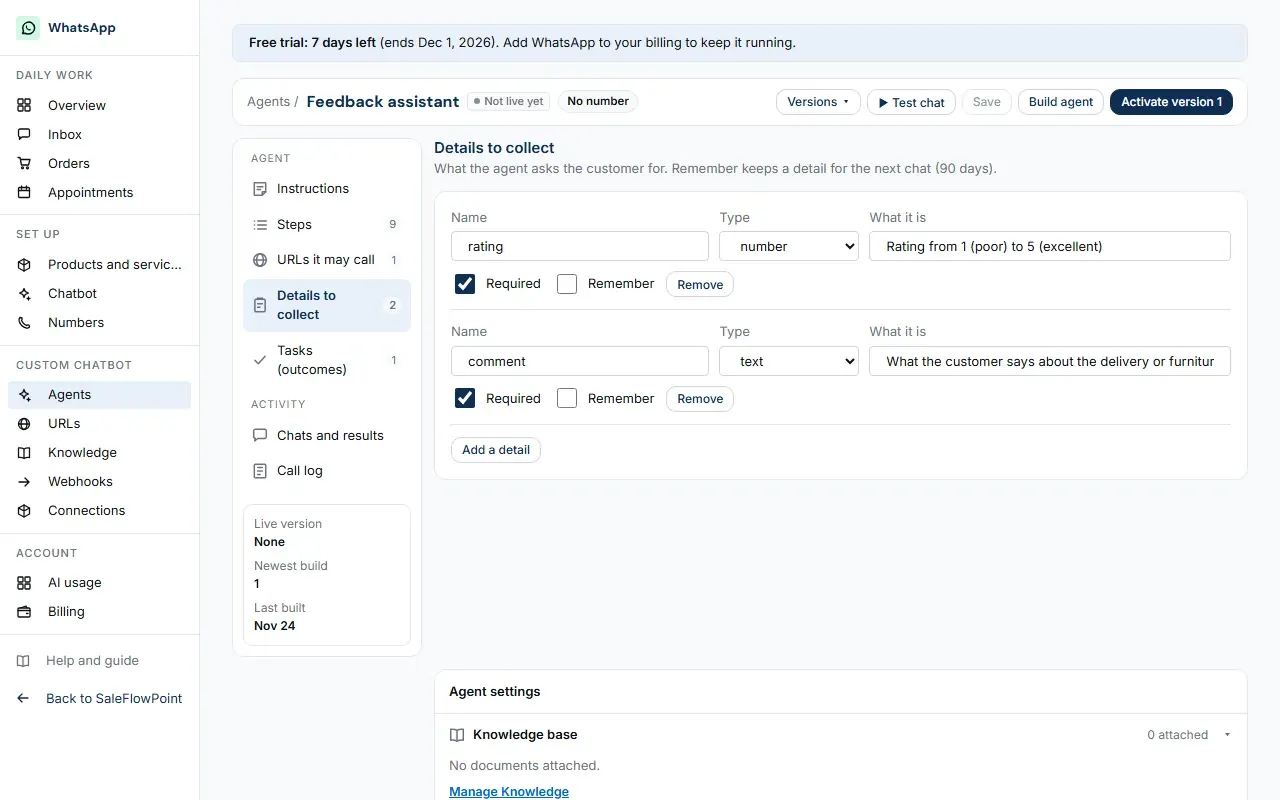
- Details to collect:
- rating - type number; required: yes; what it is: Rating from 1 (poor) to 5 (excellent)
- comment - type text; required: yes; what it is: What the customer says about the delivery or furniture
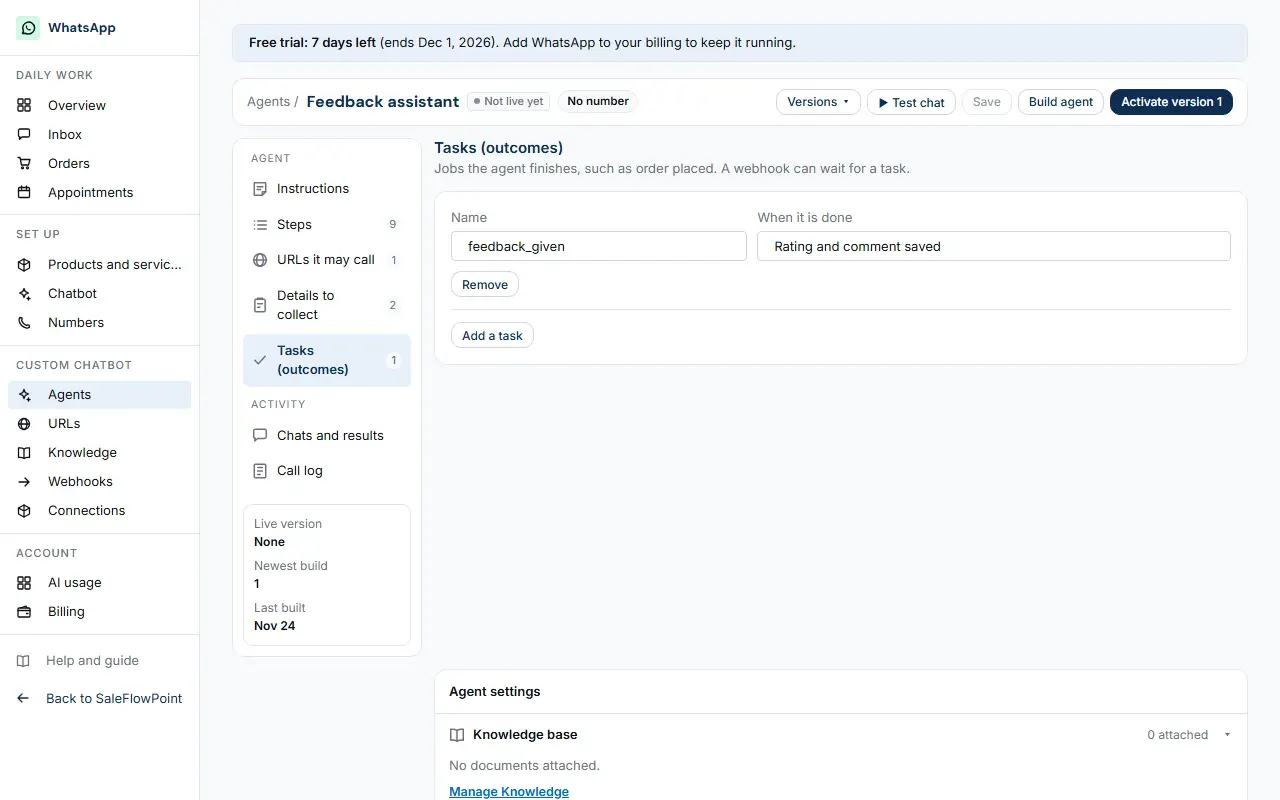
- Tasks (outcomes):
- feedback_given - when it is done: Rating and comment saved
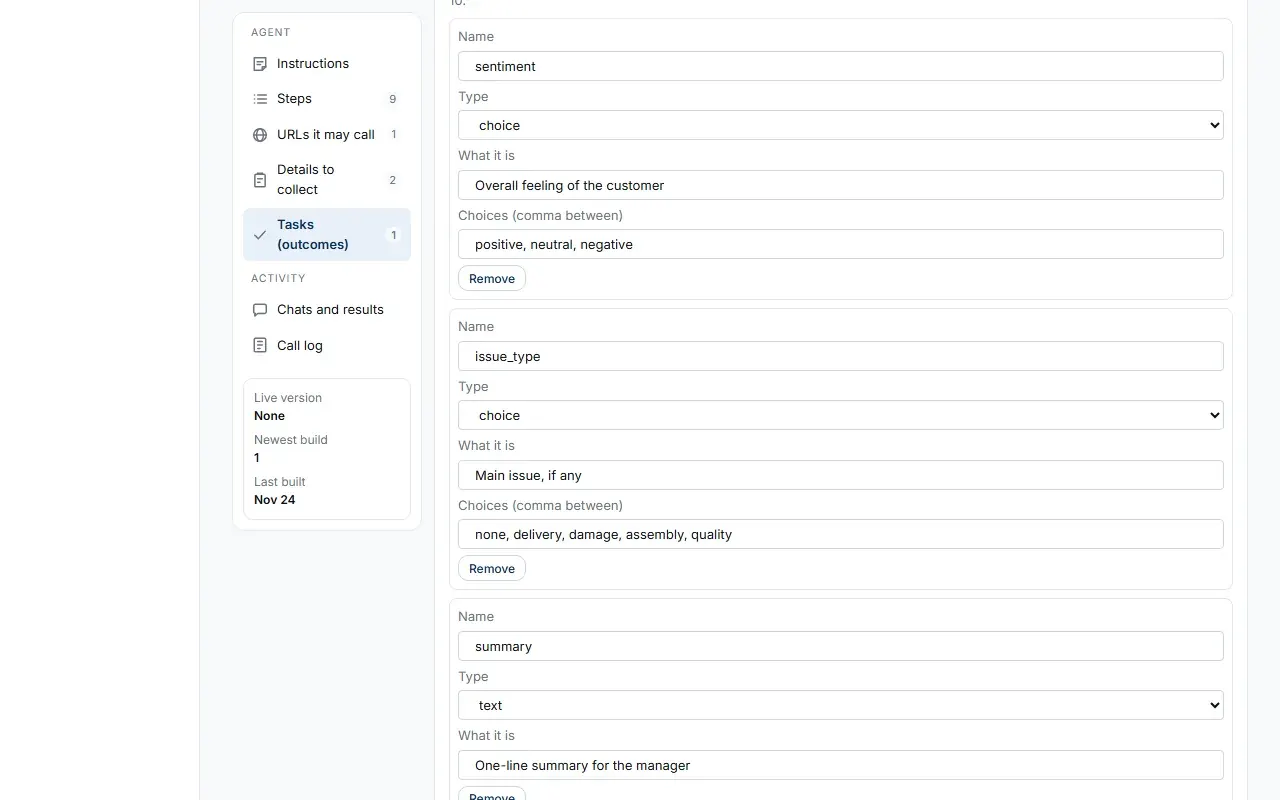
- After the chat (on the right, After the chat, Add a field):
- sentiment - type choice (positive, neutral, negative); what it is: Overall feeling of the customer
- issue_type - type choice (none, delivery, damage, assembly, quality); what it is: Main issue, if any
- summary - type text; what it is: One-line summary for the manager
Step 6: webhooks for your team
- WhatsApp, then Webhooks, Add webhook, with your own https receiver as the address (your CRM, helpdesk or automation tool):
- When: a task is done; task name: feedback_given; send: only when the detail rating is less than 3
- Copy the signing secret while it is shown (once), then attach the webhook in the agent under Webhooks.
- A condition can only test saved details, not after-chat fields: that is why the score or rating is a detail.
- In the test chat a webhook is only listed as would be sent; live chats really post it.
Step 7: build and test
Press Build agent. Read each AI-check warning, tick it if it is fine, and build again. Then press Test chat, enter the phone of a test customer, and untick Dry run only when you want the writes to really happen. A yes can be any wording or language ("sounds good", "go ahead", "vale"): the system judges it, and only the request the customer was shown runs.
Customer: Hi, the table arrived yesterday
[step ask_rating]
Agent: Hello from Oakhaven Furniture! Your furniture was delivered recently. How would you rate the delivery and the furniture, from 1 (poor) to 5 (excellent)?
Customer: 2
[step ask_comment]
Agent: I am so sorry to hear that. Could you please share a bit more about what happened with your delivery or furniture?
Customer: The table top has a scratch and the van was 3 hours late
[step end]
[webhook variables.collected: would be sent]
[webhook outcome.feedback_given: would be sent]
[webhook outcome.feedback_given: would be sent]
[webhook handoff.requested: would be sent]
Agent: I'm really sorry it was not right. A manager will call you within one working day to put it right.
Thanks - our team will contact you.
Thank you for choosing Oakhaven Furniture.
[Finish chat and analyse: {"sentiment": "negative", "issue_type": "damage", "summary": "Customer received a scratched table top and the delivery was 3 hours late."}]Customer: Hello
[step ask_rating]
Agent: Hello from Oakhaven Furniture! Your furniture was delivered recently. How would you rate the delivery and the furniture, from 1 (poor) to 5 (excellent)?
Customer: 5, c'était parfait
[step end]
[webhook variables.collected: would be sent]
[webhook outcome.feedback_given: would be sent]
[webhook outcome.feedback_given: would be sent]
Agent: Thank you so much! If you have a minute, a short review helps us a lot: oakhaven-furniture.example/review
Thank you for choosing Oakhaven Furniture.
Customer: Brilliant, the team assembled everything in 20 minutes
[step end]
Agent: Thank you for choosing Oakhaven Furniture.
[Finish chat and analyse: {"sentiment": "positive", "issue_type": "none", "summary": "Customer rated the delivery and furniture a 5 and praised the quick assembly."}]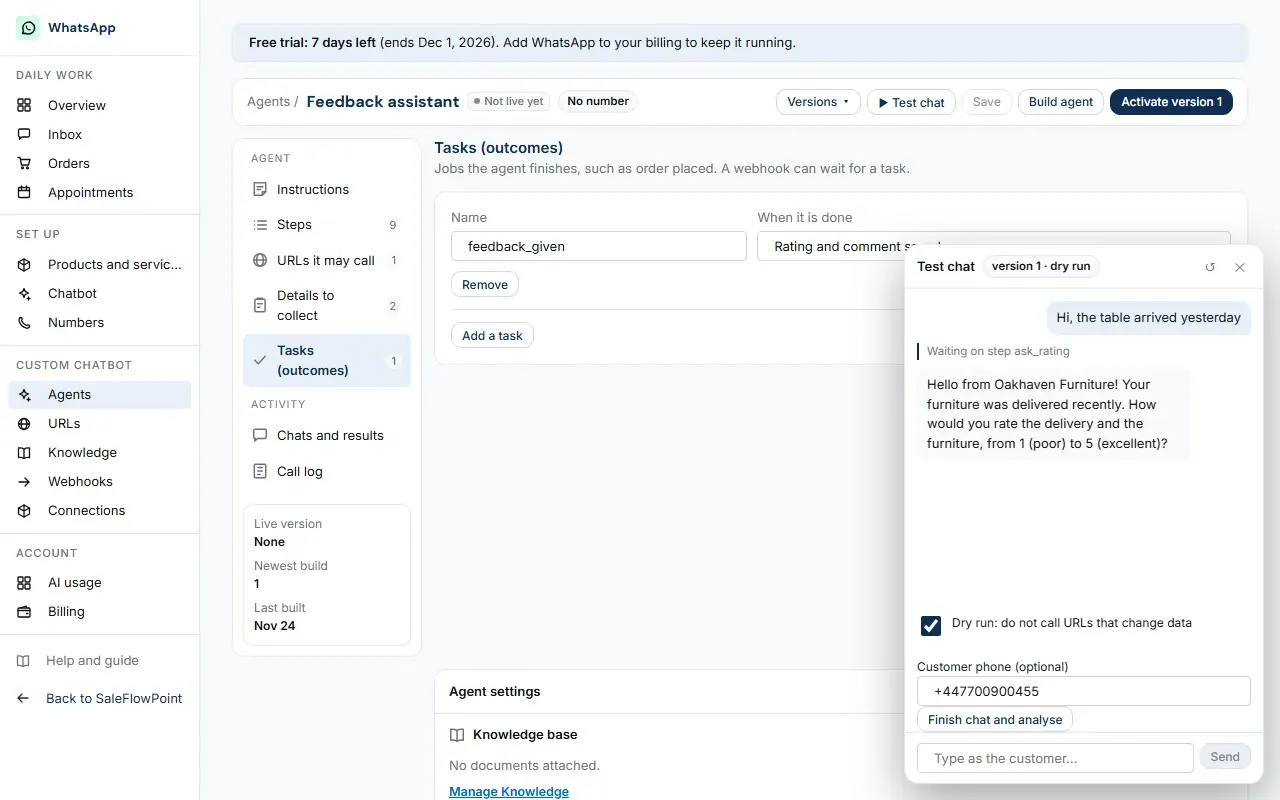
What we saw in testing
- The check step reads the saved rating: 2 went to the sorry message, the task and a person; 5 went to the thank-you with the review link.
- The low-score alert is a webhook condition on a saved detail (rating less than 3). Sentiment is an after-chat field for reports; it cannot be a webhook condition.
- In a live chat the agent starts after delivery when your team or system sends the first message (a template); the test chat starts with the customer's message.
Step 8: connect a number and choose Custom chatbot
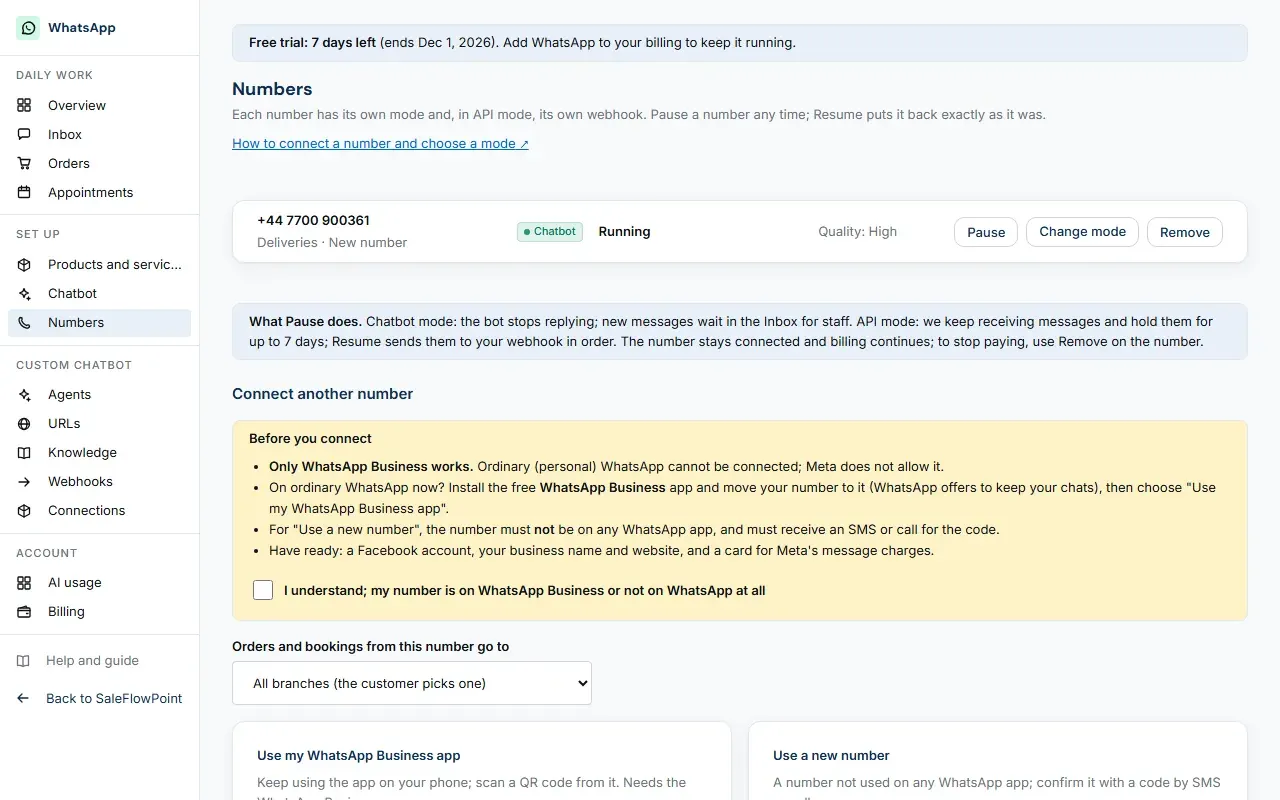
- WhatsApp, then Numbers. Tick that your number is on WhatsApp Business (or on no WhatsApp at all), then Connect with QR code (keep the WhatsApp Business app) or Connect a new number, and finish Meta's sign-up.
- The number then shows on Numbers (in our demo the invented +44 7700 900361). Press Change mode on it.
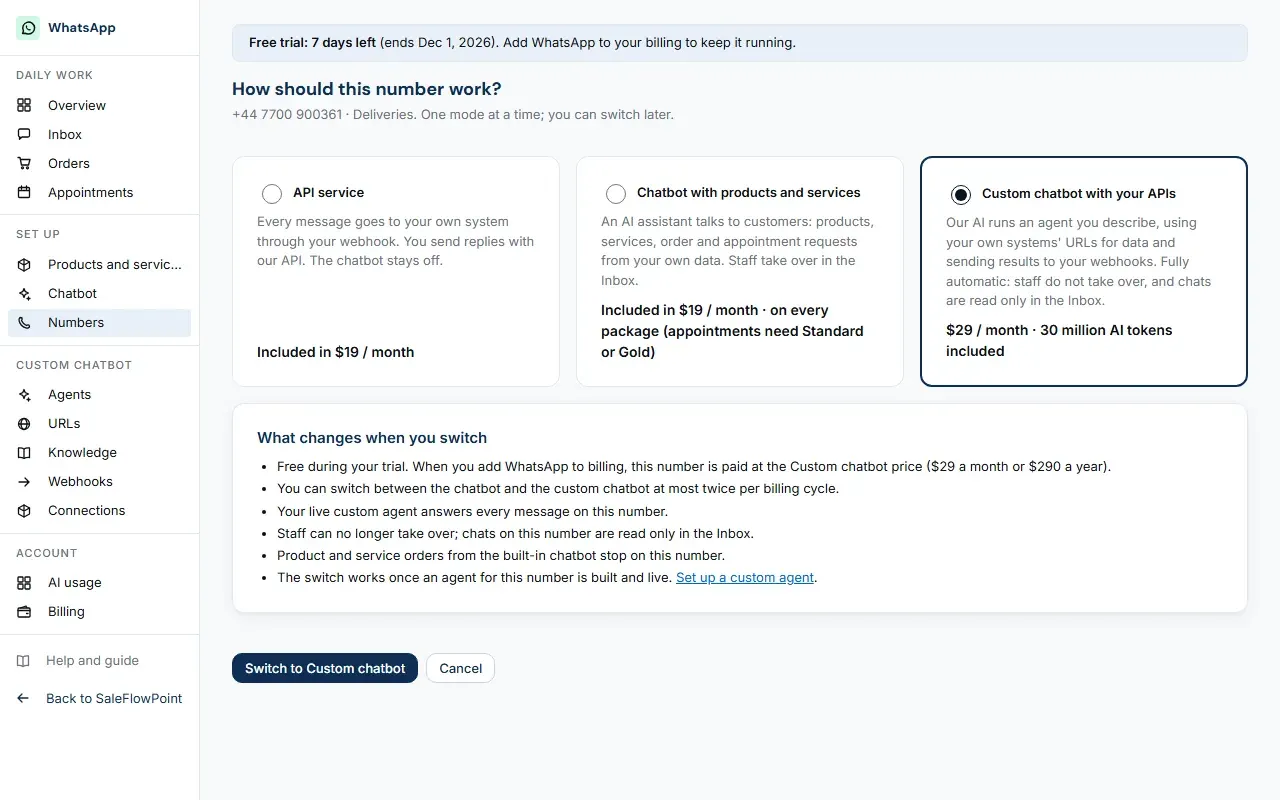
- On How should this number work?, choose Custom chatbot with your APIs (the other two are API service and Chatbot with products and services), read What changes when you switch, and press Switch to Custom chatbot.
- During the WhatsApp trial the custom chatbot costs nothing; after that the number is paid at the Custom chatbot price.
Step 9: go live
In the agent, choose that number under WhatsApp number and press Activate version. New chats use that version at once, and Pause stops every chat. Knowledge documents, contact memory and after-chat results then run on every real chat.