Free POS with Inventory Management: Stop Counting Stock by Hand
Stock that goes down with every sale, a warning before you run out, and a record of every change
The problem with counting by hand
A shop that counts stock by hand only knows its stock on the day of the count. The day after, the numbers are already wrong. A free POS with inventory fixes that by changing the count at the moment something changes: at the sale.
Stock that counts itself
Every sale takes its items off the stock. Every refund puts them back. You never update a spreadsheet after a busy day. Stock is part of the free plan, for one shop.
Deliveries, breakage and stock takes
Three things change stock apart from sales, and each has its own button.
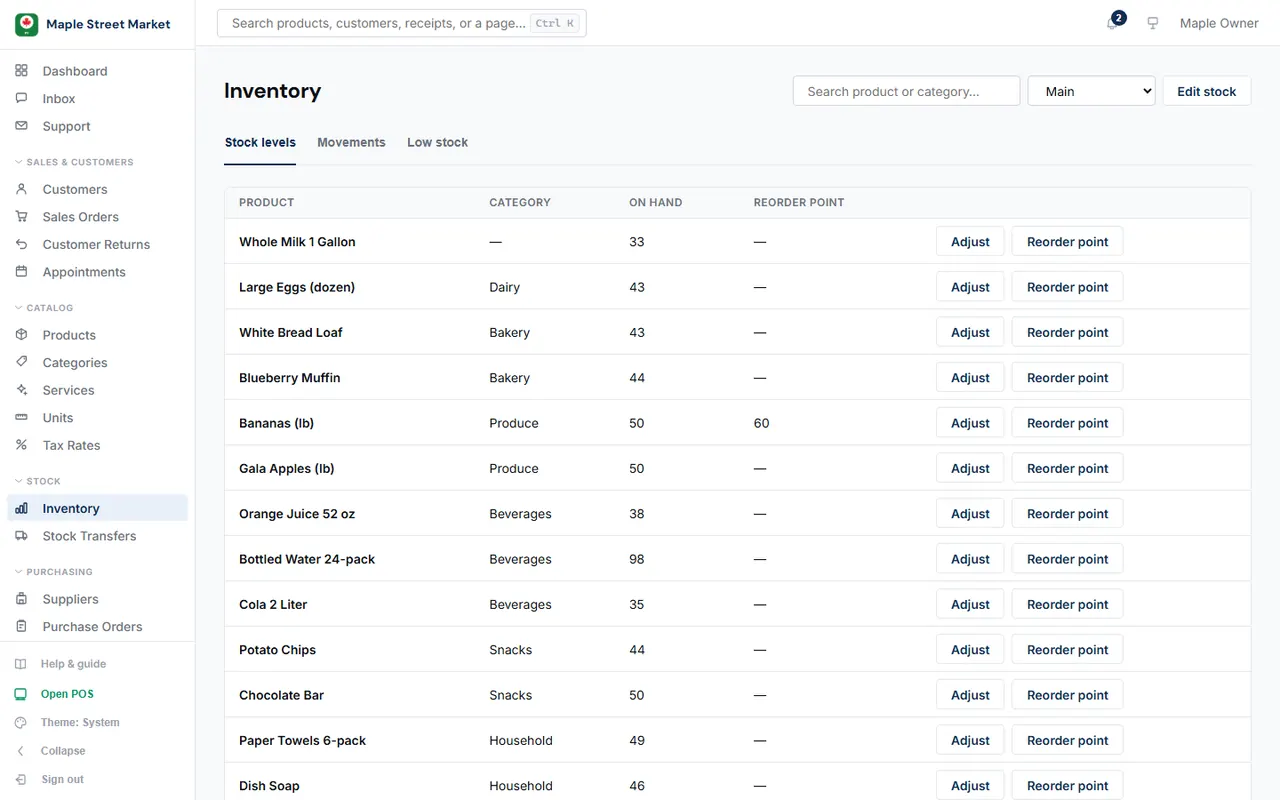
- Adjust: add a delivery, or take off something broken or expired, with a note saying why
- Edit stock: after counting the shelves, type the real numbers for many products at once
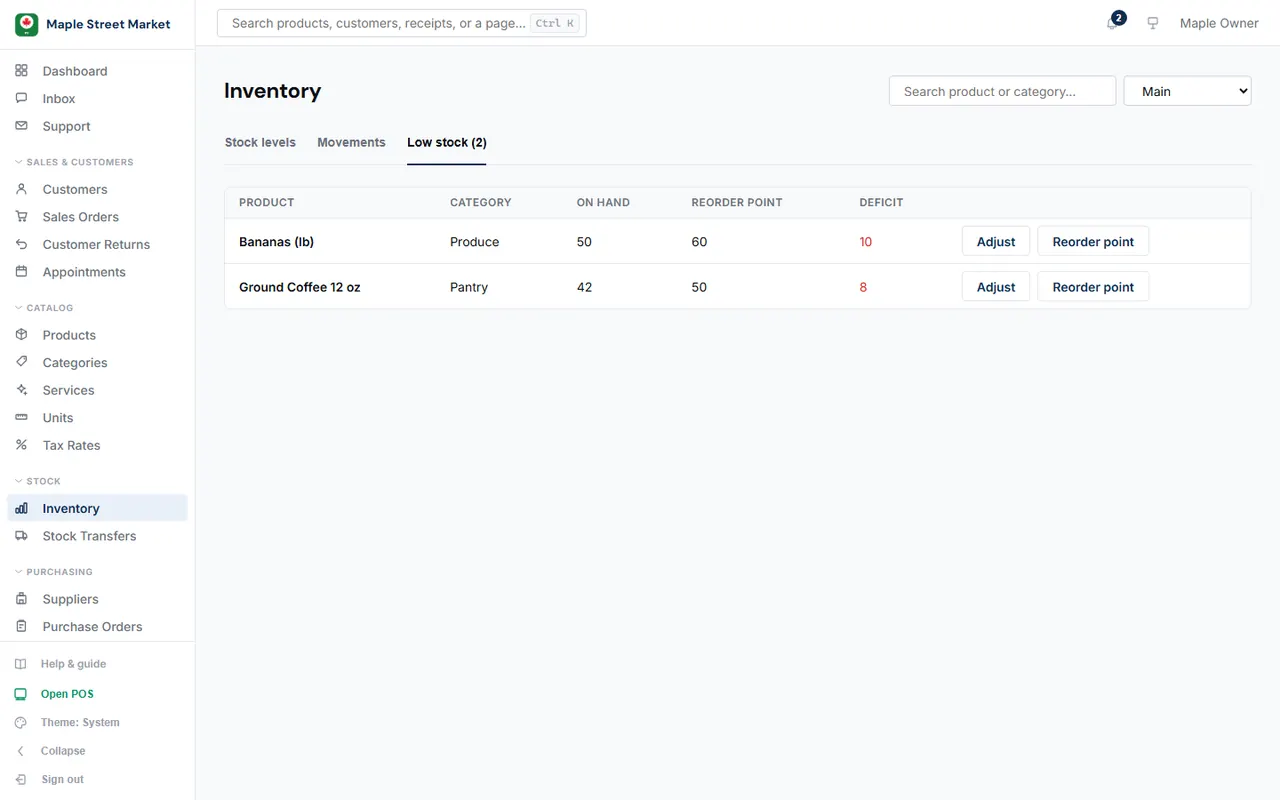
- Reorder point: the level at which you want to be warned
A warning before the shelf is empty
Give a product a reorder point and it appears on the Low stock tab as soon as it falls to that level, with how many you are short. The same list is on your dashboard when you sign in. It is your shopping list for the next order.
How to do your first stock count
A free POS with inventory is only as good as its starting numbers, so begin with a count. Do it when the shop is closed, shelf by shelf.
- Open Inventory and press Edit stock
- Type the number you counted for each product
- Tick Stock the business already had, so it is recorded as what you owned at the start and not as a cost of this month
- Save
From that moment the till keeps the numbers moving. You count again only to check, perhaps once a quarter.
Choosing a reorder point
A reorder point answers one question: how low can this go before I must order? A simple way to pick it is to multiply how many you sell in a day by the number of days a delivery takes, and add a little for safety.
If you sell six bottles of milk a day and the supplier takes two days, twelve is the minimum. Set fifteen. When stock reaches fifteen, the product appears on your Low stock list with how many you are short.
You do not need a reorder point on everything. Start with the twenty products you would be embarrassed to run out of.
What stock problems look like
When the number in the system and the number on the shelf disagree, the Movements history usually explains it.
- A delivery that was put on the shelf but never entered
- Breakage that was thrown away without being recorded
- A product sold under the wrong tile or barcode
- Items given away or taken without a sale
None of these is a software problem. They are habits, and the history makes them visible so you can fix the habit.
Stock with sizes and versions
A product that comes in sizes or flavors is set up with variants, and each variant has its own stock. So you can see that the small size is nearly gone while the large has not moved, which is what you need before placing an order.
What is in the free plan and what is not
Stock levels, adjustments, stock takes, reorder points, the low stock list and the movement history are all in the free plan for one shop. Detailed stock reports are part of the reporting tools, which are in the trial and the paid plans.
Common questions
Does stock change when I give a refund? Yes. A refund puts the returned item back into stock by itself.
What about products I do not want to count? Switch stock tracking off for that product. It is then sold without a stock number, which suits made-to-order items and services.
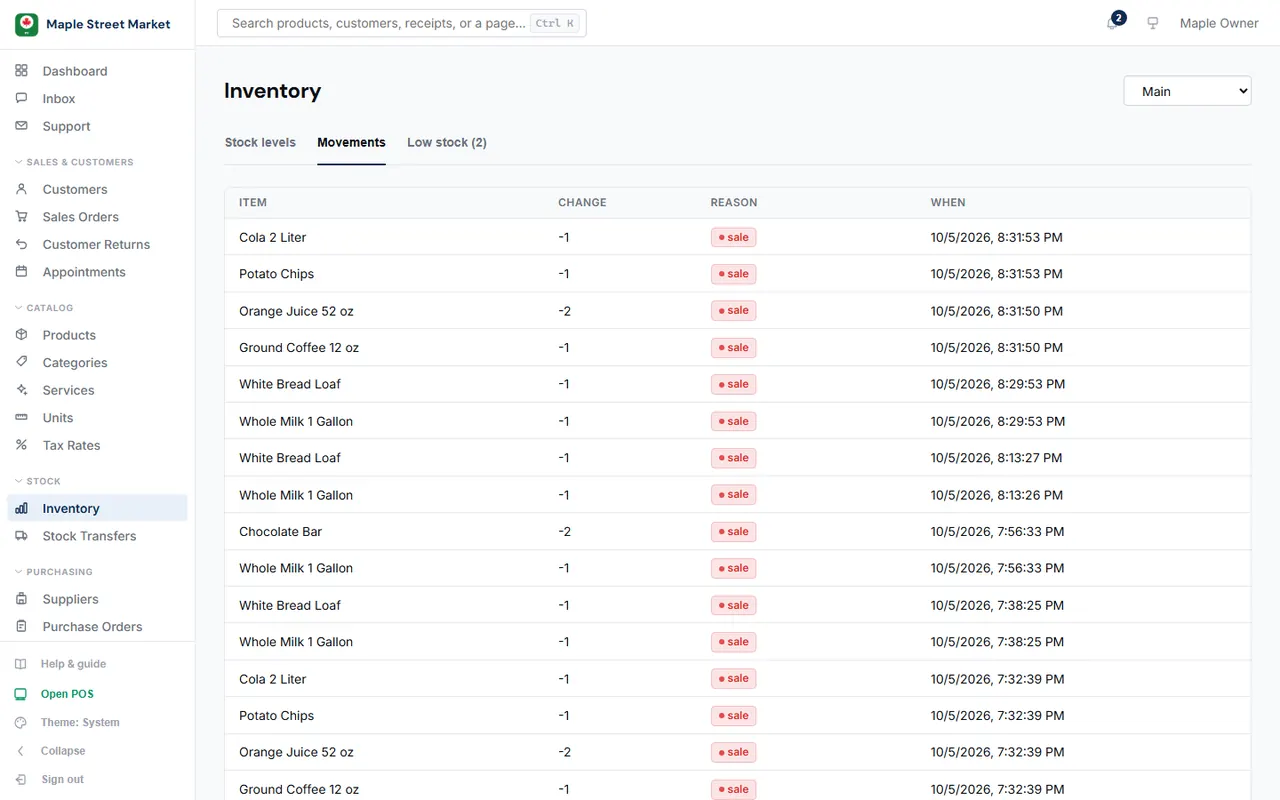
Can I see why a stock number changed? Every change is a line in the Movements history with its date, reason and note, so a wrong number can always be traced.
How often should I count? Count everything once to set your opening stock. After that, counting a few shelves each week catches mistakes early without closing the shop.
Does the cashier see stock at the till? Yes. Each product tile shows how many are in stock, so a cashier can answer a customer without leaving the screen.
A record of every change
The Movements tab shows every sale, delivery and correction with its date and note. If a number looks wrong, you can see exactly when it changed and why.