

WhatsApp chatbot mode: an AI assistant on your own data
Set-up, what it may offer, orders and appointment requests, the yes confirmation, the Inbox and the practice chat.
On this page
Set up the chatbot
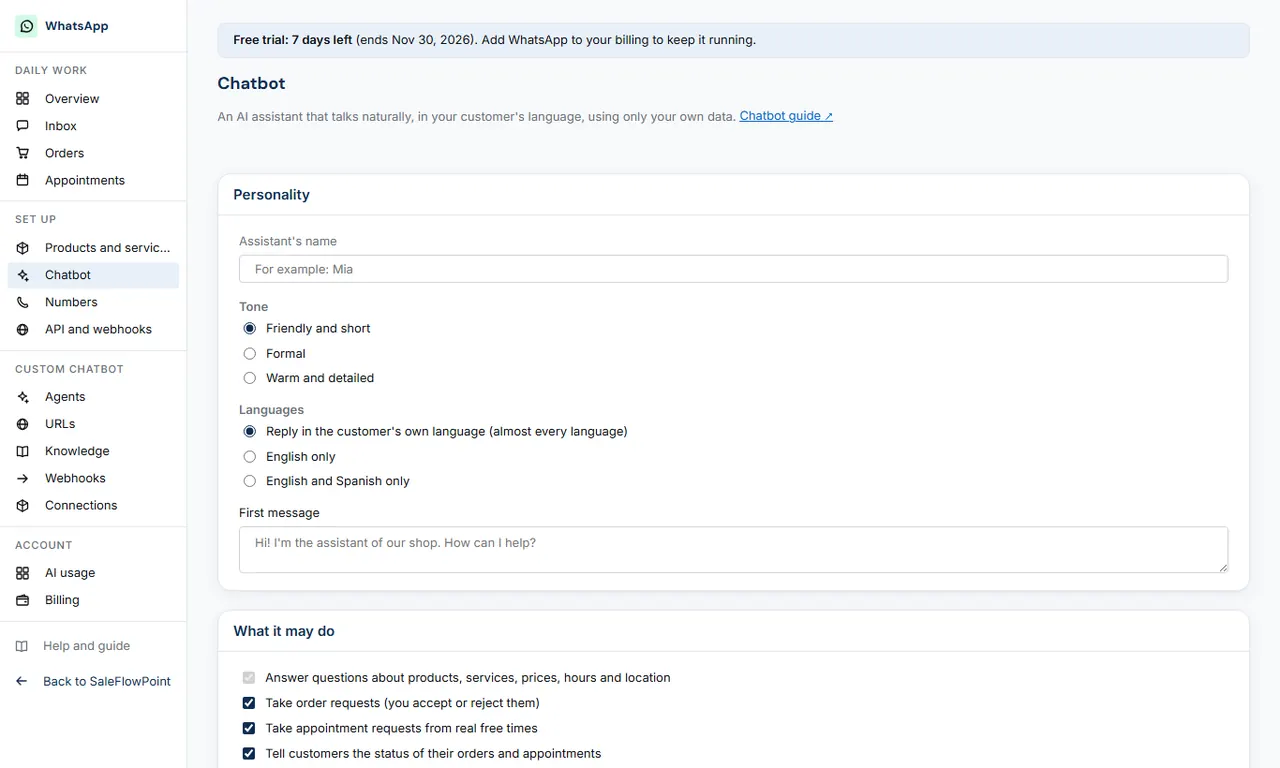
Open WhatsApp > Chatbot. The assistant talks naturally, in your customer's language, using only your own data. Example values for Harbor Street Market:
| Field | Example value |
|---|---|
| Assistant's name | Mia |
| Tone | Friendly and short (or Formal, or Warm and detailed) |
| Languages | Reply in the customer's own language (or English only, or English and Spanish only) |
| First message | Hi! I'm Mia from Harbor Street Market. How can I help? |
| What it may do | Answer questions; take order requests; take appointment requests; tell customers the status of their orders and appointments; understand voice notes |
| Extra notes for the assistant | We deliver within 2 hours in Portland. Fruit platters need 2 days' notice. |
| Hand the chat to a person when | The customer asks for a person; it is not sure, or it is medical or legal advice; the customer is upset |
| Email alerts to | orders@harborstreet.example: new order request, new booking request, chats waiting for a person |
Appointment requests come with the Standard and Gold packages. With voice notes on, it listens and replies in text; staff see a transcript in the Inbox. Email alerts are sent at most once every 6 hours, and at most 3 for the same chat; alerts also appear in the bell at the top of the screen.
Products and services it may offer
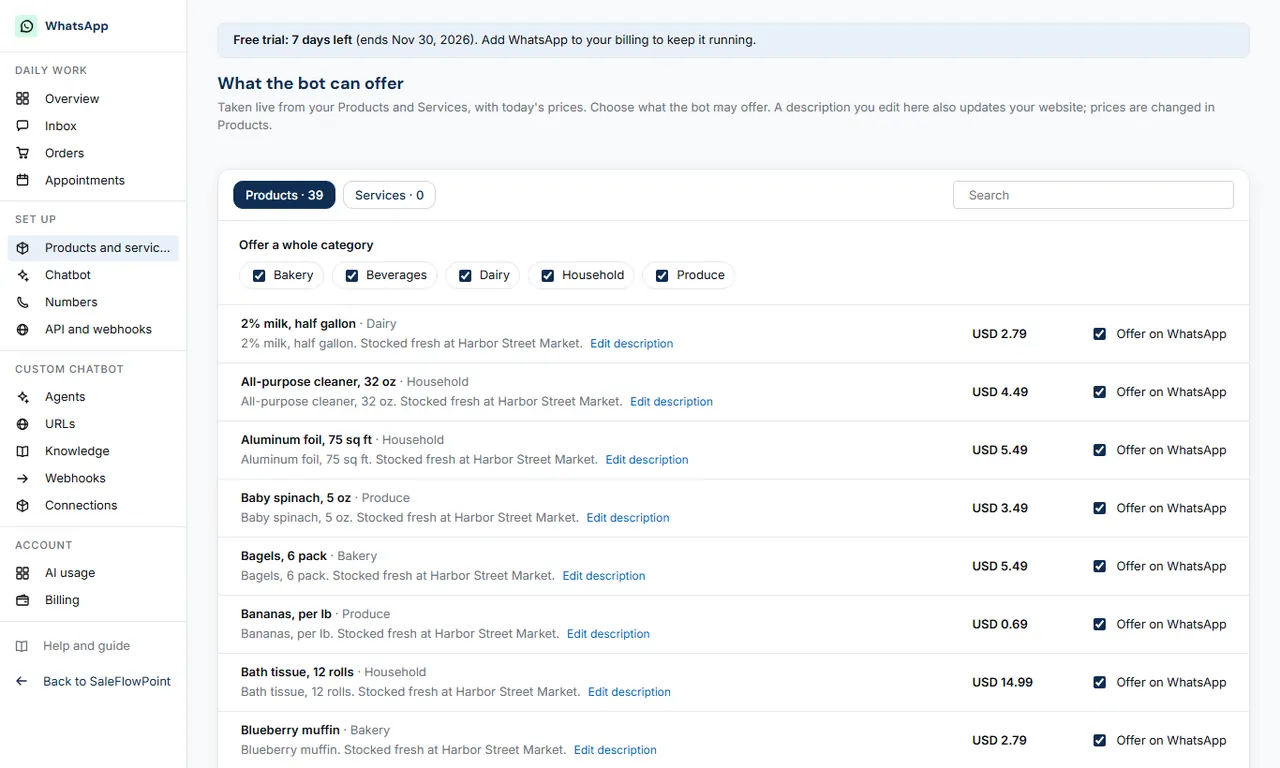
WhatsApp > Products and services lists your products and services live, with today's prices. Choose what the bot may offer, one item or a whole category.
- A description you edit here also updates your website. Prices are changed in Products, never here.
- Turn a price off and the chatbot never gives it; it says the shop will confirm the price.
- Ordering rules: home delivery and/or pickup at the shop, delivery areas (for example: Downtown, Munjoy Hill, within 5 miles), and what to do with out-of-stock items (say out of stock and suggest similar, or take the request anyway). Payment is cash on delivery or at pickup.
Order and appointment requests
When a customer orders, the chatbot builds the order from your live prices and shows a summary. Nothing is sent to the shop until the customer confirms. Each request then appears in WhatsApp > Orders and also as a draft in Sales Orders. You accept or reject it; the customer is told on WhatsApp. An appointment request holds the time for 2 hours while you decide.
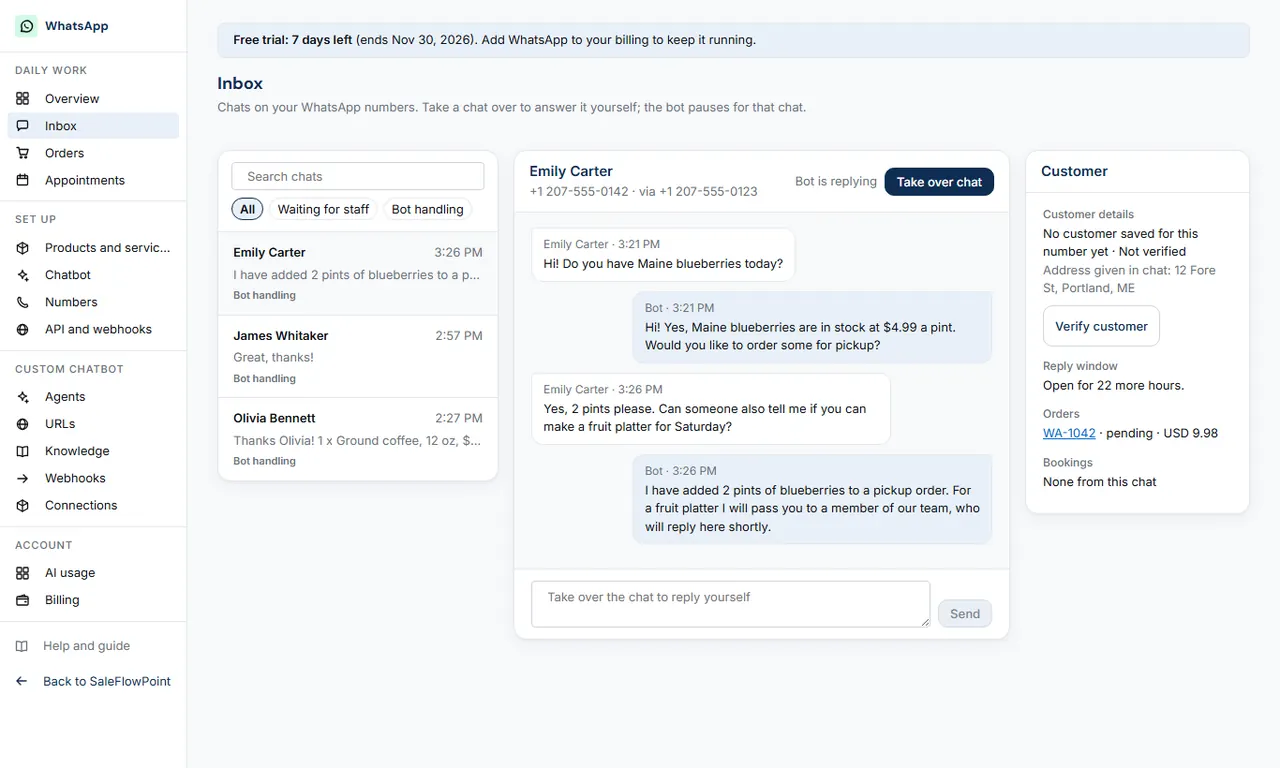
Example: Emily Carter writes "2 pints of Maine blueberries for pickup". The bot replies with 2 x Maine blueberries, 1 pint, $9.98, pickup at Harbor Street, and asks her to confirm. She writes "yes please". Order WA-1042 appears in Orders for staff to accept.
The yes confirmation, in any language
Before anything is placed or booked, the customer must confirm. A plain "yes" is the fast path, but any wording in any language works: "sounds good", "vale", "oui", a thumbs up. A small AI check reads the reply as confirmed, declined, changed or unclear:
- Confirmed: only the stored request runs, once, within 30 minutes.
- Declined or changed: nothing runs; after a change the assistant proposes again.
- Unclear: nothing runs yet; the assistant asks one short question.
The Inbox and staff takeover
Every chat is in WhatsApp > Inbox. Click Take over chat to answer yourself: the bot pauses for that chat. Hand back to bot lets it reply again. Chats the bot passes to a person show under Waiting for staff, with the reason. Replying needs the WhatsApp reply permission.
Free text can be sent only within 24 hours of the customer's last message; after that only an approved update message. A customer who sent STOP must send START first. Verify customer saves the name and address the customer gave as a SaleFlowPoint customer.
The practice chat
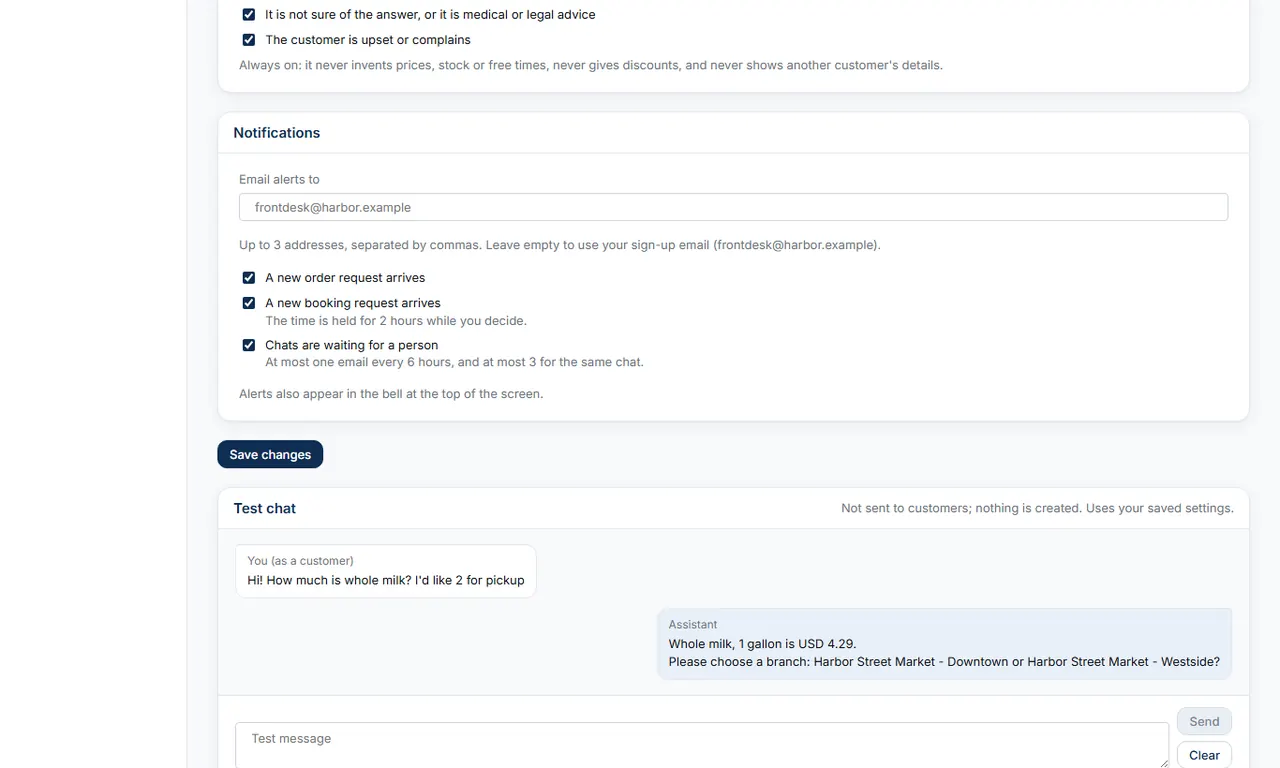
At the bottom of the Chatbot page, write as a customer would, for example "Do you have bagels today?". It uses your saved settings. Nothing is sent to customers and nothing is created, but the practice chat keeps a cart between your messages, so you can try a whole order: ask, add items, change one, then say yes. Clear starts again.
Every part of the Chatbot page
The Chatbot page has five panels and the test chat (the practice chat above). Save changes saves the panels; only staff allowed to manage WhatsApp can change them.
| Panel | Fields and options | Limits and defaults |
|---|---|---|
| Personality | Assistant's name; Tone (Friendly and short, Formal, Warm and detailed); Languages (Reply in the customer's own language, English only, English and Spanish only); First message | Name up to 60 characters; first message up to 500 |
| What it may do | Answer questions about products, services, prices, hours and location (always on); Take order requests (you accept or reject them); Take appointment requests from real free times; Tell customers the status of their orders and appointments; Understand voice notes | Appointment requests come with the Standard and Gold packages |
| Things it should know | Extra notes for the assistant | Up to 2,000 characters. Your About text, phone and address come from your business settings |
| Hand the chat to a person when | The customer asks for a person (always on); It is not sure of the answer, or it is medical or legal advice; The customer is upset or complains | Always on: it never invents prices, stock or free times, never gives discounts, and never shows another customer's details |
| Notifications | Email alerts to; A new order request arrives; A new booking request arrives; Chats are waiting for a person | Up to 3 addresses, separated by commas; empty uses your sign-up email. A booking request holds the time for 2 hours. Waiting-chat emails: at most one every 6 hours, and at most 3 for the same chat |
| Test chat | Test message (up to 2,000 characters); Send; Clear | Not sent to customers; nothing is created; uses your saved settings. The last 20 lines are sent |
Worked examples
- Answer Customers on WhatsApp with an AI Assistant: An AI assistant can answer WhatsApp with your real products, prices and free times, pass order and booking requests to staff, and hand chats over to a person.
Try WhatsApp free for 7 days
Register your shop, connect a WhatsApp Business number and start the trial.