

Getting started with WhatsApp in SaleFlowPoint
What you need, the free trial and prices, connecting a number, and choosing how each number works.
On this page
What you need
WhatsApp in SaleFlowPoint uses Meta's official WhatsApp Business Platform. Before you connect, have these ready:
- A WhatsApp Business number. Ordinary (personal) WhatsApp cannot be connected; Meta does not allow it. On ordinary WhatsApp now? Install the free WhatsApp Business app and move your number to it (WhatsApp offers to keep your chats).
- A Facebook account, your business name and your website: Meta's sign-up window asks for them.
- A card for Meta's message charges. Meta bills its own message charges to you directly, not through SaleFlowPoint.
- The owner's sign-in (or a role with the WhatsApp manage permission) to connect numbers and change modes.
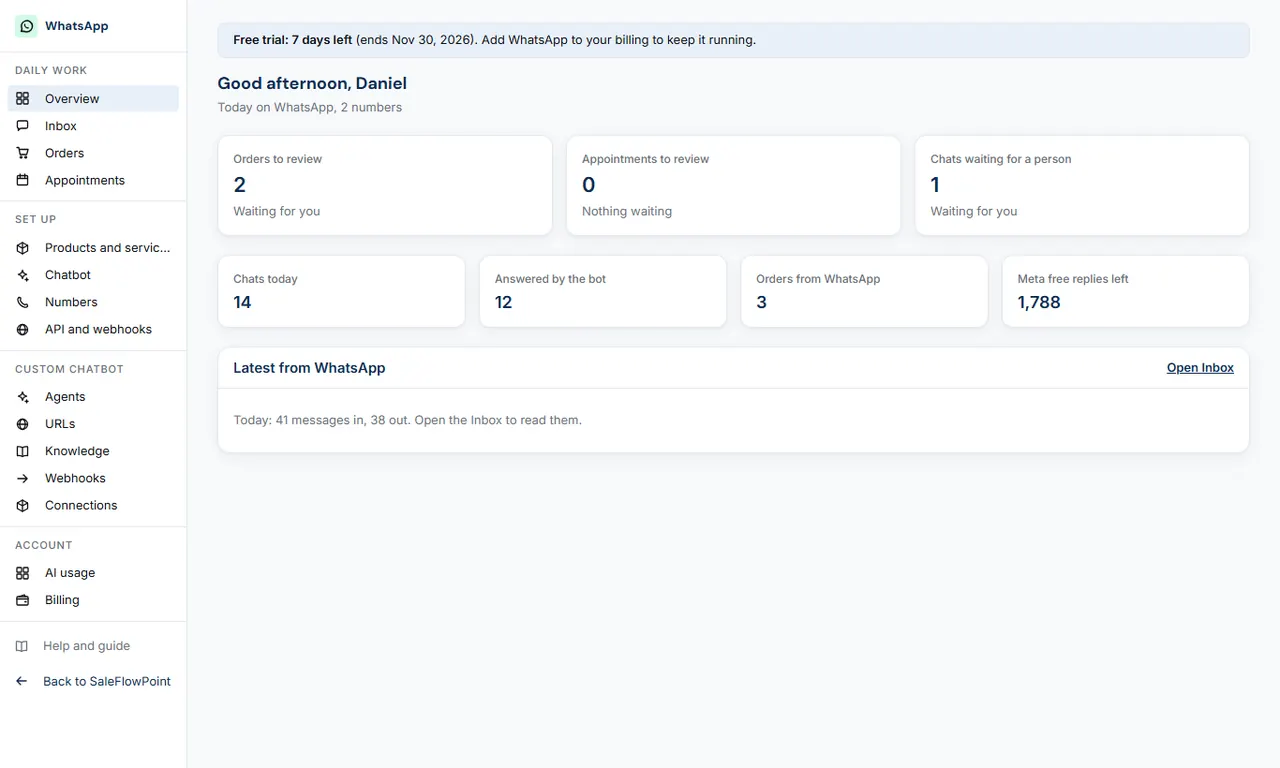
Open WhatsApp from the WhatsApp icon in the top bar of SaleFlowPoint. It has its own menu: Daily work (Overview, Inbox, Orders, Appointments), Set up (Products and services, Chatbot, Numbers, API and webhooks), Custom chatbot (Agents, URLs, Knowledge, Webhooks, Connections) and Account (AI usage, Billing).
The free trial and prices
Each company can use a 7-day free trial once. The owner starts it on WhatsApp > Overview with Start free trial. During the trial every mode works, including the custom chatbot. After 7 days WhatsApp pauses until you add it to your billing.
| Mode | Per number, monthly | Per number, yearly | AI tokens included each month |
|---|---|---|---|
| API mode | $19 | $199 | None (no AI is used) |
| Chatbot mode | $19 | $199 | 10 million |
| Custom chatbot | $29 | $290 | 30 million |
You pay on the card you use for your SaleFlowPoint plan, on the Billing page (WhatsApp > Billing). Meta's own message charges are separate and billed by Meta. Extra AI tokens above the included amount are explained on the daily work page.
Connect a number
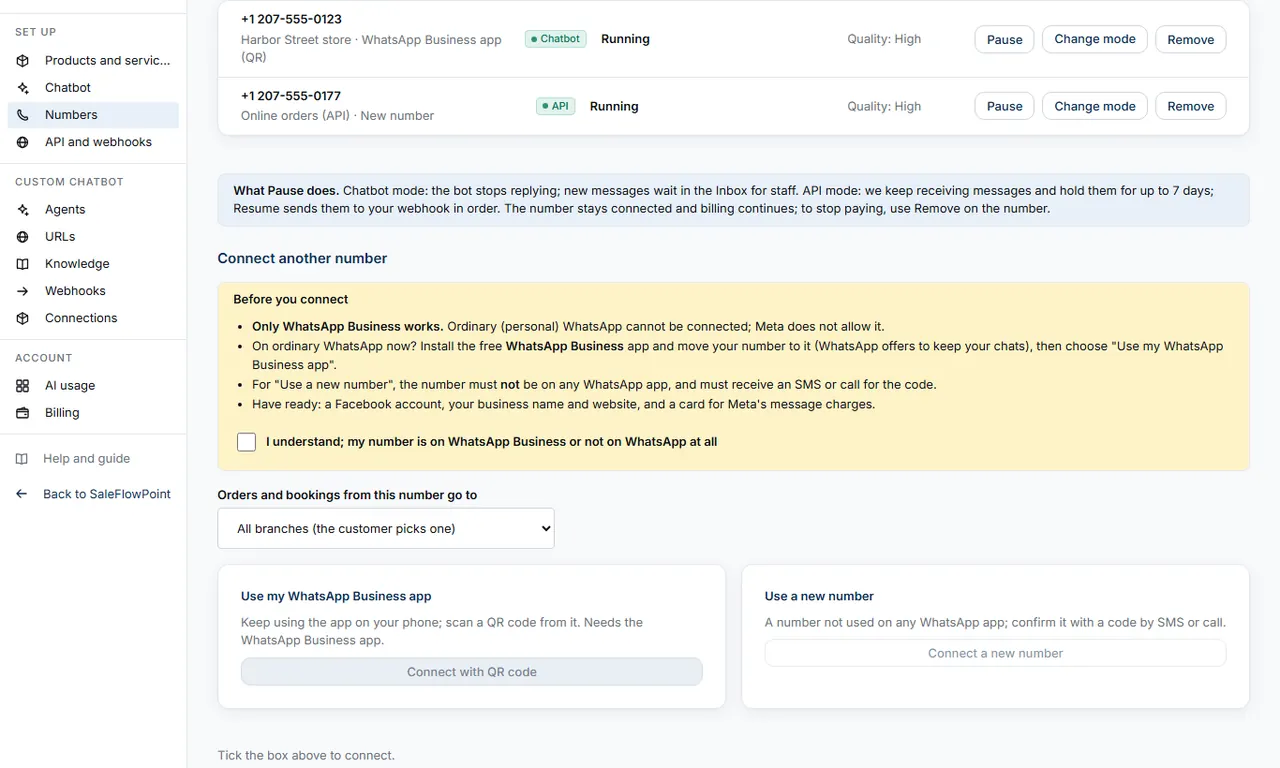
Go to WhatsApp > Numbers. Read the Before you connect box, tick that you understand it, pick the branch, then choose one of two ways:
| Way | When to use it | What happens |
|---|---|---|
| Use my WhatsApp Business app | The number is already on the WhatsApp Business app on your phone | You keep using the app on your phone. Meta's window shows a QR code; scan it from the app. Your chats keep working in the app and in SaleFlowPoint at the same time. |
| Use a new number | A number that is not on any WhatsApp app | Meta sends a code by SMS or call to confirm the number. The number then works only through SaleFlowPoint. |
- Click Connect and sign in with Facebook in Meta's window.
- Pick or create your business, then the WhatsApp Business account.
- Scan the QR code from WhatsApp Business (Settings > Linked devices), or type the code Meta sends to the new number.
- Back in SaleFlowPoint you see Next: choose how this number works. Click Choose the mode.
If you close Meta's window before the end, nothing is saved and you can start again.
The branch setting
The list is labelled Orders and bookings from this number go to. Each number can belong to one branch, or to All branches (the customer picks one). With one branch, orders and appointment requests from that number go to that branch. With all branches, the chatbot asks the customer which branch they want.
Example: Harbor Street Market has two branches, Harbor Street and Munjoy Hill. Its store number +1 207-555-0123 is set to All branches, so a customer who asks for pickup is asked which store.
Choose a mode
Every number has its own mode. Open Numbers > Change mode (or Choose the mode after connecting) and pick one:
| Mode | What it does | Who answers |
|---|---|---|
| API mode | Every message goes to your own system through your webhook. You send replies with the SaleFlowPoint API. The chatbot stays off. | Your own system |
| Chatbot mode | An AI assistant talks to customers about your products, services, order and appointment requests, from your own SaleFlowPoint data. | The AI; staff can take over in the Inbox |
| Custom chatbot | Our AI runs an agent you describe, using your own systems' URLs for data and sending results to your webhooks. | The agent only; chats are read only in the Inbox |
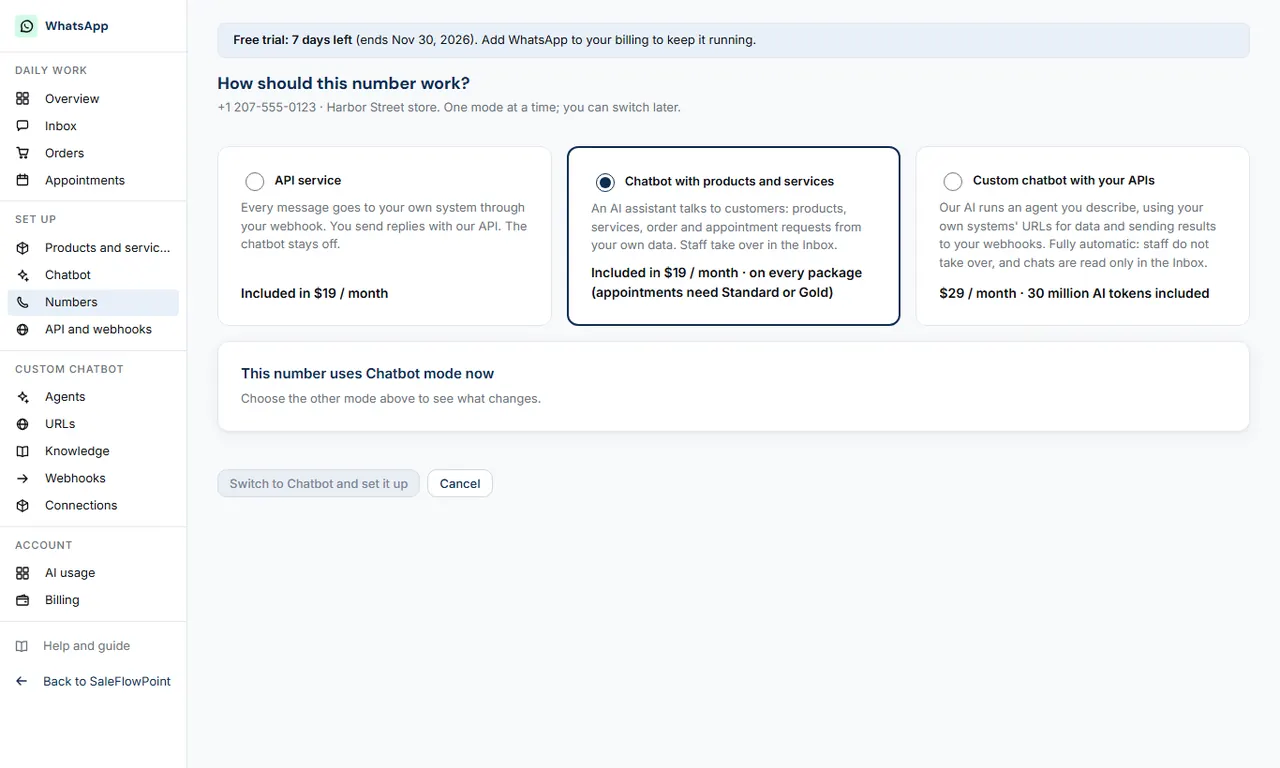
Switching between the chatbot and the custom chatbot is allowed at most twice per billing cycle. Moving up to the custom chatbot on a paid number charges the difference for the time left ($10 a month, or $91 a year). Switching back later credits the unused days on your next bill, unless that cycle already used more than 10 million AI tokens. During the trial a mode change costs nothing.
Pause, Resume, Change mode and Remove
| Button | What happens |
|---|---|
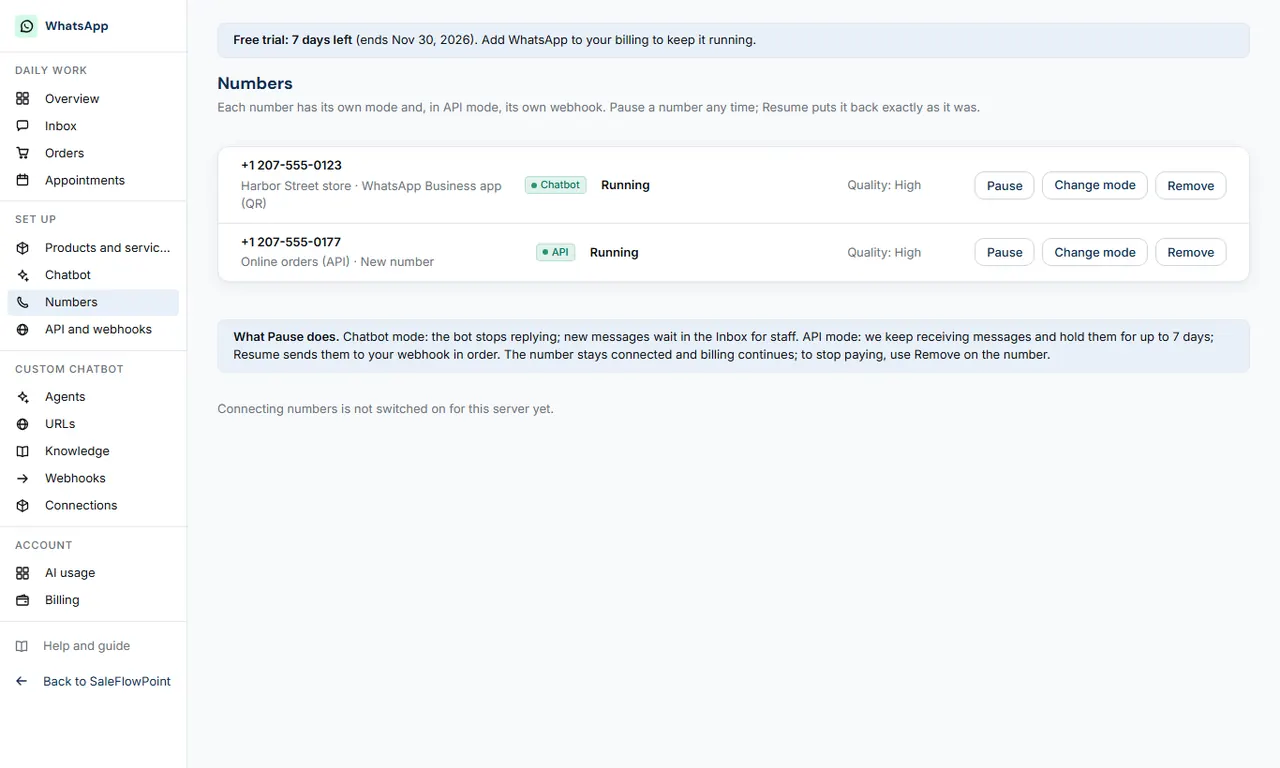
| Pause | Chatbot mode: the bot stops replying; new messages wait in the Inbox for staff. API mode: messages are kept and held for up to 7 days. The number stays connected and billing continues. |
| Resume | The number goes back exactly to how it was. In API mode the held messages are sent to your webhook in order. |
| Change mode | Opens the mode picker for that number (see above). |
| Remove | During the trial: disconnected at once, nothing was paid. On a paid number: it keeps working until the end of the billing period, then it is disconnected and no longer billed (no refund for the days left). |
To stop paying for a number, use Remove; Pause alone keeps billing.
Worked examples
- Answer Customers on WhatsApp with an AI Assistant: An AI assistant can answer WhatsApp with your real products, prices and free times, pass order and booking requests to staff, and hand chats over to a person.
- Connect a WhatsApp Number to Your Business Central Agent: Connect your WhatsApp Business number through Meta's sign-up, pick it in the agent, then activate a version so new chats use your Business Central agent.
Next: API mode · All WhatsApp guide pages
Try WhatsApp free for 7 days
Register your shop, connect a WhatsApp Business number and start the trial.