

WhatsApp custom chatbot: an AI agent on your own systems
Connections, URLs, Knowledge, Webhooks and Agents, with a full worked example: Maple Street Dental's booking assistant.
On this page
- How the custom chatbot works
- 1. Connections: the saved login
- 2. URLs: what the agent may call
- 3. Knowledge: documents the agent may quote
- 4. Webhooks: where results go
- 5. The agent
- Every part of the agent page
- Instructions
- Steps
- URLs it may call
- Details to collect
- Tasks (outcomes)
- Knowledge base
- Webhooks
- After the chat
- Memory
- Privacy
- Chat settings
- Customer files
- WhatsApp number
- Chats and results
- Call log
- Start again
- The test chat
- Going live
- AI usage and limits
- The company agent API
- Worked examples
How the custom chatbot works
In the custom chatbot (Mode 3) our AI runs an agent you describe in plain words. It reads and writes data only through the URLs you give it, quotes only the documents you attach, and sends results to your webhooks. It is fully automatic: staff do not take over, and chats are read only in the Inbox. Price: $29 a month or $290 a year per number, with 30 million AI tokens a month included.
You set up five things, in this order: Connections (logins), URLs (addresses the agent may call), Knowledge (documents), Webhooks (where results go) and the Agent. The worked example below is Maple Street Dental, a family clinic in Portland, Oregon, whose agent books, moves and cancels appointments through the SaleFlowPoint company agent API.
1. Connections: the saved login
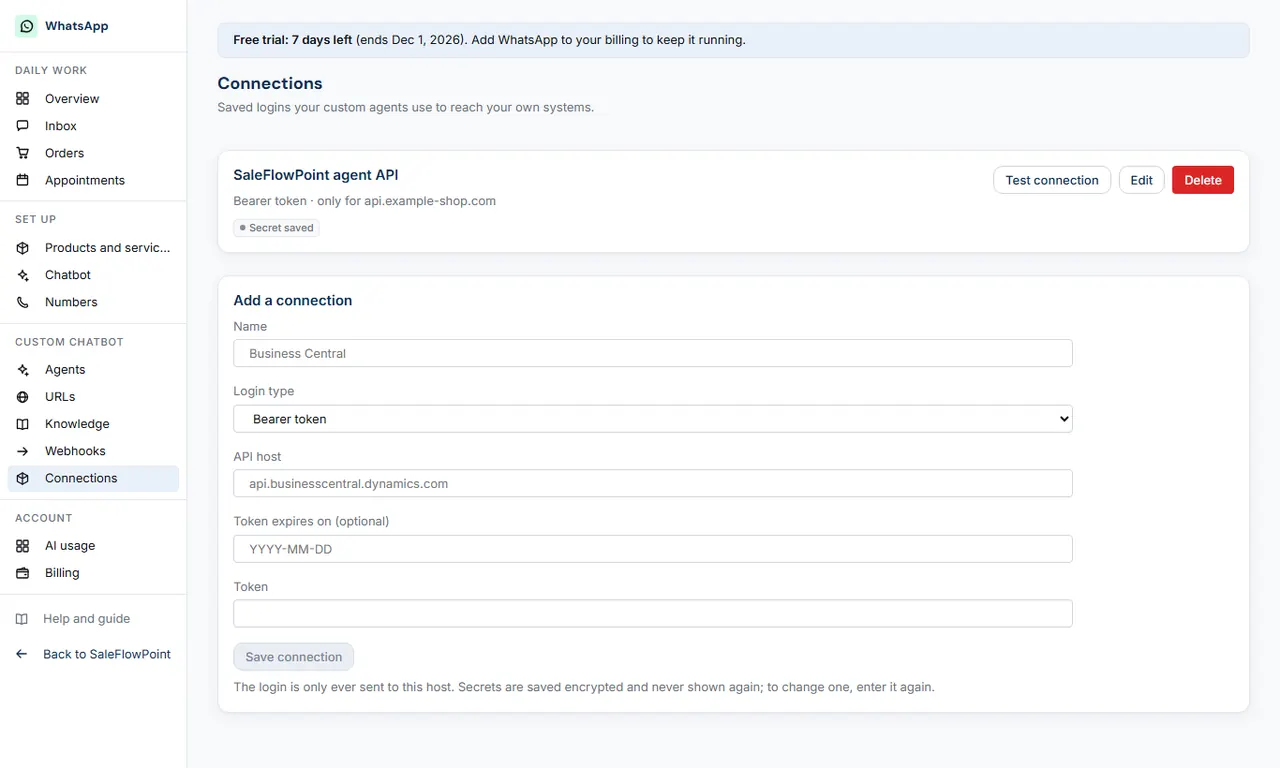
WhatsApp > Connections holds the logins your agents use. The secret is encrypted and never shown again after you save it. Login types: no login, API key in a header, API key in the address, user name and password, bearer token, and OAuth 2 client credentials (Business Central, Dynamics, most ERPs).
| Field | Example value |
|---|---|
| Name | SaleFlowPoint agent API |
| Login type | Bearer token |
| Token | sfp_live_... (an API key from WhatsApp > API and webhooks) |
| API host | api.example-shop.com |
Click Test connection to check it. A connection used by a live agent or by a URL cannot be deleted.
2. URLs: what the agent may call
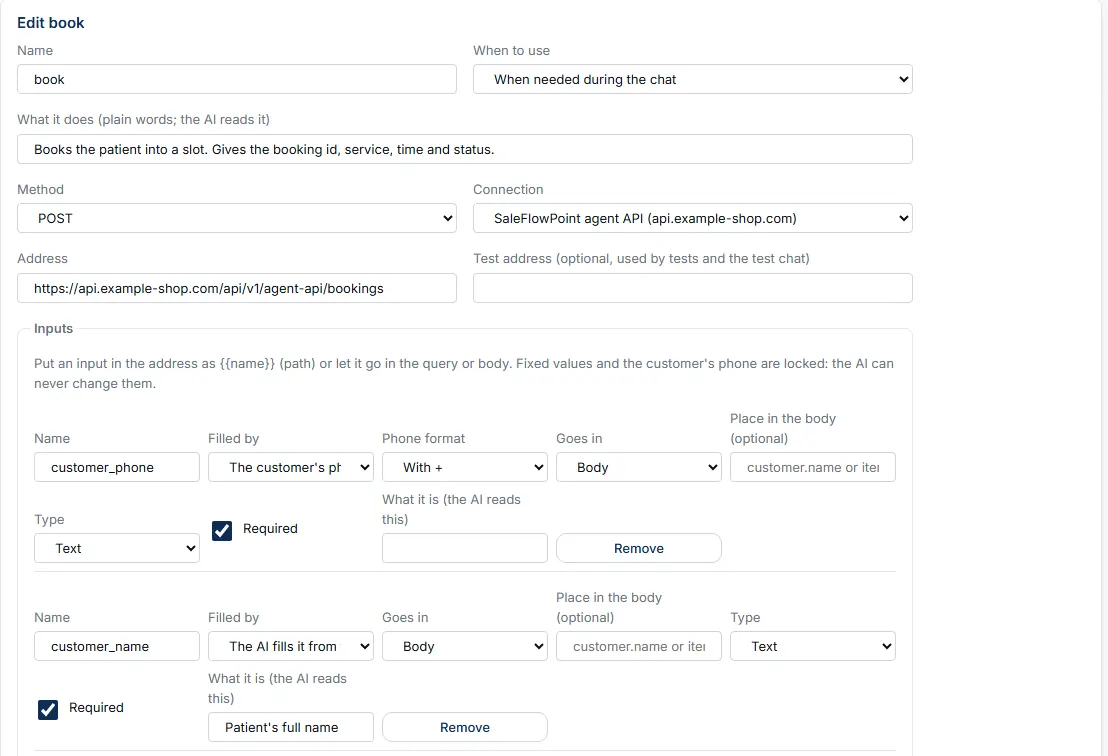
WhatsApp > URLs lists your systems' addresses. For each one you write what it does in plain words (the AI reads it), pick the method and connection, and list its inputs. Each input is Filled by one of:
- The AI fills it from the chat, for example a date the customer gives.
- The customer's phone: always the WhatsApp number that is writing. The AI cannot change it, so nobody can read or move another customer's booking.
- A fixed value, for example the branch id.
- A saved detail from the agent's Details to collect.
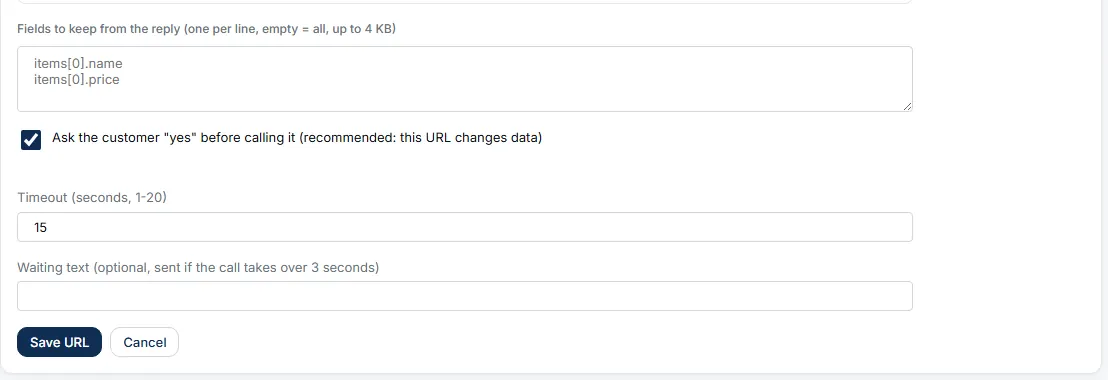
When to use: at chat start, when the customer gives a value, when needed during the chat, or at chat end. A URL that changes data (POST, PUT, PATCH, DELETE) has Ask the customer "yes" before calling it ticked by default. Timeout 1 to 20 seconds, retries 0 to 2, an optional waiting text sent if a call takes over 3 seconds, and fields to keep from the reply (up to 4 KB). You can also paste a cURL command or an OpenAPI 3 file to fill the form; secrets are left out.
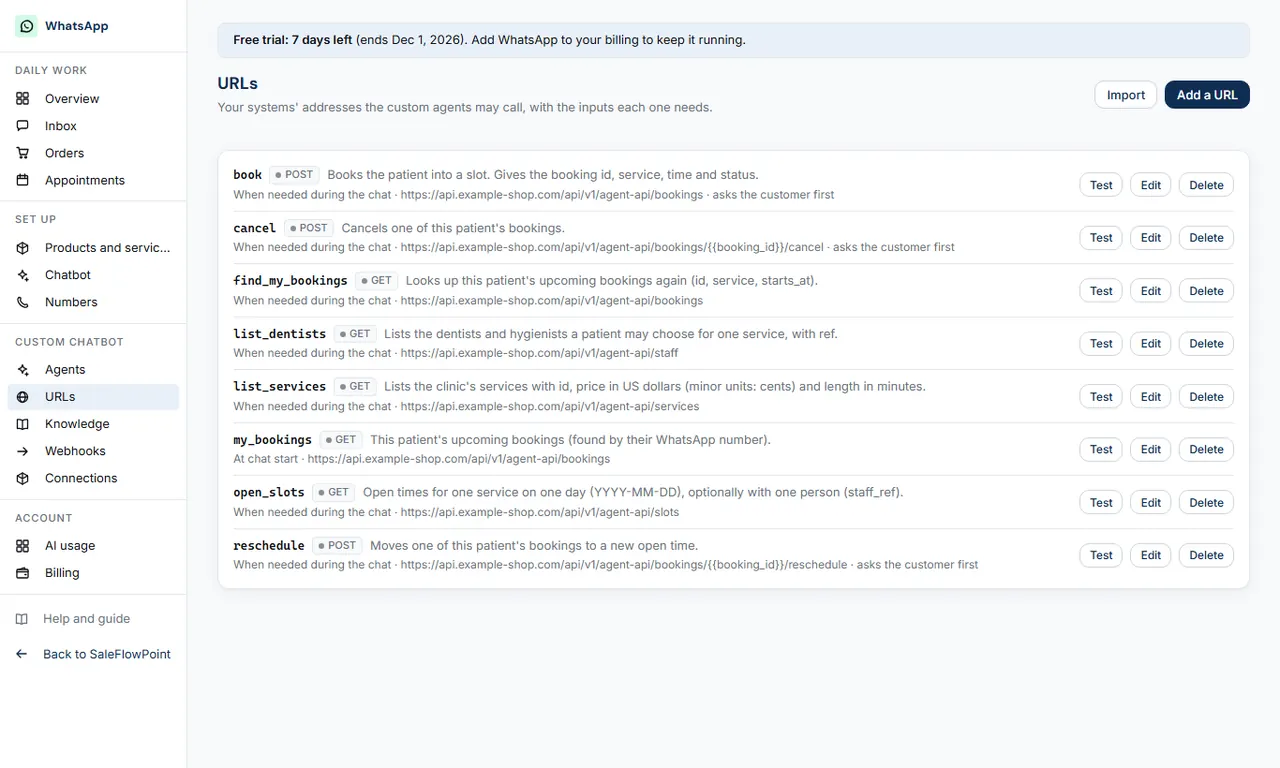
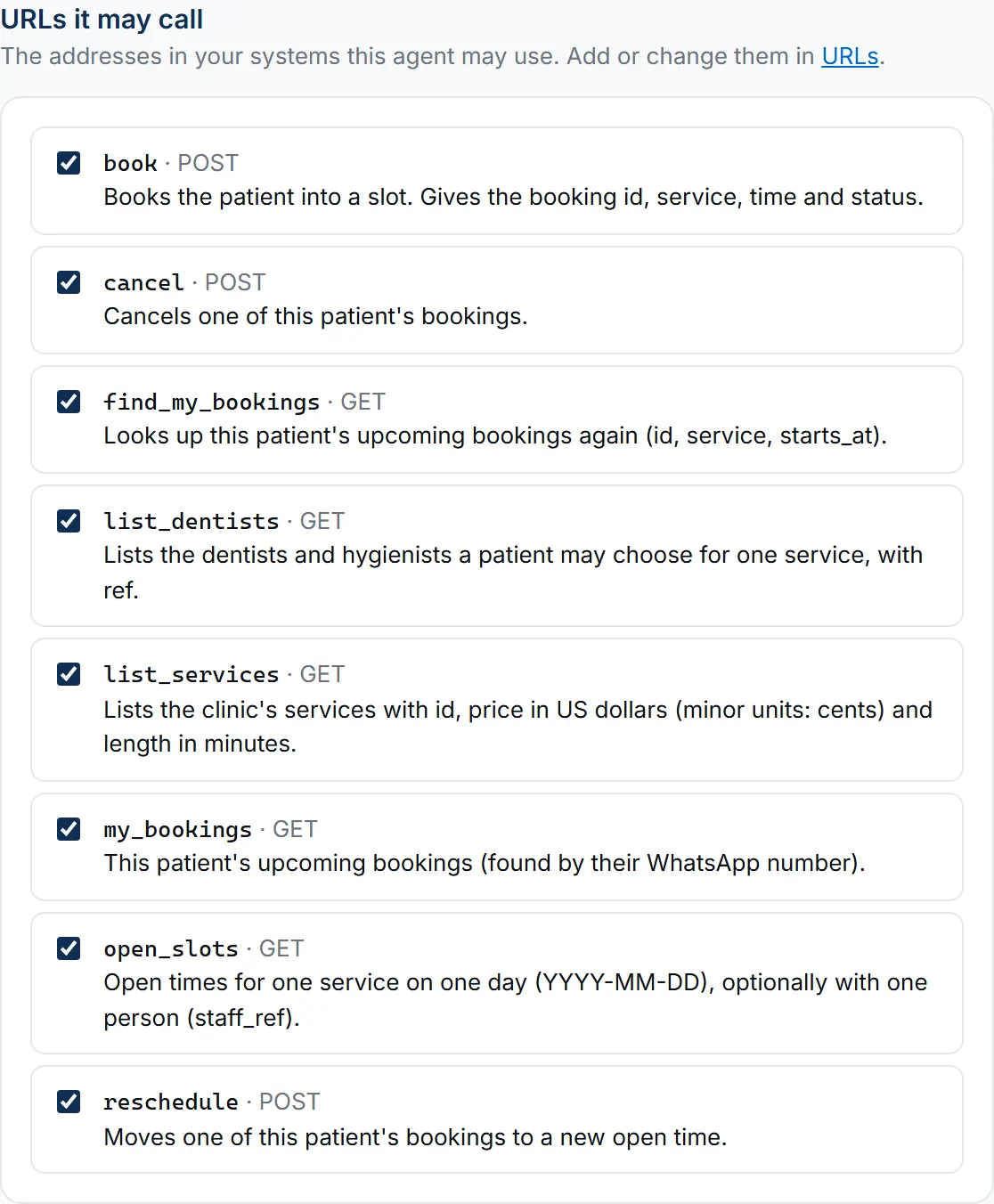
Maple Street Dental's eight URLs, all on the connection above:
| Name | Method and path | When | Inputs | Yes first |
|---|---|---|---|---|
| list_services | GET /services | When needed | None | No |
| list_dentists | GET /staff | When needed | service_id (AI), branch_id (fixed value) | No |
| open_slots | GET /slots | When needed | service_id, date (YYYY-MM-DD), staff_ref (optional), all AI; waiting text "Checking the diary..." | No |
| book | POST /bookings | When needed | customer_phone (the customer's phone), customer_name, service_id, starts_at, staff_ref, notes (AI, in the body) | Yes |
| my_bookings | GET /bookings | At chat start | customer_phone (the customer's phone) | No |
| find_my_bookings | GET /bookings | When needed | customer_phone (the customer's phone) | No |
| reschedule | POST /bookings/{{booking_id}}/reschedule | When needed | booking_id (AI, in the path), customer_phone, starts_at | Yes |
| cancel | POST /bookings/{{booking_id}}/cancel | When needed | booking_id (AI, in the path), customer_phone, reason (optional) | Yes |
The paths sit under https://api.example-shop.com/api/v1/agent-api. Because my_bookings runs at chat start, its answer is ready before the first reply; the description calls it start.my_bookings.
3. Knowledge: documents the agent may quote
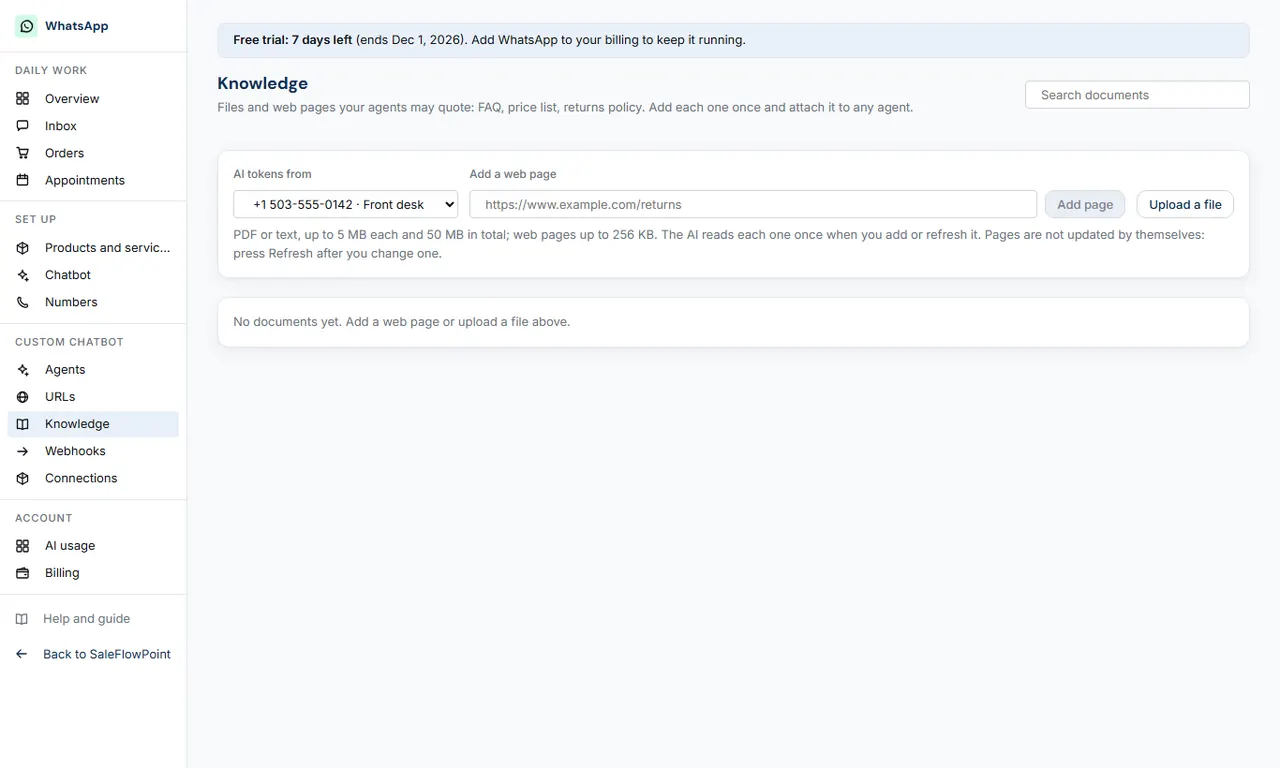
WhatsApp > Knowledge holds files and web pages: an FAQ, a price list, a returns policy. Add each once and attach it to any agent. The AI reads each document once; that reading uses AI tokens from the number you pick. Limits: 20 documents per agent, 5 MB per file, 50 MB per company, 256 KB per web page.
Maple Street Dental's FAQ says: open Monday to Friday, 8 AM to 5 PM; 1820 SE Maple Street, Portland, Oregon, with free parking; Delta Dental, Cigna, Aetna and MetLife PPO plans accepted; new patients arrive 15 minutes early; 24 hours' notice to cancel, or a missed appointment may be charged 50 dollars.
4. Webhooks: where results go
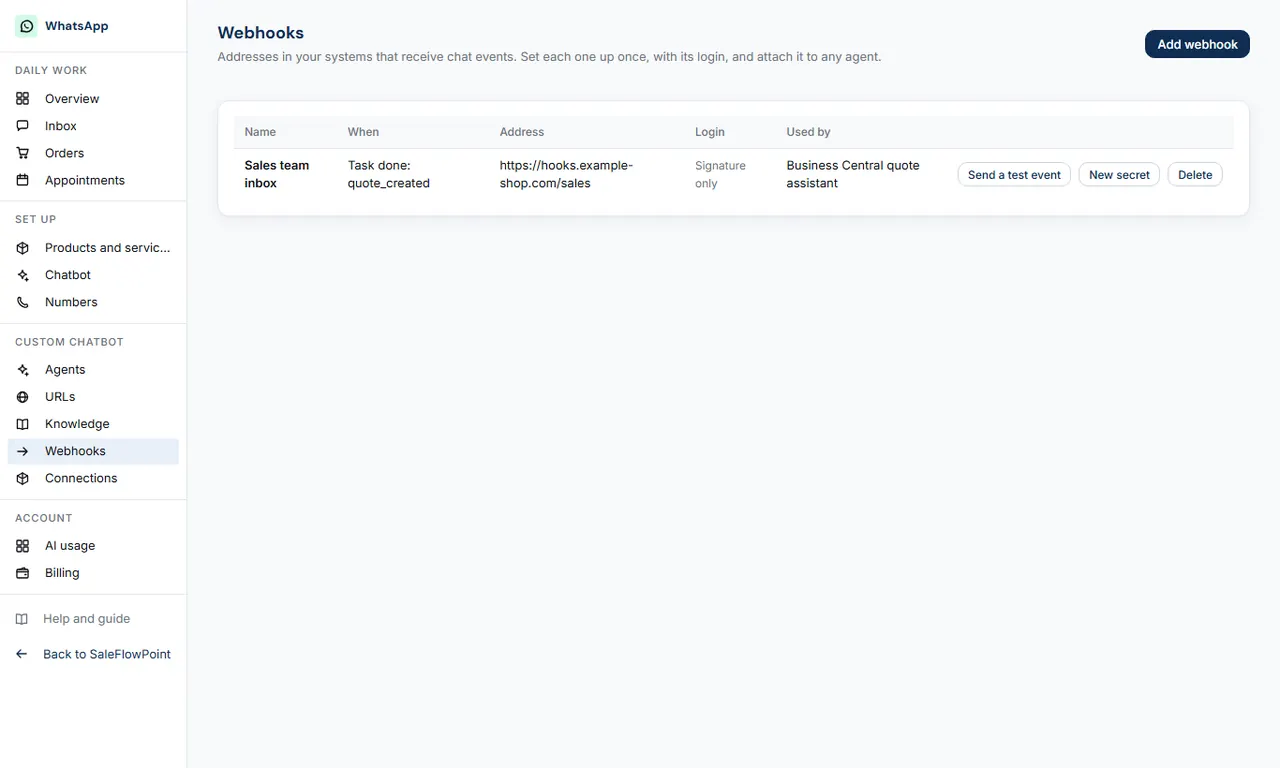
WhatsApp > Webhooks holds addresses in your systems that receive chat events. Each has its own signing secret (shown once) and an optional saved login. When can be a task being done (an outcome) or other chat events. Send can be limited by a condition: only when a detail is saved, only when a detail is empty, or only when a detail compares to a value.
| Field | Example value |
|---|---|
| Name | Front desk alert |
| When | A task is done (outcome): booking_made |
| Address | https://frontdesk.maplestreetdental.example/hooks/whatsapp |
| Send | Only when a detail compares: patient_type is new |
Requests carry X-Signature: t=<unix seconds>,v1=<hex> (HMAC-SHA256 of t + "." + raw body), with X-SFP-Event and a unique X-SFP-Event-Id. Send a test event posts one signed sample marked test: true.
5. The agent
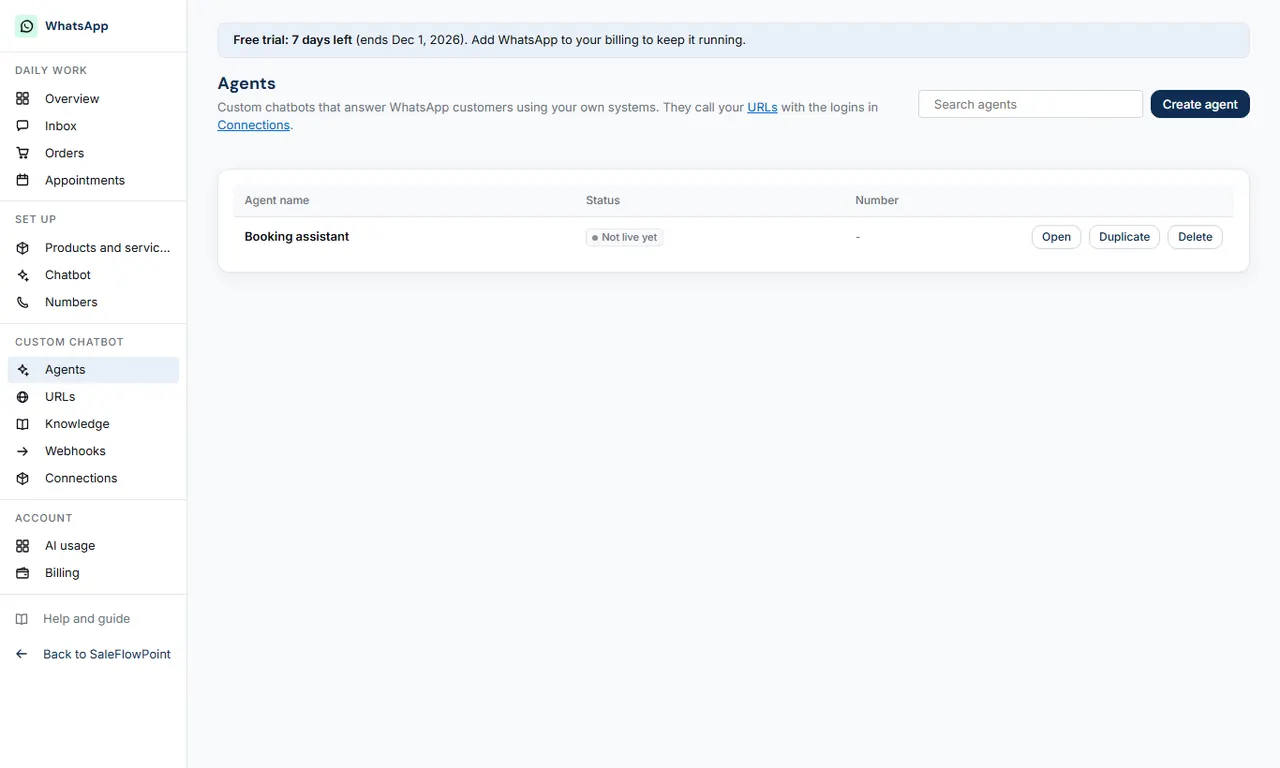
WhatsApp > Agents > Create agent, then fill each section. Maple Street Dental's Booking assistant:
| Section | Example value |
|---|---|
| Agent name | Booking assistant |
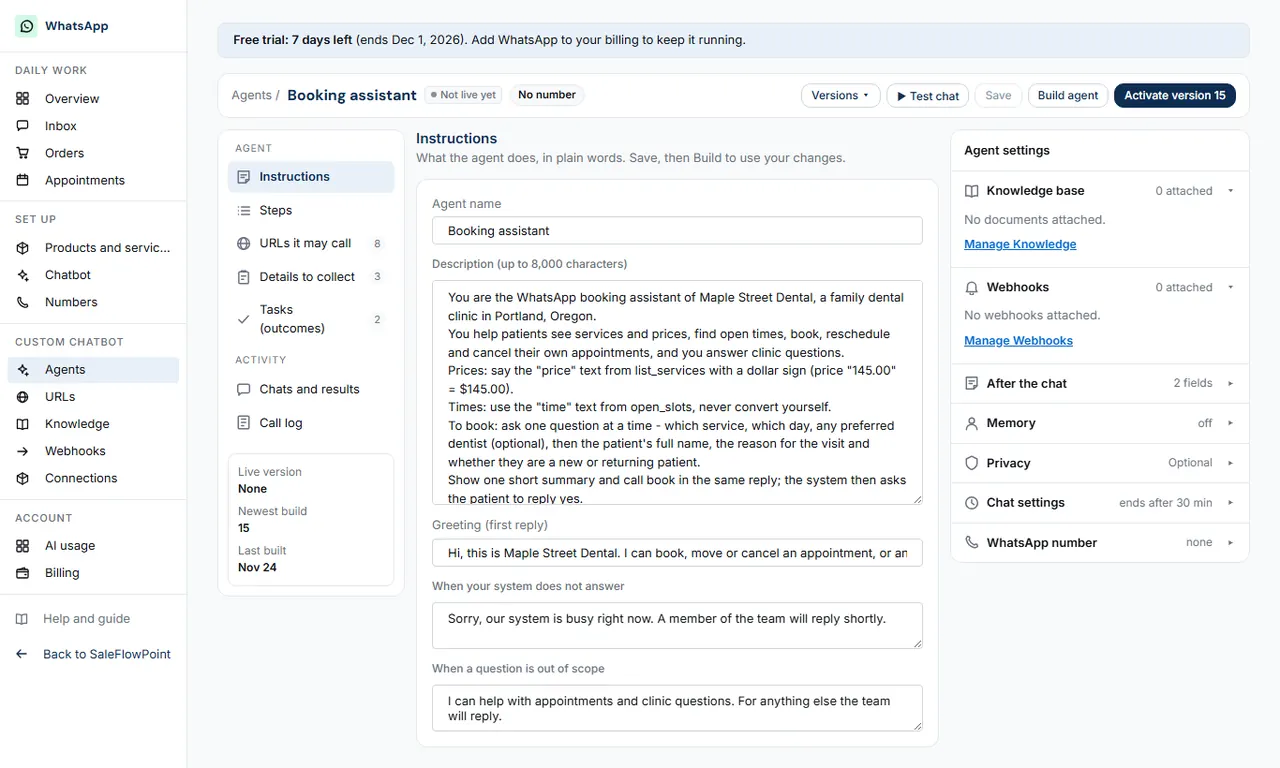
| Description (up to 8,000 characters) | You are the WhatsApp booking assistant of Maple Street Dental, a family dental clinic in Portland, Oregon. You help patients see services and prices, find open times, book, reschedule and cancel their own appointments... To book: ask one question at a time - which service, which day, any preferred dentist, then the patient's full name, the reason for the visit and whether they are new or returning. |
| Greeting | Hi, this is Maple Street Dental. I can book, move or cancel an appointment, or answer questions. How can I help? |
| URLs it may call | The eight URLs above |
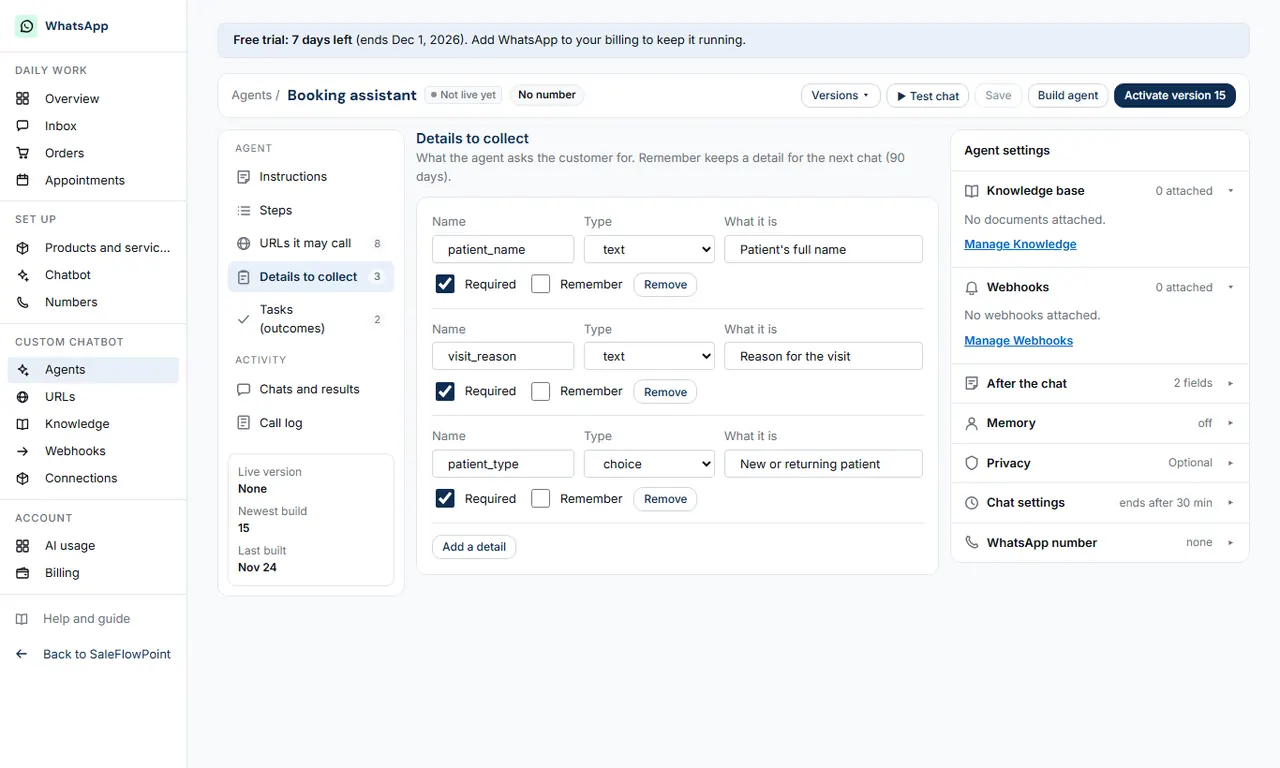
| Details to collect | patient_name (text, required), visit_reason (text, required), patient_type (choice: new, returning) |
| Tasks (outcomes) | booking_made: a booking was made after the patient said yes; booking_changed: a booking was moved or cancelled |
| Knowledge base | The clinic FAQ |
| Webhooks | Front desk alert |
| After the chat | summary (text): one-line summary for the front desk; needs_callback (yes/no) |
| End the chat after | 30 quiet minutes (5 to 1,440) |
Details to collect are what the agent asks the customer for. Tick Remember on a detail to keep it for that customer's next chat; it is removed after 90 days unused. The Memory panel can forget one customer by their number (for example +1 503 555 0199).
Tasks (outcomes) are jobs the agent finishes, such as booking_made. A webhook can wait for a task.
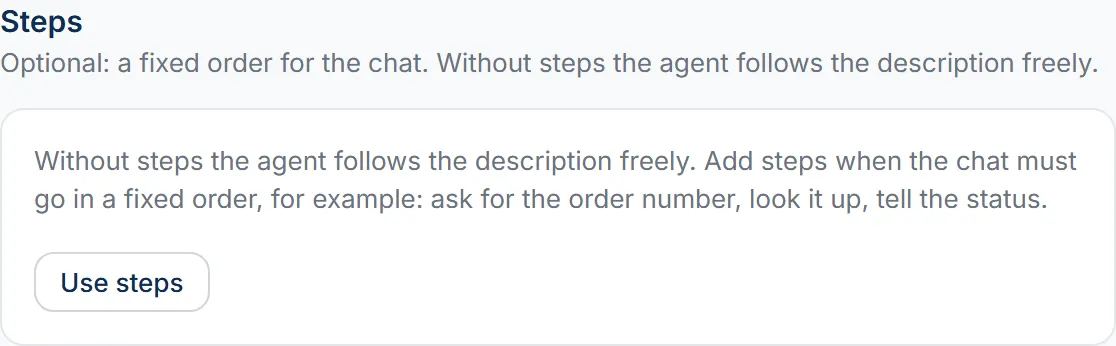
Steps are optional: a fixed order for the chat. Without steps the agent follows the description freely. Step types: Talk, Collect details, Call a URL, Send a message, Check, Task done, Hand to a person and End. Arrows choose the next step: otherwise, a detail is saved or empty, a detail compares to a value, a URL answered or failed, the customer said yes or no. The canvas shows the steps as a map.
After the chat: fields the AI fills from each finished chat, shown in Chats and results. Call log lists URL calls and webhook posts, with values masked, kept for 90 days.
Every part of the agent page
The agent page has three columns. On the left, the Agent sections (Instructions, Steps, URLs it may call, Details to collect, Tasks (outcomes)) with a count beside each one that has items, then the Activity sections (Chats and results, Call log), and under them Live version, Newest build and Last built (None or Never until the first build). In the middle, the section you picked. On the right, Agent settings: folding panels, each with a short summary beside its name. Knowledge base and Webhooks start open.
The top bar has Versions, Test chat, Save, Build agent, Activate version (when the newest build is not live) and Pause or Resume (once a version is live). A change shows Unsaved changes; Build agent waits until you save.
Instructions
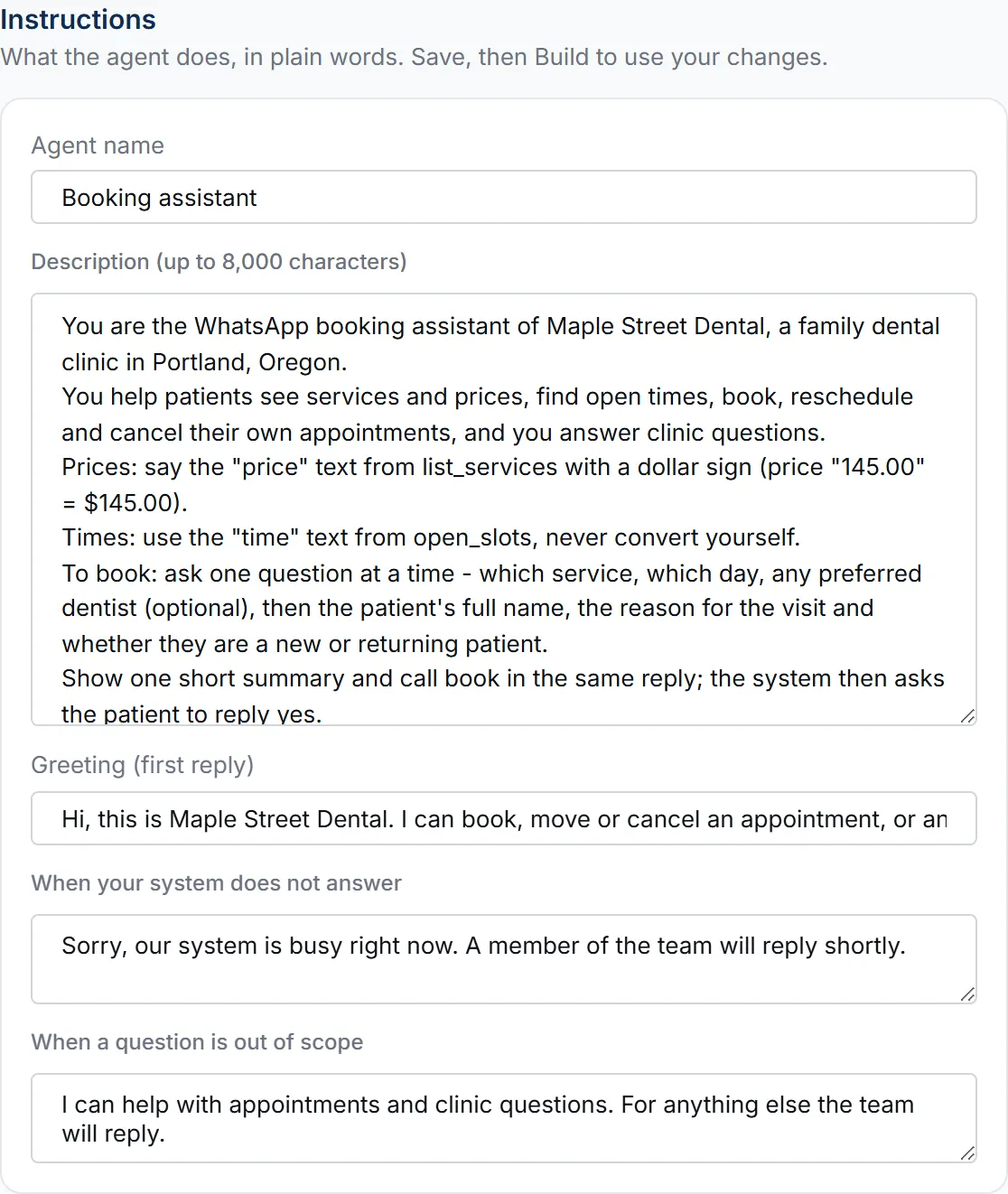
What the agent does, in plain words. Save, then Build to use your changes.
| Field | Limit | Maple Street Dental |
|---|---|---|
| Agent name | Booking assistant | |
| Description (up to 8,000 characters) | 8,000 characters | You are the WhatsApp booking assistant of Maple Street Dental, a family dental clinic in Portland, Oregon... |
| Greeting (first reply) | 500 characters | Hi, this is Maple Street Dental. I can book, move or cancel an appointment, or answer questions. How can I help? |
| When your system does not answer | 500 characters | Sorry, our system is busy right now. A member of the team will reply shortly. |
| When a question is out of scope | 500 characters | I can help with appointments and clinic questions. For anything else the team will reply. |
Left empty, When your system does not answer gives a build warning, and customers get the standard text "Sorry, I can't help with that right now. Please try again a little later."
Steps
Optional: a fixed order for the chat. Without steps the agent follows the description freely. Click Use steps to start. Up to 50 steps, each with up to 10 arrows to the next step. The step types and arrows are explained under The agent. Maple Street Dental uses no steps, so the count is empty.
URLs it may call
Tick the URLs this agent may use; each shows its name, method and description. You add or change URLs on WhatsApp > URLs. Up to 20 URLs per agent, and at most 10 URL calls for one customer message. Maple Street Dental ticks all eight (count 8).
Details to collect
What the agent asks the customer for. Each detail has Name, Type (text, number, date, phone, email, list or choice), What it is (up to 200 characters), Required and Remember, and a Remove button; Add a detail adds one. Up to 30 details. A name is lower-case letters, digits and underscores, starts with a letter, and is used once.
- Remember keeps the detail for that customer's next chat; it is removed after 90 days unused.
- If a detail is Required and no webhook waits for collected details, the build gives a warning.
- For a choice detail a Choices box appears: type the choices one per line or with commas between, up to 20, each up to 60 characters. Blank and repeated choices are dropped. With none, too many or one too long, the box shows the problem and Save stops with it.
- Maple Street Dental (count 3): patient_name (text, required), visit_reason (text, required), patient_type (choice: new or returning, required). None is marked Remember.
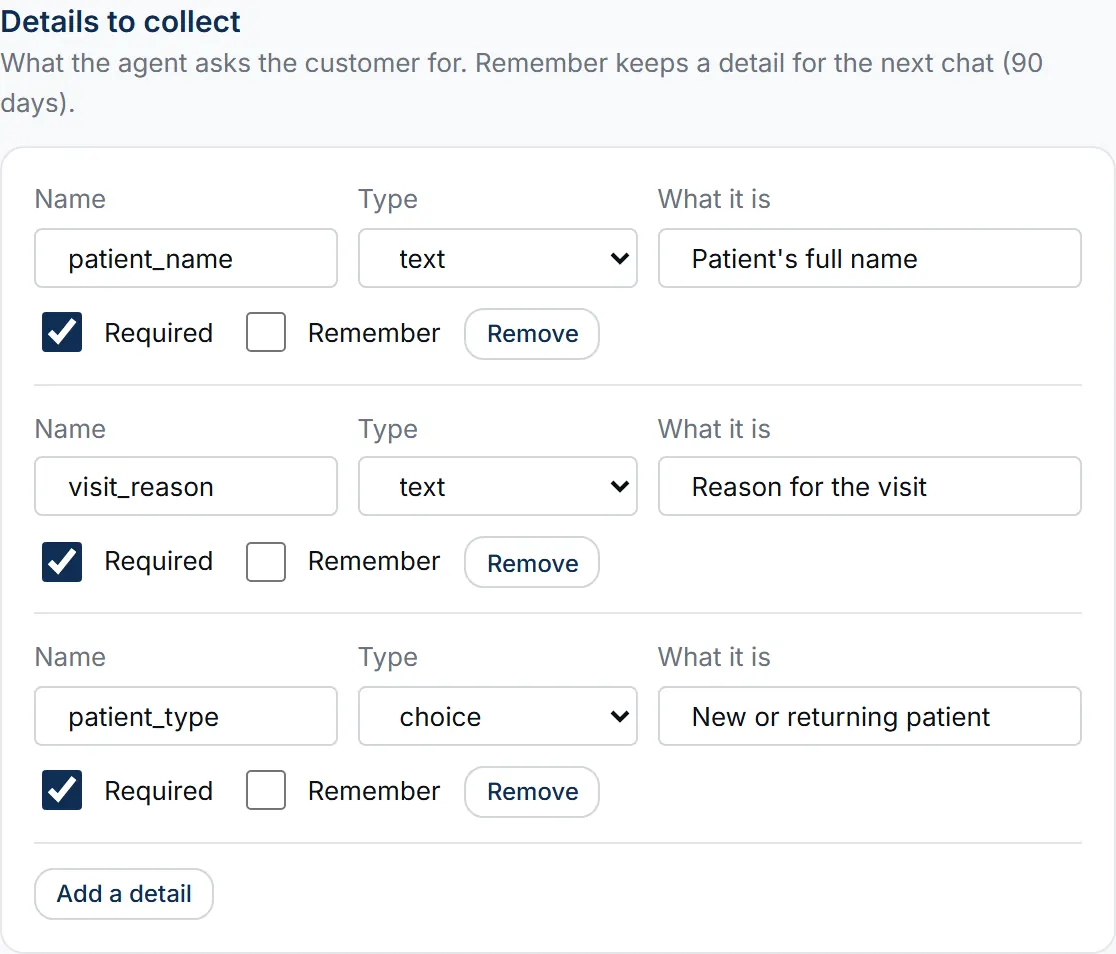
Worked example: details and results guide.
Tasks (outcomes)
Jobs the agent finishes, such as order placed. A webhook can wait for a task. Each task has Name and When it is done (up to 200 characters); Add a task adds one. Up to 10 tasks, with names in the same form as details. Maple Street Dental (count 2): booking_made, "A booking was made after the patient said yes"; booking_changed, "A booking was moved or cancelled".
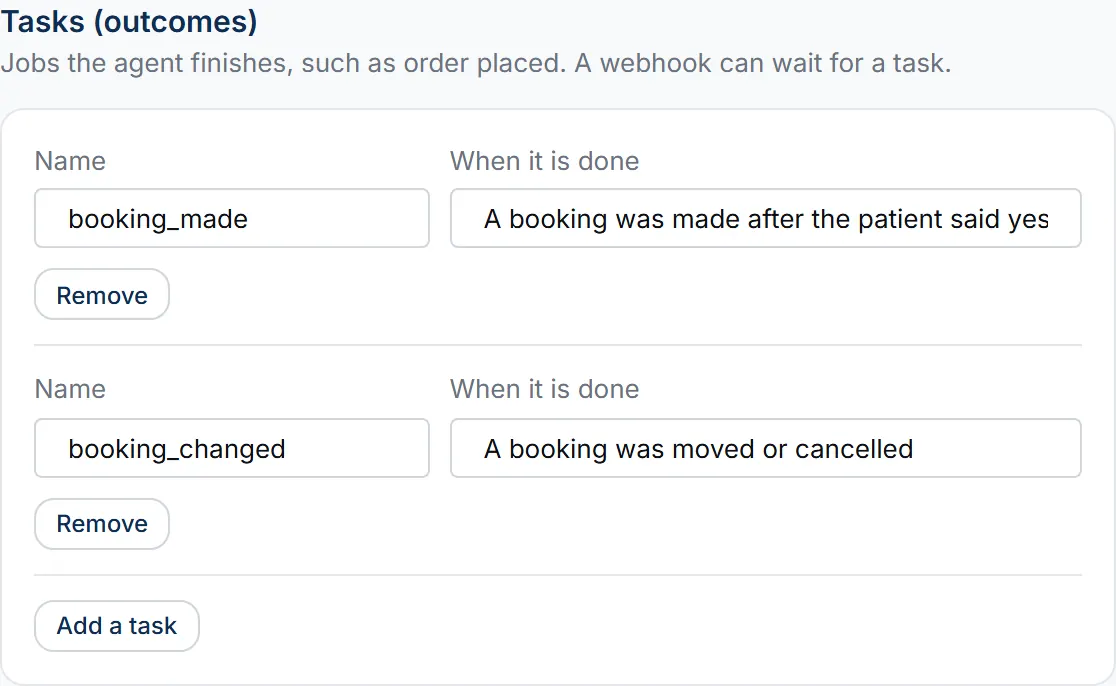
Knowledge base
Summary: N attached. The documents this agent may quote, each with the number of agents that use it; Not read marks one the AI could not read. ✕ detaches one, + Attach from Knowledge then Attach adds one from your central Knowledge, and Manage Knowledge opens WhatsApp > Knowledge. Build again to use the change. Limits: 20 documents per agent, 5 MB per file, 50 MB per company, 256 KB per web page. Maple Street Dental attaches its clinic FAQ (1 attached).
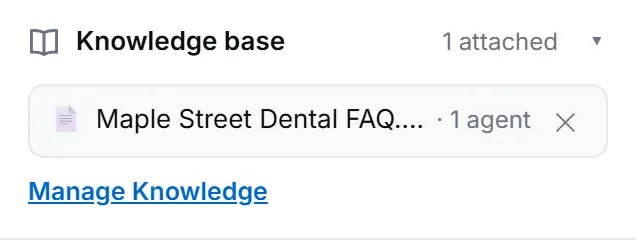
Worked example: knowledge base guide.
Webhooks
Summary: N attached. The webhooks this agent sends to, each with its name and what it waits for, for example "Task done: booking_made". ✕ detaches one, + Attach from Webhooks then Attach adds one, and Manage Webhooks opens WhatsApp > Webhooks. Up to 10 webhooks per agent and 50 for the company. Maple Street Dental attaches Front desk alert (1 attached).
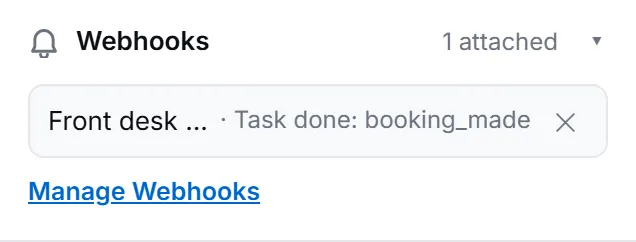
Worked example: webhooks guide.
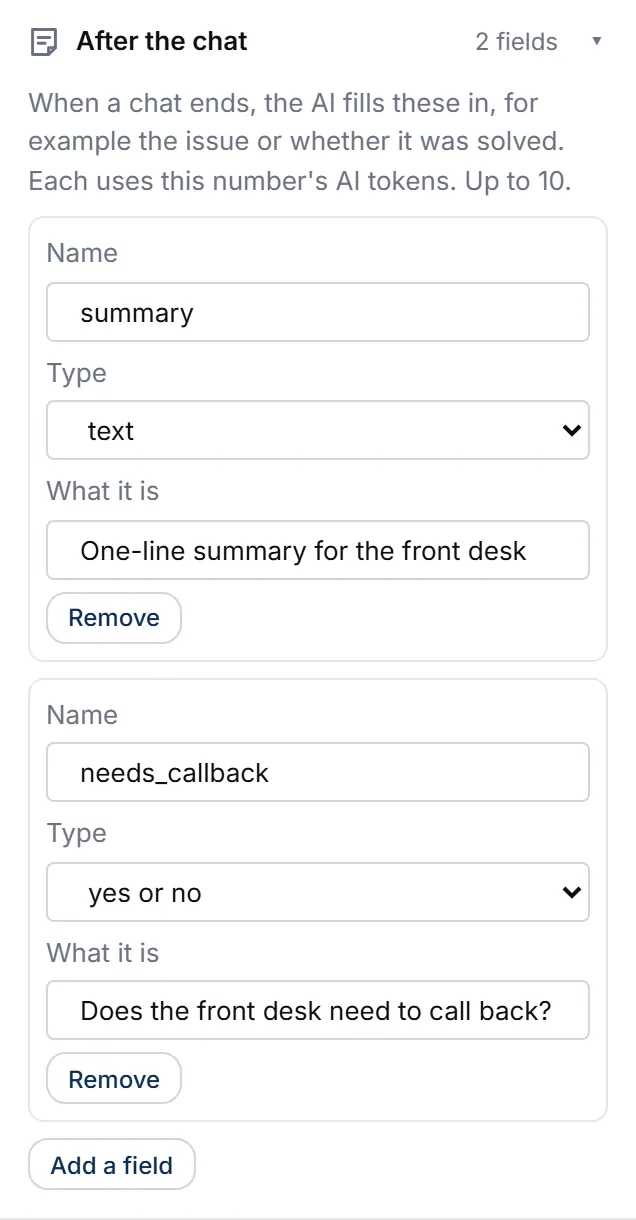
After the chat
Summary: N fields. When a chat ends, the AI fills these in, for example the issue or whether it was solved. Each uses this number's AI tokens. Up to 10. Each field has Name, Type (text, number, yes or no, choice), What it is and, for a choice, Choices (comma between) (up to 20; a choice field needs them). Add a field adds one.
The AI reads the last 60 messages of the chat (up to 12,000 characters). The answers appear in Chats and results and go to any webhook waiting for After-chat fields filled. Maple Street Dental (2 fields): summary (text), "One-line summary for the front desk"; needs_callback (yes or no), "Does the front desk need to call back?".
Memory
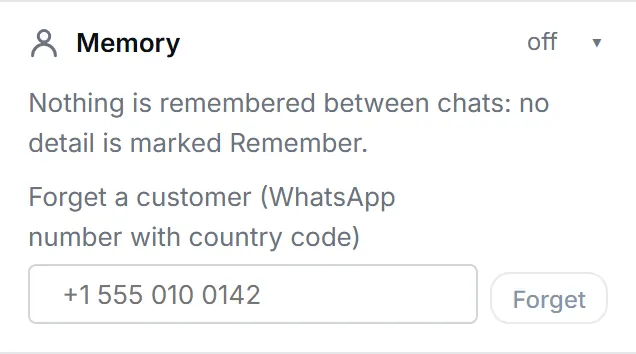
Summary: on when any detail is marked Remember, otherwise off. On, details marked Remember are kept for each customer for 90 days after their last chat. Forget a customer (WhatsApp number with country code) with Forget removes what is kept for one number, for example +1 503 555 0199; the answer is "Forgotten." or "Nothing was remembered for that number." Maple Street Dental remembers nothing, so it shows off.
Privacy
Summary: Optional, or Link set once you add one. Privacy policy link (optional), up to 500 characters. It is optional: leaving it empty gives no warning. If you give one, it must start with https://, or the build stops with "The privacy policy link must start with https://, or leave it empty." With a link set, the agent adds one line under the first reply each customer gets: "How we use your details: " and your link. It is sent once per customer (a later chat does not repeat it), and the line is added by SaleFlowPoint, not written by the AI, so the link is always exactly the one you typed. The test chat shows it on its first reply and in the trace. Maple Street Dental leaves it empty.
Chat settings
Summary: ends after N min. End the chat after this many quiet minutes (5-1,440): 30 by default. A chat that goes quiet for that long ends, timed from the customer's last message, and a chat-ended event goes to any webhook waiting for it; the next message starts a new chat. After the chat fields are filled when a chat ends. Maple Street Dental uses 30 (ends after 30 min).
Customer files
Summary: read or off. Read photos, PDFs and voice notes customers send lets this agent open what a customer sends: photos up to 5 MB, PDFs up to 10 MB and 10 pages, voice notes up to 5 minutes. It is saved at once (no Build needed). Each reading uses this number's AI tokens. Files are kept privately for 30 days, then deleted. Off, nothing is downloaded and the agent asks the customer to type it instead. New agents start with it off; agents made before this setting existed have it on, so they work as before.
WhatsApp number
Summary: the number's label, or its phone number, or none. This agent answers on picks one of your numbers, or No number yet. If the version is live but the number still uses API or Chatbot mode, the panel says so with a link: Switch it to Custom chatbot. Maple Street Dental answers on +1 503-555-0142 · Front desk.
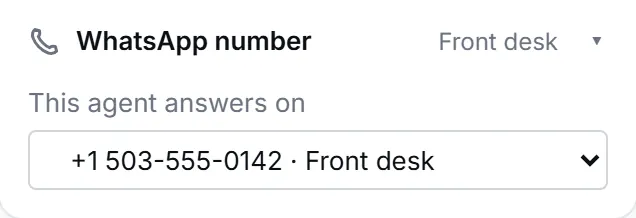
Worked example: connect a number to an agent.
Chats and results
What the AI filled in from each finished chat: the end time, then each field and its value (yes, no, or - when the chat did not say). With no After the chat fields it says "No after-chat fields set up. Add them under After the chat, then Build."; with fields but no finished chat yet, "No finished chats analysed yet." A Maple Street Dental row reads like: summary: Emily Carter booked a check-up and clean for Wednesday · needs_callback: no.

Call log
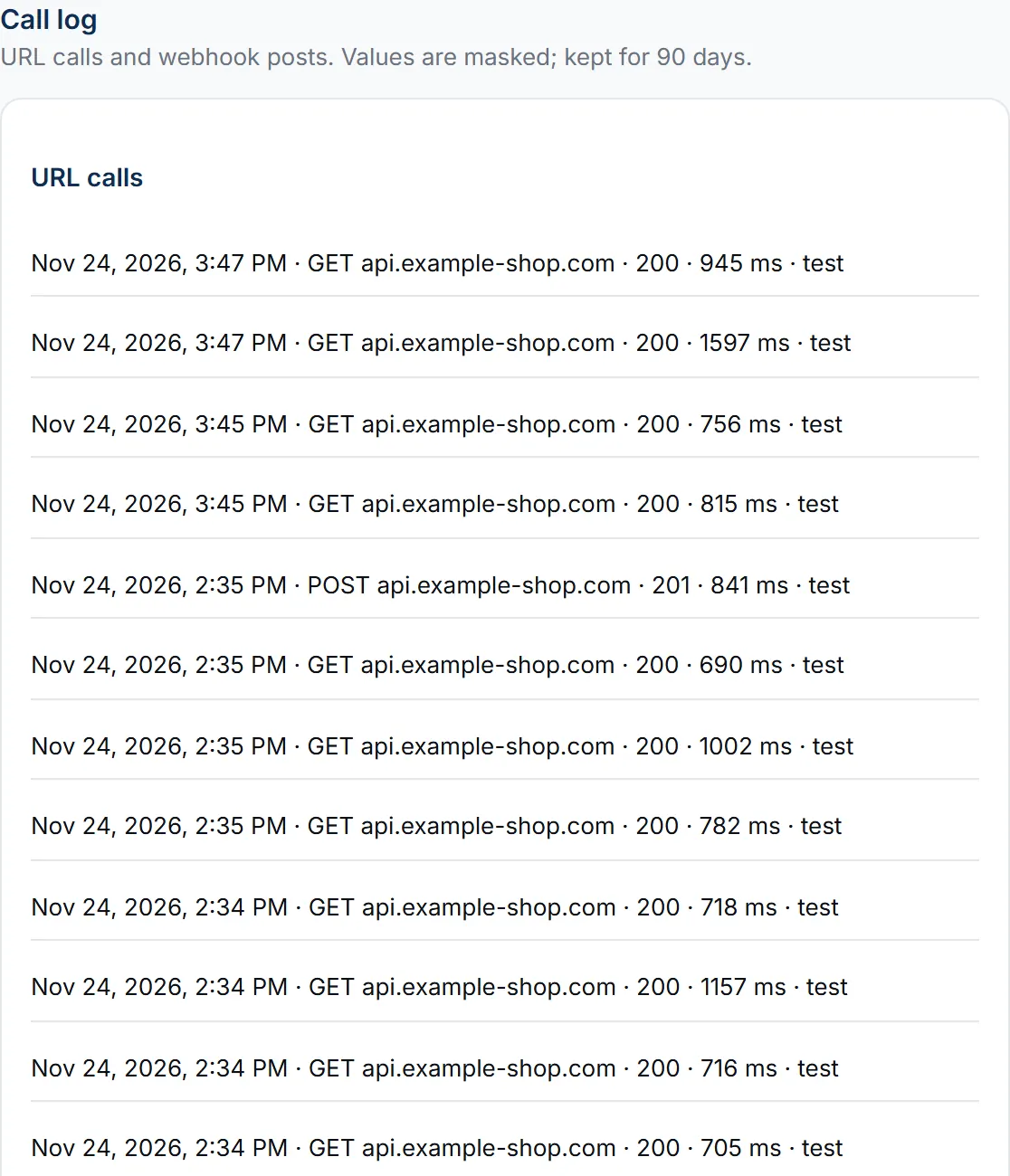
URL calls and webhook posts. Values are masked; kept for 90 days. URL calls shows the time, method, host, status (or the error), time taken in ms, and test for test-chat calls. Webhook posts shows the time, the event and delivered, pending or failed, with the last error; Resend sends a post again (not while it is pending).
Start again
In the test chat's header, ↺ (Start again) opens a fresh chat: the messages, a waiting yes, the details collected and the current step are cleared. Test memory for the test phone is kept, so it acts like the same customer coming back; Forget test memory clears that. ✕ closes the test chat. The header chip shows the version and dry run. The customer phone must be in +country format, for example +15035550199 (up to 16 characters).
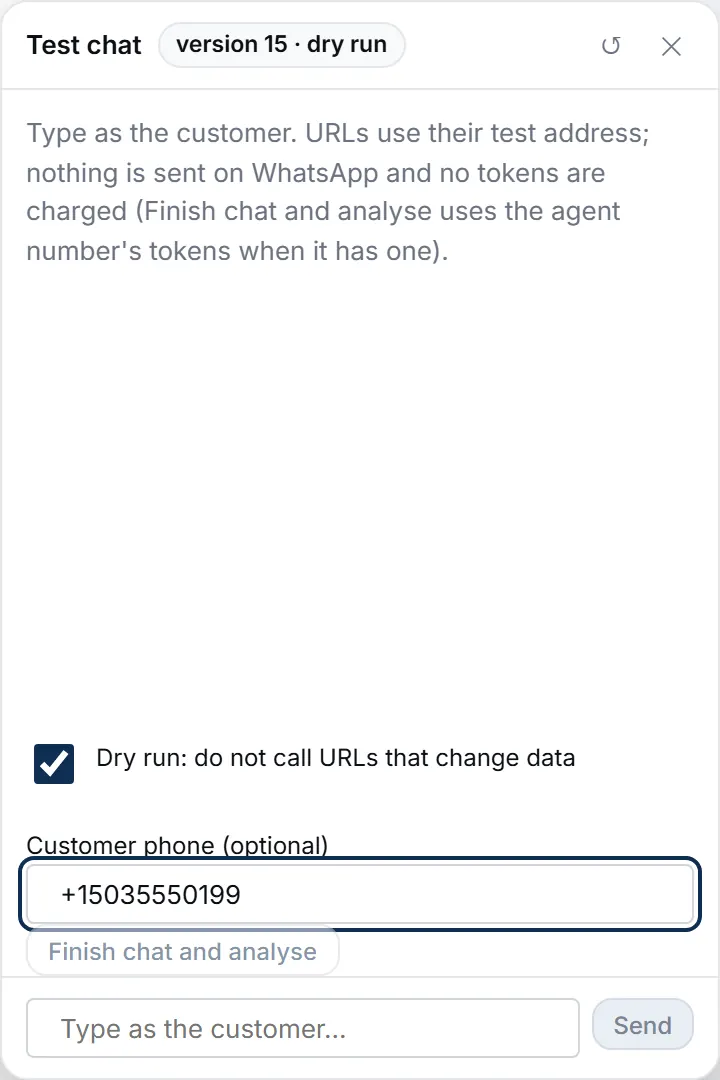
Worked example: build and test chat guide.
The test chat
Click Build agent first: the build checks the agent and lists anything to fix (blockers) or accept (warnings). Then open Test and type as the customer. URLs use their test address; nothing is sent on WhatsApp and no tokens are charged.
- Dry run (ticked by default): URLs that change data are not called; the trace shows what would be sent.
- Customer phone: the test number in +country format, for example +15035550199. The customer's phone inputs use it.
- The trace under each reply shows every URL called (with status and time), each write not sent but shown as a dry run until the yes, the documents used, the details saved and the step taken.
- Test memory: details marked Remember are kept for the test phone; Forget test memory clears them.
- Finish chat and analyse fills the After the chat fields, as a real chat would (it uses the agent number's tokens when it has one).
- Start again opens a fresh chat.
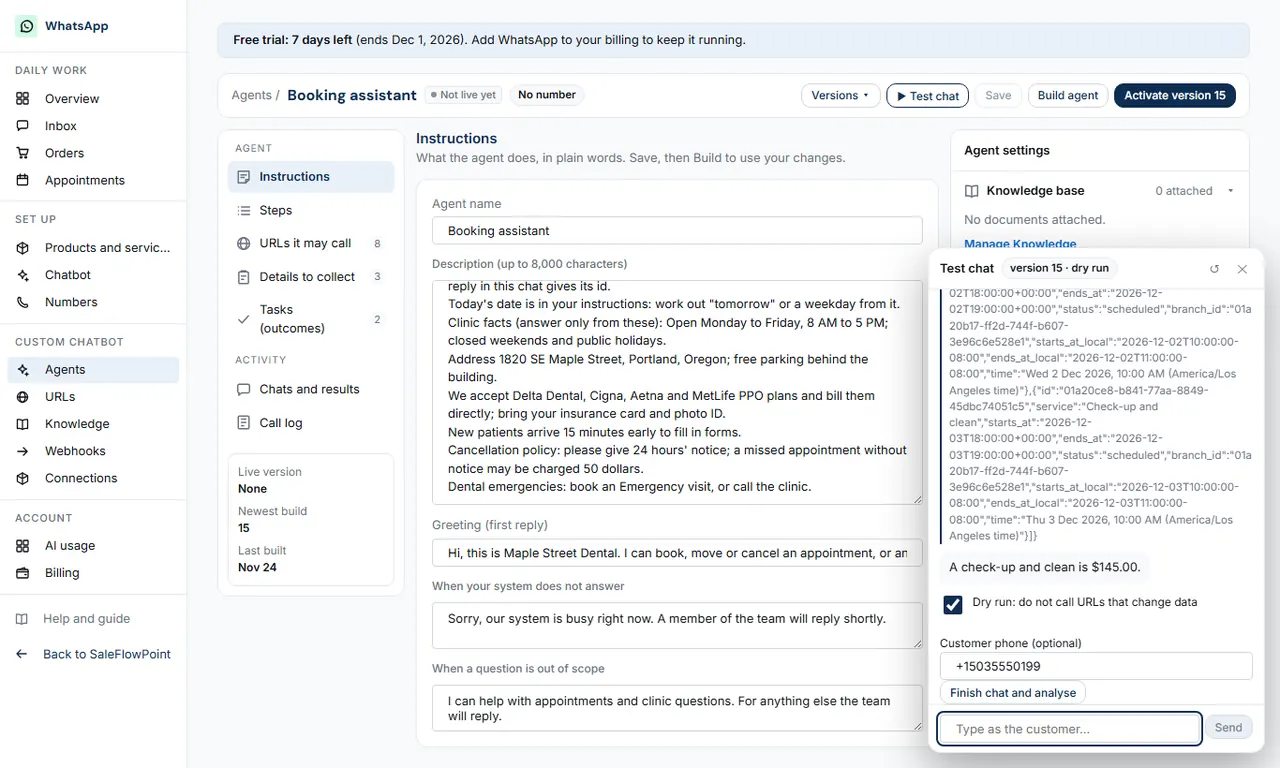
Example conversation: "Hi, how much is a check-up and clean?" - the agent calls list_services and answers with the price. "Do you have anything next Wednesday morning?" - it calls open_slots. "The first morning time please, any dentist. Emily Carter, routine check-up, returning patient" - it shows one summary and prepares book. "yes" - only then book runs, and the agent gives the booking id.
Going live
- Build agent. Fix every blocker and accept each warning.
- The first build is sent to SaleFlowPoint for a first check; the page shows Waiting for SaleFlowPoint's check.
- Activate the version. New chats use it at once; chats already open finish on theirs. Older versions can be activated again (Roll back).
- On WhatsApp > Numbers, switch the number to Custom chatbot and pick the agent under This agent answers on.
Pause on the agent stops every chat at once; customers get your fallback text. An agent that answers a number cannot be deleted: switch the number to another mode first.
AI usage and limits
Each custom chatbot number includes 30 million AI tokens per billing cycle. Above that, extra tokens are charged at the AI model's price plus 30%, up to the extra limit you set on WhatsApp > AI usage (the default limit is $0, so the agent pauses at the included amount). Reading Knowledge documents and Finish chat and analyse also count.
The company agent API
If you have no system of your own, the agent can use SaleFlowPoint's own data through the company agent API: branches, services, staff, open slots, bookings, products with stock, orders, invoices and payments. Use the same API key as the WhatsApp API. Every endpoint is in the agent API developer guide.
Worked examples
- A WhatsApp Chatbot That Uses Your Own System: Describe an agent in plain words and it answers WhatsApp by itself, looking up orders, stock and bookings in your own system, never inventing a price or fact.
- Build a WhatsApp Booking Agent for a Dental Clinic: Build a WhatsApp agent that lists services and prices, finds open times, books, moves and cancels visits after the patient says yes. Every value is included.
- Build a WhatsApp Order Agent for a Grocery Shop: Build a WhatsApp agent that finds products with live prices and stock, takes delivery or pickup orders after a yes and answers where is my order. Step by step.
- Build a WhatsApp Gift Shop Agent with Cash on Delivery: Build a WhatsApp gift finder for a UK toy shop: age, occasion and budget one question at a time, prices in pounds, stock, gift wrap and cash on delivery orders.
- Build a WhatsApp Agent for Invoices and Payments: Build a WhatsApp agent that shows a business customer's open invoices, balance, due dates and payments, explains how to pay and hands disputes to accounts.
- Build a WhatsApp Customer Support Agent: Build a WhatsApp support agent for an appliance shop: manual answers, step-by-step troubleshooting, warranty checks, repair requests after yes and a rating.
- Build a WhatsApp Lead Qualification Agent: Build a WhatsApp agent that qualifies solar leads one question at a time, saves a hot, warm or cold score, alerts sales on hot leads and books a survey call.
- Build a WhatsApp Feedback and Survey Agent: Build a WhatsApp agent that asks for a 1 to 5 rating and a comment after delivery, alerts a manager on a low score and asks happy customers for a review.
- Build a WhatsApp Onboarding and Training Agent: Build a WhatsApp onboarding agent for a gym: a step-by-step flow, guide PDFs as knowledge, a two-question quiz checked by the flow and progress remembered.
- A WhatsApp Agent Knowledge Base for Delivery and Returns: Write a short policy on delivery, returns and payment terms, add it under Knowledge, attach it to your agent, and see why reading a file needs a number.
- WhatsApp Agent Details to Collect and After-Chat Results: Set the details your WhatsApp agent picks up from a chat, such as a name or a delivery date, add tasks, and get after-chat results without reading every chat.
- Send WhatsApp Agent Events to Your Systems with Webhooks: Post agent events to your CRM or automation: pick the event, test with webhook.site, copy the signing secret once and check the delivery log after live chats.
- Build and Test a Business Central WhatsApp Agent Safely: Write the agent's instructions, build it, read the AI-check warnings, then use the test chat to check prices from Business Central and the customer's yes step.
- Connect a WhatsApp Number to Your Business Central Agent: Connect your WhatsApp Business number through Meta's sign-up, pick it in the agent, then activate a version so new chats use your Business Central agent.
- Business Central WhatsApp Agent: Setup and Connection: Register a Microsoft Entra app, grant API.ReadWrite.All, add it in Business Central, then save the login in SaleFlowPoint and keep the client secret in date.
- Add and Test Business Central URLs for a WhatsApp Agent: Add find_me, search_items and create_quote or create_order field by field: phone input, digits-only format, OData escaping, fields to keep and the yes step.
- How to Build an AI Sales Agent on Business Central: Customers ask for prices, stock, quotes and orders on WhatsApp, answered from Business Central, with the customer's yes before any write and no made-up prices.
Next: Daily work · All WhatsApp guide pages
Try WhatsApp free for 7 days
Register your shop, connect a WhatsApp Business number and start the trial.