Send WhatsApp Agent Events to Your Systems with Webhooks
Step 5 of the series: tell your team's system when a quote, order or lead happens
This guide is part of a series on a WhatsApp sales agent for Microsoft Business Central, built with SaleFlowPoint's custom chatbot (Mode 3). Every value below is the one we typed on our own demo account, so you can copy it and change only your own names and ids. The data is Microsoft's CRONUS USA demo company in our own Business Central sandbox, and the shops are invented: Summit Office Supply in Denver (quotes), Brightwater Furniture Co. in Charlotte (orders and order status) and Northgate Workspace in Minneapolis (answers only). Ids are shown as {tenant}, {environment} and {company}; amounts are in US dollars.
What the webhook does
A webhook posts an event to an address in your systems, for example your CRM, Power Automate, Zapier or your own server. Ours tells the sales team when a quote is made. For the demo we used a free test inbox at webhook.site: it is public, so we only sent invented demo data.
Add the webhook
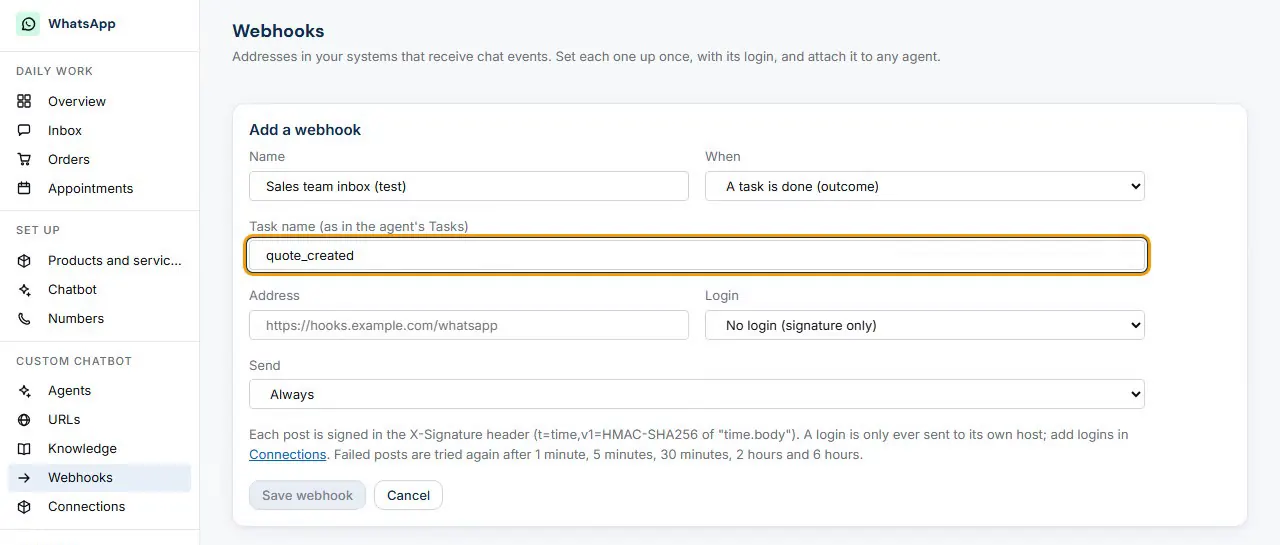
Open WhatsApp, then Webhooks, press Add webhook and fill in:
Name:      Sales team inbox (test)
When:      A task is done (outcome)
Task name: quote_created        (Brightwater: order_placed, Northgate: sales_lead)
Address:   https://webhook.site/{your-id}
Login:     No login (signature only)
Send:      Always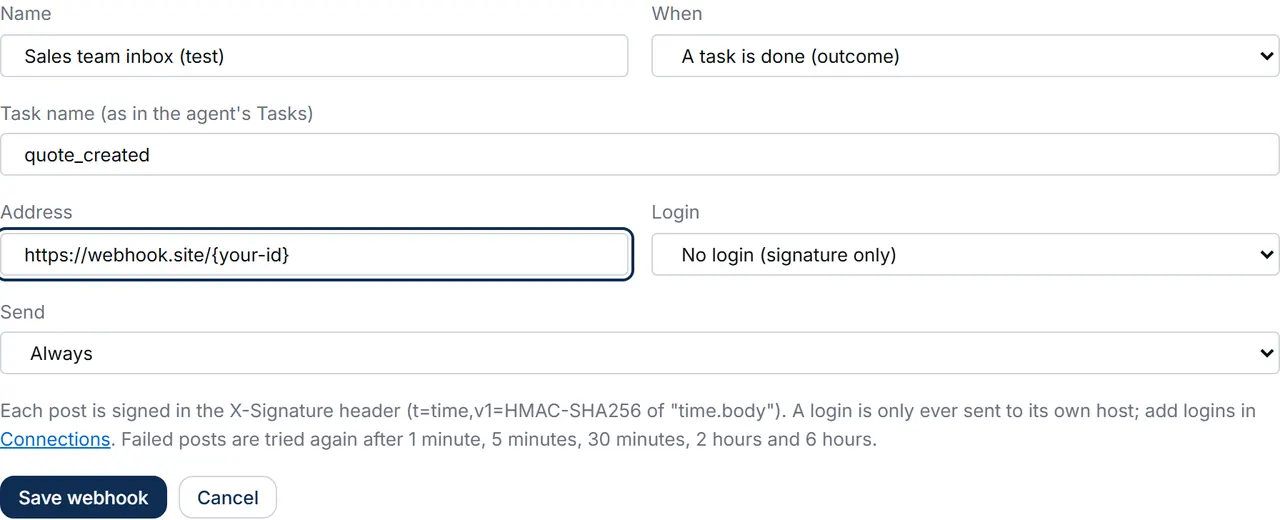
- When can also be: all required details collected, chat ended, customer asked for a person, a URL failed, or after-chat fields filled.
- Send can be Always, or only when a detail is saved, empty or compares with a value (for example only when a total is more than 1,000).
- Every post is signed in the X-Signature header: t=time,v1=HMAC-SHA256 of "time.body" with the signing secret. Check it in your system.
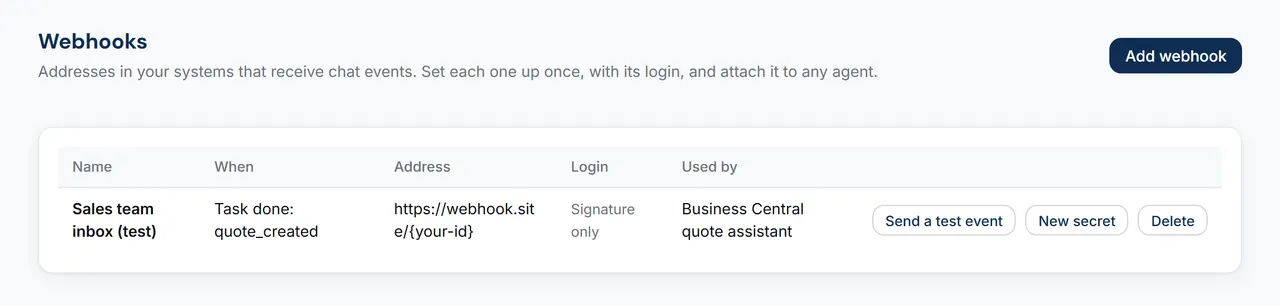
- Press Save webhook. The signing secret is shown once: copy it. New secret makes another; the old one keeps working for 24 hours.
- A failed post is tried again after 1 minute, 5 minutes, 30 minutes, 2 hours and 6 hours.
Attach it to the agent
In the agent, under Agent settings > Webhooks, choose Attach a webhook and pick Sales team inbox (test). The same webhook can serve several agents.

What your system receives
{
  "event": "outcome.quote_created",
  "event_id": "{event-id}",
  "agent": "Business Central quote assistant",
  "version": 1,
  "session_id": "{session-id}",
  "variables": {
    "contact_name": "Dana Miller",
    "project": "Denver office",
    "delivery_date": "2026-12-15"
  },
  "data": {},
  "time": "2026-11-23T21:14:05+00:00"
}
In the test chat the trace shows "Webhook outcome.quote_created would be sent"; only real WhatsApp chats really post. Every post and its answer is in the agent's Call log for 90 days, with Resend for a failed one.
Next step
Step 6: instructions, build and test chat: "Build and Test a Business Central WhatsApp Agent Safely"
The whole series
- Overview: what the agent does: "How to Build an AI Sales Agent on Business Central"
- The whole build on one page: "Connect Business Central to WhatsApp Step by Step"
- Step 1: the connection: "Business Central WhatsApp Agent: Setup and Connection"
- Step 2: the URLs: "Add and Test Business Central URLs for a WhatsApp Agent"
- Step 3: the knowledge base: "A WhatsApp Agent Knowledge Base for Delivery and Returns"
- Step 4: details, tasks and after-chat results: "WhatsApp Agent Details to Collect and After-Chat Results"
- Step 5: the webhook: "Send WhatsApp Agent Events to Your Systems with Webhooks" (this page)
- Step 6: instructions, build and test chat: "Build and Test a Business Central WhatsApp Agent Safely"
- Step 7: the WhatsApp number: "Connect a WhatsApp Number to Your Business Central Agent"
- A read-only stock and price agent: "Real-Time Stock and Prices in WhatsApp from Business Central"