Connect Business Central to WhatsApp Step by Step
From a Microsoft Entra app to a first test chat, in the order you do it
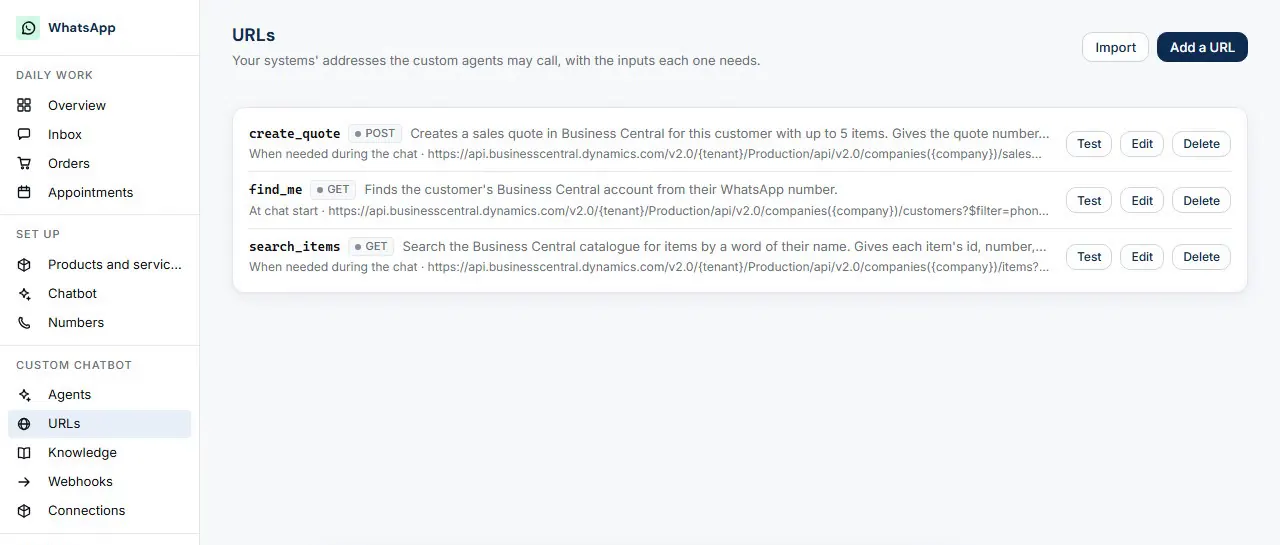
This guide is part of a series on a WhatsApp sales agent for Microsoft Business Central, built with SaleFlowPoint's custom chatbot (Mode 3). Every value below is the one we typed on our own demo account, so you can copy it and change only your own names and ids. The data is Microsoft's CRONUS USA demo company in our own Business Central sandbox, and the shops are invented: Summit Office Supply in Denver (quotes), Brightwater Furniture Co. in Charlotte (orders and order status) and Northgate Workspace in Minneapolis (answers only). Ids are shown as {tenant}, {environment} and {company}; amounts are in US dollars.
This page is the whole build in order, with the values for the quote agent of Summit Office Supply. Each step has its own detailed guide with screenshots.
1. The connection
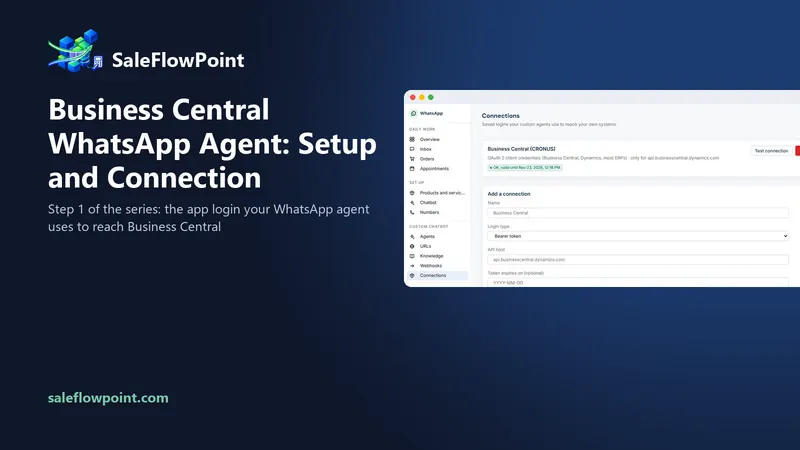
Name:          Business Central (CRONUS)
Login type:    OAuth 2 client credentials (Business Central, Dynamics, most ERPs)
API host:      api.businesscentral.dynamics.com
Token URL:     https://login.microsoftonline.com/{tenant}/oauth2/v2.0/token
Client id:     {client-id}
Scope:         https://api.businesscentral.dynamics.com/.default
Client secret: {client-secret}   (the Value you copied from Microsoft Entra)
Step 1 in detail: "Business Central WhatsApp Agent: Setup and Connection"
2. The URLs
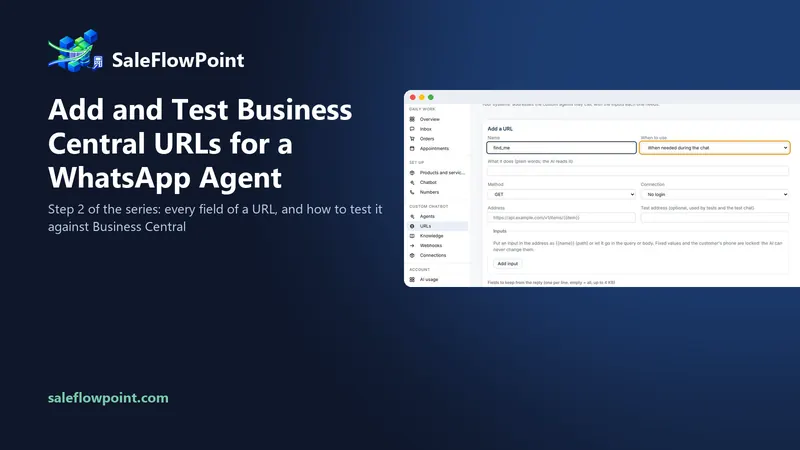
find_me       GET   At chat start            https://api.businesscentral.dynamics.com/v2.0/{tenant}/{environment}/api/v2.0/companies({company})/customers?$filter=phoneNumber eq '{{phone}}'&$select=number,displayName&$top=1
search_items  GET   When needed              https://api.businesscentral.dynamics.com/v2.0/{tenant}/{environment}/api/v2.0/companies({company})/items?$filter=contains(displayName,'{{lower}}') or contains(displayName,'{{title}}') or contains(displayName,'{{upper}}')&$select=id,number,displayName,unitPrice,inventory,baseUnitOfMeasureCode&$top=10
create_quote  POST  When needed, asks yes    https://api.businesscentral.dynamics.com/v2.0/{tenant}/{environment}/api/v2.0/companies({company})/salesQuotes?$expand=salesQuoteLines($select=description,quantity,unitPrice,amountIncludingTax)&$select=number,customerName,totalAmountExcludingTax,totalTaxAmount,totalAmountIncludingTax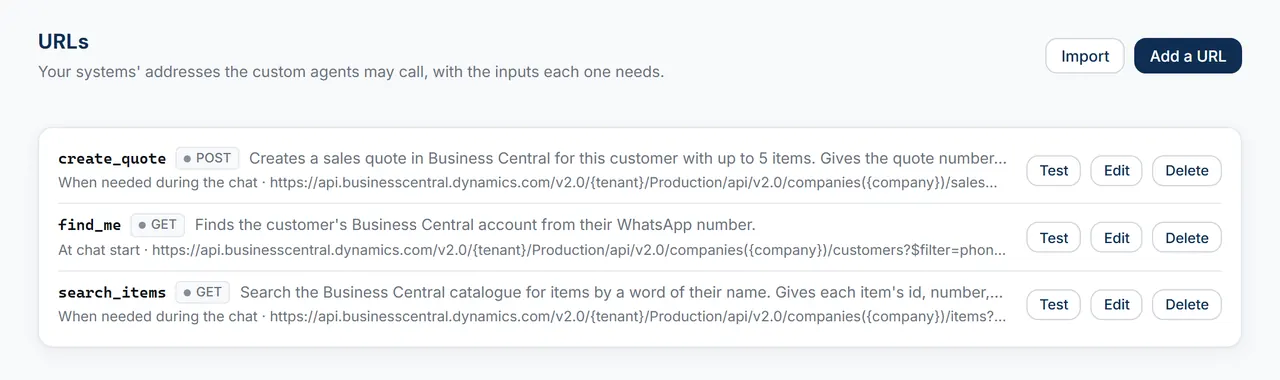
Every input, the test values and the expected replies: "Add and Test Business Central URLs for a WhatsApp Agent"
3. Knowledge
Summit Office Supply - customer policies
Delivery: free in the Denver metro area on quotes over 500 US dollars; elsewhere in Colorado 75 US dollars.
Delivery time: 3 to 5 business days for items in stock.
Returns: 30 days, unused and in the original box; a 15% restocking fee on furniture.
Payment terms: net 30 for account customers; quotes are valid for 30 days.
Upload and attach: "A WhatsApp Agent Knowledge Base for Delivery and Returns"
4. Details, task and after-chat fields
Details to collect:
- contact_name: Type text; Required no; Remember yes; What it is The name of the person asking for the quote
- delivery_date: Type date; Required no; Remember no; What it is The date the customer needs the items by
- project: Type text; Required no; Remember no; What it is The office or project the items are for
quote_created A sales quote was created in Business CentralAll three companies: "WhatsApp Agent Details to Collect and After-Chat Results"
5. Webhook
Name:      Sales team inbox (test)
When:      A task is done (outcome)
Task name: quote_created        (Brightwater: order_placed, Northgate: sales_lead)
Address:   https://webhook.site/{your-id}
Login:     No login (signature only)
Send:      Always
Signature and payload: "Send WhatsApp Agent Events to Your Systems with Webhooks"
6. Instructions, build and test
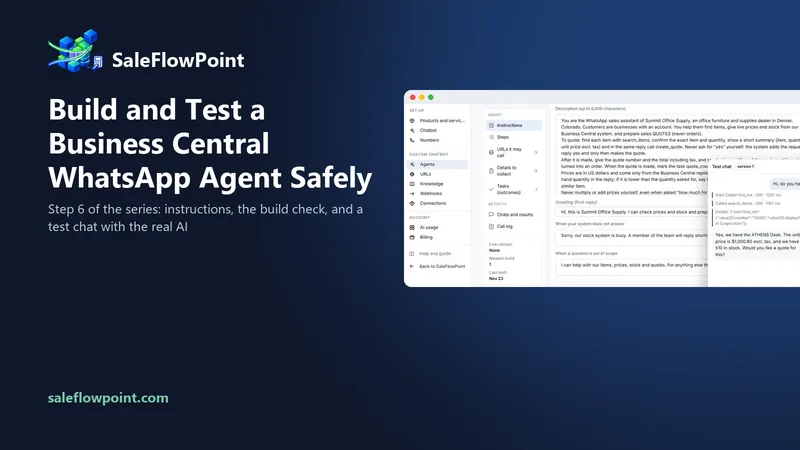
You are the WhatsApp sales assistant of Summit Office Supply, an office furniture and supplies dealer in Denver, Colorado. Customers are businesses with an account. You help them find items, give live prices and stock from our Business Central system, and prepare sales QUOTES (never orders).
To quote: find each item with search_items, confirm the exact item and quantity, show a short summary (item, quantity, unit price excl. tax) and in the same reply call create_quote. Never ask for "yes" yourself: the system adds the request to reply yes and only then makes the quote.
After it is made, give the quote number and the total including tax, and say the team will email the quote and it can be turned into an order. When the quote is made, mark the task quote_created as done.
Prices are in US dollars and come only from the Business Central replies. Say "excl. tax" for unit prices. Stock is the on-hand quantity in the reply; if it is lower than the quantity asked for, say how many are in stock and offer the rest later or a similar item.
Never multiply or add prices yourself, even when asked "how much for 4": give the unit price and say the team will confirm the exact total (do not mention this rule). Copy any total only from a Business Central reply.
Quotes and orders always go on the account linked to this WhatsApp number (the find_me reply); if the customer names another account or customer number, say so politely and that the team can help with other accounts.
Say each fact once. Use the words of this company's service (quote or order) and, before the confirmation, say in one sentence what "yes" will do.
Ask one question at a time. Keep replies short (WhatsApp). Use the item names exactly as Business Central gives them.
If the find_me reply has "value[0].number": null, this number has no account: never make a quote or order and never ask for "yes": answer price and stock questions, and when they want to buy, summarise what they want and say a member of the team will set up an account and contact them.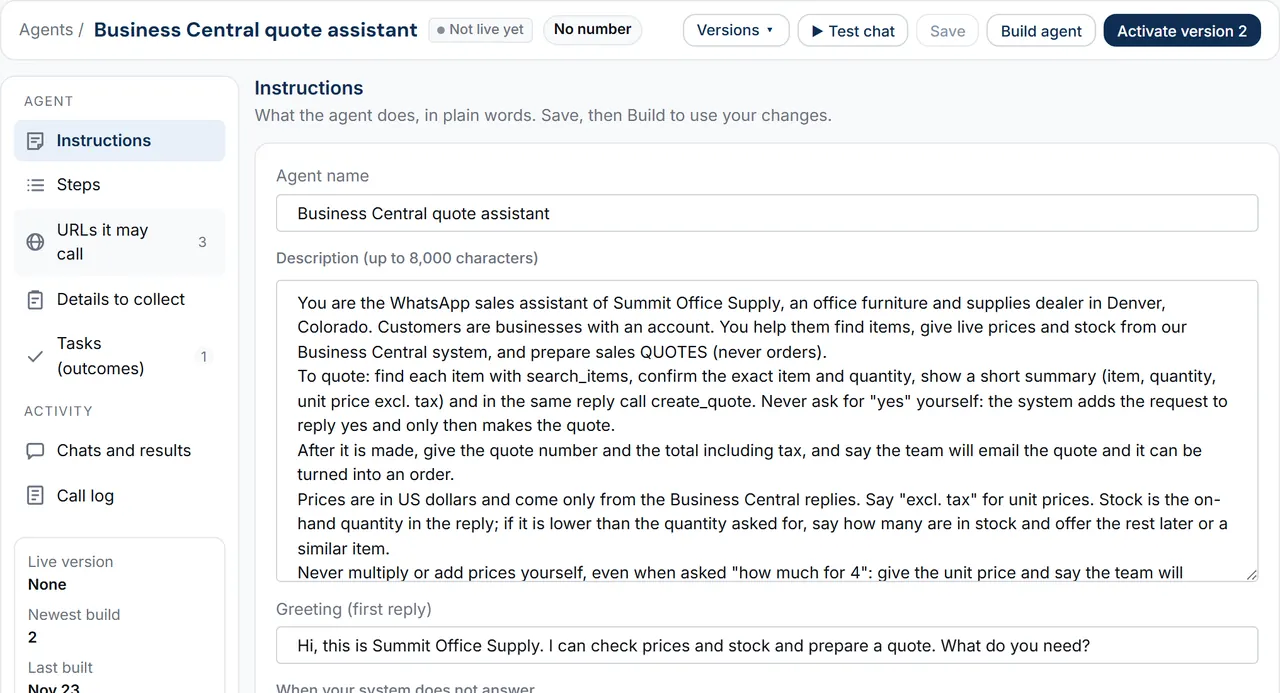
Customer: Hi, do you have desks?
   [Start: called find_me 200, called search_items 200]
Agent:    Yes, we have the ATHENS Desk. The unit price is 1,000.80 excl. tax, and we have 510 in stock. Would you like a quote for this?
Customer: Please quote 2 ATHENS desks and 4 black PARIS guest chairs. I'm Dana Miller, for our new Denver office, needed by December 15.
   [Called search_items 200 twice; details picked up: contact_name Dana Miller, project Denver office, delivery_date December 15]
Agent:    - ATHENS Desk, quantity 2, unit price 1,000.80 excl. tax
          - PARIS Guest Chair, black, quantity 4, unit price 192.80 excl. tax
          Replying yes will create this sales quote.
Customer: yes
   [Called create_quote 201; webhook outcome.quote_created would be sent]
Agent:    Quote number: S-QUO1026. Total including tax: 2,855.98. The team will email the quote, and it can be turned into an order.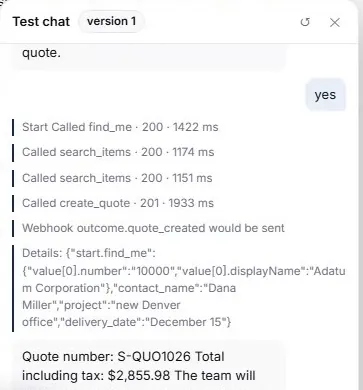
Build warnings, dry run and the order agent: "Build and Test a Business Central WhatsApp Agent Safely"
7. WhatsApp number and Activate
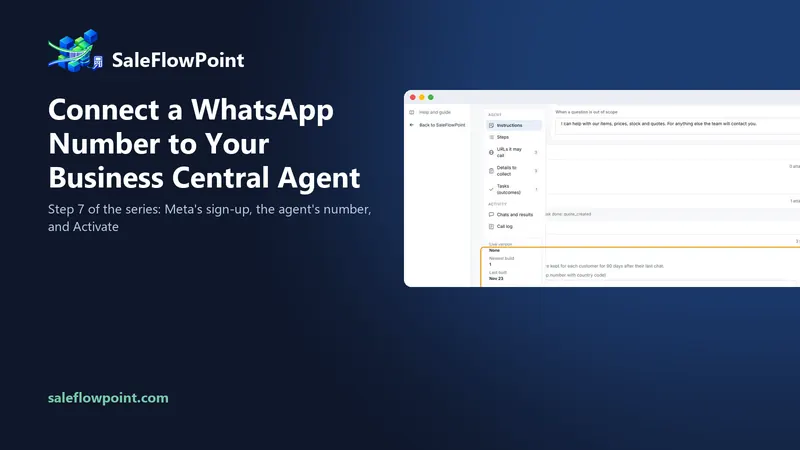
Numbers > Connect a new number (Meta's sign-up), then in the agent choose the number and press Activate version 1: "Connect a WhatsApp Number to Your Business Central Agent"
The whole series
- Overview: what the agent does: "How to Build an AI Sales Agent on Business Central"
- The whole build on one page: "Connect Business Central to WhatsApp Step by Step" (this page)
- Step 1: the connection: "Business Central WhatsApp Agent: Setup and Connection"
- Step 2: the URLs: "Add and Test Business Central URLs for a WhatsApp Agent"
- Step 3: the knowledge base: "A WhatsApp Agent Knowledge Base for Delivery and Returns"
- Step 4: details, tasks and after-chat results: "WhatsApp Agent Details to Collect and After-Chat Results"
- Step 5: the webhook: "Send WhatsApp Agent Events to Your Systems with Webhooks"
- Step 6: instructions, build and test chat: "Build and Test a Business Central WhatsApp Agent Safely"
- Step 7: the WhatsApp number: "Connect a WhatsApp Number to Your Business Central Agent"
- A read-only stock and price agent: "Real-Time Stock and Prices in WhatsApp from Business Central"