Business Central
Connect a WhatsApp Number to Your Business Central Agent
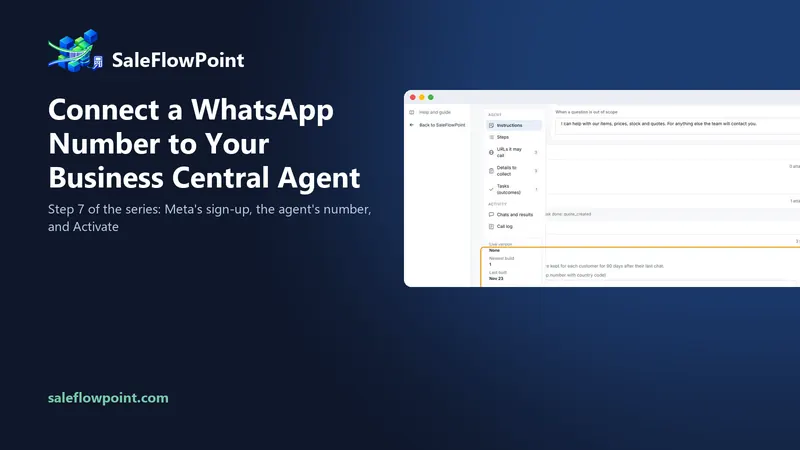
Connect your WhatsApp Business number through Meta's sign-up, pick it in the agent, then activate a version so new chats use your Business Central agent.


Blog
A WhatsApp sales agent on Microsoft Business Central, step by step.
Connect your WhatsApp Business number through Meta's sign-up, pick it in the agent, then activate a version so new chats use your Business Central agent.
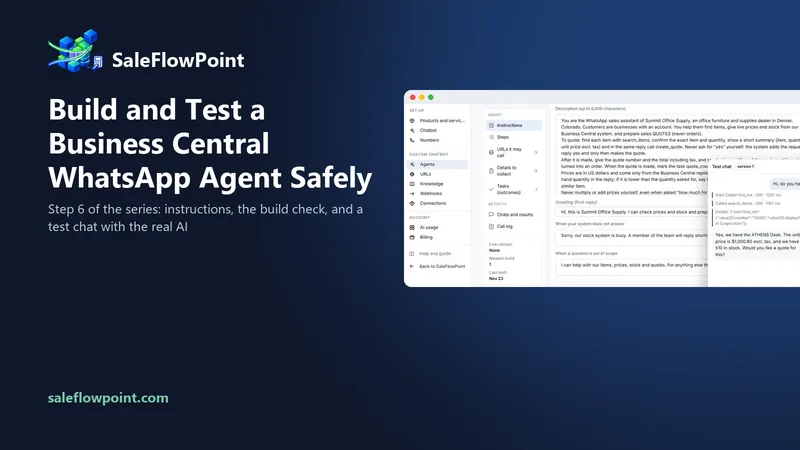
Write the agent's instructions, build it, read the AI-check warnings, then use the test chat to check prices from Business Central and the customer's yes step.
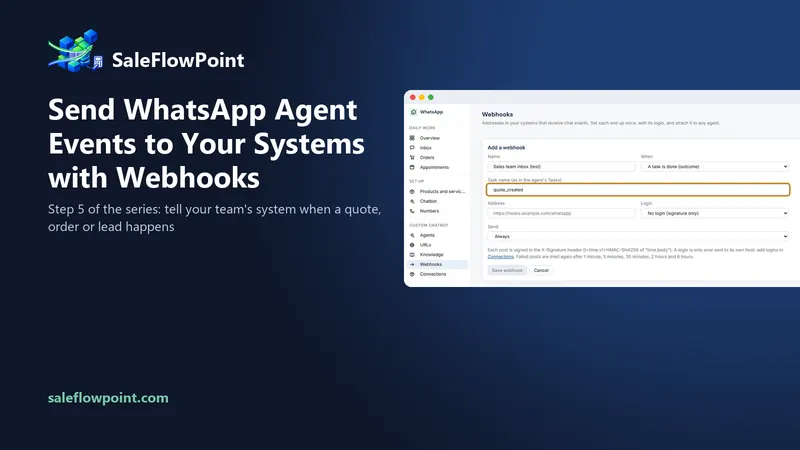
Post agent events to your CRM or automation: pick the event, test with webhook.site, copy the signing secret once and check the delivery log after live chats.
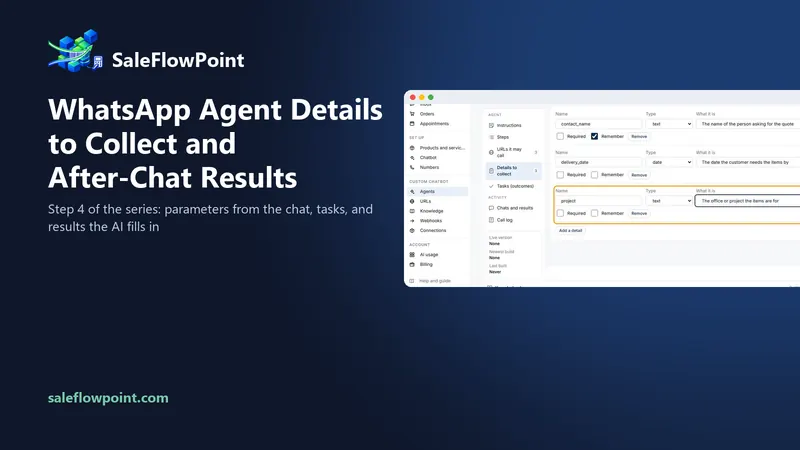
Set the details your WhatsApp agent picks up from a chat, such as a name or a delivery date, add tasks, and get after-chat results without reading every chat.
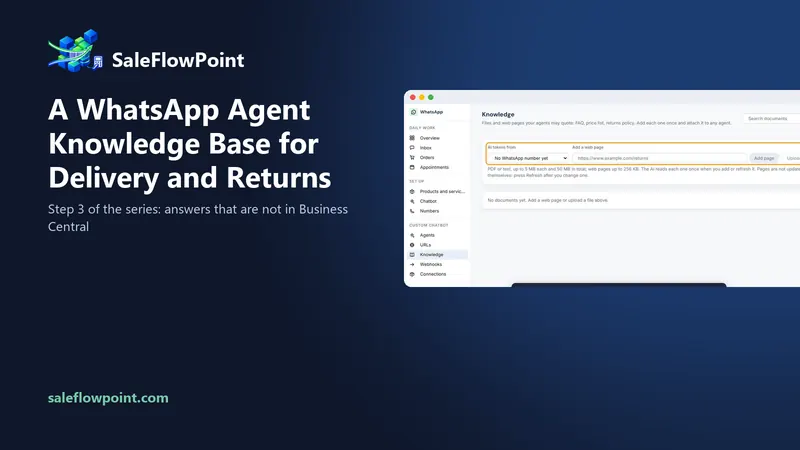
Write a short policy on delivery, returns and payment terms, add it under Knowledge, attach it to your agent, and see why reading a file needs a number.
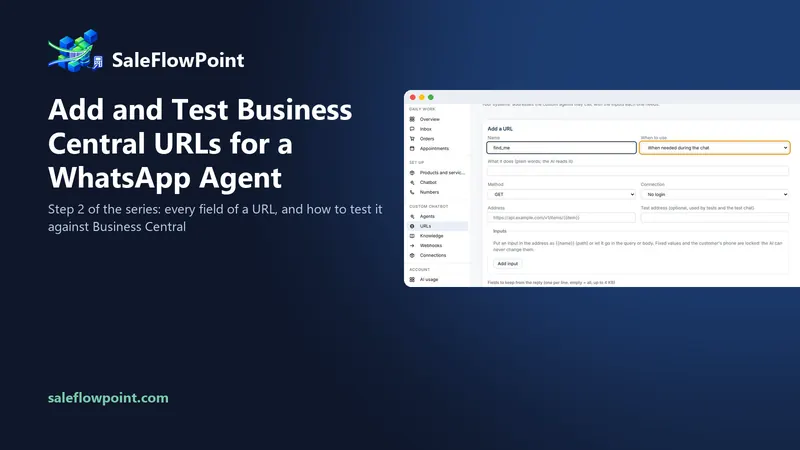
Add find_me, search_items and create_quote or create_order field by field: phone input, digits-only format, OData escaping, fields to keep and the yes step.
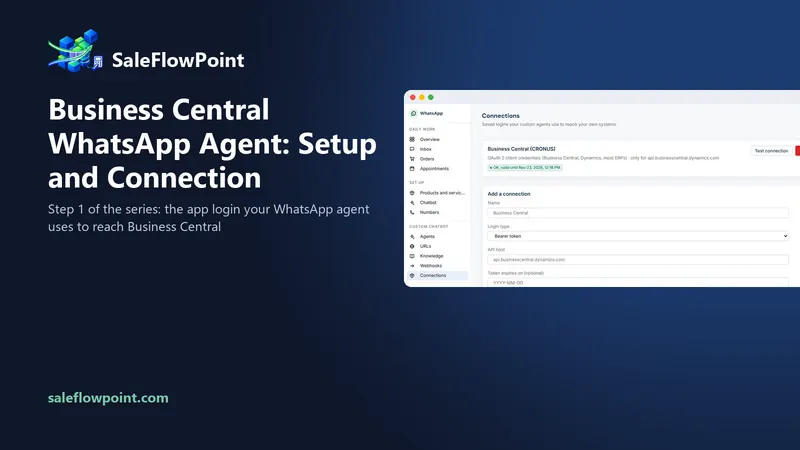
Register a Microsoft Entra app, grant API.ReadWrite.All, add it in Business Central, then save the login in SaleFlowPoint and keep the client secret in date.
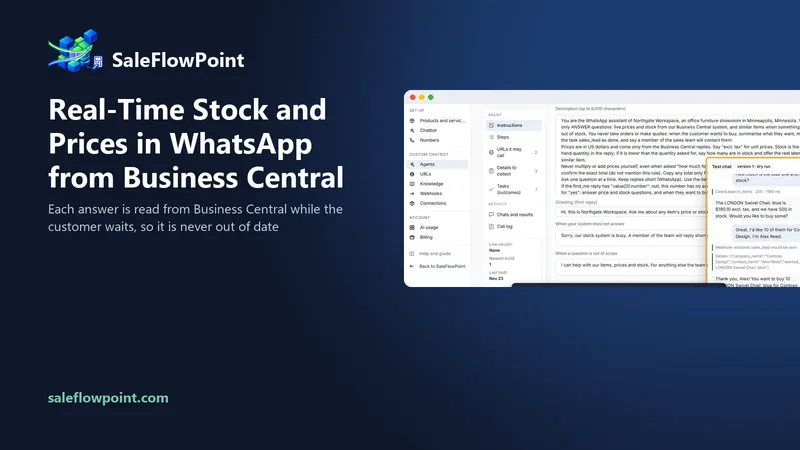
How a WhatsApp AI agent finds Business Central items, copes with case and apostrophes, answers when stock is short, and takes every price and total from BC.
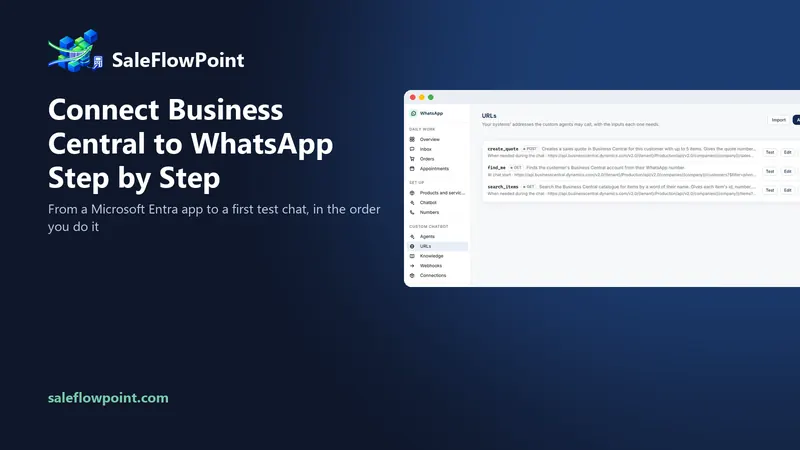
Set up a Microsoft Entra app, give it Business Central API access, add it inside Business Central, then create the Connection and URLs for a WhatsApp AI agent.
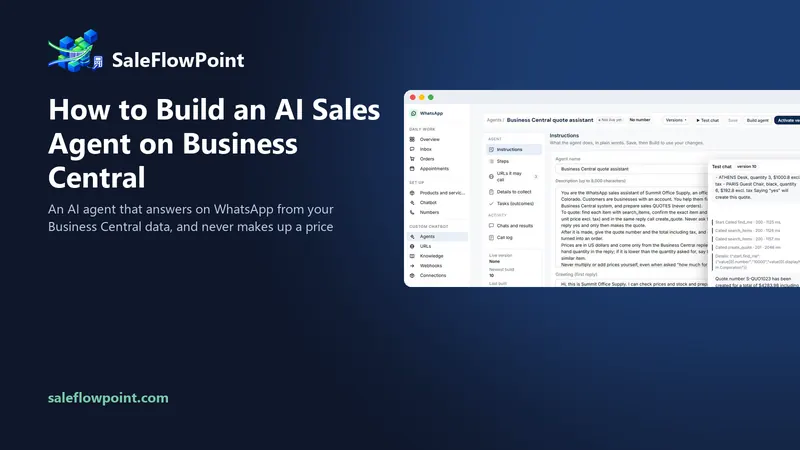
Customers ask for prices, stock, quotes and orders on WhatsApp, answered from Business Central, with the customer's yes before any write and no made-up prices.
One shop and one till free, with no time limit and no card to sign up.